To reduce distractions for studying and work, set up Focus/Do Not Disturb (DND) as a rule-based filter: allow only essential people and apps, silence everything else, and schedule it automatically. The best setup combines device-level Focus/DND, browser notification controls, and a simple timing routine so you can enter and exit deep work reliably.
Core principles for tailoring Focus / Do Not Disturb
- Start with a strict allowlist (people + apps), not a long blocklist.
- Use schedules (time, calendar, location, app) so Focus turns on without willpower.
- Separate profiles for "study" vs "work" to avoid conflicting priorities.
- Minimize visual triggers: hide badges, reduce Lock Screen clutter, simplify Home Screen.
- Keep one "break-glass" contact path for truly urgent calls/messages.
- Review once a week: remove noisy apps, tighten exceptions, fix missed alerts.
| Platform | What you can control well | Best trigger options | Common pitfall |
|---|---|---|---|
| iOS (Focus) | People/app allowlists, Lock Screen pages, Focus Filters | Time, location, app, calendar/Shortcuts | Allowing too many apps "just in case" |
| Android (DND / Focus mode) | Notification categories, exceptions, per-app behavior | Schedules, app timers, routines (varies by brand) | OEM differences hide key toggles in different menus |
| Windows (Focus / Focus Assist) | Notification suppression, priority list, sessions | Clock app sessions, schedules, full-screen auto rules | Teams/Slack still popping via in-app notifications |
| macOS (Focus) | Allowed notifications, Focus Filters, per-device sharing | Schedule, location, app, shortcuts | Focus not shared across devices due to iCloud settings |
| Browsers | Site permissions, quiet notification prompts, extensions | Per-site rules, profiles, workspace sessions | Old "Allowed" sites continue sending noise |
iOS: configuring Focus modes, filters and Lock Screen ties
Who it's for: iPhone/iPad users who need predictable "quiet windows" for classes, reading, writing, coding, or meetings. It's especially effective if you already live in Apple apps (Calendar, Reminders, Mail) and want Focus to react automatically.
When not to rely on it: if you must respond to real-time operations (support/on-call) or you share a device with others; instead, use a lighter profile and communicate availability.
- Create two separate Focus modes (Study / Work): Go to Settings > Focus, add distinct modes so rules don't fight each other. This is the cleanest way to do ตั้งค่าโหมดโฟกัส iPhone สำหรับเรียน without breaking your work alerts.
- Set People and Apps allowlists: Allow only your key contacts (family/manager) and essential apps (LMS, authenticator, calendar). Turn on "Allow Repeated Calls" only if you truly need it.
- Link a dedicated Lock Screen and Home Screen page: Assign a minimal Lock Screen and hide distracting pages (games/social). This reduces "just checking" loops.
- Use Focus Filters for context: Filter Mail/Calendar to show only study/work accounts and hide personal noise. Keep filters minimal so you don't miss critical items.
- Add an automation trigger: Schedule by time (e.g., 25/50/90-minute blocks), by location (library/office), or when opening a specific app (Notes, Docs).
Example preset (Work Focus): For วิธีตั้งค่า Do Not Disturb iPhone ให้เหมาะกับทำงาน, allow: boss + immediate team; apps: Calendar, Mail/Outlook, Slack/Teams (mentions only if available), Authenticator; hide all social apps; schedule weekdays during office hours; set a minimalist Lock Screen without widgets that pull attention.
Android: manufacturer variations and optimal DND profiles
What you'll need: access to system notification settings, permission to control DND (some automation apps request it), and awareness of brand-specific menus (Pixel vs Samsung vs Xiaomi). For ตั้งค่าโหมดโฟกัส Android สำหรับทำงาน, confirm your Android version and OEM skin because option names differ.
- System access: Settings access for Notifications, Do Not Disturb, and App notifications (including categories/channels).
- Calendar integration (optional): permission for DND to follow events labeled "Study" or "Busy" (varies by brand/apps).
- Automation tools (optional): built-in Routines (Samsung), Digital Wellbeing Focus mode, or trusted automation (only if you're comfortable granting DND control).
- Find your DND entry point: Settings > Notifications > Do Not Disturb (or Sound & vibration). On Samsung, it may be under Notifications or Sounds.
- Define exceptions first: Allow calls/messages from starred contacts, and decide whether alarms and reminders should break through.
- Control app notification categories: For chat apps, allow only "direct messages" or "mentions" categories if supported; silence "marketing" and "community" categories.
- Add a schedule or Routine: Set time-based rules for weekdays, plus optional location/app triggers when available.
- Pair with Focus Mode / App timers: Use Digital Wellbeing Focus mode to pause distracting apps during study/work blocks.
Example preset (Samsung Study): For วิธีตั้งค่าโหมดห้ามรบกวน Samsung สำหรับเรียน, enable DND with exceptions for family calls and alarms, silence all app notifications except calendar and the learning app, and add a schedule for class hours. Then pause social apps via Digital Wellbeing so they're inaccessible during the block.
Windows & macOS: concentration features, Quiet Hours and Focus Assist
-
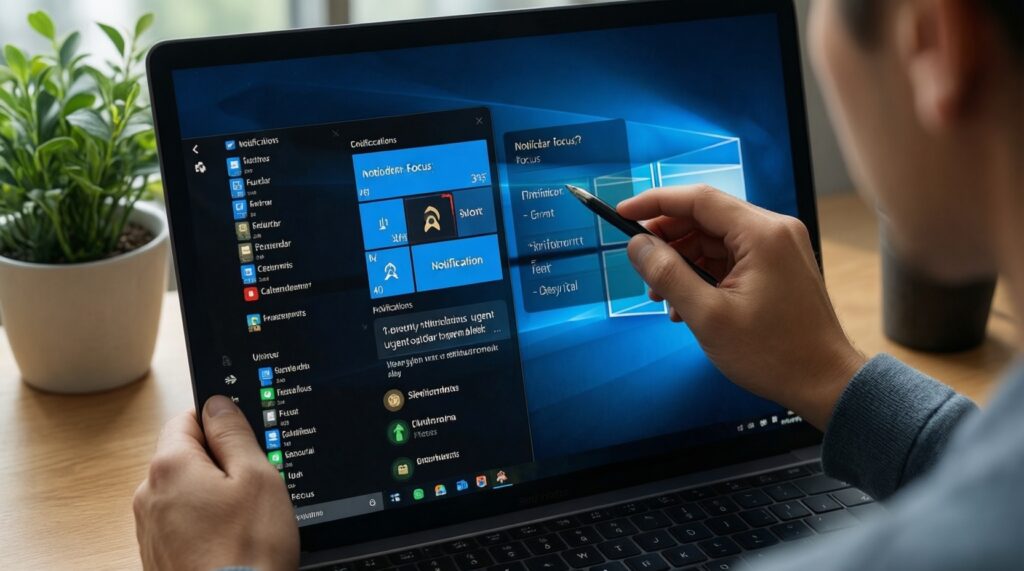
Windows: turn on Focus and pick what breaks through
Open Settings > System > Notifications > Focus (or Focus Assist depending on version). Choose a mode that hides notifications, then define a priority list for truly urgent apps/contacts.
- Allow: calendar alerts, critical security prompts, essential chat (priority only).
- Silence: news, social, promotional notifications, non-urgent channels.
-
Windows: use Focus sessions for timed work blocks
Use the Clock app's Focus sessions (or the built-in Focus timer) and run 25/50/90-minute cycles. This makes the quiet period explicit and repeatable.
- Set a short break between sessions to avoid burnout scrolling.
- End-of-session: decide the next task before disabling Focus.
-
macOS: configure Focus and allowed notifications
Go to System Settings > Focus. Create Study and Work profiles, set allowed people and apps, and decide whether time-sensitive notifications are permitted.
- Keep allowed apps minimal; prefer calendar + the one communication tool you truly need.
-
macOS: add Focus Filters and (optionally) share across devices
Use Focus Filters to reduce cross-context noise (e.g., hide personal mailbox during Work). If you want the same Focus on iPhone/iPad and Mac, enable sharing across devices in iCloud/Focus settings.
-
Validate with a controlled test
Send yourself one test message from an allowed contact and one from a non-allowed contact, then trigger a non-essential app notification. Adjust until only the intended alerts appear.
Fast mode (3-5 steps)
- Create two profiles: Study and Work on every device you use daily.
- Allowlist only essentials: 1-3 people, 3-6 apps; silence the rest.
- Schedule it: fixed times + app trigger (Notes/Docs) if available.
- Harden the browser: block site notifications and mute noisy tabs.
- Run a timed block: 50 minutes focused, short break, repeat.
Browsers, web apps and notifications: mute, site controls and extensions
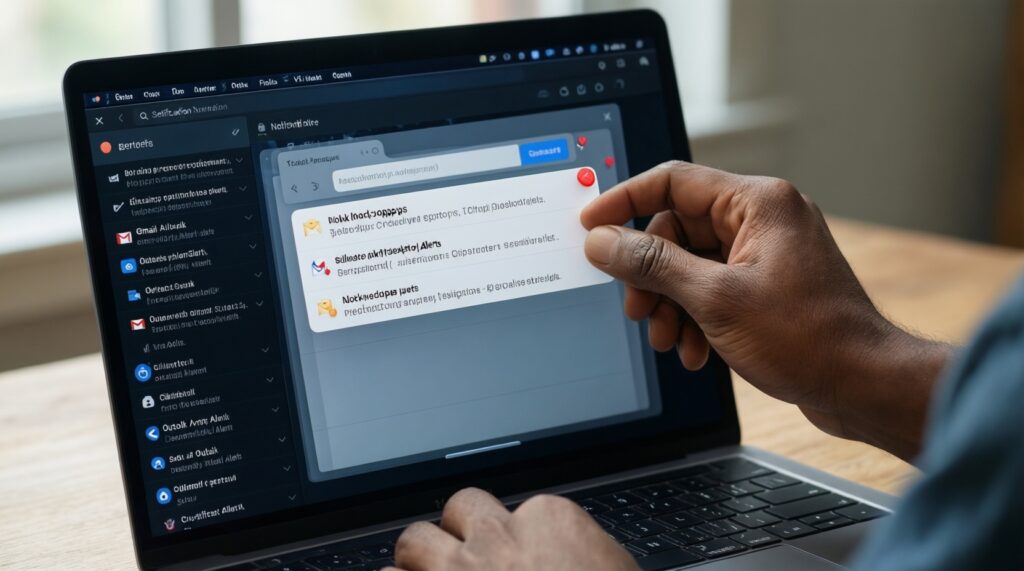
- Browser settings: set site notifications to "Blocked" by default; remove any old "Allowed" entries you don't need.
- Turn on quieter permission prompts so websites stop nagging you to enable notifications.
- For Gmail/Outlook web: disable desktop notifications unless you're on an on-call shift.
- For Slack/Teams web: disable "all messages" popups; keep only direct mentions if needed.
- Mute noisy tabs (music/news) and pin only essential work tabs.
- Use separate browser profiles: one for study/work (minimal extensions), one for personal browsing.
- Audit extensions monthly; remove anything that injects notifications, deals, or popups.
- If you use แอปโฟกัสและบล็อกสิ่งรบกวนสำหรับเรียนและทำงาน, confirm it doesn't require risky permissions beyond site blocking and schedule control.
Automation and scheduling: calendars, shortcuts and cross‑device sync
- Too many exceptions: Allowing "just one more app" usually recreates the original distraction problem.
- Wrong channel/category settings: On Android, you silenced the app but left a loud category enabled (e.g., "promotions").
- Calendar mismatch: Focus doesn't trigger because events aren't marked busy or are on a different calendar/account.
- Cross-device desync: Focus isn't shared because device sharing/iCloud sync is off, or you created profiles on one device only.
- Automation conflicts: Two schedules overlap (e.g., Study ends when Work begins) and the device flips states unexpectedly.
- Silent-but-still-visible distractions: Notifications are silenced, but badges remain; your eye still gets pulled.
- In-app notifications bypassing system controls: Some apps show banners inside the app even when system notifications are off; adjust in-app settings too.
- Forgetting "break mode": You exit Focus and then keep doomscrolling; add a short, defined break timer.
Study vs. work templates: concrete presets and timing strategies
-
Deep study template (reading/problem sets):
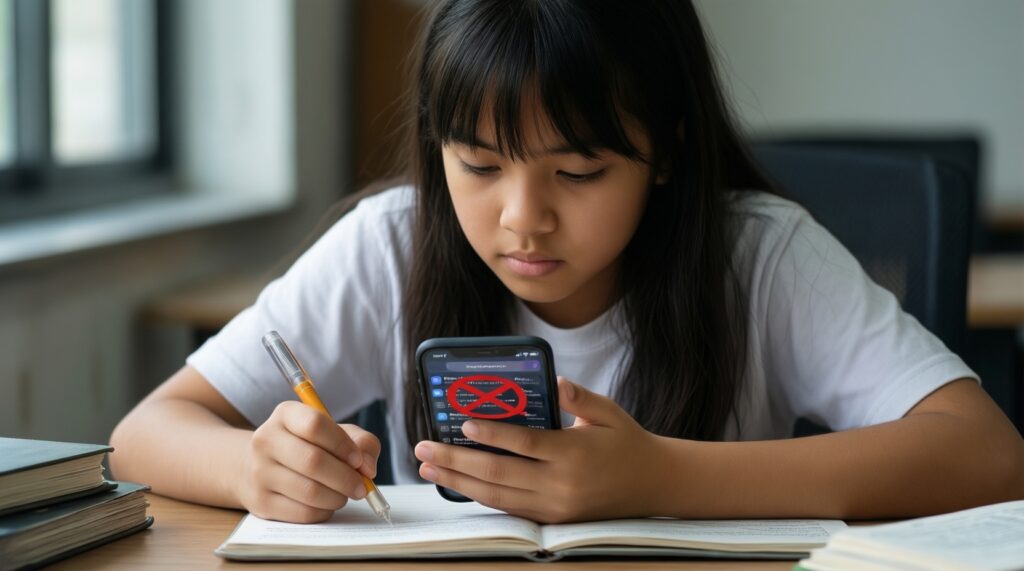
Use a strict Study Focus, allow only alarms + one emergency contact, block social apps, and run 50/10 or 90/15 cycles. Use this when you need memory and comprehension more than responsiveness. -
Meeting-heavy work template (coordination):
Allow Calendar + one chat tool, restrict to mentions/DMs, and schedule Focus to turn off briefly between meetings for message triage. Use this when you must stay aligned but still avoid constant interruption. -
Creative work template (writing/design):
Silence everything, hide badges, use a minimal desktop/home screen, and keep only your editor and reference tabs. Use this when context switching is especially expensive. -
Light focus template (availability required):
Keep calls/messages from key groups allowed, silence non-human noise (promotions/news), and use shorter 25-minute blocks. Use this when you're partially on duty but still need progress.
Practical answers for common glitches and edge cases
Why do I still get notifications during Focus/DND?
Check for time-sensitive/critical alerts, repeated calls, and app-specific in-app banners. Also confirm you didn't allow the app (or a notification category) in your exceptions.
My alarms or calendar reminders are silent-how do I fix it safely?
In DND/Focus settings, explicitly allow alarms and your calendar app. Then run a test reminder before relying on it for class or meetings.
iPhone Focus doesn't turn on automatically at the right time-what's the first thing to verify?
Confirm the schedule trigger (time/location/app) is enabled and not overridden by another Focus. If location-based, make sure Location Services are allowed for system services and Focus.
Samsung DND options look different from my friend's phone-where are the key controls?
Samsung often splits controls between Notifications, Sounds, and Modes/Routines. Search Settings for "Do not disturb" and "Routines," then set exceptions and schedules there.
Windows Focus hides notifications but Teams/Slack still distracts me-why?
Focus controls system notifications; the app may still flash UI alerts inside its own window. Reduce in-app notification settings (sounds, banners) and limit channels to mentions/DMs.
How do I prevent browser sites from re-enabling notifications?
Set the browser default to block requests and remove any existing allowed sites. If a site still prompts, clear its permissions for notifications and popups.
What's the quickest way to avoid missing urgent family calls while studying?
Allow calls from a small "favorites" group and keep repeated calls enabled only if necessary. Keep messaging silenced to avoid non-urgent chatter.