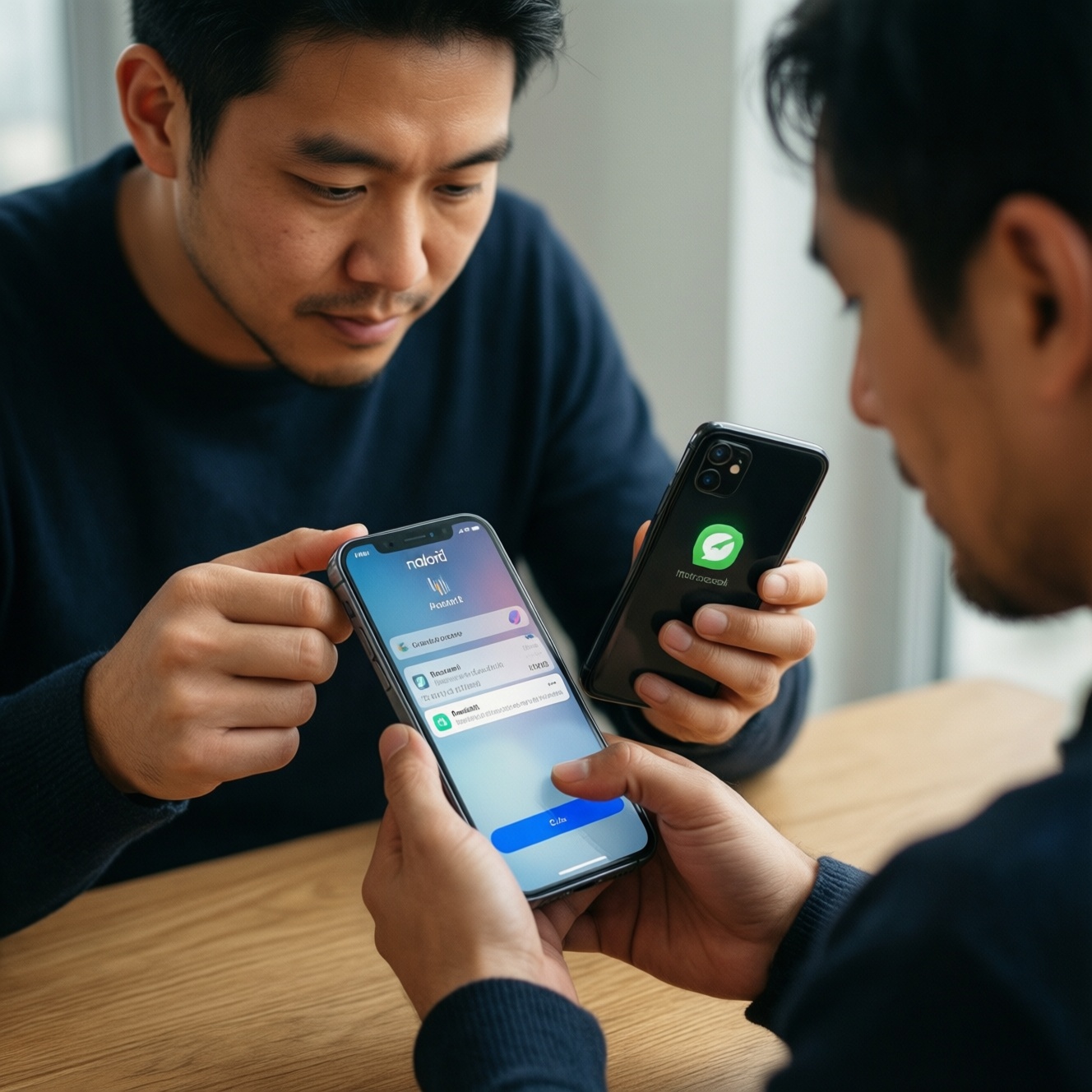
If you're ย้ายจาก Android ไป iPhone or ย้ายจาก iPhone ไป Android, preparation matters more than the actual copy step. Inventory accounts, secure 2FA access, pick the right transfer method, then validate apps, media, and messaging. This checklist focuses on safe, user-friendly steps that reduce lockouts and data gaps when entering a new ecosystem.
Essential migration checklist - at a glance
- List critical accounts (Apple ID/Google, banks, LINE/WhatsApp, work) and confirm you can sign in.
- Back up the old phone (cloud + local if possible) and keep it until verification is complete.
- Decide the transfer path: Move to iOS / Google sync / PC/Mac copy / app-by-app export.
- Prepare authentication: password manager export/import, authenticator migration, SIM/eSIM access.
- Plan what will not transfer (some chats, app data, paid apps, DRM media) and choose fallbacks.
- After setup, validate: contacts, photos, messages, key apps, banking access, notifications.
Pre-migration inventory: accounts, apps and services
Use this when you're switching ecosystems and need to keep accounts, chats, and media consistent across devices. Skip (or postpone) a full migration if your old phone is compromised, you can't access your main email/number, or your work device is under MDM/enterprise policy-get admin help first.
- Map your identity anchors. Write down which email/phone number controls: Apple ID, Google Account, banking apps, LINE, WhatsApp, Facebook/Instagram, Microsoft/Slack.
- List "must-keep" data. Contacts, photos/videos, notes, calendars, documents, downloads, 2FA codes, chats.
- Audit app dependencies. Mark apps that bind to device (banking, e-wallets, corporate VPN, authenticator). Expect re-activation on the new phone.
- Confirm account recovery. Check you can receive SMS and access your primary email inbox; update recovery email/phone if needed.
If you're also researching ซื้อ iPhone รุ่นไหนดี, decide that before migrating: storage and eSIM support affect how smoothly you move photos and your mobile number.
Data transfer methods: what moves and what doesn't
What you'll need: both devices charged, stable Wi‑Fi, enough storage on the new device, your Apple ID/Google credentials, access to SMS/email for verification, and (optionally) a PC/Mac with a cable. For วิธีย้ายข้อมูลจาก Android ไป iPhone, Apple's Move to iOS is the default. For วิธีย้ายข้อมูลจาก iPhone ไป Android, Google account sync plus app-specific moves usually works best.
| Item | Android → iPhone (typical) | iPhone → Android (typical) |
|---|---|---|
| Contacts & calendars | Often automatic via Google sync; can also transfer during Move to iOS | Often automatic via Google sync (add Google account on iPhone first, then on Android) |
| Photos & videos | Move to iOS / Google Photos / manual PC/Mac copy | Google Photos / manual PC/Mac copy |
| SMS (carrier text) | Sometimes transfers via migration tools; not always complete | Often requires a dedicated transfer tool; results vary by region/app |
| iMessage / RCS | Manual steps needed (disable iMessage when leaving iPhone; RCS settings vary) | Manual steps needed (turn off iMessage before moving to Android) |
| WhatsApp chats | Supported via in-app transfer options on many setups; follow WhatsApp prompts | Supported via in-app transfer options on many setups; follow WhatsApp prompts |
| LINE chat history | Usually requires LINE's backup/transfer flow; expect limitations | Usually requires LINE's backup/transfer flow; expect limitations |
| Authenticator (2FA) tokens | Mostly manual migration per app; some have built-in transfer | Mostly manual migration per app; some have built-in transfer |
| Paid apps & subscriptions | Do not transfer; re-download and re-subscribe in App Store | Do not transfer; re-download and re-subscribe in Google Play |
| App data (local saves) | Often not transferable unless the app uses cloud sync | Often not transferable unless the app uses cloud sync |
- Choose the primary transfer channel. Prefer one main path to avoid duplicates: Move to iOS, Google sync, or cable/PC copy.
- Enable cloud sync before you move. On Android: Settings → Accounts → Google → Account sync. On iPhone: Settings → Apple Account → iCloud (enable relevant toggles).
- Make one offline backup. Keep a local copy of photos/documents on a computer or external drive if you can.
Authentication, passwords and two-factor handling
-
Freeze changes for 30 minutes.
Avoid changing passwords or phone numbers during migration; it increases 2FA risk and triggers security holds. -
Verify your Apple ID and Google Account access.
Confirm you can sign in on a browser and that recovery options are current.- Apple ID: check trusted phone numbers and trusted devices.
- Google: check recovery email/phone and recent security activity.
-
Prepare SIM/eSIM control.
Ensure you can receive SMS on your active number; keep the old phone online until critical logins are done.- If using eSIM, confirm carrier support and have your carrier's activation method ready.
-
Migrate your password manager safely.
Sign into the same password manager on the new device (preferred) or use the app's export/import feature only if you can store the file securely and delete it afterward. -
Move authenticator codes intentionally.
For each authenticator app, use its built-in transfer feature if available; otherwise, re-enroll 2FA from each service's security settings while the old device still has working codes. -
Do the first logins in a controlled order.
Start with email → Apple/Google → banking/e-wallet → messaging apps. This reduces cascading lockouts when one account controls resets for others.
Fast mode (3-5 steps)
- Back up old phone, then confirm Apple ID/Google + SMS/email recovery works.
- Pick one main transfer path: Move to iOS for Android→iPhone; Google sync + app-specific transfers for iPhone→Android.
- Move passwords first (password manager), then migrate authenticator/2FA.
- Transfer media and chats (WhatsApp/LINE) using each app's official transfer flow.
- Validate key apps (banking, work, messaging), keep old phone for a few days as rollback.
Media, messages and app-specific content transfer
- Contacts: spot-check duplicates and missing fields (names, numbers, emails).
- Calendars: confirm correct account is default for new events.
- Photos/videos: verify recent items, albums, and shared albums (if used).
- Messaging: send/receive test messages; confirm notification delivery on the new phone.
- WhatsApp: verify chat list, media visibility, and that backups are enabled on the new platform.
- LINE: confirm your account is linked (email/phone) and that chat history/Keep items are as expected.
- Notes: check where notes live (iCloud/Google/On my device) and ensure they appear on the new phone.
- Files/documents: verify Downloads and offline files inside apps (Drive/OneDrive) are re-downloaded.
- Paid media/DRM: test playback for music/video services; re-download if required.
Device setup: privacy, permissions and defaults
- Leaving iPhone for Android: disable iMessage to avoid missing SMS (Settings → Messages → iMessage off).
- Default calling/message apps: ensure the phone uses the expected app for calls and texts after SIM/eSIM activation.
- Notification overload: re-check per-app notifications; many apps default to on after reinstall.
- Photos access: on iPhone, grant the correct Photos permission (None/Selected Photos/All Photos) for apps that need uploads.
- Background activity: messaging and banking apps may need Allow background activity (Android) or Background App Refresh (iPhone) to stay reliable.
- Location precision: some ride-hailing/delivery apps require precise location; verify the setting if pickup points are wrong.
- Battery optimization (Android): exclude key apps (messengers, work apps) from aggressive battery saving to prevent delayed notifications.
- Privacy resets: review ad tracking, analytics sharing, and clipboard/nearby device permissions after migration.
- Keyboard and autofill: enable your preferred keyboard and password autofill provider before heavy logins.
Post-migration validation and rollback plan
Keep the old device untouched until you've passed a full week of normal use or at least completed every critical login. Use these alternatives when the all-at-once migration isn't safe or complete:
- Staged migration (recommended for high-risk accounts). Move authentication first, then chats, then media; useful if you rely on banking and work apps daily.
- Cloud-first rebuild. Reinstall apps and sign in fresh, pulling data from Google/iCloud/app cloud sync; best when app data doesn't transfer well anyway.
- Dual-device overlap. Keep both phones active (same accounts where allowed) while you validate notifications, 2FA, and chat history; good for travelers and business users.
- Local archive approach. Copy photos/documents to a computer as the source of truth, then import to the new phone; useful when storage/sync is messy or slow.
Common migration snags and quick fixes
Why can't Move to iOS find the Android device or why does Wi‑Fi drop?
Use the same Wi‑Fi network, keep both devices charging, and turn off VPN/hotspot. If it still fails, restart both devices and retry the transfer before setting up iPhone too far.
Why do some people's SMS messages never arrive after leaving iPhone?
Disable iMessage on the old iPhone and ensure the same phone number is active on the new device. If you no longer have the iPhone, sign out of iMessage on Apple's messaging deregistration page using the number.
What should you do if a banking app says it is a new device and blocks login?
Complete the bank's re-verification flow using SMS/email, then re-enable biometrics. If the app requires an in-branch reset, don't factory reset the old phone until access is restored.
Why didn't WhatsApp or LINE chat history transfer fully?
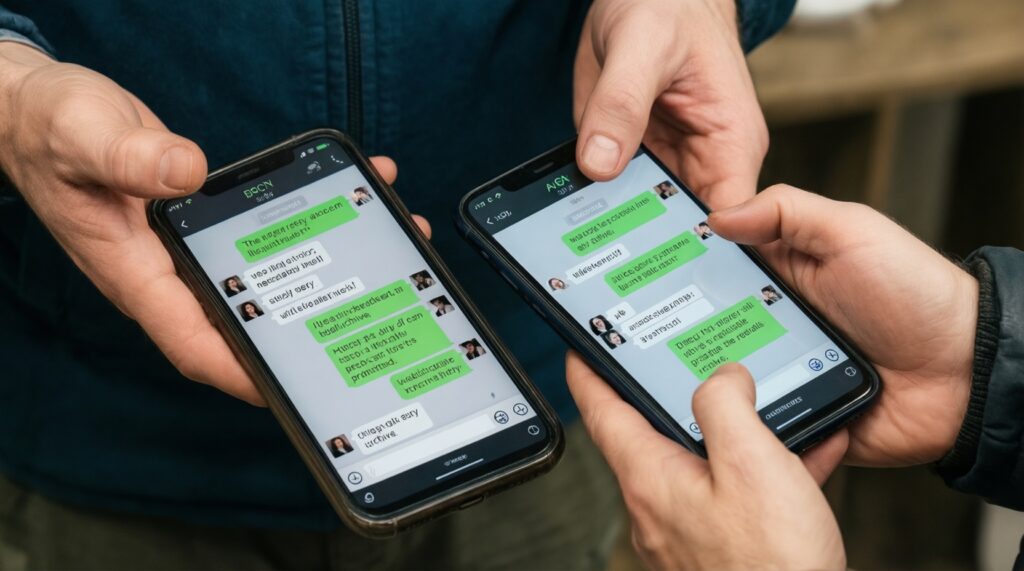
Confirm you followed the app's official transfer steps on both devices and that backups are enabled on the new platform. If history is critical, keep the old phone as a readable archive and export specific chats where supported.
How do you fix duplicated contacts or missing labels after sync?
Set one system as the source of truth (usually Google Contacts), then merge/clean up there. Re-sync on the new device after cleanup rather than editing on both sides.
What if authenticator codes are missing on the new phone?
If the authenticator app supports transfer, redo the migration while the old phone still works. Otherwise, re-enroll 2FA from each service's security settings and save backup codes in a secure place.
Why are photos present but apps can't upload them?
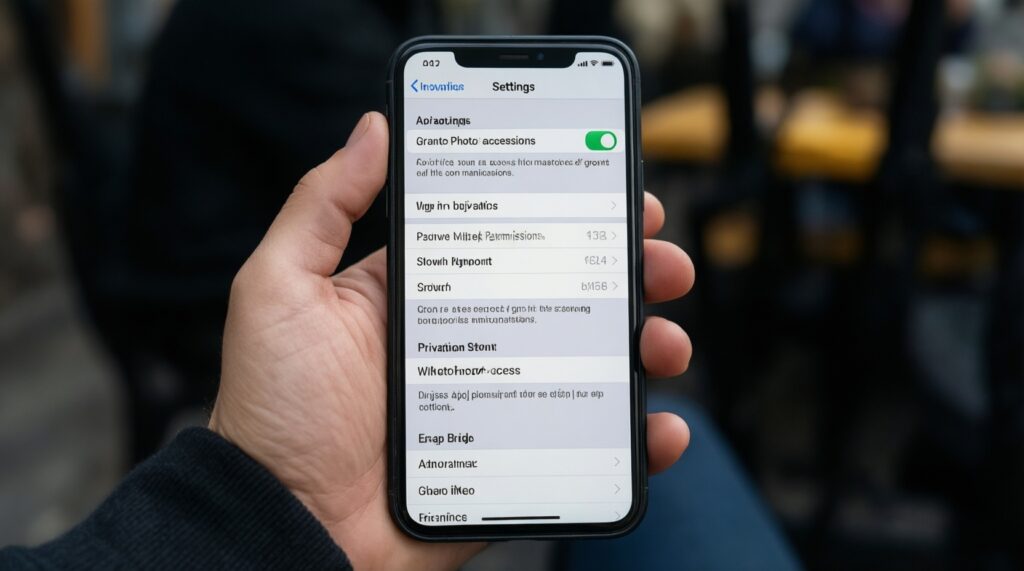
Check photo permissions: on iPhone allow the needed level (Selected Photos/All Photos), on Android allow Photos/Media access and disable overly strict battery optimization for the app.