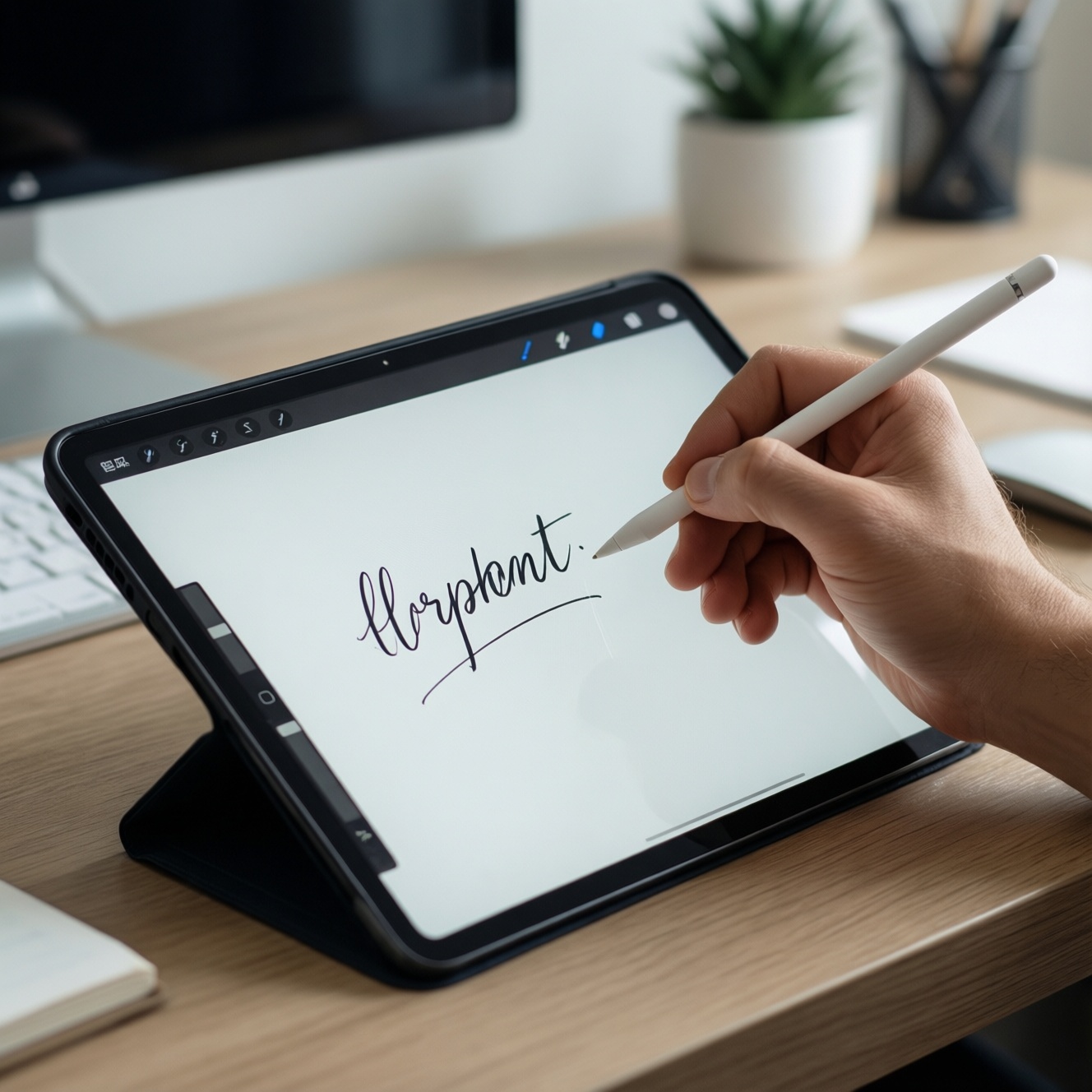
For smooth, reliable note-taking, the "best" stylus is usually the one engineered for your tablet ecosystem: Apple Pencil for iPad, S Pen for Samsung Galaxy Tab, and USI for compatible Chromebooks/Windows tablets. Writing feel depends most on tip friction, palm rejection, pairing stability, and app support-more than headline specs.
Critical criteria for smooth, reliable note‑taking
- Ecosystem fit: the pen must be natively supported by your tablet (iPadOS vs One UI vs USI devices).
- Grip + balance: comfortable diameter, weight distribution, and a non-slippery finish reduce fatigue in long lectures.
- Tip feel on glass: nib material + screen protector determine perceived "ลื่น" vs "หนืด" control.
- Palm rejection quality: stable rejection in your real posture (hand angle, sleeve, desk) matters more than lab claims.
- Pairing + wake behavior: how often it drops, needs re-pairing, or fails to reconnect after sleep.
- Button + shortcut ergonomics: one-tap erase/lasso/highlight improves note speed.
- Charging and storage: where it lives when not used, and how easy it is to keep charged.
Form factor and grip: how design shapes handwriting
- Barrel diameter: thicker barrels reduce pinch fatigue; slim pens can feel fast but cramp in long sessions.
- Surface texture: matte finishes resist sweat; glossy barrels can rotate in your fingers and distort strokes.
- Weight distribution: a balanced pen tracks steadier on diagonals; top-heavy designs wobble during small letters.
- Tip travel and nib flex: a tiny "give" can feel pen-like; overly hard tips can amplify jitter on rough protectors.
- Button placement: accidental presses break flow; a well-placed button enables quick erase or lasso without changing grip.
- Magnetic attachment strength: weak attachment increases drops and lost pens; strong attachment improves habit and readiness.
- Clip vs no clip: clips help in bags and classrooms; no-clip designs rely on magnets or cases.
- Replaceable nib availability: easy nib replacement keeps consistent friction; worn nibs feel scratchy and imprecise.
Latency, sampling rate and tilt - what you actually feel
In real note-taking, "latency" is perceived as whether the ink stays under your tip during fast strokes; "sampling" shows up as line continuity on curves; tilt support matters most for shading and angled highlighter strokes. If you're searching เปรียบเทียบ Apple Pencil vs S Pen, focus on how each behaves in your apps (Notes/Goodnotes/OneNote/Sketchbook) and with your chosen screen protector.
| Variant | Who it fits | Pros | Cons | When to choose |
|---|---|---|---|---|
| Apple Pencil (2nd gen / magnetic charge models) | iPad note-takers who want the most consistent iPadOS integration | Very stable pairing; strong palm rejection in mainstream iPad apps; excellent tilt behavior for shading/highlighting | Works only with supported iPad models; can feel slippery without a grip; higher replacement cost if lost | If you live in iPad apps and need predictable reconnection plus minimal setup |
| Apple Pencil (USB‑C model) | iPad users prioritizing basic writing and straightforward charging | Reliable writing for notes; simple wired charging; good general responsiveness | Fewer convenience features on some workflows; depends heavily on iPad compatibility | If you want Apple Pencil feel but don't need the most shortcut-heavy workflow |
| Samsung S Pen (Galaxy Tab family) | Samsung tablet users who want a pen-like, controlled stroke | Comfortable for long sessions; good hover/air actions on supported devices; strong integration with Samsung Notes | Experience varies by Tab model; some features depend on Samsung's software stack | If you're in Samsung Notes daily and want a "always ready" pen experience |
| USI 2.0 rechargeable stylus (generic category) | Chromebook/USI-compatible tablet users who need cross-brand flexibility | Standards-based compatibility across USI devices; many budget and mid-range options; good for students sharing devices | Feel and palm rejection depend on the device digitizer + pen brand; buttons and tilt support are inconsistent | If you need one pen standard across multiple compatible devices and value choice |
| USI stylus with replaceable nibs + textured screen protector | Users chasing more "paper-like" control on USI hardware | More controllable friction for small handwriting; nib tuning helps reduce skating; better highlighter control in angled strokes (if supported) | Textured protectors can increase nib wear; wrong protector can add jitter; not all USI pens handle tilt the same | If your priority is writing control over maximum smooth glide |
Pressure response and line control: nuance for notes
- If your handwriting is small and dense, choose the ecosystem-native pen (Apple Pencil on iPad, S Pen on Galaxy Tab) and use a slightly higher stabilization setting in your note app to reduce micro-jitter.
- If you write fast and your ink "lags" behind the tip, prioritize the pen with the most stable reconnection and lowest perceived latency on your device; then reduce brush smoothing (too much smoothing can feel like delay).
- If your lines look uneven under light pressure, switch to a pen/app combo with better pressure curve controls (or pick a brush that's less pressure-sensitive for writing).
- If you mainly highlight and shade at an angle, pick a setup with reliable tilt behavior (often best in native ecosystems) and test in your exact app, because tilt is frequently app-dependent.
- If you want the most "pen on paper" control, add a paper-like screen protector and keep spare nibs; accept that maximum smoothness is not the same as best legibility.
Palm rejection, pairing and cross‑device workflow
- Confirm device compatibility first: exact iPad model for Apple Pencil; exact Galaxy Tab model for S Pen; USI certification for USI pens.
- Pick your primary note app (Apple Notes/Goodnotes/Notability, Samsung Notes, OneNote, Nebo, etc.) and verify it supports your needed gestures (double-tap, button erase, hover).
- Test palm rejection in your real posture: writing on a desk vs on your lap changes contact points and accidental touches.
- Decide your pairing tolerance: if you can't afford interruptions in class, favor native pairing (Apple Pencil/S Pen) over "works on many devices" options.
- Plan cross-device editing: if you sync notes between iPad and Windows/Chromebook, choose formats that survive export (PDF with searchable text, or OneNote notebooks).
- Set up one "recovery" shortcut: know where Bluetooth settings, pen reconnect, and app palm-rejection toggles live before you need them.
Battery life, charging methods and long‑term durability
- Over-optimizing for "no battery" myths: many pens still need power for advanced features; plan charging like you would for earbuds.
- Ignoring storage: if your case doesn't protect a magnet-attached pen, expect drops and cracks over time.
- Buying on price alone: when you search ซื้อ Apple Pencil ราคา or ซื้อ S Pen ราคา, include the cost of spare nibs, a protective case, and any adapter/charging accessory you'll actually need.
- Choosing a textured protector without a nib plan: rough surfaces increase nib wear; keep replacements ready to maintain consistent line quality.
- Assuming every pen supports tilt and good palm rejection: especially with USI, behavior can vary widely by device model and firmware.
- Skipping firmware/OS updates: stylus stability often improves after tablet updates; outdated software can cause random disconnects or palm-rejection regressions.
- Using the wrong app brush: "pencil" brushes can amplify wobble; a "pen" brush is usually better for lecture notes.
- Not checking replacement availability: a great-feeling pen becomes a bad purchase if nibs or chargers are hard to find locally.
Decision matrix: pick Apple Pencil, S Pen or USI by use case
- If you use an iPad: choose Apple Pencil that matches your exact iPad model; prioritize it when you want the most consistent note-taking experience with minimal setup.
- If you use a Samsung Galaxy Tab: choose S Pen when you want comfortable long writing sessions and tight integration with Samsung Notes.
- If you use a USI-compatible Chromebook/tablet: choose a USI 2.0 rechargeable stylus when you value flexibility and device-sharing, and you're willing to test which model feels best.
- If your main goal is "smoothest glide": reduce friction (no textured protector, fresh nib) and pick the pen with the most stable palm rejection on your hardware-this is often what people mean by ปากกาแท็บเล็ต เขียนลื่น รุ่นไหนดี.
- If your main goal is neat, readable notes: favor control over glide (textured protector + tuned nib + stable app brush), even if it feels less "ลื่น".
For most note-takers, Apple Pencil is the best fit for iPad-first workflows, S Pen is the best fit for Galaxy Tab + Samsung Notes users, and USI is the best fit when you need a standards-based pen across compatible devices. If you're deciding ปากกา USI ยี่ห้อไหนดี, shortlist two USI 2.0 models and test palm rejection and line stability on your exact device before committing.
Practical pitfalls, quick fixes and compatibility notes
Why does my writing feel slippery even with a "good" stylus?
Most of the "ลื่น" feeling comes from tip friction against bare glass. Add a grip for control, switch nib type if available, or use a textured screen protector if legibility matters more than glide.
My palm rejection is inconsistent-what's the fastest fix?
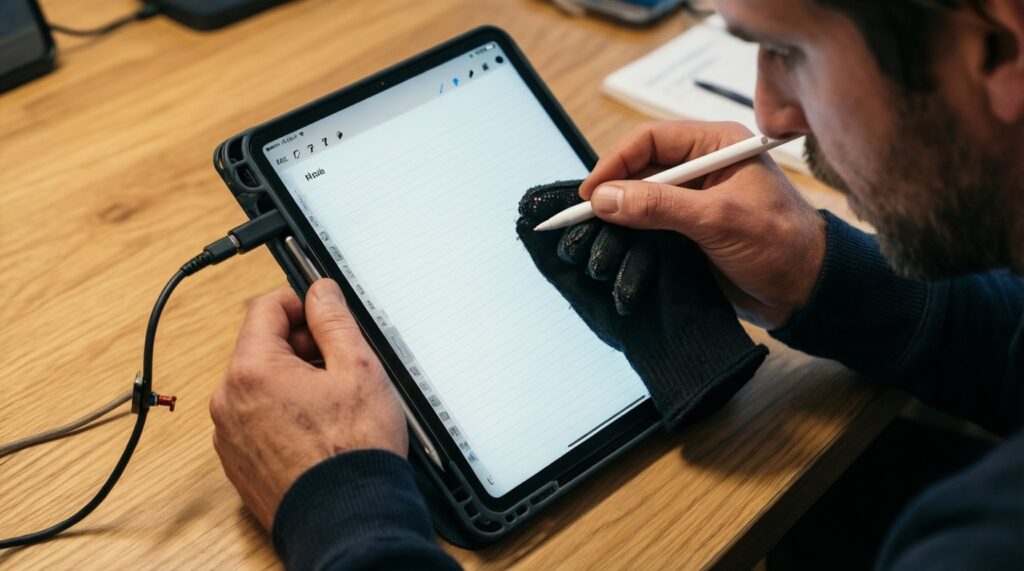
Turn off finger drawing in the note app (if available), then re-pair/reconnect the pen and restart the app. Also remove any glove/sleeve material that triggers stray touches.
Will any Apple Pencil work with any iPad?
No. Compatibility depends on the exact iPad model and Pencil generation/connector type, so verify before you buy-especially when comparing listings by "ซื้อ Apple Pencil ราคา".
Can I use S Pen on a non-Samsung tablet?
In most cases, no; S Pen behavior and features are tied to compatible Samsung hardware. For non-Samsung Android/Chromebook devices, look for the supported standard (often USI on Chromebooks).
Why do my lines look wobbly or jagged?
Try a different pen brush (a simple "pen" brush), reduce overly aggressive smoothing, and test without a textured protector. Wobble can also come from a worn nib.
Do USI pens always support tilt and buttons?
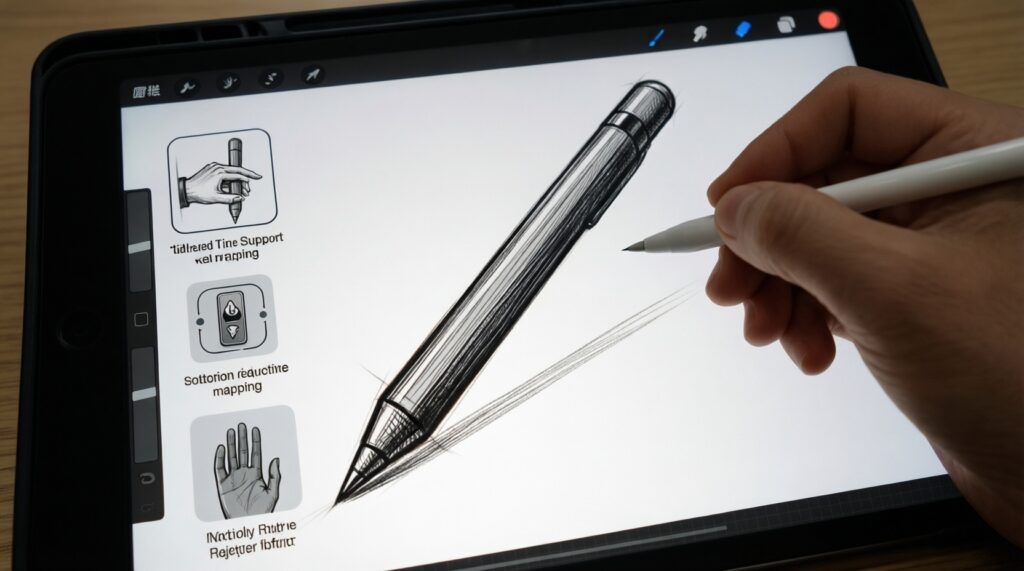
Not consistently. USI compatibility ensures basic inking, but tilt, button mapping, and palm rejection quality can vary by pen model and by device firmware.
What should I check before buying if my priority is fast classroom note-taking?
Confirm instant reconnection after sleep, stable palm rejection in your note app, and a charging/storage method that fits your case. Those matter more than spec-sheet claims.