For work-and-study tablets in Thailand, choose iPad when you prioritize long-term app quality, stable pen latency, and stronger accessory ecosystem; choose Android (Galaxy Tab or Pixel Tablet) when you want more flexible file handling, DeX-style desktop workflows, and broader hardware choice. Your "best" model depends on screen size, pen feel, and keyboard ergonomics for your persona.
Quick decision checklist for work vs study
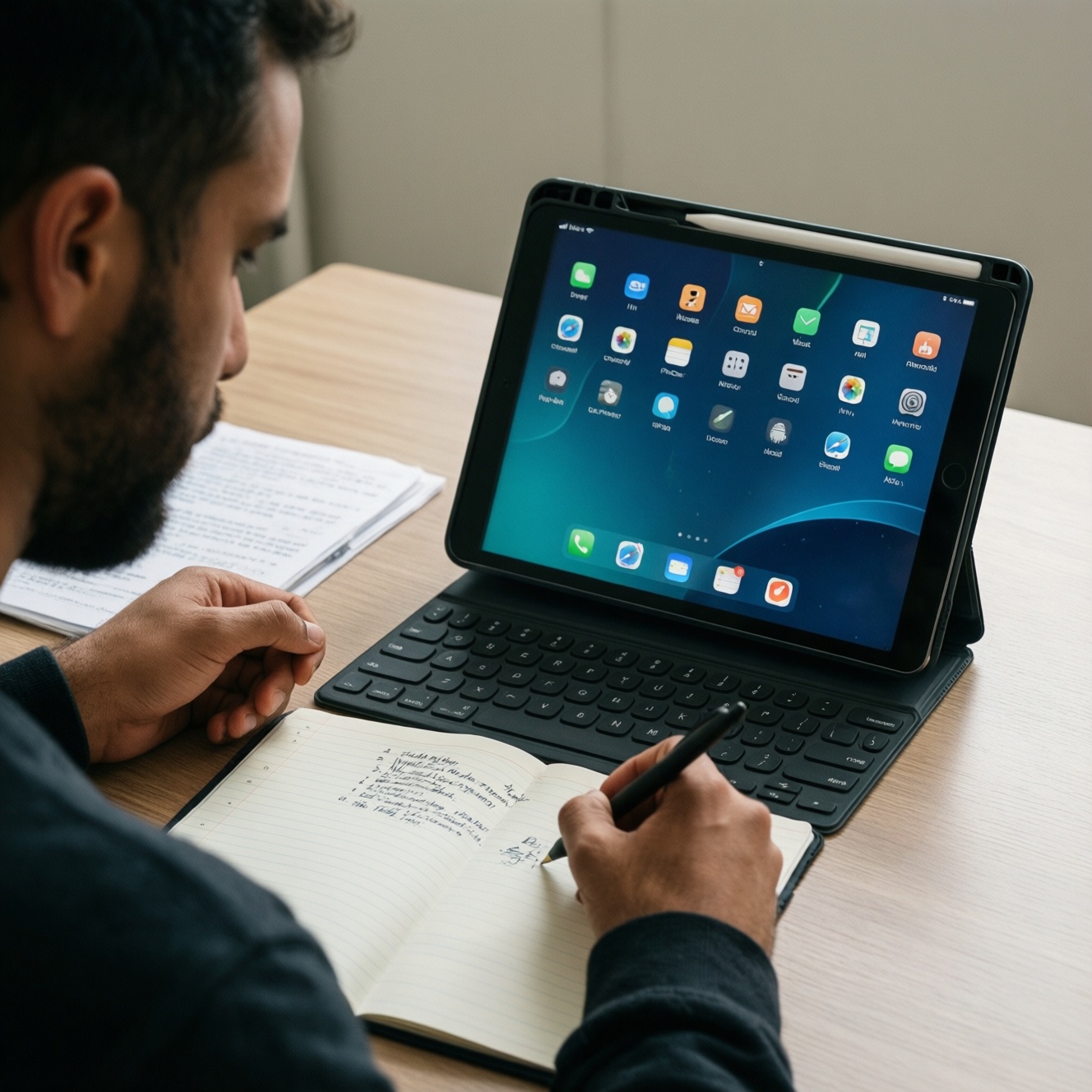
- If your workflow is note-taking + PDF markup + reliable handwriting-to-text, default to iPad + Apple Pencil support.
- If you want a laptop-like mode on a tablet (windowed multitasking, external display habits), prioritize Galaxy Tab with DeX.
- If you need the simplest shared-home tablet with a speaker dock vibe and Google-first services, consider Pixel Tablet-but validate keyboard/pen needs first.
- Pick screen size by usage: 11"-class for commute + lectures, 12-13"-class for split-screen + documents.
- Only pay for high refresh rate if you write/draw a lot; otherwise put budget into storage and a better keyboard.
- Decide your input stack upfront: pen-only, keyboard-heavy, or hybrid; this determines which ecosystem feels "complete".
Platform overview: iPadOS vs Android tablets (Galaxy Tab, Pixel Tablet)
If you are searching in Thai like "เปรียบเทียบ iPad กับ Android Tablet รุ่นไหนดี", treat it as an ecosystem decision first, then a hardware decision. Use these criteria to choose the platform before comparing individual models.
Selection criteria (use all, not just specs)
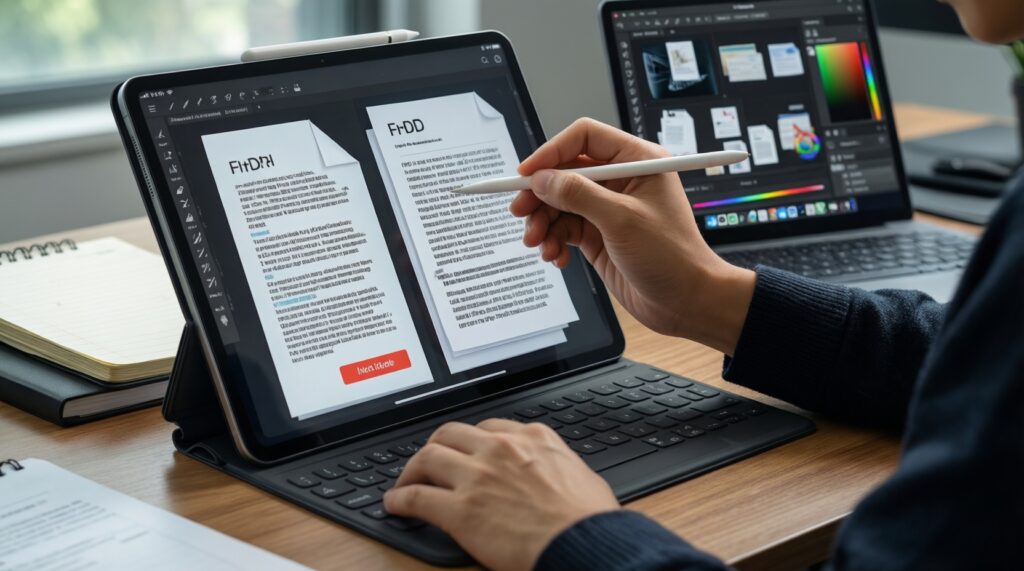
- App quality for your exact tasks: note apps, PDF tools, office suites, creative apps, and how well they support pen + keyboard.
- Multitasking style: split-screen basics vs windowed desktop-like workflows (common on Galaxy Tab via DeX).
- File management: how often you move files between phone/PC/cloud/USB storage and whether you prefer "folder-first" workflows.
- Accessory ecosystem: first-party keyboards/cases availability in Thailand, third-party options, and long-term compatibility.
- Pen experience consistency: latency feel, palm rejection, hover/preview features (when available), and app support.
- Cross-device integration: your current phone and laptop brand matters (Apple vs Android/Windows/ChromeOS).
- Update cadence and longevity: how much you value predictable OS updates for several years.
- Service stack: Google Workspace-first vs Apple iCloud + Apple apps-first, plus how your school/work accounts are managed.
- Resale and service: local service convenience, accessory replacement, and resale demand in TH.
Practical platform guidance by persona
- Student note-taker: iPadOS usually feels simpler for pen-first studying; Android wins if you need desktop-like multitasking and file flexibility.
- Office/professional: Galaxy Tab is compelling if your day needs windows, drag-and-drop file workflows, and "tablet-to-desktop" mode; iPad is strong when your apps are iPad-optimized and you prefer predictable behavior.
- Creative/artist: prioritize the strongest pen+app combo you can live in daily; iPad is often the safest bet for art app ecosystems, while some Galaxy Tab setups can be excellent if your preferred apps are available and optimized.
- Hybrid (study + work + entertainment): choose based on the input method you use most: heavy writing/drawing (lean iPad), heavy typing/multitasking (lean Galaxy Tab).
Model question framing (avoid generic "best")
Queries like "iPad รุ่นไหนดีสำหรับเรียนและทำงาน" or "Galaxy Tab รุ่นไหนดีสำหรับจดเลคเชอร์และทำงาน" are only answerable after you lock (1) target screen size, (2) pen expectations, and (3) keyboard commitment. Decide those three, then pick the model tier that matches your storage/RAM needs.
Display choices: size, resolution, refresh rate and eye comfort
Screen choice drives how productive you feel in split-screen, handwriting, and long reading sessions. Focus on size first, then refresh rate (only if pen-heavy), then panel quality (uniformity, glare control) and ergonomics.
Comparison table: screen option trade-offs (persona-first)
| Option | Who it fits | Pros | Cons | When to choose |
|---|---|---|---|---|
| 8-9" compact | Commute-first student, light reading, quick annotations | Ultra portable; easy one-hand use; fits small bags | Cramped split-screen; cramped handwriting area; typing feels compromised | When you mainly read slides/books and add short notes, not long essays |
| 10-11" balanced | Most students; hybrid users; casual creators | Best portability/productivity balance; good for lecture notes + PDFs; manageable with keyboards | Two-app multitasking can feel tight for dense docs; external display use is more "nice to have" | When you need one device for campus + coffee shop + occasional work tasks |
| 12-13" productivity | Professionals; heavy split-screen; frequent typing | Comfortable document editing; more usable keyboard covers; better for spreadsheets and research | Heavier; less "tablet-like" in hand; more expensive accessories | When you want laptop-adjacent workflows without carrying a laptop daily |
| High refresh rate (e.g., 120Hz-class) | Pen-heavy note-takers and artists | Smoother pen strokes; scroll feels clearer; reduces "ink lag" perception | Costs more; not every app benefits equally; may affect battery depending on settings | When you write/draw for hours and notice latency or jitter on standard refresh screens |
| Standard refresh rate (e.g., 60Hz-class) | Typing-first students, office users, media consumption | Often cheaper; battery behavior is predictable; still fine for occasional pen use | Pen feels less "buttery" for fast handwriting; scrolling can feel less fluid | When budget should go to storage/keyboard instead of display smoothness |
| Glare-controlled / matte-like solutions (screen protector approach) | Long readers; frequent outdoor/bright campus use | Less reflection; more paper-like pen friction (with the right protector) | Can reduce sharpness; may add grain; tips wear faster | When you study under harsh lights and reflections slow you down more than slight sharpness loss |
Display recommendations by persona
- Student note-taker: 10-11" is the safest size; add higher refresh only if you're truly pen-first.
- Professional: 12-13" if you edit docs/spreadsheets daily; prioritize keyboard comfort over "tablet portability".
- Artist: choose the screen that gives you stable color/brightness and enough canvas; high refresh is a quality-of-life upgrade.
- Hybrid: if you carry it everywhere, stay 11"; if it mostly lives on a desk, go 12-13".
Pen and stylus comparison: latency, pressure, tilt and ecosystem support
Pen performance is not just hardware; it's the full chain of display sampling, OS handling, app optimization, and tip friction. Decide your primary pen job (notes, diagrams, art, markup) and buy into the ecosystem that best supports that job.
Scenario-based recommendations (if... then...)
- If you write long lecture notes and need consistent palm rejection across many apps, then favor the platform with the most reliable "pen-first" app behavior you can test in-store.
- If you draw (line control, shading) and care about pressure + tilt nuance, then prioritize the app ecosystem you already use (brush engines and file formats), not just claimed pen specs.
- If you mostly annotate PDFs, sign documents, and highlight, then a mid-tier pen experience is usually enough; put money into screen size and a comfortable grip/tip.
- If you want "pen + desktop-like mode" for work (pen to mark up, keyboard to finish), then Galaxy Tab with DeX-style workflows can feel more like a small laptop replacement.
- If you expect the tablet to work well with third-party apps across years of OS updates, then avoid niche stylus solutions with limited app support.
Quick pros/cons: iPad vs Galaxy Tab vs Pixel Tablet for pen users
- iPad: typically strongest pen-centric ecosystem and accessory depth; check which iPad tier supports the pencil generation you want.
- Galaxy Tab: often excellent handwriting feel and strong multitasking; best when your preferred note/art apps are fully optimized on Android.
- Pixel Tablet: compelling as a Google-first home-and-work tablet, but validate pen availability, app optimization, and accessory fit before committing-especially if your query is "Pixel Tablet ราคาและรีวิว น่าซื้อไหม".
Keyboard setups: cover keyboards, Bluetooth options and typing ergonomics
For "แท็บเล็ตพร้อมปากกาและคีย์บอร์ด รุ่นไหนดี", treat the keyboard as a long-term interface, not a bundled accessory. Choose the setup that matches where and how you type (desk, lap, lecture hall seats).
Fast selection algorithm (5-7 steps)
- Decide your typing posture: mostly on a desk/table, or on your lap. Lap typing strongly favors rigid hinge designs over flimsy folios.
- Pick the keyboard class: (a) magnetic cover keyboard for maximum integration, or (b) separate Bluetooth keyboard for better key travel/value.
- Validate trackpad needs: if you do spreadsheet, doc editing, and multitasking, a trackpad is a productivity multiplier.
- Check shortcut support: ensure your core apps support keyboard shortcuts and proper focus navigation.
- Confirm language/typing comfort: TH/EN layout preference, key size, and whether you can type at speed without fatigue.
- Assess carrying weight: tablet + keyboard + pen can approach laptop weight; if that bothers you, choose a lighter keyboard or smaller screen.
- Plan charging and pairing: prefer solutions that don't add daily charging friction (magnetic connectors or long-life Bluetooth).
Persona picks for keyboards
- Student: lightweight folio or compact Bluetooth keyboard; prioritize durability and easy open/close in class.
- Professional: integrated cover keyboard with trackpad, plus a stand angle that works for long sessions.
- Creative: favor a stand/case that supports stable low angles for drawing; keyboard can be secondary and detachable.
Performance and multitasking: apps, file management and battery life
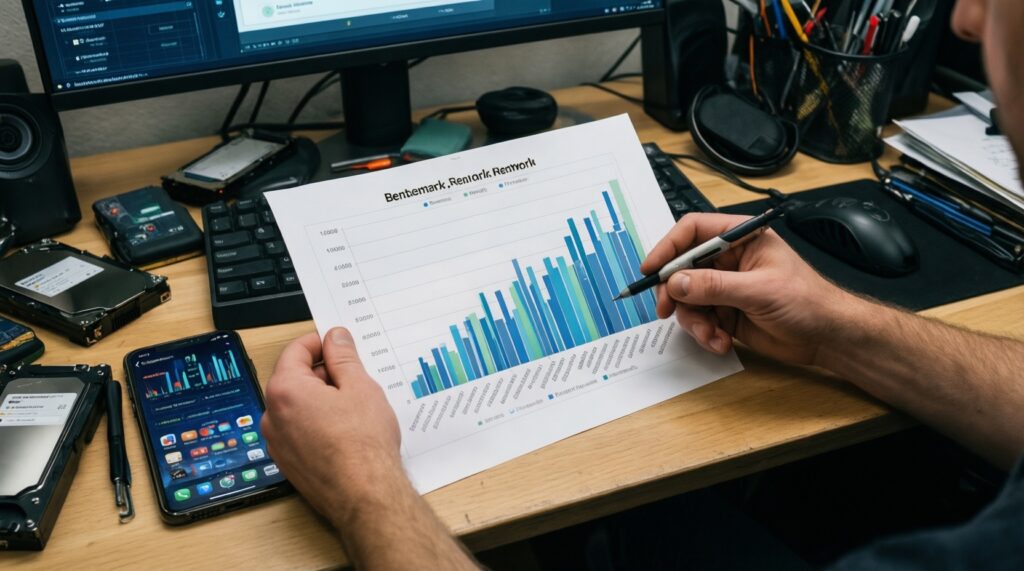
Most "performance" regrets come from mismatched expectations: buying for benchmarks instead of real multitasking, storage, and accessory workflows. Avoid these common selection mistakes.
Frequent buyer mistakes (and what to do instead)
- Buying the smallest storage tier and then living in constant cleanup; choose storage based on offline files (PDFs, videos, project assets), not just apps.
- Assuming all apps multitask equally; test your top 5 apps in split-screen/window mode before deciding between iPadOS and Android.
- Ignoring RAM/app reload behavior; if you keep many apps open during lectures/work, prioritize configurations known for stable background retention.
- Overvaluing CPU/GPU labels while underbuying accessories; for most students, a better keyboard and pen workflow beats a small performance bump.
- Forgetting external display expectations; if you present slides or want a desktop monitor workflow, confirm the tablet's display-out behavior and UI scaling.
- Not checking file workflows (USB drives, shared folders, Google Drive/OneDrive, AirDrop-like sharing); pick the OS that matches your team/class tooling.
- Assuming "all-day battery" equals your day; heavy brightness, high refresh, video calls, and pen use change battery reality-test your pattern.
- Buying a tablet to replace a laptop without validating your "last 10%" tasks (specific office macros, niche apps, web portals, printing, VPN tools).
Where each platform usually feels faster in real life
- iPadOS: smoothness and app polish for pen-first tasks; predictable behavior across common study apps.
- Galaxy Tab (Android): multitasking flexibility and desktop-like workflows; strong if you treat it as a mini computer with windows.
- Pixel Tablet: Google services integration and shared-home convenience; confirm it matches your work/study "input" needs, not just media use.
Purchasing guide by use case: students, professionals, artists and hybrid users
Best fit tends to look like this: for students who are pen-first, an iPad setup often provides the smoothest note/PDF ecosystem; for professionals who want desktop-like multitasking and file flexibility, a Galaxy Tab setup is frequently the more natural fit; for artists, pick the platform where your preferred creative apps and brushes feel native-often iPad, sometimes Galaxy Tab; for hybrid users, choose 11" if you travel daily and 12-13" if you mainly work at a desk.
Common buyer dilemmas and short solutions
Which is better overall: iPad or Android tablet?
Pick iPad for consistent pen-first studying and strong accessory ecosystems; pick Android (especially Galaxy Tab) for more flexible multitasking and file workflows. "Overall" depends on whether you type more or write more.
iPad รุ่นไหนดีสำหรับเรียนและทำงาน if I can't decide between sizes?
Choose an 11"-class iPad if you carry it daily and write notes in class; choose 12-13" if you split-screen documents and type long assignments often. Size impacts productivity more than small performance differences.
Galaxy Tab รุ่นไหนดีสำหรับจดเลคเชอร์และทำงาน: what matters most?
Prioritize DeX-style usability, a stable pen experience in your note app, and a keyboard case you can type on for hours. Don't choose only by CPU tier; accessory comfort decides daily satisfaction.
แท็บเล็ตพร้อมปากกาและคีย์บอร์ด รุ่นไหนดี for a hybrid study+work day?
Pick the ecosystem where both pen and keyboard feel "first-class" for your apps. If either input feels like an afterthought, you'll stop using it and lose the hybrid advantage.
Is Pixel Tablet a good buy for work and school (Pixel Tablet ราคาและรีวิว น่าซื้อไหม)?
It can be a good Google-first household and light productivity tablet, but verify keyboard and pen options and your required apps before buying. If you need heavy typing + pen workflows, compare it carefully with iPad and Galaxy Tab.
Do I really need a 120Hz screen for note-taking?
Only if you write a lot and notice ink lag or want smoother strokes; many students are fine with standard refresh. Spend the saved budget on storage or a better keyboard.
Should I buy Wi‑Fi only or cellular?
Choose cellular if you frequently study/work away from reliable Wi‑Fi and need instant access for docs and messaging. Otherwise, Wi‑Fi plus phone hotspot is usually sufficient if you can tolerate occasional setup steps.