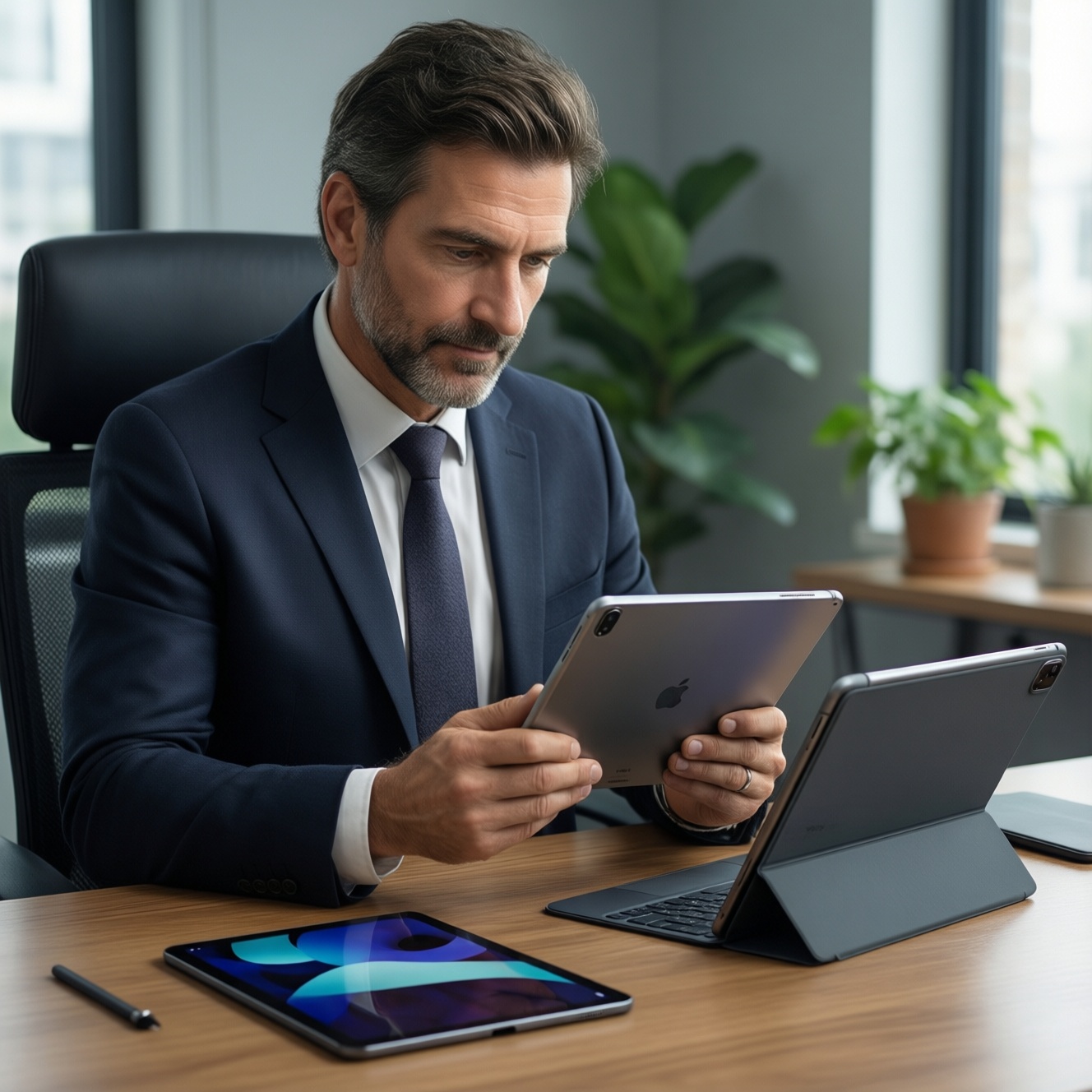
For serious work, choose based on your primary workflow: iPad (iPadOS) is usually the safest pick for creative pro apps and consistent accessories, Galaxy Tab (Android) wins for flexible multitasking and Samsung features, and Pixel Tablet fits lighter desk/hub productivity in Google's ecosystem. Use the decision tree and scenario matrix below to match your job, not brand.
Quick selection checklist for professional tablet use
- Confirm your must-have apps first (creative suites, office tools, industry apps) and whether they're better on iPadOS or Android.
- Decide your main input: pen-first, keyboard-first, or touch-first; accessories determine whether a tablet can replace your laptop tasks.
- Check external display needs: mirror-only vs true extended desktop, and whether you need consistent window management.
- Prioritize file handling: strict project folders, external drives, network shares, and cross-device continuity.
- Validate meeting readiness: webcam angle, mic quality, screen sharing behavior, and docking convenience.
- Plan for sustained work sessions: heat under long video calls or editing, charging while using, and battery stability.
Raw performance and multitasking: CPU, RAM, and real workloads
Use these criteria as your "workload filter" before comparing models (this matters more than chasing headline specs):
- Type of multitasking you need: quick app switching vs true split-screen + floating windows + drag-and-drop workflows.
- Peak vs sustained performance: long exports, long calls, or heavy browser sessions can expose throttling or memory limits.
- Memory behavior: how well the system keeps multiple apps/tabs alive without reloading.
- GPU-leaning tasks: animation, layer-heavy illustration, video timelines, 3D previews.
- Browser workload: web apps, many tabs, extensions, and desktop-class sites.
- Local storage needs: large project files, offline media, cache-heavy creative apps.
- External storage workflow: predictable mount/format support and whether your apps can directly open/save to it.
- Thermals during "real work": meetings + note-taking + screen share, or editing while charging.
Operating system trade-offs and app ecosystem implications
Start here if you're doing "เปรียบเทียบ iPad กับ Galaxy Tab สำหรับทำงาน": the OS determines the ceiling of your workflow, especially for file handling, windowing, pro app availability, and accessory reliability.
| Variant | Who it fits | Pros | Cons | When to choose |
|---|---|---|---|---|
| iPad (iPadOS, Air/Pro class) | Creators, managers, and consultants who need stable pro apps and predictable accessories | Strong creative app ecosystem; consistent pen/keyboard experience; reliable long-term workflow consistency | Some desktop workflows still feel constrained; file operations can be less "PC-like" in edge cases | If your priority is app quality + pen work + polished accessories (ตอบโจทย์ "ซื้อ iPad รุ่นไหนดี สำหรับทำงาน" ได้ตรงสุด) |
| Samsung Galaxy Tab (Android + DeX) | Power users who want flexible windowing, multitasking, and wide peripheral compatibility | DeX-style desktop feel; flexible multi-window; good for mixed work + communication | Some pro-grade iPad apps may have weaker Android equivalents; long-term app optimization varies | If you want a tablet that behaves closer to a lightweight laptop UI ("Galaxy Tab รุ่นไหนดี สำหรับทำงาน" มักจบที่รุ่นที่รองรับ DeX + คีย์บอร์ดดี) |
| Pixel Tablet (Android + Google ecosystem) | Google Workspace users who want a simple work tablet that also acts as a home/desk device | Clean Android experience; strong Google integration; convenient shared-space usage | Accessory and "pro workflow" ecosystem is thinner; less of a classic laptop-replacement path | If you value Google-first simplicity over maximum pro accessories ("Pixel Tablet ราคา พร้อมสเปก" ควรดูคู่กับอุปกรณ์เสริมที่มีจริงในไทย) |
| iPad (iPadOS, entry level) | Office basics, learning, and lighter client work with occasional pen/keyboard use | Good baseline apps; solid video calls; good resale ecosystem | May hit limits sooner with heavy multitasking and large projects | If you need a reliable work tablet but not intensive creative or multi-app workflows |
| Android tablets (non-Samsung, general) | Budget-conscious users who still need Android flexibility | Often good value; Android app compatibility | Accessory quality and update cadence can be inconsistent; desktop-mode features may be weaker | If price is the driver and you can accept variability in accessories and long-term polish |
Practical OS choice rule: if your income depends on specific creative apps and predictable pen latency, iPadOS is usually lower risk; if your day is email/docs + many chat apps + window juggling, Galaxy Tab with DeX-like workflows often feels more laptop-like; if you mainly live in Google services and want a clean, shared-device approach, Pixel Tablet can be enough.
Accessories, input methods, and workflow integration
Use these scenario rules to decide what will actually make the tablet productive (not just powerful):
- If you write/draw for hours, pick the platform with the best pen ecosystem for your apps (notes, PDF markup, illustration) and confirm palm rejection + shortcut workflow.
- If you type like on a laptop, prioritize a rigid keyboard case, stable trackpad, and a stand angle that works on small desks/cafés; this is the deciding factor for "แท็บเล็ตทำงานได้เหมือนโน้ตบุ๊ก รุ่นไหนดี".
- If you present to clients often, choose the option with the least-friction external display behavior for your use (slides, screen share, pointer support) and a reliable dongle/dock path.
- If you live in files (projects/assets/contracts), test the full loop: download → rename → folder structure → share → archive; don't assume it matches a laptop.
- If you're in meetings all day, pick for camera placement, mic consistency, and "join-call + notes + document editing" without constant app reloads.
- If you already own a laptop/desktop, treat the tablet as a role device: meeting + review + marking up + quick edits; buy accessories that make handoff fast (cloud, shared clipboard, nearby sharing).
Display fidelity, color management, and external monitor support
- List your primary content type: text/docs, photo/video, illustration, or spreadsheet-heavy work.
- Decide whether color-critical work is real (client delivery) or "nice to have" (internal drafts).
- Check your external monitor goal: simple mirroring for presentations vs extended workspace for real desk productivity.
- Verify your most-used apps behave well with split screen/windowing and external displays (toolbars, scaling, shortcuts).
- Choose screen size by workflow: smaller for mobility/notes; larger for timelines, side-by-side documents, and DeX-style setups.
- Confirm stylus hover/latency expectations (if relevant) by testing your actual note or drawing app.
Battery life, charging behavior, and sustained thermal performance
- Choosing by "video playback" marketing instead of your real mix (calls + browser + docs + hotspot).
- Ignoring how performance changes while charging (some workflows heat up and feel slower over time).
- Assuming any USB-C charger/cable will behave the same for fast charging and stable docking.
- Buying a thin keyboard case that turns long typing into wrist strain-fatigue kills productivity faster than slower CPUs.
- Not planning for standby drain with always-on notifications, chat apps, and background syncing.
- Forgetting that bright screens and constant video calls can change battery behavior dramatically.
- Overestimating how well a tablet handles "desktop browser all day" without tab reloads on mid-tier configurations.
- Skipping thermal comfort: a warm device during meetings is distracting and can reduce sustained performance.
Scenario-driven recommendation matrix: which tablet for which job
- If your top priority is pro creative apps + pen work, lean iPad (Air/Pro class) → then pick screen size based on canvas/timeline needs.
- If you need laptop-like windowing + heavy multitasking, lean Samsung Galaxy Tab with DeX → then prioritize keyboard/trackpad quality.
- If you want Google-first productivity + a shared desk/home device, lean Pixel Tablet → then confirm accessory availability and your exact apps.
- If budget is tight but work must be reliable, choose the ecosystem where your must-have apps are best supported, then buy the best keyboard/pen you can.
Best fit tends to look like this: iPad for design-heavy and pen-centric work, Galaxy Tab for multitasking-heavy "mini-laptop" workflows, and Pixel Tablet for Google-centric light-to-mid productivity and a simpler daily setup. When deciding "ซื้อ iPad รุ่นไหนดี สำหรับทำงาน" or "Galaxy Tab รุ่นไหนดี สำหรับทำงาน", prioritize your must-have apps and accessories first, then screen size.
Lingering purchase doubts resolved
Can a tablet fully replace a laptop for work?
It can for many office and communication roles if you commit to a keyboard/trackpad and your required apps exist. For specialized desktop software, a tablet works best as a companion rather than a full replacement.
Which is safer for long-term app support: iPad or Android tablets?
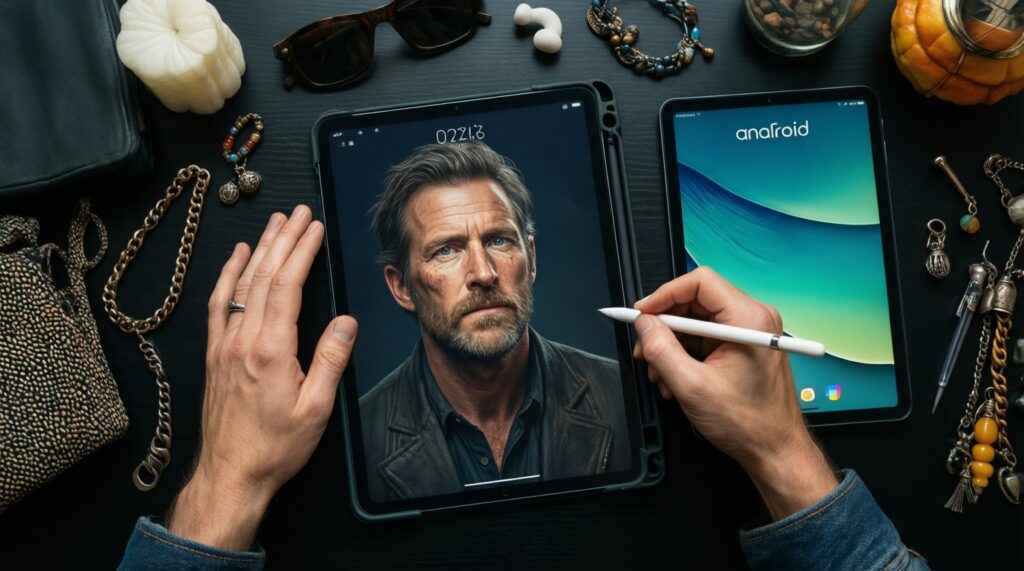
iPadOS is typically the safer bet when you rely on specific pro-grade apps and accessory consistency. Android can be excellent, but app optimization and accessory ecosystems vary more by brand.
Is Samsung DeX a real advantage for productivity?
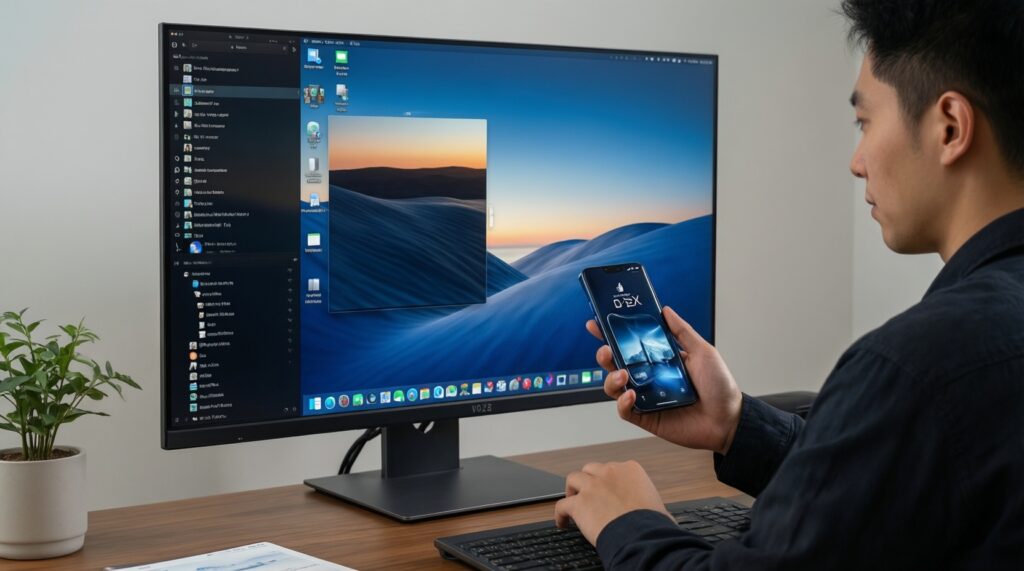
Yes if your work benefits from multi-window layouts and a desktop-like UI on an external display. If you mostly use one app at a time, DeX may not change much.
Does Pixel Tablet make sense for serious work?
It can, if your workflow is primarily Google Workspace, browsing, email, and meetings, and you're comfortable with a simpler accessory path. For heavy creator workflows, you may hit ecosystem limits sooner.
What should I test in-store before buying?
Open your key apps, try split-screen/windowing, and type for at least a few minutes on the exact keyboard case. Also test external display behavior if you present often.
How do I avoid buying the "wrong size" screen?
Pick smaller for mobility and note-taking, larger for side-by-side documents, timelines, and desk use. If you plan to work like a laptop, prioritize viewing comfort over portability.