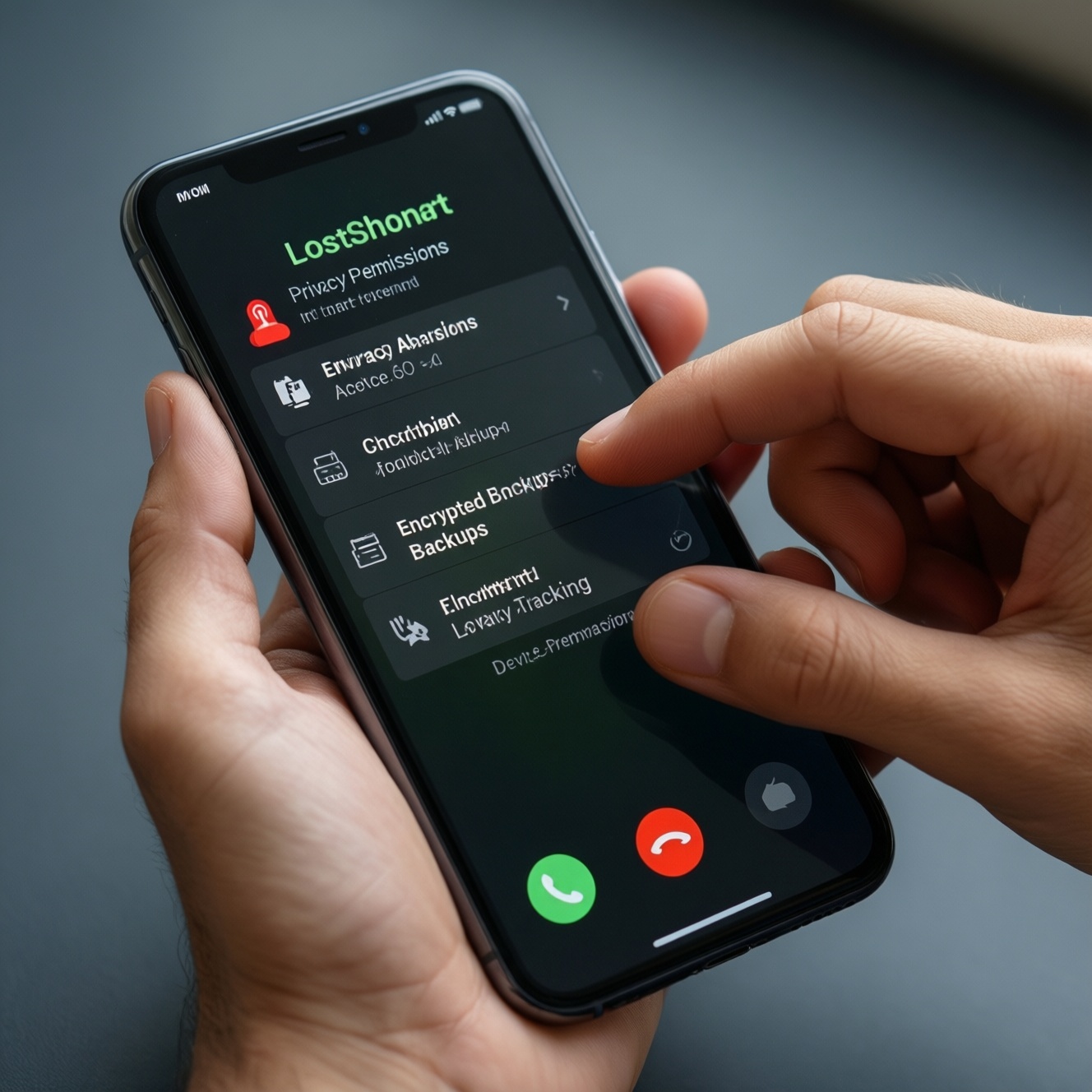
To improve mobile security and privacy, apply least-privilege permissions, keep encrypted backups you can restore, and enable reliable device-finding with strong account protection. This guide shows practical menu paths for iPhone, Android, and Samsung, plus risk trade-offs and what to do if your phone is lost-without relying on complicated tools.
Essential Security Controls at a Glance
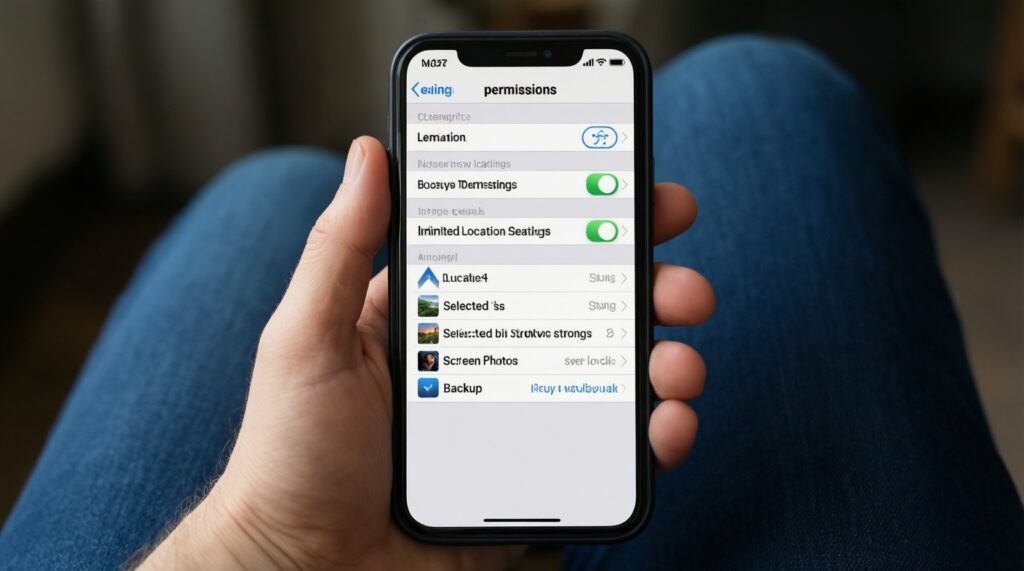
- Grant only the permissions an app needs now (location, photos, mic/camera, contacts, notifications).
- Prefer "While Using" location and "Selected Photos" over broad access.
- Use a strong screen lock (PIN/passcode), biometrics, and enable device encryption (default on modern iOS/Android).
- Back up on a schedule you can restore from; protect backups with account security and (where available) end-to-end encryption.
- Turn on Find My / Find My Device / SmartThings Find and test locating and sound playback before you need it.
- Harden accounts: MFA/2-step verification, recovery options, and review trusted devices.
Principles of Least Privilege for Mobile Apps
Who this is for: people who install new apps, use ride-hailing, banking, social apps, and travel frequently; teams with BYOD policies; anyone who carries sensitive work or personal data.
When you should not aggressively lock everything down: if you rely on accessibility services, password managers with auto-fill, medical/fitness monitoring, child-safety apps, or corporate MDM controls. In these cases, tighten permissions carefully and test, because over-restriction can break critical functions (usability) while not necessarily improving security if you compensate with unsafe workarounds.
Practical Steps to Audit and Revoke App Permissions
What you'll need:
- Device unlock (passcode/PIN) and access to your Apple ID / Google Account / Samsung Account.
- Stable internet (for backup and device-finding registration).
- Time window where you can re-login to key apps (banking, messaging) after changes.
- For Android: knowing your vendor skin (Pixel/stock Android vs Samsung One UI) because menus vary slightly.
Menu paths (iPhone / iPad):
- Audit by permission category: Settings > Privacy & Security. Review Location Services, Contacts, Photos, Microphone, Camera, Bluetooth, Local Network.
- Audit per app: Settings > (scroll to the app). Turn off anything not required.
- Photos hardening: Settings > Privacy & Security > Photos. Prefer Selected Photos instead of full library when possible.
- Location hardening: Settings > Privacy & Security > Location Services. Prefer While Using; turn on Precise Location only when needed (maps, ride pick-up).
- Background activity: Settings > General > Background App Refresh. Disable for apps that don't need it (reduces tracking and battery drain).
Menu paths (Android 13/14 general):
- Permission Manager: Settings > Privacy (or Security & privacy) > Permission manager. Review Location, Camera, Microphone, Contacts, Nearby devices.
- Per-app controls: Settings > Apps > (app) > Permissions. Set to Allow only while in use where available.
- Remove unused permissions at scale: Settings > Privacy > Permission manager > (permission) > see "Allowed all the time". Revoke for apps you rarely use.
- Limit notifications: Settings > Notifications > App notifications. Disable marketing-heavy apps (reduces phishing exposure).
Menu paths (Samsung One UI):
- Permission Manager: Settings > Security and privacy > Permission manager.
- App permissions: Settings > Apps > (app) > Permissions.
- Special access review: Settings > Apps > (three dots) > Special access. Check "Install unknown apps", "Appear on top", "Modify system settings".
Secure Backup Strategies: Encryption, Frequency, and Storage
Risks and limitations to consider (trade-offs):
- Cloud convenience vs privacy: cloud backups reduce loss risk but increase account takeover impact if MFA and recovery settings are weak.
- End-to-end encryption vs recovery: stronger encryption can mean fewer recovery options if you lose trusted devices or recovery keys.
- Backup completeness vs speed: full device backups can be slow on limited Thai mobile data; prefer Wi‑Fi and charging.
- False confidence: "Backup enabled" doesn't guarantee it contains what you think-verify restore capability.
-
Pick a primary backup target (cloud, local, or both)
For most users, use cloud as primary and add a periodic local backup for resilience. "Both" reduces single-point failure but increases complexity.
- iPhone: iCloud Backup (cloud) + optional computer backup (Finder on Mac / Apple Devices app on Windows).
- Android: Google backup (cloud) + optional local copy for media (PC) if you need extra assurance.
- Samsung: Samsung Cloud features vary by region; treat it as supplementary rather than your only plan unless you have verified what is included.
-
Harden the account that protects your backup
Enable multi-factor authentication and review account recovery methods, because a compromised Apple ID/Google Account can expose backups and enable remote actions against you.
- Apple ID: Settings > your name > Sign-In & Security > Two-Factor Authentication.
- Google: Google Account > Security > 2-Step Verification (path can vary by device).
-
Enable and configure iPhone backups
On iPhone, go to Settings > your name > iCloud > iCloud Backup > Turn On, then run "Back Up Now" while on Wi‑Fi and charging.
- If you're researching วิธีสำรองข้อมูล iPhone iCloud ราคา, treat pricing as a capacity decision: choose the smallest plan that comfortably fits your device plus growth, and reassess after a month of photos/videos.
- For stronger privacy, consider enabling Advanced Data Protection (if available to your account) and ensure you understand recovery implications.
-
Enable and configure Android backups (Google)
On Android, go to Settings > Google > Backup (or Settings > System > Backup on some devices) and enable backup. Confirm which items are included (apps, call history, device settings, SMS on some devices).
- If you're comparing Google One สำรองข้อมูล ราคา, decide based on total storage needs (Drive, Photos, Gmail) rather than "backup" alone.
- Use Google Photos settings deliberately: "Original quality" increases storage use; "Storage saver" reduces size (quality trade-off).
-
Encrypt and protect local backups (when you use a computer)
Local backups are only as safe as the computer. Use full-disk encryption on the computer and a strong login password; store the device-backup encryption password in a trusted password manager.
- iPhone to Mac: Finder > select device > Backups > check "Encrypt local backup".
- Windows: ensure BitLocker (or device encryption) is enabled where available.
-
Set a cadence you will actually follow
Use automatic backups daily (cloud) and add a periodic local backup before high-risk events (travel, OS upgrades, phone trade-in). Consistency matters more than perfection.
Restoration Workflows and Verifying Backup Integrity
- Confirm the latest backup timestamp: iPhone Settings > your name > iCloud > iCloud Backup; Android Settings > Google > Backup (menu may vary).
- Verify account access works now: you can log in to Apple ID/Google and your MFA method is reachable (SIM change and travel can break SMS).
- Check that critical apps can be re-authenticated after restore (banking, e-wallet, work apps) and you have required codes/devices.
- Validate media and chats: confirm where your photos and messaging backups live (e.g., iCloud Photos vs iCloud Backup; app-specific backups for chat apps).
- Do a small restore test when feasible: restore a single app's data (if supported) or set up a spare/old device to confirm the flow.
- Ensure local backup encryption is enabled (if using a computer) and that you can unlock it (password known and stored securely).
- After any OS update or device migration, re-check permission settings-some apps request expanded access again during onboarding.
- Document the recovery path: which account, which email/phone, which trusted device, and where recovery keys are stored.
Configuring Find My / Find My Device / SmartThings Find Securely
- Not testing before you need it: after enabling, verify you can locate the device from another device or web portal and play a sound.
- Weak account security: Find My is only as secure as your Apple ID/Google/Samsung account. Enable MFA and remove unknown trusted devices.
- Location services disabled: iPhone needs Location Services on; Android needs location on and Google Play services functioning.
- Battery optimization blocking tracking (Android): aggressive battery savers can delay location updates. Allow normal background behavior for system services.
- Offline finding misunderstandings: offline networks can help, but they are not guaranteed everywhere; plan for worst-case (no location updates).
- Not enabling network participation (where applicable): iPhone: Settings > your name > Find My > Find My iPhone > enable Find My network and Send Last Location (if available).
- Skipping device passcode/PIN: without a strong lock, a thief may access accounts and disable tracking faster.
- SIM swap risk ignored: don't rely only on SMS for account recovery; use authenticator apps or security keys when possible.
- Buying used devices without re-checking ownership locks: if you ซื้อ iPhone เปิดใช้ Find My, ensure the previous owner has removed the device from their Apple ID (Activation Lock). For ซื้อ Android เปิดใช้ Find My Device, confirm the device is removed from the previous Google account to avoid FRP lock issues.
- Samsung users not verifying the right feature: if you're asking SmartThings Find ใช้งานอย่างไร, confirm you are signed into Samsung Account, SmartThings is installed/updated, and SmartThings Find is enabled in the SmartThings app; then test locating from another Samsung device.
Incident Response: Lost Device, Remote Wipe, and Account Recovery
- Option 1: Lock and locate first (default)
Use Find My / Find My Device / SmartThings Find to mark the device as lost, display a message, and track location. Choose this when you believe recovery is possible and the device is still reporting location. - Option 2: Remote wipe when exposure risk is high
Trigger erase if the device contains sensitive work data, you suspect it's in hostile hands, or location is no longer updating. Trade-off: wiping can reduce further tracking capability depending on platform state and network availability. - Option 3: Account containment without wiping
If you can't reach the device-finding service but you suspect credential compromise, immediately change Apple ID/Google/Samsung passwords, revoke sessions, and rotate critical app passwords. This is useful when the phone is offline or stolen along with your SIM. - Option 4: Carrier and identity safeguards
Contact your Thai carrier to suspend the SIM/eSIM and watch for SIM-swap behavior. Use this when you rely on SMS and need to prevent takeover while you recover accounts.
Common Practical Concerns and Edge Cases
Will revoking permissions break apps permanently?
Usually no; the app will prompt again when it needs access. Expect friction for navigation, delivery, and camera-based apps, so change one category at a time and test.
What permissions should I treat as high-risk?
Always-on location, Accessibility services, SMS access, notification access, and "Appear on top" (Android) can enable tracking or abuse. Grant only to apps you strongly trust and actually need.
How do I avoid getting locked out after enabling stronger backup encryption?
Confirm you have at least two recovery methods (e.g., trusted device + recovery contact/key). Store recovery keys in a secure place you can access during travel or after a phone loss.
If I buy a used phone, what should I check before setting up Find My?
Ensure the previous owner has fully removed the device from their account (Apple Activation Lock / Android FRP). If not, return the device or complete removal with the seller present before you rely on it.
Can I use Find My / Find My Device if the battery is dead or the phone is offline?
Sometimes you'll only see the last known location, and updates may stop. Treat device-finding as a recovery aid, not a guarantee; strong screen lock and backups remain essential.
Do cloud backups include everything (photos, chat history, app data)?
No; coverage varies by platform and app. Verify the backup scope for your messaging apps and whether photos are handled by a separate sync service (iCloud Photos/Google Photos).
What's the safest first action right after I notice my phone is missing?
From a trusted device, mark it lost/lock it, then secure your accounts (change passwords, revoke sessions) if you suspect theft. Contact your carrier to suspend the SIM if you see signs of takeover.