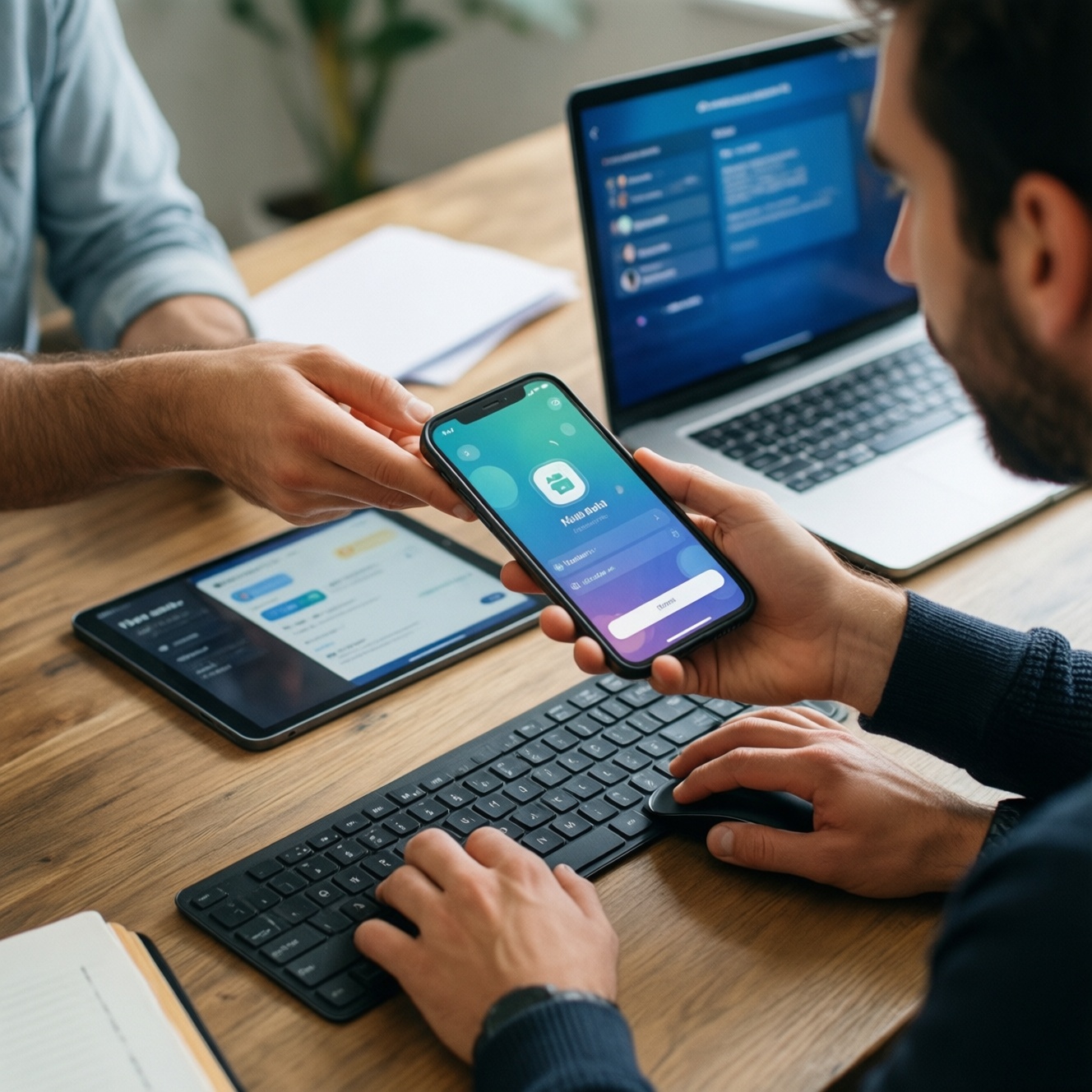
Cross-device work (ทำงานหลายอุปกรณ์ คืออะไร) means your phones, tablets, and computers can hand off tasks, move files, and share controls as if they were one setup. In practice, Handoff continues an app session on Apple devices, Nearby Share moves files/links between nearby devices, and Multi Control shares one keyboard/mouse across multiple screens.
Quick Use Summary for Cross‑Device Features

- Pick Handoff when you want to continue what you were doing (email, web, docs) across Apple devices with minimal friction.
- Pick Nearby Share when you mainly need fast transfer of files/links to a nearby device (especially Android/Windows mixed setups).
- Pick Multi Control when you want one keyboard/trackpad to drive multiple devices for real productivity at a desk.
- Expect ecosystem boundaries: Apple-to-Apple continuity is deepest; cross-platform sharing is more "file transfer" than "session continuation".
- Decide based on the task: continue an app session vs send a file vs control another screen.
Handoff: Seamless App Handover Between Apple Devices
If you're comparing options, use these criteria to decide whether Handoff is the right tool (and not a file-transfer tool in disguise). If you're searching "Handoff คืออะไร ใช้อย่างไร", think of it as continuing context, not "sending content".
- Same ecosystem: works best when all devices are Apple (iPhone/iPad/Mac) on the same Apple ID.
- Task type: ideal for apps that support state continuation (drafts, browsing, reading, composing).
- Continuity need: you want to pick up mid-task with minimal re-opening and re-navigating.
- Network conditions: typically prefers stable local connectivity; flaky Wi‑Fi/Bluetooth often equals unreliable discovery.
- Privacy expectation: you're comfortable with device-to-device signaling and the app's own syncing behavior.
- Latency tolerance: you want near-immediate continuation, not "wait for upload then download".
- Account separation: less suitable if devices are shared across people or multiple Apple IDs.
- Fallback plan: if Handoff fails, you should be okay using AirDrop/clipboard/file sharing instead.
Nearby Share: Cross‑Platform File and Link Transfer
When people ask "Nearby Share ใช้ยังไง", the core is simple: select a file/link, choose Nearby Share, pick the target device, accept on the receiver. The real decision is which nearby transfer method fits your device mix and constraints.
| Variant | Who it fits | Pros | Cons | When to choose |
|---|---|---|---|---|
| Android Nearby Share / Quick Share (device-to-device) | Android-to-Android users in Thailand who share photos, videos, APKs, PDFs locally | Fast for nearby transfers; works without cloud; simple accept/decline flow | Not a "continue my app session" feature; can be picky about visibility settings and permissions | Sending files/links to a nearby Android device in seconds |
| Windows Nearby Sharing (PC-to-PC) | Windows laptops/desktops in the same room (office/classroom) | No cables; good for links and lightweight files; integrates with Share UI | Windows-only; may be blocked by policies on managed devices | Sharing links/files between two Windows PCs on the same network |
| Apple AirDrop (nearby transfer) | Apple users who primarily need fast file transfer, not app handover | Very fast; good for large media; strong UX; typically low setup overhead | Apple-only; discoverability can fail with wrong visibility/contacts settings | Moving photos/videos/documents between iPhone/iPad/Mac quickly |
| Link-based transfer (share link, QR, or messaging app) | Mixed devices (Android+iOS+Windows) with a common chat/app | Universal; works over the internet; keeps history/search in chats | Not truly "nearby"; depends on upload; privacy depends on the platform | When devices can't discover each other locally or you need an audit trail |
| Cloud drive sync (Drive/iCloud/OneDrive) | People who need cross-device access over time (not just "right now") | Available anywhere; versioning/sharing controls; works across OS | Requires upload/download; sync conflicts possible; storage policies apply | When you want the same working folder across devices, not a one-off send |
| Local network transfer (SMB/NAS or shared folder) | Home/SMB users with a router/NAS and repeat transfers | Good for bulk files; centralized storage; can be fast on LAN | More setup; permissions and network discovery issues; not "tap to send" | When you frequently move large files and want a reliable hub |
Multi Control: Shared Keyboard and Cursor for Immediate Productivity
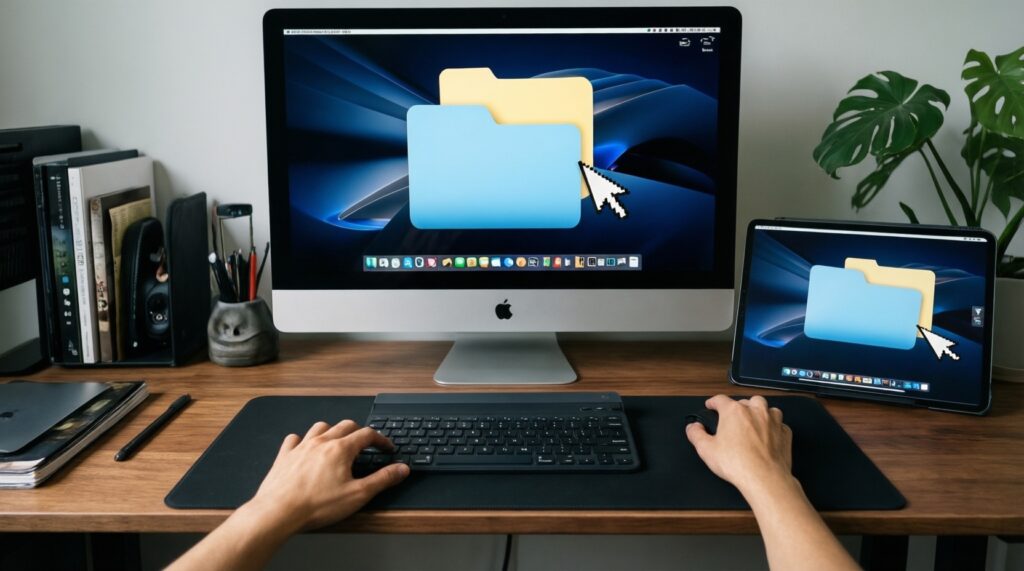
If you're searching "Multi Control ใช้ยังไง", treat it as a desk workflow: one keyboard/trackpad drives two devices, and you drag content across screens when supported.
- If you edit text on a Mac but reference a tablet (notes, PDFs, chat), then use Multi Control to move the cursor to the tablet and copy/paste between devices without switching peripherals.
- If you do presentations and need a laptop plus a tablet as a "second panel", then Multi Control helps you drive both devices from one position without juggling devices.
- If you code/design on a computer and preview on another device, then Multi Control reduces context switching-keep one keyboard/mouse and quickly interact with the preview device.
- If you frequently drag files/images into a chat or document on another device, then Multi Control is better than Nearby Share because it's continuous interaction, not repeated send/accept cycles.
Workflow examples (with common failure modes)
-
Write on laptop, continue on phone (Apple-only)
- Start an email or document on Device A.
- On Device B, open the suggested continuation entry (app/launcher suggestion).
- Continue editing and send/finish.
- Fails when: different Apple IDs, Bluetooth/Wi‑Fi toggles off, or the app doesn't support handover state.
-
Send a video from Android to Android nearby
- On sender: Share → Nearby Share/Quick Share.
- Choose receiver; on receiver: accept.
- Fails when: receiver visibility is restricted, permission prompts denied, or devices can't see each other due to radios/network isolation.
-
Use one keyboard to answer messages on a tablet while working on a computer
- Enable Multi Control/keyboard sharing feature on both devices.
- Move cursor across to the tablet; type and interact.
- Fails when: devices aren't on the same account/ecosystem requirement, or connectivity is unstable (cursor jump/disconnect).
Compatibility and Ecosystem Constraints: Who Can Talk to Whom
Use this quick selection algorithm as a practical checklist when choosing a feature for ทำงานหลายอุปกรณ์:
- Identify your device pair: Apple-to-Apple, Android-to-Android, Windows-to-Windows, or mixed.
- Define the job: continue a task (session), send something (file/link), or control another device (keyboard/cursor).
- If it's "continue a task" and you're Apple-to-Apple, try Handoff first; otherwise plan for sync/cloud or manual reopen.
- If it's "send something now" and devices are nearby, choose the native nearby transfer (Android Nearby Share/Quick Share, AirDrop, Windows Nearby Sharing).
- If it's "control another device at a desk", choose Multi Control-style sharing where supported; otherwise consider a KVM/remote desktop as a fallback.
- Check constraints: same account requirements, device visibility settings, managed-device policies, and whether the target file type is supported.
- Pick a fallback: messaging link, cloud drive sync, or local network share when discovery fails.
Security, Privacy and Data‑Handling Differences
- Mistaking session handover for file transfer: Handoff is about continuity; sending attachments may still need AirDrop/Nearby Share/cloud.
- Ignoring visibility settings: "Contacts only" or hidden mode is a common reason Nearby Share/AirDrop won't find devices.
- Not verifying the receiver: in crowded places, avoid "everyone" visibility; confirm device name/avatar before accepting.
- Assuming end-to-end encryption everywhere: different methods have different security models; treat unknown networks and third-party apps cautiously.
- Relying on cloud sync for urgent transfers: sync can be delayed; for "need it now", prefer direct nearby transfer.
- Cross-account leakage on shared devices: Multi Control/Handoff-like features can expose clipboard/history if devices are shared among people.
- Overlooking app-level storage: even if the transfer method is fine, the receiving app may store copies/backups (gallery, chat cache).
- Permission fatigue: denying Bluetooth/local network/file permissions breaks discovery and transfer silently later.
- Using the wrong channel for sensitive files: for confidential documents, avoid public chats/links; prefer controlled sharing (access restrictions, expiry) or offline transfer when possible.
When to Choose Which: Practical Decision Tree and Scenarios
- Are all devices Apple and you want to continue an app task? → Choose Handoff.
- Do you mainly need to move files/links to a nearby device? → Choose Nearby Share / AirDrop / Windows Nearby Sharing depending on OS.
- Do you want one keyboard/mouse across devices for desk work? → Choose Multi Control.
- Is it a mixed ecosystem and you need persistent access across time? → Choose cloud drive sync (often what people mean by แอปซิงค์ข้อมูลข้ามอุปกรณ์ ที่ดีที่สุด).
Best for continuing work context is usually Handoff within Apple setups; best for quick nearby sending is the native nearby share method for your OS; best for multi-screen desk productivity is Multi Control where supported. For mixed-device teams, a cloud-sync workflow often wins on reliability and repeatability over any single nearby feature.
Common Practical Concerns and Edge Cases
Why does Handoff appear sometimes but not always?
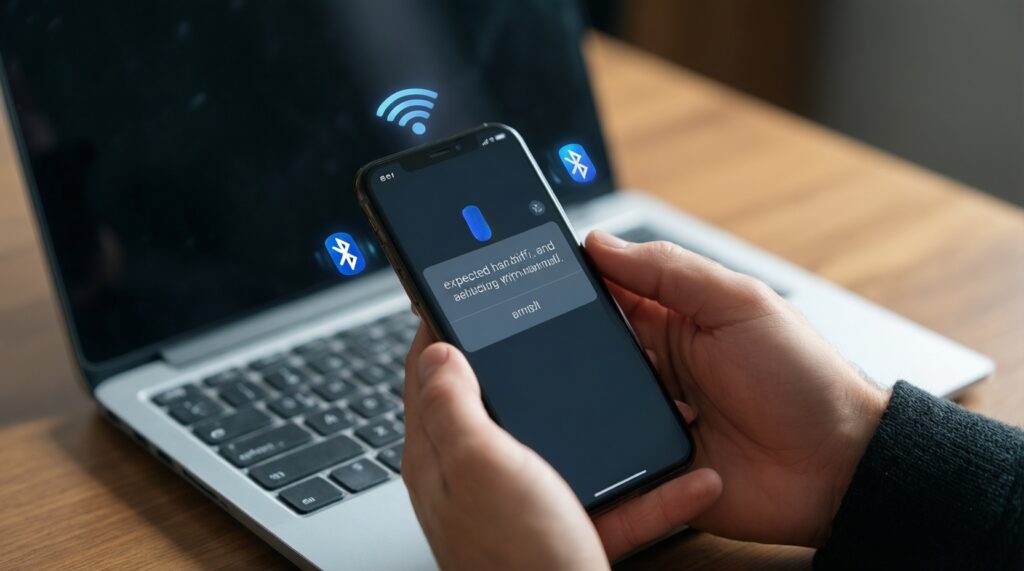
It depends on account matching, radios (Bluetooth/Wi‑Fi) being enabled, and whether the app supports handing off the current state. If any one of these is off, the suggestion may not show up.
Can Nearby Share replace cloud sync?
No-Nearby Share is optimized for immediate transfers to a nearby device, not long-term availability across many devices. Use cloud sync when you need the same files accessible later from anywhere.
What's the fastest way to share a link between different ecosystems?
In mixed setups, sending a link via a messaging app or a shareable note is often more reliable than local discovery. It trades "nearby speed" for universal reach.
Multi Control feels laggy or disconnects-what should I check first?
Start with connectivity stability (Wi‑Fi/Bluetooth) and whether both devices meet the feature's ecosystem/account requirements. Unstable networks cause cursor jump, delayed keystrokes, or sudden disconnects.
Do these features work on office-managed devices?
Sometimes, but policies can disable sharing, discovery, or certain network permissions. If you can't enable Nearby Sharing or it never finds devices, ask IT about allowed sharing methods.
Is it safe to enable "visible to everyone" for nearby sharing?
Use it only temporarily and confirm the receiver before sending or accepting. In public places, keep visibility restricted to reduce accidental or malicious transfers.
What should I use when the file is too large or keeps failing to send?
Try a direct nearby method first; if it's unreliable, switch to a local network share (NAS/SMB) or a cloud upload with a share link. Large transfers are more sensitive to connectivity drops.