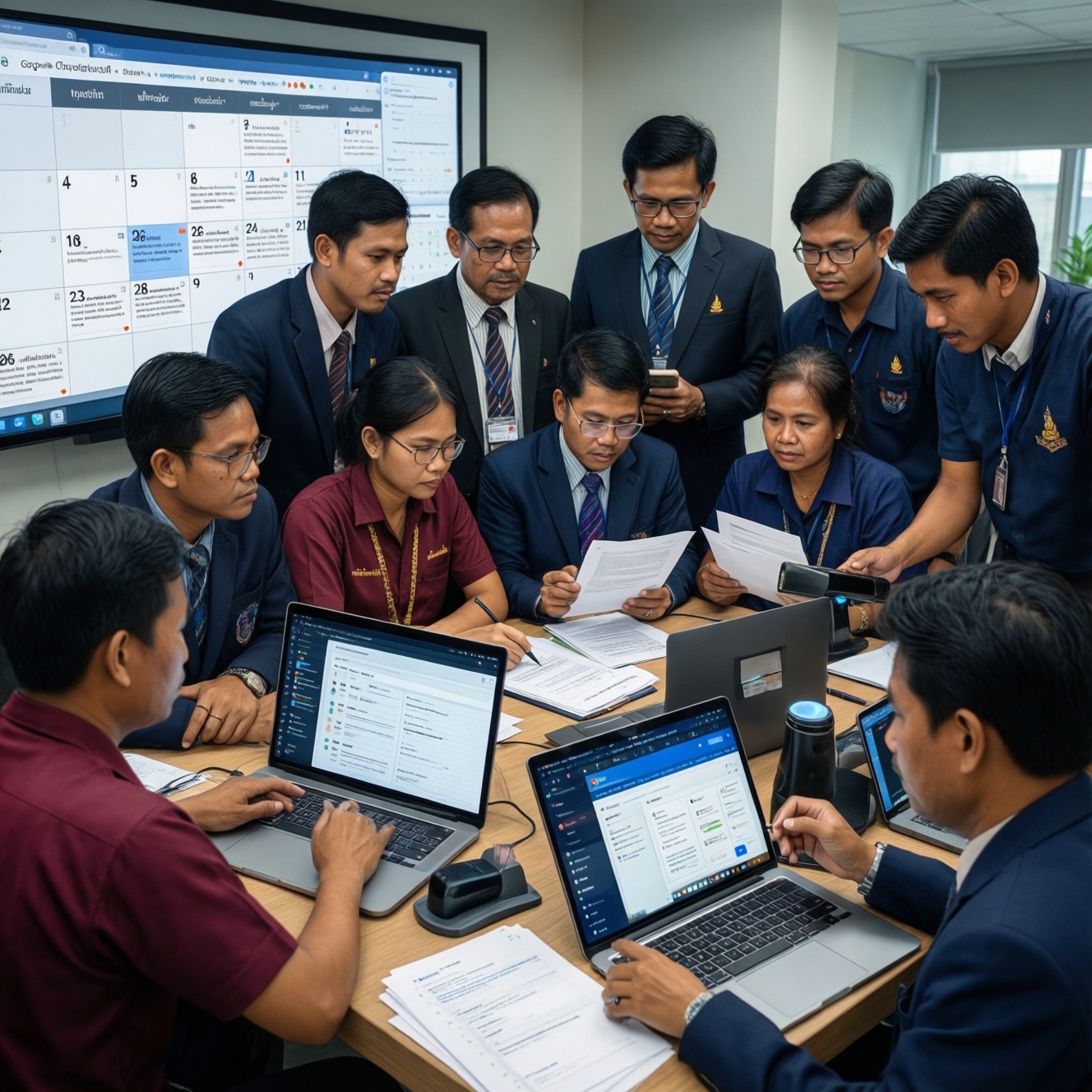
If you want one แอป Productivity ข้ามแพลตฟอร์ม stack that covers calendar, tasks, documents, scanning, and sharing, pick the suite that matches your identity system (Google/Microsoft/Apple) first, then fill gaps with a focused task app. For most mixed-device teams in Thailand, Google Workspace or Microsoft 365 wins on sync + collaboration; Notion/ClickUp add stronger workflows.
At-a-Glance: Core Cross-Platform Productivity Metrics
- Account backbone: Google/Microsoft/Apple sign-in determines the smoothest calendar, contacts, and device sync.
- Real collaboration depth: true simultaneous editing, comment threads, and version history.
- Permission model: link sharing vs named users, granular roles, external guest access.
- Offline behavior: what still works without signal (view, edit, attach, scan, queue sync).
- Search quality: full-text in docs/PDF, attachments, comments, and OCR results.
- Automation & integrations: APIs, webhooks, and connectors to Slack/Teams, email, and storage.
Cross-Platform Calendar: Sync Reliability and Scheduling Features
For an แอปปฏิทินข้ามแพลตฟอร์ม, judge the calendar layer by these practical criteria (test them with a real meeting series, not a single event):
- Two-way sync integrity: edits made on mobile propagate correctly to desktop/web and vice versa.
- Time-zone handling: traveling events, floating times, and invitee time zones render consistently.
- Recurring meeting edits: exceptions, "this and following," and moved occurrences don't break series.
- Invite flow: RSVP updates, proposal of new times, and changes notifications stay coherent across clients.
- Availability sharing: free/busy visibility for teams and external partners.
- Scheduling assist: suggested times, meeting length defaults, buffers, and working hours enforcement.
- Resource booking: rooms/equipment (if you operate an office) and conflict prevention.
- Attachment and notes linkage: easy path from event → meeting notes/doc/task.
- Tip (mixed devices): decide one "source of truth" calendar (Google Calendar or Outlook Calendar). Avoid creating events in multiple accounts and expecting them to merge cleanly.
Task Management: Workflow Models, Reminders, and Collaborative Tasks
Task apps differ mainly by workflow model (personal reminders vs project boards vs structured work management). Use the table to match your team's operating style before you migrate data.
| Вариант | Кому подходит | Плюсы | Минусы | Когда выбирать |
|---|---|---|---|---|
| Microsoft 365 (Outlook + To Do + Planner) | Teams already living in Outlook/Teams | Strong enterprise identity; good meeting-to-task flow; solid permissions | Task layers can feel split; Planner vs To Do overlap | When your work is email/meeting-driven and you need tight Teams alignment |
| Google Workspace (Gmail/Calendar + Tasks + Chat/Spaces) | Teams centered on Gmail/Google Calendar | Fast cross-device access; simple task capture; excellent link sharing | Advanced project tracking is lighter than dedicated tools | When speed, low friction, and external collaboration matter most |
| Notion | Teams wanting docs + tasks in one workspace | Flexible databases; rich pages; tasks embedded in documentation | Needs governance to avoid messy structure; notifications require discipline | When you want a combined wiki + project hub with customizable workflows |
| ClickUp | Ops/agency teams running many projects | Deep statuses, views, automations; strong task hierarchy | Can feel heavy; setup time required | When you need standardized workflows, SLAs, and reporting across projects |
| Asana | Cross-functional teams coordinating dependencies | Clean collaboration; good timeline/dependency patterns; reliable notifications | Less "doc-native" than Notion; can be rigid for personal GTD | When clarity of ownership and cross-team coordination is the core problem |
| Apple Reminders + Notes (with iCloud) | Personal productivity on Apple devices (with some web access) | Low friction capture; strong on-device experience; good basic reminders | Collaboration and cross-platform depth are limited vs suites | When you mainly work solo and want the simplest reliable reminder system |
- Tip (reminders): keep "reminders that must alert" in a true reminder system (To Do/Tasks/Reminders), and keep "work items that need collaboration" in your project tool. Mixing them usually breaks notifications.
Document Handling: Real-Time Editing, Versioning, and Access Controls
If your priority is แอปจัดการเอกสารและทำงานร่วมกัน, pick by scenario-documents behave differently under real-time editing, versioning, and external sharing.
- If you co-edit proposals or reports in real time with external partners, then prefer Google Docs/Sheets or Microsoft Word/Excel online with comments + suggestion/track-changes equivalents.
- If you need strict access control (department-only, guest reviewers, expiring links), then choose Microsoft 365/SharePoint-style permissions or a workspace tool with role-based controls.
- If your team produces repeatable deliverables (SOPs, playbooks, knowledge base), then use Notion (or an equivalent wiki-first tool) and enforce templates + page ownership.
- If your work is "files first" (folders, PDFs, design exports), then choose one primary drive (Google Drive or OneDrive) and avoid splitting storage across multiple drives.
- If stakeholders approve via email threads, then push approvals into comments and assign action items inside the doc/workspace to reduce lost decisions.
- Tip (permissions hygiene): standardize sharing as either "named people only" or "link with restrictions." Mixing both within the same project is a common cause of accidental exposure.
Scanning and OCR: Accuracy, Speed, and File Output Options
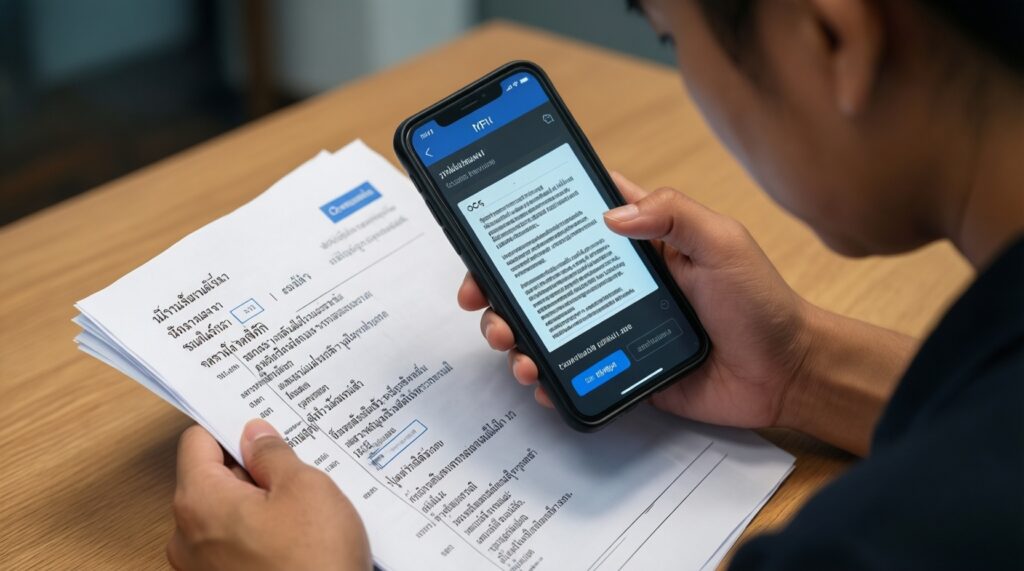
When choosing an แอปสแกนเอกสารเป็น PDF, use this quick selection algorithm to avoid messy archives and unreadable OCR.
- Decide the output standard: searchable PDF for archives, or image-first PDF/JPG for speed.
- Check OCR language needs (Thai + English) and whether OCR runs on-device or requires cloud sync.
- Verify edge detection + de-skew quality on real documents you scan often (receipts vs contracts).
- Confirm multi-page handling: reorder, insert pages, and re-scan a single page without restarting.
- Choose destination routing: direct save to Drive/OneDrive/SharePoint and consistent folder naming.
- Set a file naming rule (YYYY-MM-DD_vendor_amount or similar) and keep it consistent across the team.
- Test offline capture: scan now, upload later with no missing pages or duplicated files.
- Tip (searchability): run a quick "find" test after OCR (search a unique invoice number). If search fails, treat that app as image-only and plan manual indexing.
Shared Workspaces: Permissions, Commenting, and Notification Strategies
For an แอปแชร์ไฟล์และทำงานร่วมกันออนไลน์, most failures come from choosing a tool without matching your team's communication and permission habits. Watch for these recurring mistakes:
- Allowing both personal drives and shared drives without rules, then losing ownership when staff change devices or accounts.
- Using link-sharing "Anyone with the link" for sensitive projects because it is convenient, then forgetting to revoke access.
- Relying on chat messages for decisions instead of recording decisions in doc comments or task updates.
- Turning on every notification, causing alert fatigue and missed real escalations.
- Not defining where "final" lives (doc version, PDF export, or a signed scan), leading to parallel "final_final2" files.
- Inviting external guests with the same permissions as internal staff.
- Not setting an archive policy, so old projects remain editable and searchable noise grows over time.
- Skipping a folder/workspace taxonomy, making search the only navigation method (and then search fails on inconsistent naming).
- Tip (notifications): set one escalation channel (e.g., @mentions + due-date reminders) and keep the rest as optional digest. Consistency beats volume.
- Mini decision tree (fast pick):
- If you are a solo user and need simple reminders + basic files, then start with Apple Reminders/Notes (Apple) or Google Tasks/Keep (Google).
- If you are a small team and do lots of external sharing, then choose Google Workspace as the core, add Notion/Asana only if projects get complex.
- If you are a company team with permissions/compliance needs and heavy meetings, then choose Microsoft 365 as the core, add Planner/Asana for structured execution.
- If you need offline-first field work (scan now, sync later), then prioritize tools that queue uploads reliably and keep local copies accessible offline.
- If you want one workspace for docs + tasks + wiki, then choose Notion (lighter governance) or ClickUp (heavier workflow control) depending on process maturity.
Performance & Integration: Offline Behavior, APIs, and Third-Party Connectors
Best fit usually follows your ecosystem: best for Google-centric teams is Google Workspace as the hub (Calendar/Drive/Docs) with an optional project layer like Asana/Notion; best for Microsoft-centric teams is Microsoft 365 (Outlook/Teams/OneDrive) with Planner or a dedicated work manager; best for workflow-heavy delivery is ClickUp; best for knowledge-first execution is Notion-especially when you enforce templates and ownership.
Practical Implementation Clarifications
How do I avoid duplicate calendar events across devices?
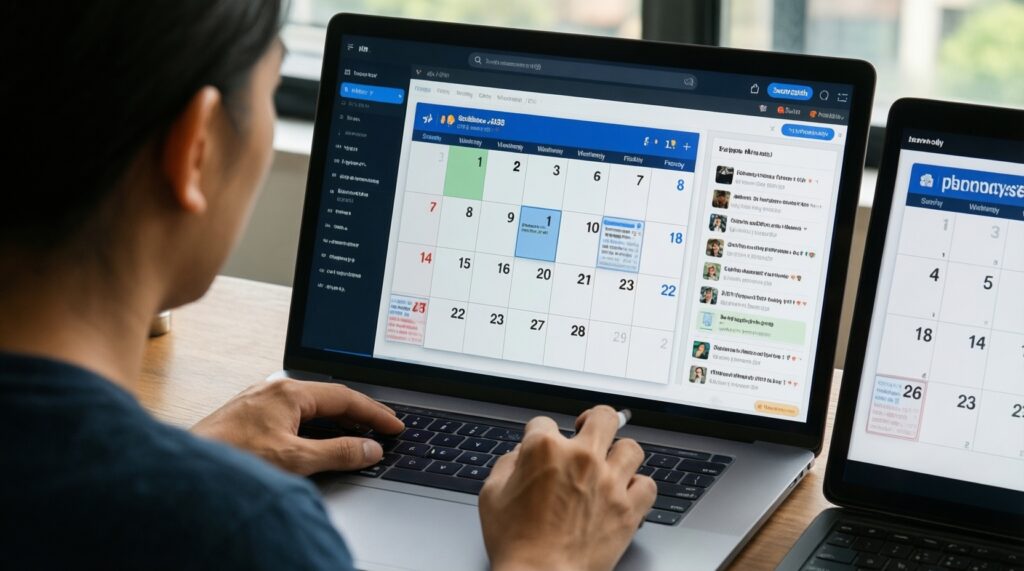
Use one primary calendar account as the source of truth, and only subscribe to other calendars as read-only where possible. Create and edit events in the primary account to keep recurrence and attendee updates consistent.
Should tasks live in the calendar tool or a separate task app?
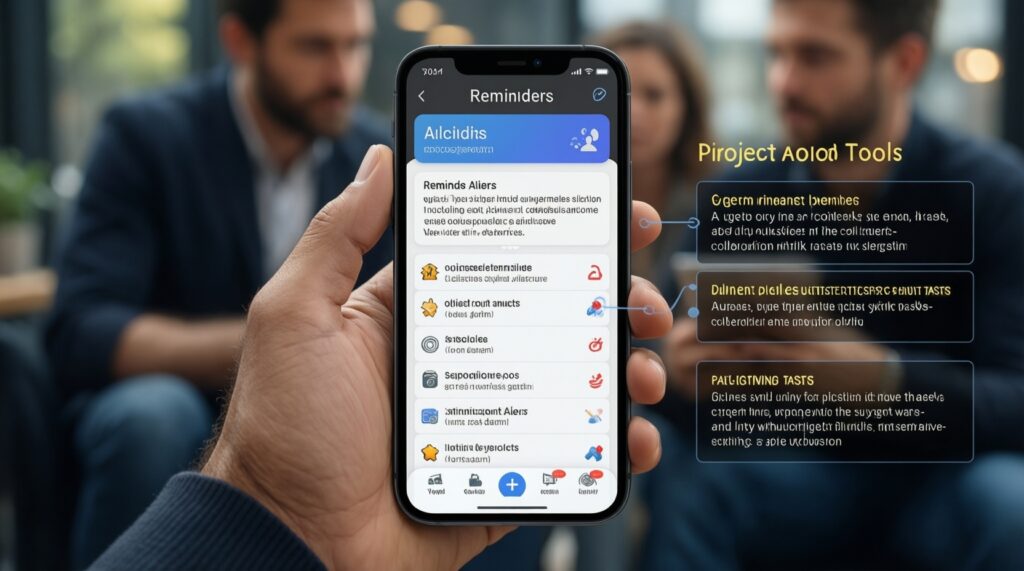
Keep alert-critical reminders in a reminder-native app, and collaboration-heavy work items in a project tool. Linking between them is fine; duplicating the same task in multiple systems is what causes missed updates.
What is the simplest stack for a small team that shares files with clients?
Pick Google Workspace or Microsoft 365 as the base, then add one project tool only if you truly need statuses, dependencies, or reporting. Most teams fail by adopting two overlapping suites at once.
How do I keep scanned PDFs searchable and easy to find?
Standardize on searchable PDF, define a file-naming convention, and store scans in a single shared location. Validate OCR by searching for a known identifier after upload.
What permissions model reduces accidental data exposure?
Prefer named-user access for sensitive work and reserve link sharing for low-risk materials with explicit expiration/review. Separate internal and external folders/workspaces with different default permissions.
What should I test before migrating the team to a new tool?
Test offline editing, sharing to external emails, comment notifications, and version restore on a real project. If any of these break, adoption will stall regardless of features.