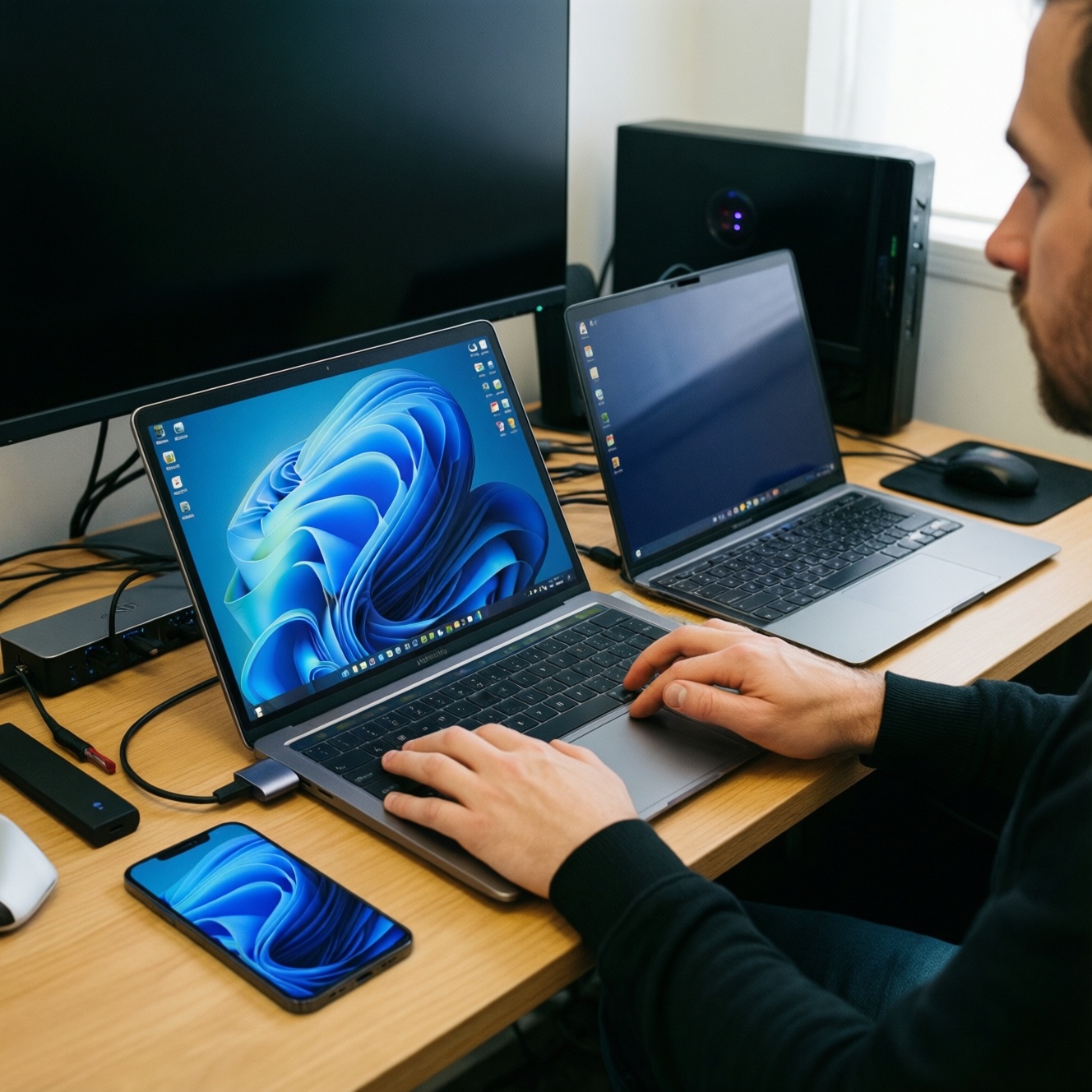
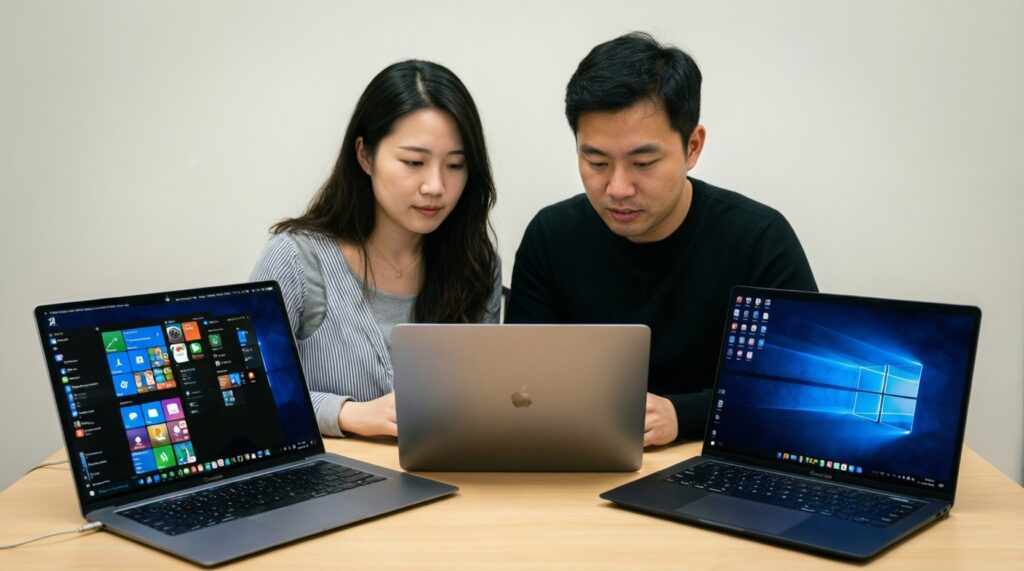
If you want the "best" laptop setup in Thailand, pick the platform that matches your phone-first habits and accessory ecosystem: MacBook for Apple continuity and creative tools, Windows for maximum software and ports flexibility with Android, and Chromebook for lightweight web-first work and low-fuss management. Then finalize the choice by docking, monitor, and cross-device workflow needs.
Ecosystem alignment at a glance
- MacBook fits best when your daily workflow depends on Apple-first apps, tight device continuity, and reliable performance with minimal tuning.
- Windows laptops are the most adaptable choice for mixed peripherals, specialized apps, and Android/Galaxy file-sharing plus multi-monitor docking.
- Chromebooks excel for browser-based study/work, Google Workspace, and simple, low-maintenance operation-especially when you avoid niche desktop software.
- Galaxy/Android users usually get the smoothest phone-to-PC handoff on Windows, while Mac shines if your phone is iPhone.
- Accessory planning (hub/dock, monitor, keyboard/mouse, cables) often decides satisfaction more than the CPU choice.
Performance and productivity profiles by platform
Use these criteria to decide before you compare models (including queries like ซื้อ MacBook รุ่นไหนดี 2026, Chromebook รุ่นไหนดี น่าใช้ ราคาไม่แพง, and โน้ตบุ๊ก Windows รุ่นไหนดี คุ้มค่า สำหรับเรียน/ทำงาน):
- Primary apps: native pro apps (Adobe, CAD, DAW), Windows-only tools, or browser/SaaS-first.
- Workload type: light office + tabs, coding, photo/video editing, data analysis, virtualization.
- Mobility: carry-all-day weight, battery stability, and whether you can rely on USB-C charging everywhere.
- Display needs: color accuracy for creative work vs. simple FHD; external monitor count and refresh expectations.
- IO and expansion: number/type of ports (USB-A, HDMI, SD), external storage, and dongle tolerance.
- Collaboration stack: Google Workspace, Microsoft 365/Teams, Slack, Zoom; offline vs. always-online behavior.
- Device continuity: copy/paste, call/SMS on laptop, hotspot auto-connect, quick file handoff, notifications.
- Admin/manageability: school/company policies, multi-user use, kiosk mode, and account-based provisioning.
Interoperability with Galaxy/Android and mobile-first features
Choose among these ecosystem "packages" depending on how you want your Galaxy/Android phone to behave with your laptop.
| Option | Who it's for | Pros | Cons | When to choose |
|---|---|---|---|---|
| Windows laptop + Galaxy/Android | Students/pros needing broad app compatibility and easy phone-to-PC workflows | Strong third-party app support; easiest path to phone link style features; flexible docking and peripherals | More variance by brand drivers/bloat; requires more setup discipline | If you want the most reliable Android integration while still running any Windows app |
| MacBook + Android | People who want macOS quality/performance but keep an Android phone | Excellent laptop-side UX; strong creative/dev tooling; great trackpad/keyboard experience on many models | Mobile continuity is not as tight as Apple-to-Apple; some phone mirroring/hand-off expectations won't match iPhone | If laptop performance and macOS apps matter more than deep phone integration |
| Chromebook + Android (Google-first) | Web-first users on Google Workspace; school deployments | Fast setup; simple updates; Google Drive-first workflow is frictionless; Android apps can cover basics | Not ideal for heavy pro desktop apps; peripherals can be works but limited depending on model | If your day is browser + docs + meetings and you want low maintenance |
| Windows laptop + USB-C monitor (hub built-in) | Desk-focused users who want one-cable docking | Single cable for power + display + USB; easy keyboard/mouse + Ethernet via monitor | Need to verify USB-C display mode and charging support; cheap cables cause issues | If your real PC experience is mostly at a desk with an external display |
| Any laptop + dedicated USB-C dock | Multi-monitor and multi-peripheral users | Most expandable: multiple displays, storage, audio, Ethernet; easier cable management | Compatibility varies (especially multi-display); adds cost and desk footprint | If you need consistent docking across laptop upgrades and peripherals |
Peripherals, docking and accessory compatibility matrix
Accessory planning prevents the most common "it's fast but annoying" outcome. Use these scenario rules (including what people search as อุปกรณ์เสริม MacBook แนะนำ (USB-C Hub/จอ/คีย์บอร์ด/เมาส์) and อุปกรณ์เสริมสำหรับ Android/Galaxy ใช้กับโน้ตบุ๊ก (Dock/สาย/จอ/เมาส์)):
- If you need wired USB-A devices (flash drives, older mice/keyboards, printers), then favor a Windows laptop with more ports or budget for a reliable USB-C hub; for MacBook/Chromebook, assume a hub is mandatory.
- If you want one cable to run the desk (charge + monitor + USB), then choose a USB-C monitor with power delivery or a USB-C dock; verify your laptop supports USB-C display output and sufficient charging.
- If you run dual external monitors, then Windows is usually the least restrictive; pick a dock/monitor setup that explicitly supports two displays for your laptop class, and avoid mystery adapters.
- If you edit photos/video and care about color, then prioritize a known-good external monitor and a stable connection (USB-C/DisplayPort/HDMI as supported); treat the laptop as the compute device, not the only screen.
- If you use Galaxy/Android as a hotspot a lot, then ensure your laptop Wi‑Fi is strong; a USB-C-to-Ethernet adapter or dock helps when Wi‑Fi is congested (co-working, dorms).
- If you move between campus/home/office, then buy one travel hub (HDMI + USB-A + USB-C pass-through) and one desk dock rather than a single compromise device.
Software workflows, cloud services and cross-device continuity
- List your top 5 apps and mark each as: Windows-only, macOS-only, runs everywhere, or browser/SaaS.
- Decide your default storage: Google Drive-first, OneDrive-first, iCloud-first, or local-first with backup.
- Pick your communication stack (Teams/Outlook vs Gmail/Meet) and match it to the platform that needs the least friction day-to-day.
- Write down the 3 cross-device actions you do most: quick file send, clipboard sharing, phone notifications, hotspot, call/SMS on laptop.
- Confirm your must-have peripherals: printers, external SSDs, drawing tablets, audio interfaces; note any vendor software requirements.
- Choose your desk mode: single external monitor or multi-monitor, and whether you want one-cable docking.
- Only after steps 1-6, shortlist laptop families (MacBook / Windows ultrabook / Chromebook) and the exact accessory set (hub/dock + monitor + keyboard/mouse + cables).
Security posture, update cadence and support lifespan
- Buying for specs while ignoring update policy and device management needs (school/company accounts, admin locks, multi-user).
- Assuming any USB-C port supports charging and video output; many support only data or have limits depending on model.
- Using cheap, unverified USB-C cables/adapters that cause random display dropouts, slow charging, or unstable peripherals.
- Planning multi-monitor setups without checking how the dock handles multiple displays for your laptop class.
- Underestimating storage needs when your workflow includes offline files, large media, or local VMs-then relying on constant cloud access.
- Ignoring backup and account recovery: losing access to a primary Google/Microsoft/Apple account can effectively lock your workflow.
- Installing too many helper utilities (especially on Windows) that duplicate functions, run at startup, and reduce stability.
- Assuming Android apps on Chromebook replace desktop apps for advanced tasks; many are fine for consumption and light edits, not heavy production.
Budget, trade-offs and a decision flow to pick the right setup
Decision flow (quick tree)
- Are your must-have apps Windows-only (specialized university software, certain engineering tools, some legacy peripherals)?
- Yes → Windows laptop + Android/Galaxy + USB-C dock (desk) + travel hub.
- No → go to step 2.
- Is your work mostly browser + Google Workspace + light Android apps, and you want minimal maintenance?
- Yes → Chromebook + Android + USB-C hub (HDMI/USB-A) + optional USB-C monitor.
- No → go to step 3.
- Do you prioritize macOS-only workflows (some creative/dev setups) and prefer Apple-style polish over phone continuity?
- Yes → MacBook + Android + quality USB-C hub + external monitor if needed.
- No → go to step 4.
- Do you need multi-monitor docking and broad accessory compatibility without guesswork?
- Yes → Windows laptop + named-brand USB-C dock + verified cables.
- No → choose by keyboard/trackpad preference and your cloud stack (Google vs Microsoft vs Apple).
Best fit for Apple-style laptop experience and creative/dev macOS workflows: a MacBook-centric setup (even if you keep Galaxy/Android). Best fit for Android/Galaxy continuity plus maximum app/peripheral coverage: a Windows laptop with a solid USB-C dock. Best fit for study/work that lives in the browser with low setup time: a Chromebook with a simple hub and cloud-first storage.
Resolving common purchase dilemmas
I use a Galaxy phone-will Windows feel more connected than Mac?
Usually yes: Windows tends to offer smoother phone-to-PC interaction patterns for Android/Galaxy. Choose Mac if macOS apps and laptop UX matter more than deep mobile continuity.
Is a Chromebook enough for university work in Thailand?
It's enough if your coursework is web-based and doesn't require Windows-only software or specialized device drivers. Confirm requirements for proctoring tools, lab apps, and printers before committing.
Do I need a dock or just a USB-C hub?
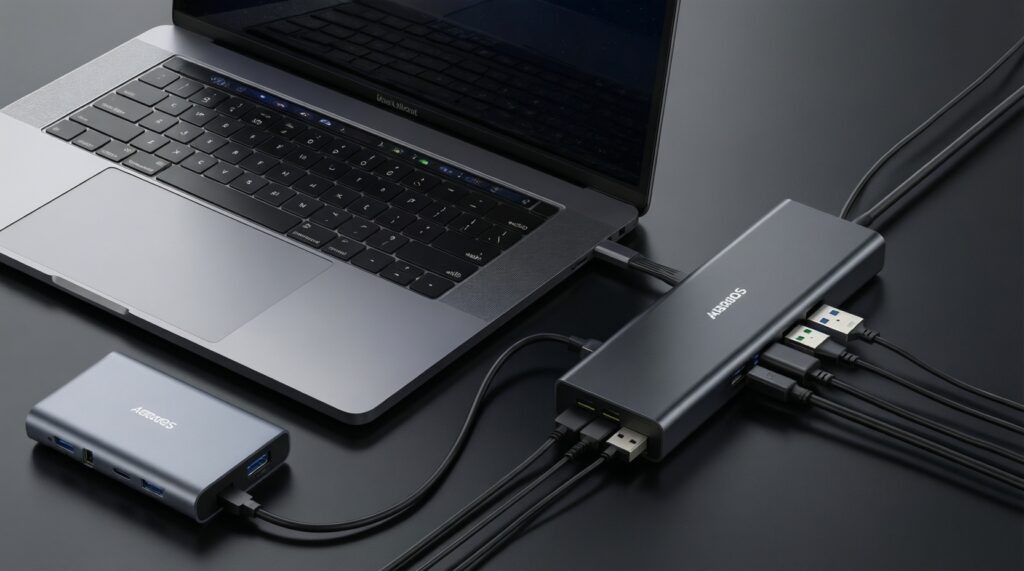
A hub is fine for occasional HDMI/USB-A on the go. A dock is better for daily desk use, Ethernet, and multi-peripheral reliability.
Can I run two external monitors from any USB-C port?
No. Dual-display support depends on the laptop, the USB-C capabilities, and the dock/monitor implementation. Verify "two displays" support for your exact laptop class and dock model.
What's the safest accessory buy if I'm unsure about ports?
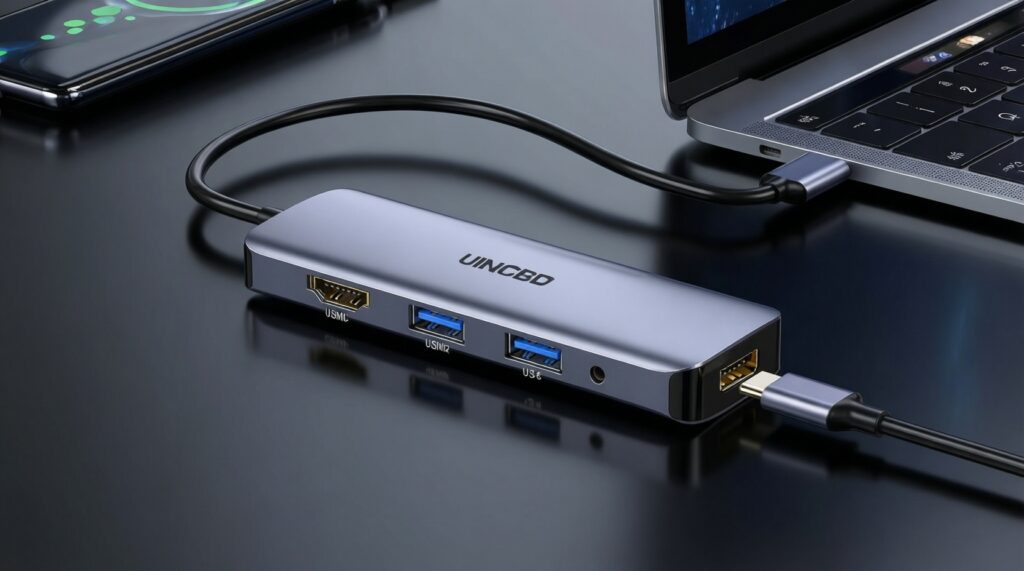
A reputable USB-C hub with HDMI, USB-A, and USB-C power pass-through is the least risky start. Add a dedicated dock only after you commit to a desk setup.
If I'm searching ซื้อ MacBook รุ่นไหนดี 2026, what should I decide first?
Decide whether your top apps are macOS-native and whether you're okay with weaker Android continuity. Then plan the required USB-C hub/monitor setup, because ports often drive real-world usability.