Set up Focus/Do Not Disturb, Bedtime/Sleep, and Samsung Modes & Routines as a single discipline system: one profile for deep work, one for meetings, and one for wind-down. The goal is predictable notification boundaries, limited app access, and timed transitions (work blocks and a 30-60 minute pre-bed routine) so studying and work happen by default.
Critical Settings to Secure Focus and Bedtime Discipline
- Create one "Deep Work" mode that allows only essential people and zero non-critical apps.
- Schedule Focus by time and location (desk/home), not manual toggles.
- Turn on repeated-call exceptions only if you truly need emergency reachability.
- Use Bedtime/Sleep schedule to trigger dim screen, quiet notifications, and a hard stop for stimulating apps.
- Enable cross-device syncing so your mode stays consistent between phone/tablet/watch.
Configure Device Modes for Deep Work
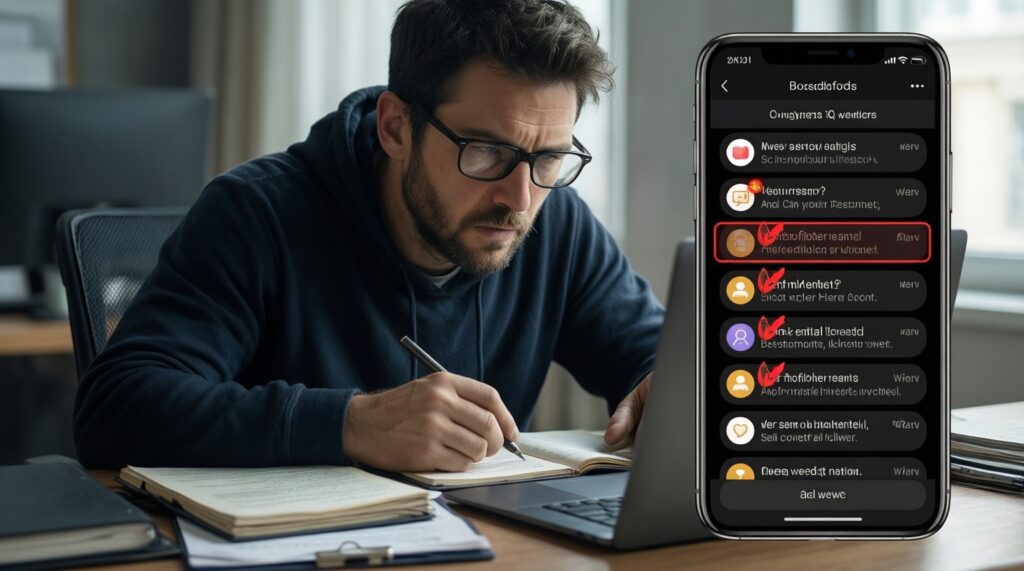
Best for: students, remote workers, creators, anyone doing 25-90 minute blocks where interruptions are expensive.
Do not use (or soften it) when: you're on-call, expecting delivery/ride-hail updates, or need frequent 2FA/OTP codes. In those cases, allow specific apps/contacts and keep everything else blocked.
On iPhone, this includes the practical core behind ตั้งค่าโหมดโฟกัส iPhone and โหมดห้ามรบกวน iPhone ตั้งค่า: isolate what can reach you, then schedule it so you don't negotiate with yourself each session.
Design a Pre-Bed Routine to Stabilize Sleep Onset
- Access: You must be able to edit Focus modes (iOS) or Modes/Routines (Samsung/Android) and change notifications permissions per app.
- Sleep window: Pick a consistent target sleep time and wake time you can keep most days.
- Charging plan: A fixed charging spot away from the bed (or at least off the pillow) to reduce late scrolling.
- Allowed contacts: Decide who can bypass Sleep (family, partner, emergency contact).
- Quiet activities list: 2-3 low-stimulation options (reading, stretching, shower, journaling) prepared in advance.
For iPhone users searching โหมดนอนหลับ Bedtime iPhone ตั้งค่า, treat Sleep/Bedtime as a night gate: notifications quiet down first, then the environment cues sleep (dim screen, reduced stimulation), not the other way around.
Build Custom Focus Profiles: Notifications, Apps, and Timers
- Update iOS/Android to the latest stable version available for your device.
- List the 3-5 apps that must remain available during work (e.g., calendar, email for urgent messages, your LMS, authenticator).
- Decide your default work block length (start with 45-60 minutes) and break length (5-10 minutes).
- Identify one distraction cluster to block first (social, news, shopping, games).
- Pick your schedule triggers: time (e.g., 09:00-12:00) and/or location (desk/campus).
-
Create a "Deep Work" Focus/Modes profile
iPhone: Settings > Focus > + > Custom > name it "Deep Work."
Samsung: Settings > Modes and Routines > Modes > Add mode (this aligns with ตั้งค่า Modes และ Routines Samsung).- Set an obvious icon/color so you notice when it's active.
- Turn on "Share Across Devices" (iPhone) if you use multiple Apple devices.
-
Lock down who can reach you
Allow only the minimum people (e.g., 1-3) and block the rest. Add "Allow Repeated Calls" only if emergencies are realistic for your situation.
- Keep group chats blocked; allow a single person who can relay urgent issues.
- If you need OTPs, allow your authenticator app (not your whole messaging stack).
-
Control apps and notifications, not just sound
Block non-essential apps from notifying you. Then decide whether to hide their badges and silence their lock screen previews to remove visual triggers.
- iPhone: In the Focus setup, choose allowed apps (or silence specific apps) and configure "Options" like dim lock screen and hide notification badges.
- Samsung: In the mode, set "Do not disturb" rules and restrict app notifications within the mode.
-
Add a Home Screen that only shows work apps
Make the "Deep Work" Home Screen boring: calendar, notes, browser (only if necessary), your course/work apps. Hide social apps from the Focus Home Screen so you can't "accidentally" open them.
- iPhone: Focus > Home Screen > choose custom pages to show.
- Samsung: Use a dedicated Home screen page or a minimal launcher layout for the mode if available.
-
Schedule it and tie it to real life triggers
Automate activation by time (e.g., weekdays 09:00-12:00 and 13:30-16:30) and optionally by location (desk, library) so it starts without willpower.
- Start with 2 blocks per day; expand only after it feels stable for a week.
- If you have frequent meetings, create a separate "Meeting" mode with more permissive notifications.
-
Set "Sleep/Bedtime" as a hard stop with a 30-60 minute wind-down
Schedule Sleep so it begins 30-60 minutes before your target sleep time. During that window, allow only emergency contacts and quiet apps (music, reading, meditation).
- iPhone: Health > Sleep > schedule (or Settings > Focus > Sleep) and align it with your wind-down plan.
- Samsung: Create a Sleep mode; set grayscale/dim screen and Do Not Disturb rules if available on your model.
Environment and Habit Triggers That Anchor Daily Routines
- When "Deep Work" turns on, your phone is face down or out of arm's reach (same place every time).
- Your desk has only the next task visible (one tab, one document, one notebook page).
- Notifications are not visible on the lock screen during work blocks.
- Your first 2 minutes are scripted: open the task list, pick one task, start a timer.
- Breaks are defined (5-10 minutes) and end with a simple reset cue (water + sit down).
- Sleep mode starts 30-60 minutes before bed; lighting and screen brightness drop automatically or by habit.
- Charging happens in the same spot nightly; the bed is not the charging station.
- If you must use your phone at night, it's only for allowed quiet apps (no scrolling feeds).
Automations and Shortcuts to Cut Decision Fatigue

- Over-blocking on day 1: you'll disable the system. Start by blocking one distraction cluster and expand weekly.
- Allowing whole categories: permitting "all messaging apps" defeats the point; allow only the one you truly need.
- No schedule triggers: manual toggles fail under stress. Always add time/location triggers for your main modes.
- Using DND as a blunt tool: a custom Focus/Mode should tailor contacts, apps, and Home Screen, not only silence sound.
- Leaving badges on: badges are silent interruptions; hide them in work and sleep modes.
- Keeping the same Home Screen: if distractions remain on the first page, you will open them.
- Sleep mode starts at bedtime: start it earlier (30-60 minutes) so wind-down is real, not theoretical.
- Too many modes: more than 3-4 active modes usually increases friction. Keep: Deep Work, Meeting/Class, Sleep, Optional Personal.
Measure, Review, and Iterate Your Modes Weekly
- Use App Limits/Screen Time instead of extra modes: best when your main problem is specific apps (social/video) rather than people interruptions.
- Physical separation strategy: use a cheap secondary alarm clock and keep the phone outside the bedroom; ideal when late-night scrolling is the primary failure point.
- Single "Study Only" device approach: a tablet/laptop with minimal apps can outperform complex phone rules during exam periods.
- Hardware decision (when your device is the bottleneck): if you're considering ซื้อ iPhone รุ่นไหนดีสำหรับเรียนออนไลน์และทำงาน, prioritize battery health, stable iOS support, sufficient storage for offline files, and a screen size you can read for long sessions-then rely on Focus rules to enforce discipline.
Common Practical Problems and Fast Remedies
My Focus turns on, but I still get notifications from some apps?
Check per-app notification permissions first, then re-check the Focus/Modes "Allowed apps" list. Some apps also have in-app notification toggles that must be disabled separately.
Am I missing important calls during Deep Work?
Allow specific contacts (not all) and enable repeated calls only if needed. Create a separate "Urgent Reachability" mode for limited time windows instead of weakening Deep Work permanently.
Bedtime/Sleep mode activates, but I keep scrolling anyway?
Remove social apps from the Sleep Home Screen and hide badges. Put the charger away from the bed so opening the phone requires standing up.
Why do Samsung Modes and Routines options look different on my phone?
Samsung features vary by One UI version and model; search within Settings for "Modes" and "Routines" and start with Do Not Disturb rules plus a scheduled trigger. Keep the goal the same: fewer allowed apps, fewer visual cues, automatic timing.
What should I do when Focus scheduling conflicts with classes or meetings?
Split into two profiles: "Class/Meeting" (allow messaging from a small group) and "Deep Work" (stricter). Use separate schedules so you don't constantly toggle settings.
What if people complain that I reply too slowly?
Set an expectation window: allow messages from priority contacts, and batch-check everything else at fixed times (e.g., 12:30 and 17:30). The system works when replies are predictable, not instant.