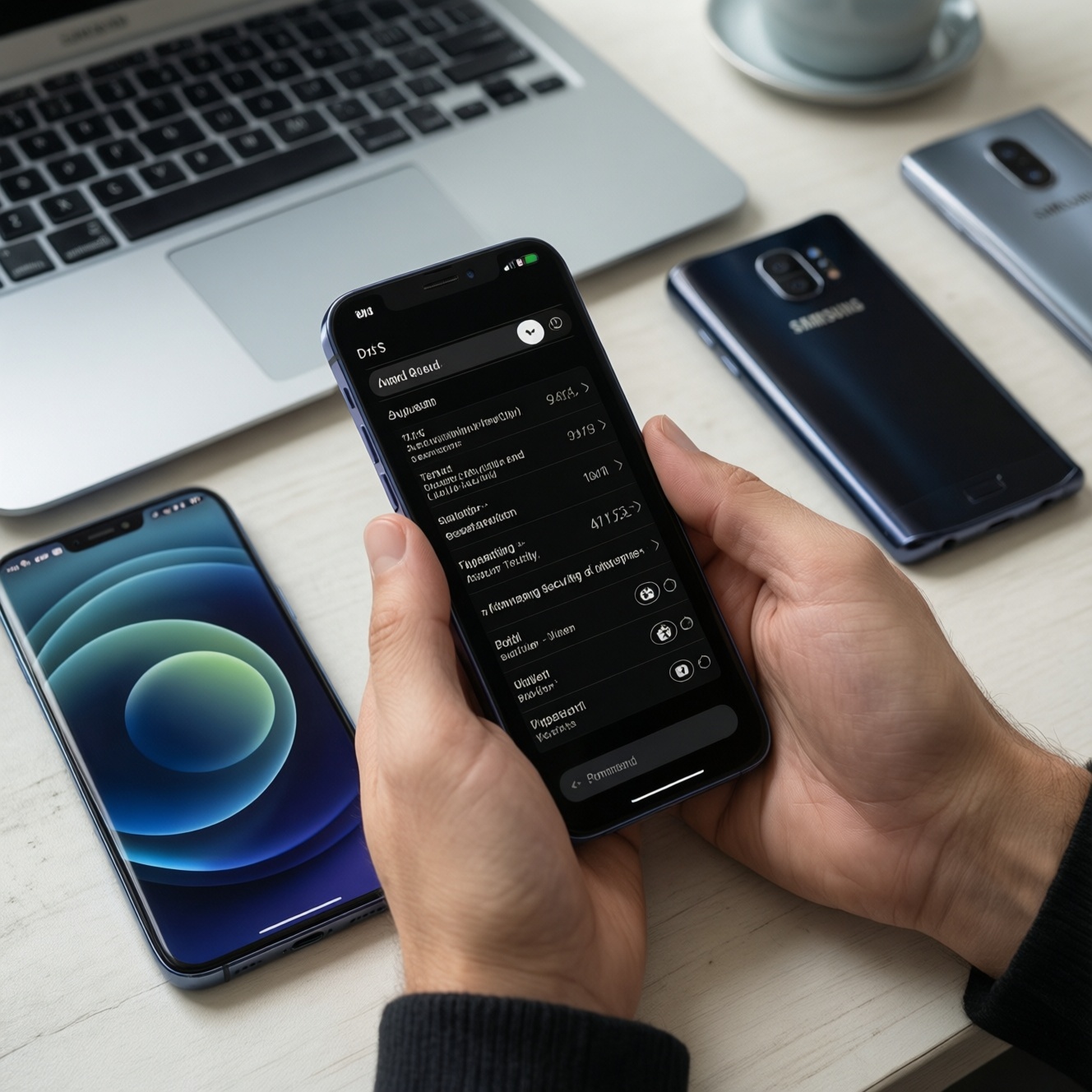
If you want the fastest, least-friction way to harden a phone right now, iOS is typically simpler because privacy controls are more centralized. Pixel gives the most transparent security controls in "stock" Android, while Samsung adds extra layers and menus that can be powerful but easier to miss. Below is a 10‑minute setup path for each.
Immediate security wins to apply in minutes
- Turn on a strong screen lock (6+ digit PIN or long passcode) and enable biometric unlock as a convenience, not as the only lock.
- Enable auto OS updates and auto app updates; install pending updates immediately.
- Review app permissions and remove "Always allow" location, microphone, and camera unless truly needed.
- Disable ad tracking controls (iOS "Allow Apps to Request to Track" off; Android reset/limit ad identifiers where available).
- Enable "Find My" / device finding and ensure remote lock and erase are available.
- Harden lock screen privacy: hide sensitive notifications and prevent access to quick toggles when locked.
Quick side-by-side: iOS vs Pixel vs Samsung - what differs at a glance
- How centralized the settings are: iOS is more consolidated; Samsung can split controls between Android settings and Samsung-specific menus.
- Permission granularity: all three support per-app controls; Pixel surfaces more privacy diagnostics; Samsung adds extra "device protection" and app management layers.
- Tracker/ad controls: iOS focuses on app tracking permission; Android focuses more on permission discipline plus system identifiers and Google account controls.
- Background behavior control: Android (Pixel/Samsung) gives stronger per-app background/battery restrictions; iOS relies more on system-level behavior and limited background access.
- Work profile / separation: Android can separate work and personal via managed profiles; iOS relies on MDM approaches and app-level separation.
- Account ecosystem exposure: Google account settings matter more on Pixel; Samsung accounts may add another data surface on Galaxy.
- Lock screen leakage risk: all can leak via notifications and quick settings; Samsung customization can create extra paths if not tuned.
- Third-party defaults: Samsung ships more preinstalled services; Pixel is closer to baseline Android; iOS is Apple-first.
Essential settings on iOS to lock down privacy now
Use this as a practical menu-by-menu checklist for iPhone ตั้งค่าความเป็นส่วนตัว without spending more than 10 minutes. Pick the options that match your risk and daily usage.
| Option | Who it fits | Pros | Cons | When to choose |
|---|---|---|---|---|
| Lock screen privacy Settings > Notifications > Show Previews |
Commuter, parent | Reduces "shoulder-surfing" and accidental disclosure | Less convenient for quick message triage | Choose When Unlocked if you often use your phone in public |
| Tracking prompts off Settings > Privacy & Security > Tracking |
Anyone who installs many apps | Reduces cross-app tracking by ad networks | Some apps may show more generic ads or require re-consent flows | Turn off Allow Apps to Request to Track if you want minimal tracking friction |
| Location access discipline Settings > Privacy & Security > Location Services |
Remote worker, commuter | Stops always-on location collection and background location patterns | Some navigation/ride-hailing convenience drops | Prefer While Using and disable Precise Location for non-maps apps |
| Microphone/camera access review Settings > Privacy & Security |
Parent, privacy-focused user | Limits recording risk from "not really needed" apps | Apps may prompt again when features are used | Disable for games/shopping apps; keep for calling and conferencing apps |
| Safari tracking hardening Settings > Safari |
Anyone browsing a lot | Reduces web tracking and cross-site identifiers | Rare site breakage; may need to allow cookies for specific services | Enable Prevent Cross-Site Tracking; consider Hide IP Address if available |
| Find My + device protection Settings > Apple Account > Find My |
Commuter, traveler | Helps recover device; supports remote lock/erase | Requires account hygiene and access recovery planning | Enable if you ever carry your phone outside home/work |
Persona-focused iOS priorities (pick what matches you)
- Commuter (BTS/MRT, cafés): hide notification previews; disable lock-screen access to sensitive widgets; use a longer passcode.
- Remote worker (email + files): review "Files" and cloud app permissions; lock down notification content for mail and chat apps.
- Parent (kids use device): restrict new app installs; review camera/mic permissions monthly; avoid leaving messaging previews on the lock screen.
- Frequent traveler: enable Find My; remove unknown VPN profiles; keep Bluetooth off when not used.
Essential settings on Google Pixel to lock down privacy now
For Pixel ตั้งค่าความปลอดภัย, Pixel's biggest advantage is clarity: you can see and control permissions and privacy indicators quickly. Use these "if..., then..." rules to make choices fast.
- If you install apps often, then: go to Settings > Privacy > Permission manager, and change any "Allow all the time" location to "Allow only while using the app" unless it's navigation or safety-related.
- If you commute or work in public, then: Settings > Display > Lock screen (or Privacy, depending on Android version) and hide sensitive notification content on the lock screen.
- If your phone battery drains and you suspect background activity, then: Settings > Apps > See all apps > (app) > Battery, and restrict background use for non-essential apps (shopping, games, social apps you rarely open).
- If you use Google services heavily (Gmail, Maps, Drive), then: Settings > Google and review account privacy controls; reduce location history-style data sharing where it doesn't help your workflow.
- If you want clear "camera/mic used" signals, then: Settings > Privacy and ensure Privacy indicators are enabled; revoke mic/camera permission for apps that don't need them.
Persona-focused Pixel priorities
- Commuter: lock-screen notification privacy; tighten location permissions for retail and social apps.
- Remote worker: enforce screen lock timeout; restrict background activity for non-work apps during work hours.
- Parent: keep app installs controlled; audit permissions after installing games; disable unnecessary notification categories.
- Privacy-focused tinkerer: regularly review Permission manager and per-app battery/background restrictions.
Essential settings on Samsung Galaxy to lock down privacy now
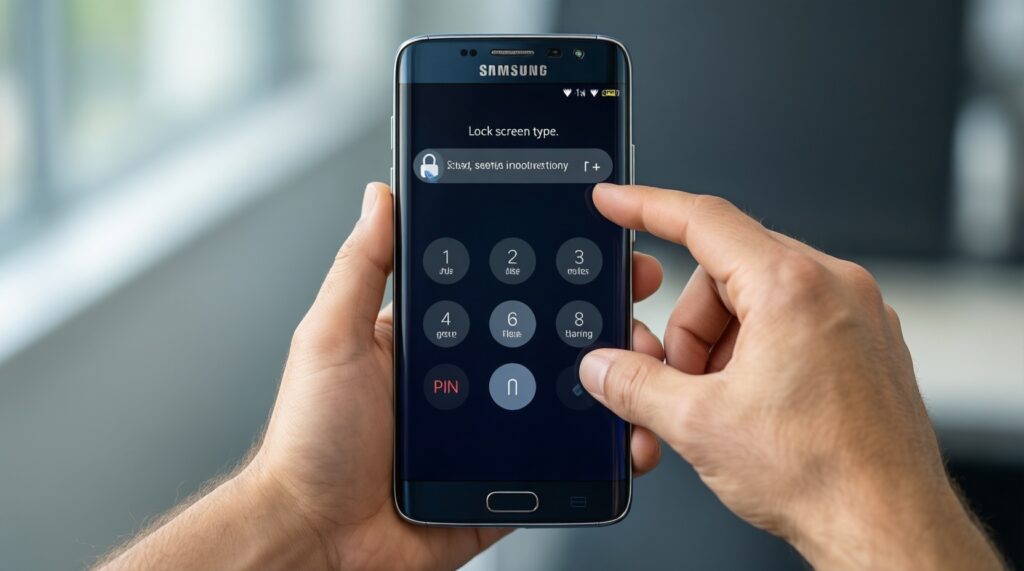
For Samsung ตั้งค่าความปลอดภัย, your main job is to avoid missing controls that live in Samsung-specific menus. Use this quick selection algorithm and stop when you've completed the relevant steps.
- Lock method first: Settings > Lock screen > Screen lock type — set a strong PIN and keep biometrics enabled only as convenience.
- Lock screen leakage: Settings > Notifications > Lock screen notifications — hide content for messaging, email, banking.
- Permission cleanup: Settings > Privacy > Permission manager — remove "Always allow" location/mic/camera except for essentials.
- Background control: Settings > Battery and device care > Battery > Background usage limits — restrict rarely used apps.
- Account surfaces: Settings > Accounts and backup — review what's signed in (Google + Samsung); sign out of accounts you don't use.
- Find and protect device: Settings > Security and privacy — ensure device finding is enabled; confirm you can remotely lock/erase via your account.
- Install hygiene: Settings > Security and privacy > Install unknown apps — ensure browsers and chat apps cannot install unknown apps unless you explicitly need it.
Persona-focused Samsung priorities
- Commuter: lock-screen notification controls plus stronger screen lock; minimize quick-panel access when locked if your model/One UI supports it.
- Remote worker: keep work apps allowed; restrict background for entertainment apps; check account backup settings to avoid mixing personal/work data.
- Parent: limit installs from unknown sources; keep sensitive notifications hidden; remove mic permission from games.
How app permissions, background access and trackers behave across platforms
These are the mistakes that most often undermine Android ตั้งค่าความปลอดภัย and iOS hardening, even when users think they set everything correctly.
- Keeping "Always allow" location for apps that don't need it (shopping, social, games), which creates a long-term movement pattern.
- Granting microphone/camera "just to proceed" and never revisiting it; many apps work fine without these permissions until you use a specific feature.
- Assuming uninstall equals data removal: uninstall stops local access, but your account data may remain in the service; adjust in-app privacy controls too.
- Ignoring lock screen notifications: the most common real-world leak is message previews in public, not sophisticated hacking.
- Letting background activity run everywhere: Android allows more explicit background restriction; use it to reduce passive data access.
- Confusing ad tracking settings with permission settings: turning off tracking prompts/IDs doesn't replace permission discipline.
- Over-trusting "security scan" badges: they can't correct risky permissions or poor account recovery setups.
- Skipping account recovery hygiene: if your Apple ID/Google account is compromised, device-level settings help less; ensure recovery options are current.
When to use platform features vs third-party tools - backups, VPNs and password managers
For most people comparing เปรียบเทียบความปลอดภัย iOS vs Android, platform features are best for device finding and baseline backups (they integrate cleanly and are quick to set). A third-party password manager is often best for anyone juggling many logins across devices. A third-party VPN is best when you clearly need network privacy on untrusted Wi‑Fi; otherwise, prioritize permissions, lock screen privacy, and account security first.
Practical answers to common privacy and security choices
Is iOS automatically safer than Android?
Not automatically; it's often simpler to configure consistently. Pixel and Samsung can be very secure, but they require more deliberate permission and background-control tuning.
Which is faster to harden in under 10 minutes?
iOS usually, because many controls are in a single Privacy & Security area. Pixel is close; Samsung can take slightly longer due to extra menus.
What is the single highest-impact setting to change today?
Hide sensitive lock screen notifications and use a strong PIN/passcode. This prevents the most common real-world privacy leaks in public.
Should I disable location services entirely?
Usually no; use per-app controls instead. Keep location for maps/ride-hailing, and set everything else to "While using" or "Never."
Do I need a VPN for security on phone?
Only if you often use untrusted Wi‑Fi or need privacy from local network observers. It doesn't replace app permission review or account security.
Pixel vs Samsung: which is easier for permission management?
Pixel is typically more straightforward and closer to baseline Android. Samsung is powerful but may place similar controls in multiple places, so consistency takes more effort.
Will restricting background activity break apps?
Sometimes it delays notifications or sync for that app. Apply restrictions first to non-essential apps and confirm messaging, banking, and work apps still behave as you expect.