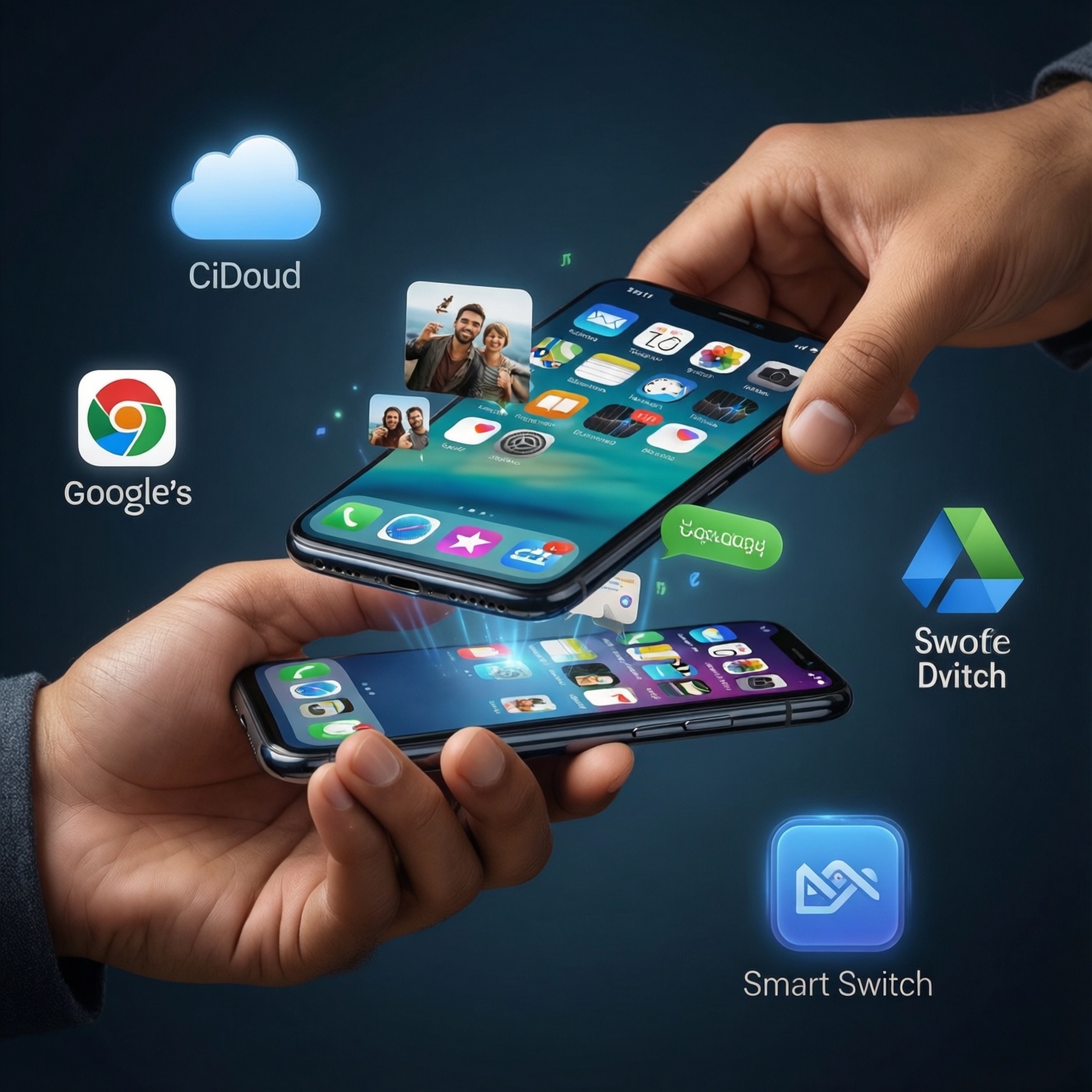
If you want the easiest "backup + move to a new phone" path, use the ecosystem you already live in: iCloud for iPhone-to-iPhone, Google One/Google Drive for Android-to-Android, and Samsung Smart Switch for Samsung-to-Samsung device transfers. The best choice depends on what you must keep (apps, chats, photos) and how cross-platform your move is.
Quick comparison snapshot for backup & device transfer
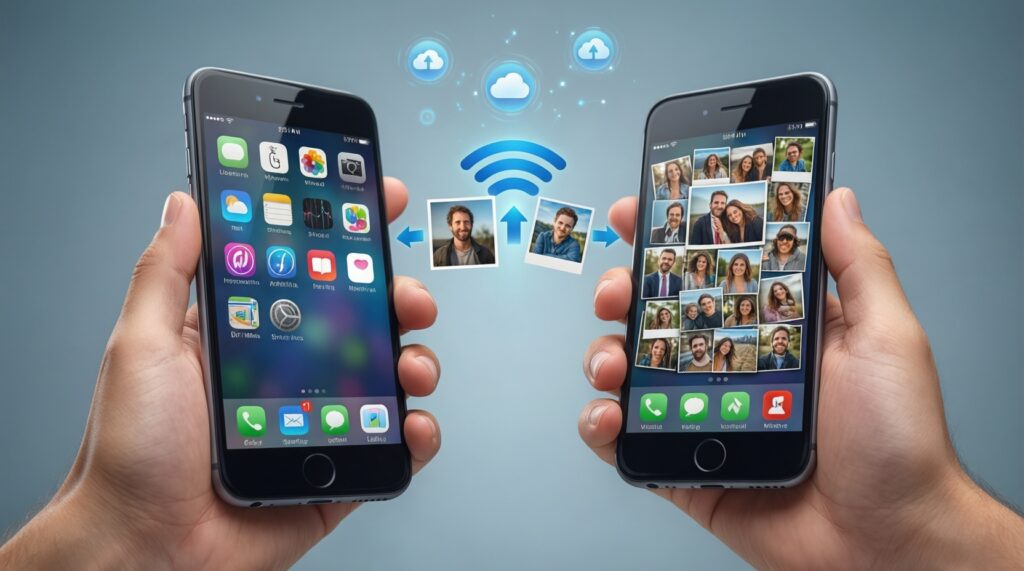
- Fastest full-phone migration (Samsung → Samsung): Smart Switch (often works even without cloud).
- Most seamless iPhone restore: iCloud Backup (plus iCloud Photos for your library).
- Most universal Android backup baseline: Google One/Drive (especially settings + Google Photos pairing).
- Best for files across devices: Google Drive or OneDrive (treat as file sync, not a full phone image).
- Least confusing approach: choose one "system backup" (iCloud or Google) + one "photo strategy" (iCloud Photos / Google Photos / OneDrive).
- Cross-platform moves: plan for exceptions (app data, chats, DRM media) and use vendor tools only where they truly help.
What each service actually backs up and moves
Use these criteria to decide; most disappointment comes from assuming every method is a full clone.
- Device type and direction: iPhone↔iPhone, Android↔Android, iPhone↔Android, Samsung↔Samsung.
- Backup scope: full device snapshot vs account-based restore (settings + app list) vs file sync.
- Photos strategy: "library sync" (continuous) vs "backup" (one-way) vs manual export.
- Chat history needs: LINE/WhatsApp and other messengers often require app-specific migration steps.
- App data expectations: many apps do not allow third-party backups to restore in-place.
- Storage planning: how you will handle capacity prompts like "ซื้อพื้นที่ iCloud ราคา เท่าไหร่ คุ้มไหม" or "Google One ราคา ซื้อแพ็กเกจ เพิ่มพื้นที่เก็บข้อมูล".
- Network constraints: Wi‑Fi-only vs mobile data, and whether local cable/Wi‑Fi Direct transfer is possible.
- Account dependency: Apple ID vs Google account vs Samsung account, and 2FA access readiness.
- Long-term portability: can you later download/export your data without that exact phone model?
Step-by-step setup: iCloud, Google One/Drive, Samsung Cloud/Smart Switch
Below is a practical comparison (including the intent behind searches like "เปรียบเทียบ iCloud กับ Google One สำรองข้อมูล อันไหนดีกว่า" and "ย้ายข้อมูลไปเครื่องใหม่ Samsung Smart Switch วิธีใช้"). Pick one primary method; add a file-sync tool only if you truly need it.
| Option | Who it fits | Pros | Cons | Choose it when |
|---|---|---|---|---|
| iCloud Backup (iPhone) | iPhone users moving to another iPhone | Integrated restore during iPhone setup; good for device settings and many app states | Not a universal cross-platform restore; storage prompts are common (see "ซื้อพื้นที่ iCloud ราคา เท่าไหร่ คุ้มไหม") | You want the lowest-effort iPhone-to-iPhone migration |
| iCloud Photos (library sync) | iPhone users who want photo continuity across Apple devices | Photos stay consistent across devices; less "manual copying" | Not a full device backup; requires stable internet and enough iCloud storage | Photos matter most and you will stay in Apple's ecosystem |
| Google One / Android Backup | Android users restoring to a new Android | Automatic restore prompts on new device; settings and app list restore baseline | App data completeness varies by app; may require a paid plan (see "Google One ราคา ซื้อแพ็กเกจ เพิ่มพื้นที่เก็บข้อมูล") | You want the default Android path and already use Google services |
| Google Drive (files) + Google Photos (media) | Mixed-device users who treat data as files/media, not full phone image | Portable and cross-platform; easy sharing and web access | Doesn't recreate your phone layout/app states; can become "multiple copies" if misconfigured | You mainly care about documents and media access everywhere |
| Samsung Smart Switch (device transfer) | Samsung users moving to another Samsung | Very straightforward device-to-device transfer; works well for many on-device items | Best results are Samsung-to-Samsung; some items still require app logins and separate cloud restores | You want the simplest "ย้ายข้อมูลไปเครื่องใหม่ Samsung Smart Switch วิธีใช้" style transfer |
| OneDrive (files/photos sync) | Microsoft 365/Windows users, or teams using OneDrive | Great for camera upload + files; strong desktop integration (see "OneDrive สำรองรูปและข้อมูลมือถือ ราคา แพ็กเกจ") | Not a full phone restore solution; requires careful folder/album expectations | Your priority is long-term access to photos/files across PC and mobile |
Quick setup procedures (minimal steps)
- iCloud Backup: Settings → Apple Account → iCloud → iCloud Backup → Back Up Now. On new iPhone: restore from iCloud backup during setup.
- Google One/Android Backup: Settings → Google → Backup (or Google One app) → turn on backup. On new Android: sign in to the same Google account and accept restore prompts.
- Samsung Smart Switch: Install/open Smart Switch on both phones → choose Send/Receive → Wireless or Cable → select categories → start transfer.
- Drive/OneDrive as file layer: Upload/Sync critical folders (Documents, exports) and enable camera upload if desired; verify from a second device before wiping the old phone.
Data compatibility and notable exclusions
Use these "if..., then..." rules to avoid surprises.
- If you are moving iPhone → iPhone, then iCloud Backup + iCloud Photos is usually the cleanest, but confirm messenger apps have their own migration steps.
- If you are moving Android → Android (non-Samsung), then Google One/Android Backup is the default baseline; add Drive only for extra files you manage manually.
- If you are moving Samsung → Samsung, then use Smart Switch first for device transfer, then sign into Google/Samsung accounts to re-sync cloud items.
- If you are moving iPhone → Android or Android → iPhone, then expect partial migration: contacts/calendar via accounts, photos via iCloud/Google Photos/OneDrive, and app data re-login; do not expect a full "clone".
- If chat history is business-critical, then follow each app's official transfer method before factory reset; backups alone may not restore chats as expected.
- If you rely on "offline" media inside apps (downloads), then plan to re-download after migration; many apps protect offline content with DRM.
Performance: speed, reliability and storage limits
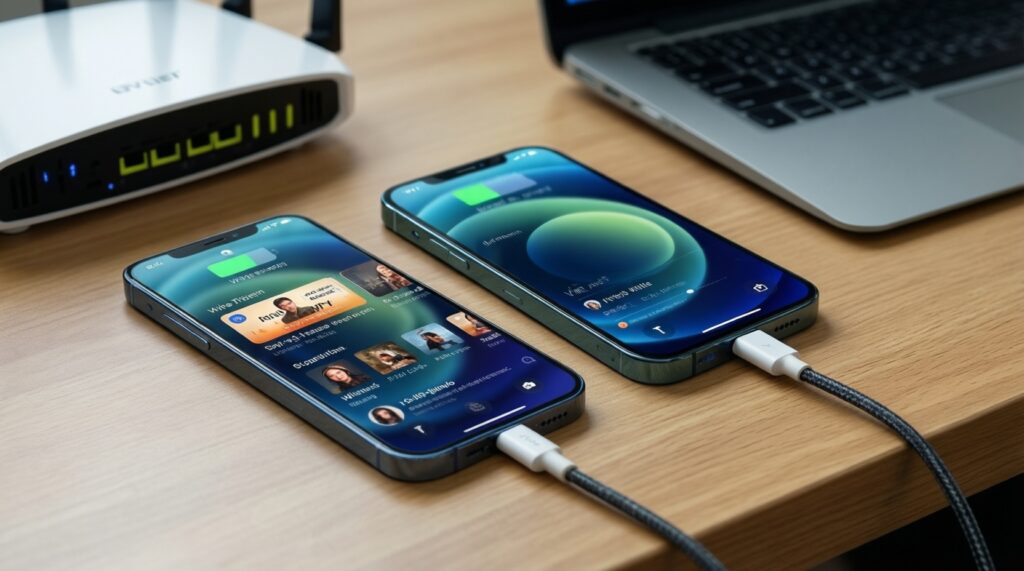
- Decide local vs cloud: if you need the fastest move today, prefer Smart Switch (Samsung) or cable-based device transfer where available; cloud restores depend on Wi‑Fi quality.
- Stabilize connectivity: plug both devices into power and use a reliable Wi‑Fi network; pause big downloads/streaming during backup/restore.
- Reduce scope: prioritize essentials (accounts, photos, contacts, 2FA apps). Large app libraries can be re-downloaded later.
- Check storage before starting: confirm cloud space and on-device free space; this is where users ask "ซื้อพื้นที่ iCloud ราคา เท่าไหร่ คุ้มไหม" or compare "Google One ราคา ซื้อแพ็กเกจ เพิ่มพื้นที่เก็บข้อมูล".
- Run one verification loop: after restore, verify photos count/recents, contacts, and at least one critical app login before wiping the old device.
- Keep the old phone intact for a few days: only factory reset after you confirm banking, authenticator, and chat apps are working.
Security, account requirements and cross-platform caveats
- 2FA lockout: migrating without access to your Apple ID/Google account 2FA can block restores and app logins-prepare a backup method (trusted device/phone number/recovery codes).
- Mixed backup methods create duplicates: enabling multiple camera uploads (e.g., iCloud Photos + Google Photos + OneDrive) can produce confusing duplicates unless you intentionally separate roles.
- Assuming "backup" includes everything: many apps purposely do not allow third-party restore of their internal data; treat "system backup" as best-effort, not a guarantee.
- Work profiles and MDM: company-managed apps/data may not transfer; you may need IT to re-enroll the new device.
- Encrypted apps: password managers, authenticators, and secure messaging often require in-app export or device-to-device transfer steps.
- Samsung account vs Google account confusion: Samsung Cloud/Samsung services are separate from Google; make sure you know which account holds what.
- Region settings and app availability: some apps behave differently after region/Store changes; sign in to the correct store and update apps before restoring data.
- OneDrive/Drive are not "phone images": they are best for files and photo libraries, not for recreating app states or home screen layout.
Decision flow: which method to choose for your situation
- If your old phone is a Samsung and your new phone is a Samsung: start with Smart Switch; then let Google/Samsung accounts re-sync cloud items.
- If you are iPhone → iPhone: use iCloud Backup; keep iCloud Photos on if you want continuous photo library sync.
- If you are Android → Android (not Samsung-specific): use Google One/Android Backup; add Drive for manual files you must control.
- If you are switching ecosystems (iPhone ↔ Android): plan a "data categories" move (contacts/calendar via accounts, photos via a photo cloud, files via Drive/OneDrive) and expect re-login for apps.
- If your priority is PC + phone photo/file continuity: choose OneDrive or Google Drive/Photos as the long-term repository, then treat device migration as separate.
The best fit is usually: iCloud for the smoothest iPhone rebuild, Google One/Drive for the most straightforward Android restore, and Samsung Smart Switch for the least-friction Samsung-to-Samsung transfer. Use OneDrive when your real goal is keeping photos/files accessible across Windows and mobile rather than reproducing a phone state.
Troubleshooting and short clarifications
Will iCloud or Google One recreate every app exactly as before?
No. They restore a lot of settings and some app data, but many apps require re-login and may not restore their internal data fully.
Why did my photos not show up after restore?
You may have restored a device backup but not enabled your photo library sync (iCloud Photos/Google Photos/OneDrive Camera Upload). Sign in, enable the correct photo service, and give it time on Wi‑Fi.
Is Smart Switch a backup or a transfer?
Primarily a transfer tool. It's best for moving data directly from an old Samsung to a new Samsung; cloud accounts still need to be signed in afterward.
Can I use Google Drive alone as a full phone backup?
Not reliably. Drive is excellent for files; full-device restore behavior depends on Android's system backup (often managed via Google services/Google One).
What should I do before factory resetting my old phone?
Verify critical accounts (banking, authenticator, messenger apps), confirm contacts and recent photos are present, and keep the old device for recovery until everything is stable.
Do I need to buy extra storage to migrate?
Only if your backup/photo library won't fit in the available cloud space. This is the practical point behind "ซื้อพื้นที่ iCloud ราคา เท่าไหร่ คุ้มไหม", "Google One ราคา ซื้อแพ็กเกจ เพิ่มพื้นที่เก็บข้อมูล", and "OneDrive สำรองรูปและข้อมูลมือถือ ราคา แพ็กเกจ".