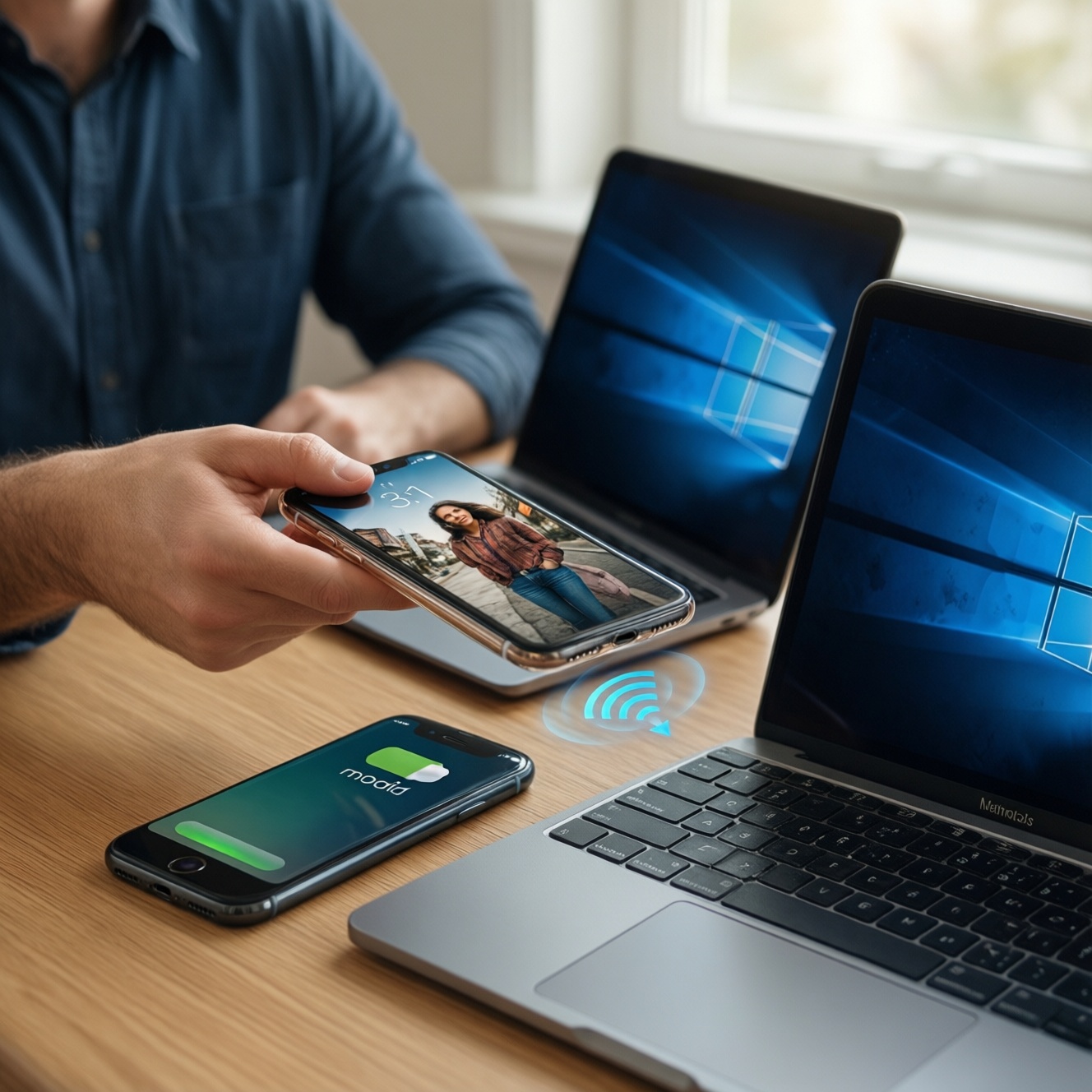
If you mostly live in Apple's ecosystem (iPhone + Mac/iPad), AirDrop plus Continuity features is usually the most seamless cross-device workflow. If you're on Android/Windows-or sharing with mixed brands-Nearby Share or Quick Share is often more practical. The "best" option depends on device mix, privacy needs, and whether you prioritize one-tap convenience or broad compatibility.
Practical Summary: When Each Cross‑Device Tool Excels
- AirDrop excels for fast, offline file sharing between nearby Apple devices with minimal setup.
- Continuity excels for "handoff" workflows (copy/paste, calls, hotspot, device switching) across Apple devices signed into the same Apple ID.
- Nearby Share excels for cross-brand Android sharing and Android-to-Windows workflows where supported.
- Quick Share excels for Samsung-heavy environments where device discovery and sharing feels close to AirDrop.
- For mixed-device households, prioritize standards and fallbacks (links, cloud drives, messaging) when native tools don't align.
Technical Foundations: How AirDrop, Continuity, Nearby Share and Quick Share Operate
Use these criteria to decide quickly (they explain why the tools feel different in real life):
- Ecosystem lock-in: Apple-to-Apple vs Android-to-Android vs cross-platform support.
- Discovery method: Bluetooth/Wi‑Fi proximity discovery vs account-based presence.
- Transport path: Direct device-to-device vs mediated via internet/service.
- Identity model: Contacts-only, "everyone nearby", or same-account-only.
- Session friction: Number of taps, confirmation prompts, and permission prompts.
- File type handling: Photos/videos vs arbitrary files vs app-to-app share sheets.
- Network constraints: Works without a router? Works behind captive portals/hotspot?
- Fallback behavior: What happens when discovery fails (QR, link, cloud, messaging).
- Admin constraints: MDM/work profiles, enterprise policies, and device restrictions.
Real-world example (TH context): In malls/cafés with busy radios, discovery reliability matters more than raw transfer speed; the tool with fewer "visibility" prerequisites typically wins under pressure.
Setup and Compatibility: Ecosystem Requirements, Accounts and Permissions
When people ask AirDrop กับ Nearby Share ต่างกันอย่างไร, the practical answer is: AirDrop is tightly integrated for Apple devices, while Nearby Share/Quick Share targets Android (and sometimes Windows) with broader brand coverage but more variability by vendor and OS version.
| Option | Who it fits | Pros | Cons | When to choose |
|---|---|---|---|---|
| AirDrop (Apple) | iPhone/iPad/Mac users sharing nearby | Fast peer-to-peer; simple share sheet; works well offline; strong UX consistency | Apple-only; discovery depends on visibility settings; occasional "not showing" issues | Most nearby file transfers inside Apple ecosystem, especially photos/videos |
| Continuity (Apple) | One person with multiple Apple devices signed into same Apple ID | Handoff-like workflows; copy/paste and task continuation; less "send file" friction for daily work | Best within same account; not designed for sharing to other people; needs consistent account/login state | If your goal is switching devices mid-task, not just sending a file |
| Nearby Share (Android / Google) | Android users across multiple brands; some Windows integration where available | Works across many Android devices; contact-based modes; good for mixed-brand Android groups | Experience varies by OEM/skin; permission and background restrictions can interrupt discovery | If your household/team is Android but not all Samsung |
| Quick Share (Samsung) | Samsung-to-Samsung sharing; Samsung-heavy groups | Often very smooth on Galaxy devices; easy discovery in Samsung ecosystem | Best experience is Samsung-centric; cross-brand Android may fall back to Nearby Share depending on device | If you mainly share with other Galaxy users |
| Cross-platform fallback (links/cloud/messaging) | iOS ↔ Android; remote sharing; people you can't discover nearby | Works anywhere; auditability via account; not blocked by proximity discovery | Needs internet; privacy depends on service; extra steps to upload/share | If native tools don't see each other, or you need remote delivery |
Continuity กับ Quick Share เปรียบเทียบการใช้งาน: Continuity is about continuing work across your own Apple devices (handoff-like behaviors), while Quick Share is primarily about sending content between nearby devices (often Samsung-first). If your pain is "I started on phone and want to finish on laptop," Continuity fits better than any "share" feature.
- Permissions to verify (all platforms): Bluetooth, Wi‑Fi, Nearby devices, Photos/Files access, and background restrictions (battery optimization).
- Account alignment: Continuity benefits from one Apple ID; Android sharing features may work without the same account, but contact-based modes can require it.
- Visibility modes: "Contacts only" improves privacy but increases "can't find device" incidents in ad-hoc sharing.
Performance in Real‑World Use: Transfer Speed, Range and Reliability
Focus on reliability and failure recovery more than theoretical throughput. Use these scenario rules:
- If you're sending large videos from iPhone to Mac in the same room, use AirDrop; keep both devices awake and ensure visibility is not restricted.
- If you're switching between iPhone and Mac while working (copy text, pick up browsing, answer calls), use Continuity features; don't treat it like a file-transfer tool.
- If you're sharing files among different Android brands in a meeting room, use Nearby Share; set visibility to "Contacts" or "Everyone nearby" temporarily, then revert.
- If you're in a Galaxy-heavy group (friends/family), prefer Quick Share for the least friction; keep a fallback ready if one person is non-Samsung.
- If discovery keeps failing in a crowded venue (condo lobby/café), switch to a cross-platform fallback (cloud link or messaging) instead of retrying proximity sharing repeatedly.
Real-world example: Sending a 4K clip to a friend's phone: AirDrop is frictionless Apple-to-Apple; on Android, Quick Share is smooth on Galaxy devices, while Nearby Share is the safest default across mixed Android models.
Privacy, Security and Data Handling in Everyday Transfers
Use this fast selection algorithm before you share:
- Identify the audience: Is it only your own devices, a known contact, or a stranger nearby?
- Pick the strictest visibility that still works: contacts-only/same-account first; open discovery only when necessary.
- Prefer direct transfers for sensitive files: when you need minimal third-party storage exposure, use proximity tools rather than upload-link sharing.
- Confirm the receiver identity: match device name/avatar; rename devices to avoid look-alikes in public places.
- Review the share payload: share the specific file(s), not an entire album or folder, unless intended.
- Disable temporary openness: after sharing, revert to safer discoverability settings.
- When in doubt, add access control: use a link with permissions and expiration (when available) instead of "everyone nearby".
Usability, Edge Cases and Common Failure Modes
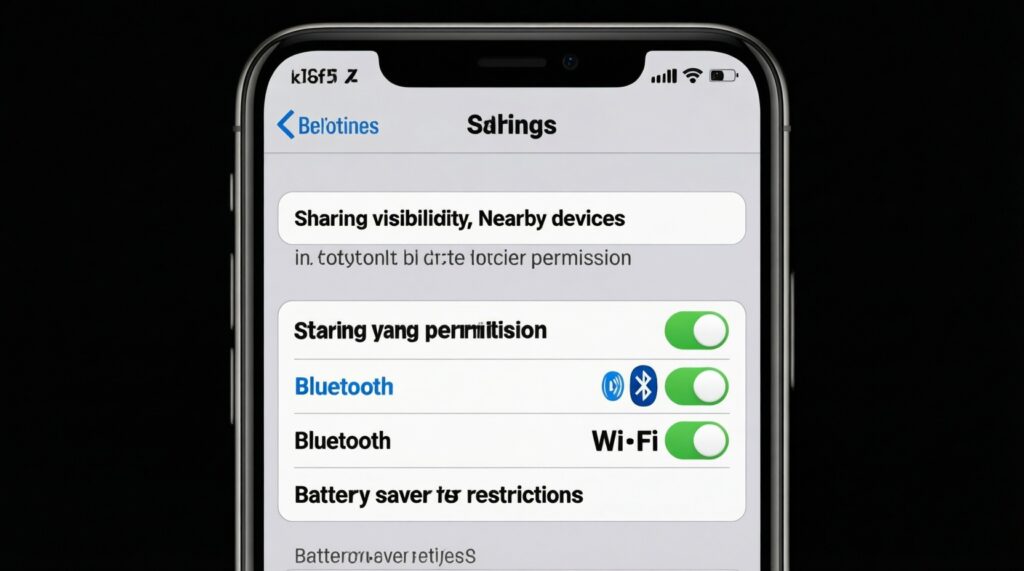
- Visibility set too strict: "Contacts only" (or similar) blocks ad-hoc sharing; temporarily loosen, then revert.
- Bluetooth/Wi‑Fi toggles on but permissions off: OS-level "Nearby devices" permission can silently break discovery.
- Battery saver / background restrictions: can throttle discovery and receiving; whitelist the sharing service if needed.
- Personal hotspot/VPN interference: can disrupt peer discovery paths; toggle off briefly for the transfer.
- Device name confusion: generic names ("iPhone", "Galaxy") increase mis-send risk; rename devices.
- Different file expectations: Live Photos/HEIC/ProRAW may arrive in unexpected formats on non-Apple tools; test before a deadline.
- Work profile/MDM restrictions: enterprise devices may block nearby sharing; use approved cloud tools instead.
- App sandbox limitations: some apps can't export their internal files cleanly; use "Save to Files/Drive" first.
- Receiver storage constraints: transfer fails late if the receiver is low on storage; check free space.
Decision Guide: Choose the Best Method by Scenario
- Start: Are both devices Apple?
- Yes: Is this a file transfer to a nearby device?
- Yes: Choose AirDrop. If you need exact steps, see วิธีใช้ AirDrop บน iPhone กับ Mac: open Share > AirDrop, ensure both devices are discoverable, and accept on the receiver.
- No: Choose Continuity for handoff-style work across your devices.
- No: Are both devices Android?
- Yes: Are both devices Samsung/Galaxy?
- Yes: Choose Quick Share.
- No: Choose Nearby Share; for steps, follow วิธีใช้ Nearby Share หรือ Quick Share บน Android: enable Bluetooth/Wi‑Fi, open Share > Nearby/Quick Share, select receiver, confirm.
- No (iOS ↔ Android or remote): Choose a cross-platform fallback (cloud link/messaging) to avoid discovery dead-ends.
- Yes: Are both devices Samsung/Galaxy?
- Yes: Is this a file transfer to a nearby device?
In daily use, AirDrop is best for quick nearby sharing inside Apple; Continuity is best for moving your own work between iPhone/iPad/Mac; Nearby Share is best as the default for mixed-brand Android groups; Quick Share is best when your circle is mostly Samsung. For people deciding ซื้อ iPhone หรือ Android รุ่นไหนส่งไฟล์ข้ามอุปกรณ์ได้ดีที่สุด, the "best" choice usually equals the ecosystem your other devices and closest contacts already use.
Common Questions and Quick Fixes for Cross‑Device Transfers
Why can't my iPhone see my Mac in AirDrop?
Check AirDrop visibility on both devices, keep both awake/unlocked, and ensure Wi‑Fi and Bluetooth are enabled. If it still fails, toggle AirDrop off/on and temporarily switch to a less restrictive visibility mode.
Nearby Share/Quick Share shows no nearby devices-what should I check first?
Verify Bluetooth, Wi‑Fi, and the OS "Nearby devices" permission, then disable battery saver for the sharing session. On some Android skins, background restrictions can block receiving until you open the share panel.
Is Continuity the same thing as AirDrop?
No. AirDrop is primarily for transferring files to nearby Apple devices, while Continuity is a set of workflows for continuing tasks across your own Apple devices (handoff, clipboard, calls, hotspot).
Can I AirDrop to Android or use Nearby Share with iPhone?
Not natively. For iOS ↔ Android, use a cross-platform method such as a shared link, cloud storage, or a messaging app that both sides use.
Why does sharing work at home but fail in public places?
Public venues often create noisy wireless conditions and more name collisions. Use stricter identity matching (device names), keep devices close, and switch to a link-based fallback if discovery keeps failing.
How do I reduce the risk of sending to the wrong person nearby?
Use contacts-only/same-account modes when possible and rename devices to unique identifiers. Always confirm the receiver name/avatar before tapping send.