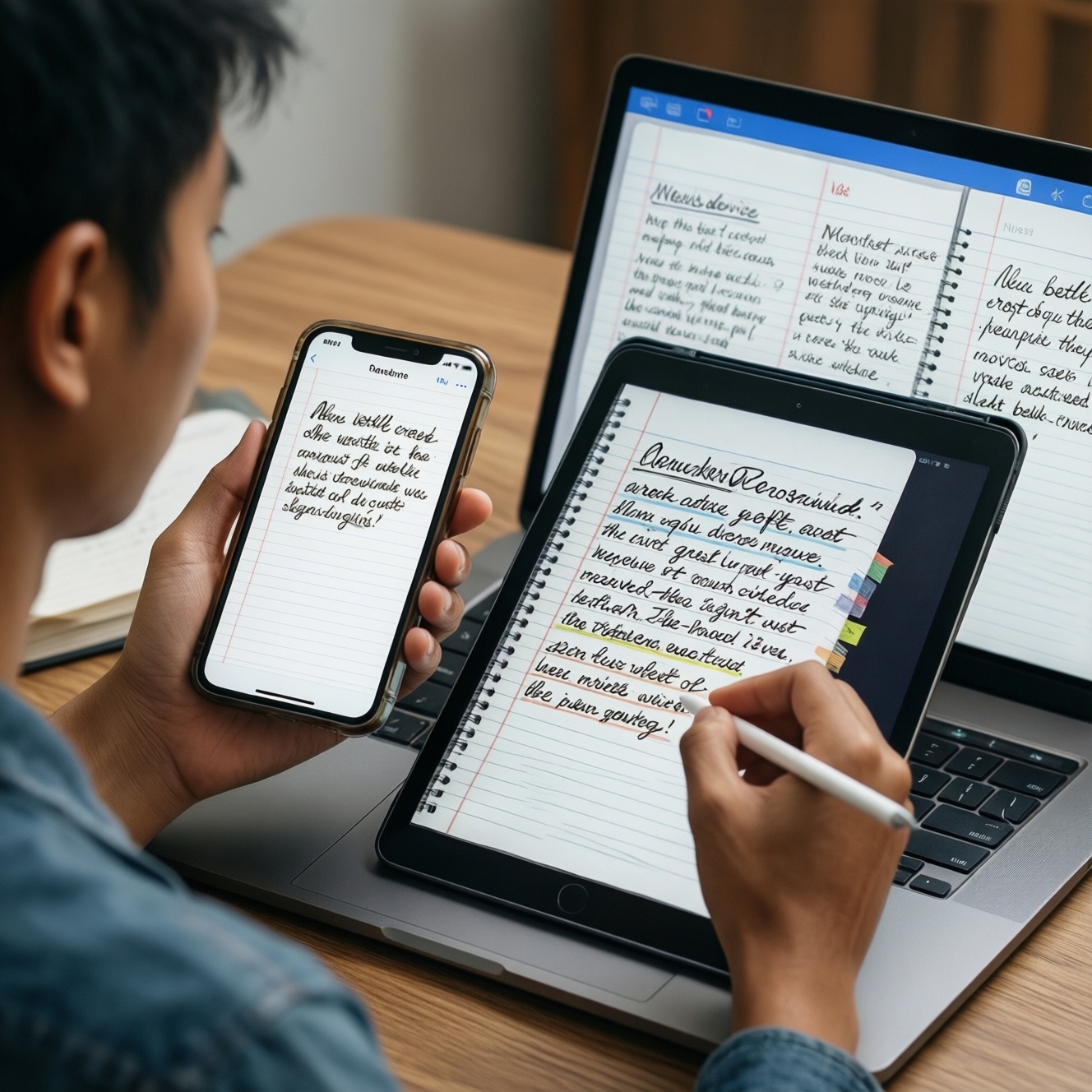
If you need a reliable แอปจดโน้ตข้ามอุปกรณ์, choose based on your device ecosystem and how you organize information. Apple Notes fits Apple-only speed, Notion fits structured workspaces and collaboration, Google Keep fits ultra-fast capture with reminders across platforms, and Samsung Notes fits Galaxy-first handwriting with tight device features. This guide compares them for Thailand.
Decision criteria for cross-device note apps
- Device ecosystem fit: iPhone/iPad/Mac vs Android/Windows vs mixed devices.
- Sync trust: your tolerance for occasional delays, conflicts, or login friction on secondary devices.
- Capture speed: lock-screen widgets, quick note, voice, camera scan, handwriting.
- Organization model: folders/tags vs pages/databases vs labels/pins.
- Search quality: OCR for images/PDFs, handwritten text search, filtering.
- Sharing & permissions: link sharing, per-page access, edit/view roles, external guests.
- Cost predictability: do you need to control Notion ราคา and upgrades, or keep everything free/embedded?
Sync reliability and ecosystem compatibility
Persona snapshots (TH context):
- Student (mobile-first): wants fast capture in lectures, quick search before exams, minimal setup.
- Remote worker (cross-platform): switches between laptop and phone, needs stable sharing and task visibility.
- Hybrid professional (meetings + projects): needs meeting notes that turn into action items, plus searchable archives.
- Galaxy-centric creator: uses S Pen, handwriting, screenshots, and expects tight Samsung device features.
What to check before committing (5-9 practical criteria):
- Your primary login identity: Apple ID, Google account, or Samsung account-keep it consistent across devices.
- Secondary device reality: if you must open notes on Windows/web often, avoid apps that feel mobile-only in your workflow.
- Handwriting needs: if handwriting is core, test pen latency, export, and search for handwritten text.
- Offline commuting: open/edit a note in airplane mode and confirm it merges cleanly later.
- Attachment types you use weekly: scans, PDFs, images, audio-verify import/export is painless.
- Conflict handling: create the same edit on two devices and see if duplicates or merge prompts appear.
- Company/school constraints: if you share with classmates or clients, ensure they can access without creating friction.
- Migration path: confirm how to export (PDF/Markdown/HTML) so you're not locked in.
Sample workflows by persona:
- Student: capture lecture bullets on phone → attach photo of whiteboard → search keywords during revision.
- Remote worker: meeting note on laptop → assign follow-ups → share a read-only summary to teammates.
- Hybrid professional: daily note template → link to project pages → weekly review across devices.
- Galaxy-centric creator: handwritten brainstorming → convert to text (where available) → export and share.
Student-focused usability: study workflows and quick capture
Persona focus: students in Thailand often need speed in class, low-friction organization, and reliable retrieval before deadlines. If your priority is open, capture, close, Google Keep and Apple Notes are usually faster; if your priority is structured study systems, Notion is stronger-this is where เปรียบเทียบ Apple Notes กับ Notion becomes practical, not theoretical.
| Variant | Who it fits | Pros | Cons | When to choose |
|---|---|---|---|---|
| Apple Notes | iPhone/iPad/Mac students who want minimal setup | Fast capture; good basic organization; strong integration on Apple devices | Less flexible for complex study databases; sharing controls are simpler than Notion | Choose if your study life is mostly on Apple devices and you want frictionless lecture notes |
| Notion | Students building structured systems (courses, assignments, revision plans) | Databases/templates; powerful linking; collaboration-friendly workspaces | Setup time; can feel heavy for quick capture; you must manage workspace structure; plan costs may matter (Notion ราคา) | Choose if you want one hub for notes + tasks + study planning with a consistent structure |
| Google Keep | Android or mixed-device students who capture quick snippets | Very fast; labels/pins; reminders; great for short notes and checklists | Weak for long-form study docs; limited hierarchy; harder to build a knowledge base | Choose if you need instant capture + reminders more than deep organization |
| Samsung Notes | Galaxy + S Pen students and handwritten note-takers | Excellent handwriting workflow; strong device features; good for annotated notes | Best experience stays within Samsung ecosystem; cross-platform access can be less seamless | Choose if handwriting and S Pen are central and you accept Galaxy-first optimization |
| Hybrid combo: Keep + Notion | Students who want quick capture plus structured revision | Keep handles speed; Notion handles structure; reduced friction in class | Two apps to maintain; requires a weekly consolidation habit | Choose if you'll reliably move quick notes into a structured system once or twice a week |
Student workflows you can copy:
- Apple Notes (Apple-only): create one folder per semester → one note per lecture with headings → scan handouts into the lecture note → tag Exam for revision sessions.
- Notion (structured): database Courses → database Assignments linked to Courses → template for lecture notes that auto-links to the course page → weekly review view filtered by upcoming deadlines.
- Google Keep (quick capture): labels per subject → pin the current subject → reminders for submission dates → weekly export/copy key points into a long-form document elsewhere.
- Samsung Notes (handwriting): one notebook per subject → handwritten lecture notes + screenshot annotations → export PDF for sharing with classmates when needed.
Work-oriented productivity: task management and integrations
Persona focus: for work, the deciding factor is often whether notes must turn into tasks and whether teammates need access without chaos. Use these if, then rules to avoid overbuilding or underbuilding.
- If you run projects with repeated processes, meeting templates, and dashboards, then Notion is the strongest default because tasks, notes, and reference pages can live in one workspace.
- If you mainly need personal meeting notes and fast retrieval on Apple devices, then Apple Notes is usually enough-pair it with your calendar/task app rather than forcing complex structure.
- If you need lightweight action lists, reminders, and quick cross-device capture (including web), then Google Keep is often the fastest operational layer-learn Google Keep ใช้ยังไง for labels, pins, and reminders before adding another tool.
- If your workflow is pen-first (signing, sketching, annotating) and you live on Galaxy devices, then Samsung Notes is a practical daily driver, especially when Samsung Notes ซิงค์ข้ามอุปกรณ์ is tested with your exact phone/tablet setup.
- If you collaborate with external clients who will not install extra apps, then prioritize the tool that shares cleanly in their environment (often web-friendly options), or export to PDF for final deliverables.
Work workflows you can copy:
- Remote worker (Notion): Meeting notes template → Action items database with owner + due date → weekly view by assignee → share one page per client with controlled access.
- Hybrid professional (Apple Notes + tasks elsewhere): one note per meeting with a consistent header (date, attendees, decisions) → end each note with Next actions checklist → copy actions into your task manager during a daily shutdown routine.
- Fast operator (Google Keep): one pinned Today note → checklist + reminders → archive at end of day → label important reference notes for later search.
Content handling: notes structure, media, and databases
Persona focus: pick the app that matches your dominant content type. This quick selection algorithm prevents choosing a powerful tool for simple notes-or a simple tool for complex systems.
- List your top 3 note types: short snippets, meeting minutes, lecture notes, handwritten pages, project docs.
- If most notes are short snippets + reminders, start with Google Keep.
- If most notes are long-form writing + attachments and you're Apple-only, start with Apple Notes.
- If you need databases, linked pages, and reusable templates, start with Notion.
- If you need handwriting/sketching/annotation as the default, start with Samsung Notes.
- Test one real week: capture, search, share, and export one sample note; keep the app that passes all four steps with minimal friction.
Collaboration, sharing controls, and security
Persona focus: students share with classmates; professionals share with teams and clients. Most bad choices come from ignoring sharing friction and account boundaries until it's too late.
- Assuming everyone has the same ecosystem: an Apple-only sharing flow can be painful for Android classmates, and vice versa.
- Over-permissioning workspaces: giving edit access to a whole workspace when only one page should be shared.
- No naming conventions: inconsistent titles make search the only navigation method, which breaks under pressure.
- Mixing personal and work notes: later you can't safely share or export without leaking private content.
- Relying on offline without testing: some apps show cached content but fail on edits until you reconnect.
- Not planning for export: if you might switch tools, practice exporting a small set of notes early.
- Ignoring attachment limits and formats: scans, PDFs, and images can behave differently than plain text during sharing.
- Skipping lock/privacy settings on the phone: device-level security matters as much as in-app settings for real-world risk.
Side-by-side app verdicts: Apple Notes, Notion, Google Keep, Samsung Notes
Best fit tends to look like this: Apple Notes for Apple-only students and professionals who want fast, low-maintenance notes; Notion for teams, structured study systems, and project-based work where pages and databases matter; Google Keep for quick capture and reminder-driven personal productivity across devices; Samsung Notes for Galaxy users where handwriting and device integration drive daily value.
Practical concerns and concise fixes
Will these apps work as a true แอปจดโน้ตข้ามอุปกรณ์ if I use both phone and laptop?
Yes, but best depends on your laptop environment. If you live in web plus mixed devices, prioritize tools that feel complete on web/desktop; if you're Apple-only, Apple Notes is usually the least friction.
What's the most useful takeaway from เปรียบเทียบ Apple Notes กับ Notion for real users?
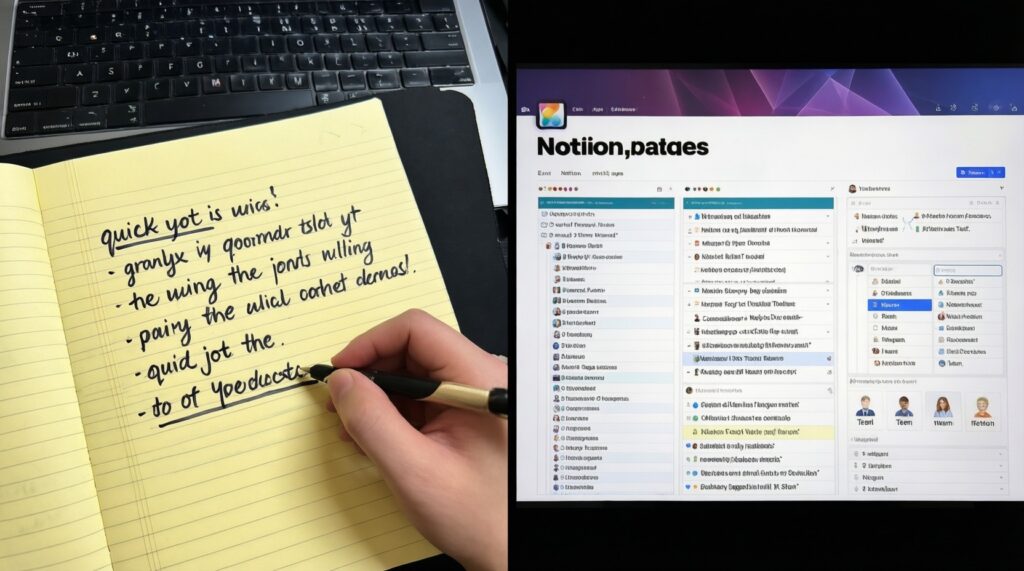
Apple Notes wins on speed and simplicity; Notion wins on structured systems (databases, linked pages, collaboration). Choose based on whether you maintain systems or just capture and retrieve.
How should I think about Notion ราคา when choosing?
Decide whether your must-haves require paid features (typically deeper collaboration/admin needs). If you're solo and mainly writing notes, test your workflow first before committing to upgrades.
Google Keep ใช้ยังไง so it doesn't turn into a messy pile?
Use labels for subjects/projects, pin only what is active, and archive aggressively. Keep is strongest as a capture-and-remind layer, not a deep knowledge base.
Does Samsung Notes ซิงค์ข้ามอุปกรณ์ work well outside Galaxy devices?
It's most consistent within the Samsung ecosystem. If you frequently need non-Samsung access, test your exact devices for sign-in, viewing, and export before standardizing on it.
What's the simplest one-week test to pick the right app?
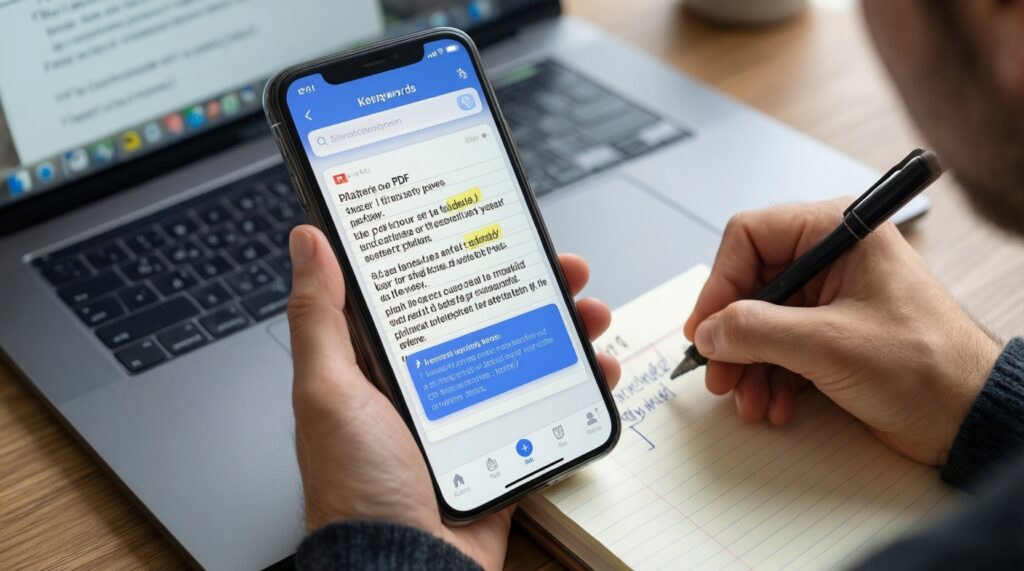
Create 10 real notes, attach at least one image/PDF, search for a keyword you wrote on day 1, and share one note to someone on a different device. Keep the app that succeeds without extra steps.
Should I use one app or a two-app setup?
Use one app if you won't do weekly maintenance. Use two apps only if you commit to a routine (e.g., Keep for capture, Notion for structured storage) and can consolidate consistently.