If your goal is fast, tidy handwritten lesson summaries, pick the stylus based on your device ecosystem first: Apple Pencil for iPad, S Pen for Galaxy Tab, and a USI pen for compatible Chromebooks/tablets. The best option is the one that matches your hardware, supports stable palm rejection, and fits your export workflow (PDF, images, or text).
Essentials for efficient lesson note-taking
- Device compatibility is the deciding factor: iPad → Apple Pencil; Galaxy Tab → S Pen; USI device → USI pen.
- Prioritize palm rejection and reliable stroke start; these affect speed more than extra features.
- Choose an app workflow you can export quickly (PDF + searchable text if needed).
- Prefer a comfortable grip and tip friction that matches your handwriting style (fast cursive vs neat block notes).
- Plan for charging/storage habits so the pen is always available in class.
Hardware, compatibility and setup: Apple Pencil vs S Pen vs USI
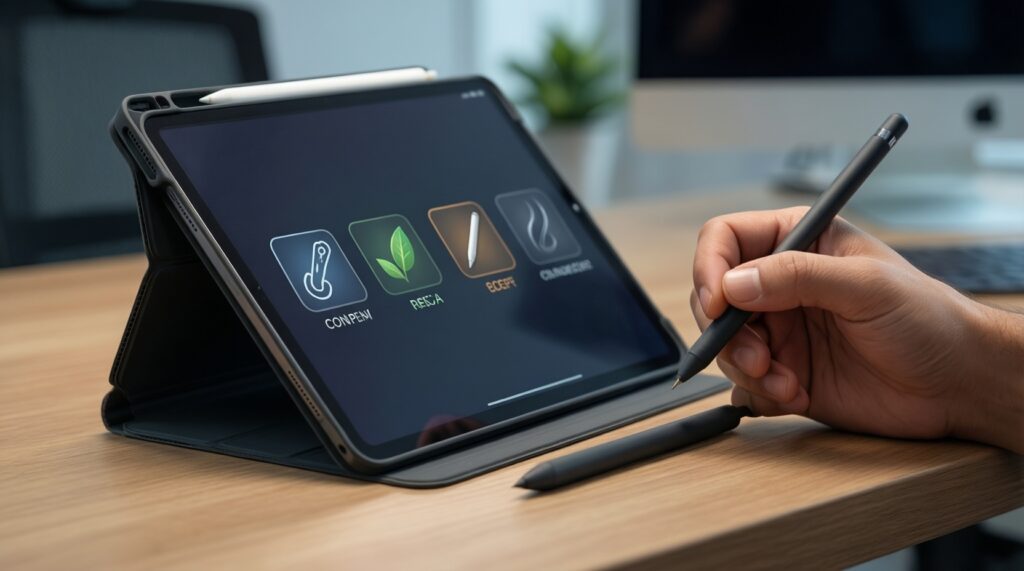
Use these criteria to decide quickly before comparing feel:
- Device lock-in: Apple Pencil works with specific iPad models; S Pen is for Samsung devices; USI pens require a USI-compatible device.
- Pairing and reconnect: Look for frictionless reconnect after sleep and stable performance across long lectures.
- Charging method: integrated charging, magnetic attach, USB charging, or replaceable batteries (impacts daily reliability).
- Where it lives: magnetic attachment, case slot, keyboard dock, or separate pouch (loss risk in school).
- Palm rejection dependency: some setups rely heavily on the app + OS; test your preferred note app, not just the pen.
- Tip and nib availability: easy-to-find replacements in Thailand, plus tip feel (smooth vs paper-like resistance).
- Screen protector compatibility: matte protectors can improve control but may change perceived responsiveness and wear tips faster.
- Classroom constraints: quick wake, silence (no tapping noise), and stable Bluetooth if the pen needs it.
Quick pros/cons by family
-
Apple Pencil (iPad)
- Pros: tight iPadOS integration; strong app ecosystem for structured notes; consistent handwriting tools.
- Cons: strict model compatibility; premium pricing tier (many people search Apple Pencil ราคา for a reason); limited cross-platform reuse.
-
S Pen (Samsung Galaxy Tab)
- Pros: usually excellent handwriting control on Galaxy tablets; good Samsung Notes workflow; often easy to start without extra setup.
- Cons: feature set depends on device model; replacement and add-on costs vary (commonly searched as S Pen ราคา).
-
USI pen (USI Chromebooks/tablets)
- Pros: useful for students on Chromebook; broad brand choices; often the practical route for school-managed devices.
- Cons: experience varies by device panel and app; you must confirm USI compatibility and version support.
Writing dynamics: latency, pressure, tilt and the handwriting feel
Real-world handwriting feel is a combination of display sampling, palm rejection stability, tip friction, and how your app renders ink. Instead of chasing a specific latency number, test for: stroke start (no missed initial lines), consistent thickness, and predictable diagonal curves when writing fast.
| Variant | Who it fits | Pros | Cons | When to choose |
|---|---|---|---|---|
| Apple Pencil (official, iPad-compatible model) | Students and teachers on iPad who export PDFs and want polished handwriting |
|
|
Choose if iPad is your main class device and you want the lowest setup friction and reliable exports. |
| S Pen (official, Galaxy Tab) | Android users who like Samsung Notes and quick classroom capture |
|
|
Choose if you already use a Galaxy Tab and want a note-first workflow without switching ecosystems. |
| USI pen (for USI-compatible Chromebook/tablet) | School Chromebook users and budget-focused note takers |
|
|
Choose if your school device is USI-ready; start by confirming compatibility and where to buy (ปากกาสไตลัส USI ซื้อที่ไหน). |
| Third-party iPad active stylus (non-Apple Pencil) | iPad users who mainly highlight, do simple notes, and want lower cost |
|
|
Choose if you need a functional backup pen or your notes are mostly simple text/highlights. |
| Replacement/alternative pen for Galaxy Tab (S Pen-compatible options) | Galaxy Tab users replacing a lost pen or needing a spare |
|
|
Choose if you already rely on Galaxy Tab notes and want redundancy for exams and busy school days. |
If you're deciding purely on experience, the question Apple Pencil vs S Pen อันไหนดีกว่า is usually answered by your device and preferred note app. Both can feel excellent when matched to the right hardware and settings; USI can be great too, but consistency depends more on the specific Chromebook/tablet and pen brand.
Hand flow and error control: palm rejection, gestures and undo
Use these scenario rules to prevent messy pages and constant corrections:
- If your palm creates random marks, then switch to an app with strong palm rejection settings and keep the pen tip slightly ahead of your hand (also consider a drawing glove for long sessions).
- If you miss the first stroke of a word, then disable low-power modes, close heavy background apps, and test another note app; stroke-start issues are often app/device tuning, not handwriting skill.
- If you frequently erase too much, then map an easier undo gesture (two-finger tap/gesture where available) and reserve eraser mode for longer corrections.
- If your lines wobble when drawing graphs, then enable shape/line smoothing features and use a grid or ruled template; don't rely on perfect freehand.
- If your hand cramps in long lectures, then increase pen thickness via a grip, reduce pressure sensitivity in the app, and use slightly larger handwriting with consistent slant.
Workflow fit: note apps, export formats and classroom integration
- List your must-have outputs: PDF handouts, image export for LINE groups, or text for study guides.
- Pick your primary device for class (iPad, Galaxy Tab, or Chromebook) and eliminate incompatible pens immediately.
- Choose one main note app and do a 10-minute test: headings, bullets, diagrams, and a quick PDF export.
- Validate search and organization: tags, folders by subject, and fast retrieval during revision.
- Check collaboration needs: sending to classmates, printing, or syncing to cloud storage used in Thailand (e.g., Google Drive).
- Decide your backup method: automatic cloud sync plus a weekly PDF archive of each subject.
- Only then compare price tiers and accessories (case/keyboard/screen protector) so the setup stays consistent.
Practical costs and lifecycle: battery, charging, repairs and value

- Buying before confirming compatibility: many returns happen because the pen doesn't match the exact tablet model or USI support level.
- Ignoring the full kit cost: the pen is only part of your writing experience; tips, grips, cases, and screen protectors matter.
- Over-optimizing for features you won't use: if you only summarize lectures, prioritize reliability and export speed over advanced art features.
- No plan for loss/damage: students should assume a pen can be misplaced; consider a spare or a tethered storage routine.
- Not checking tip availability locally: if tips are hard to find, your handwriting feel will degrade and you'll procrastinate on replacement.
- Charging friction: if charging is inconvenient, the pen will be dead exactly when you need it; pick a method you'll actually follow daily.
- Misreading price talk online: searches like Apple Pencil ราคา and S Pen ราคา often mix models and bundles-compare the exact model and what's included.
- For USI, buying the cheapest pen first: with USI, the lowest-cost option can be inconsistent; aim for a reputable brand and a clear return policy (again: ปากกาสไตลัส USI ซื้อที่ไหน is a practical question, not just pricing).
Persona-driven choices: recommendations for teachers, students and illustrators
- Teacher (slides + marking + sending PDFs): iPad + Apple Pencil if you want the smoothest grading/export routine and consistent handwriting tools.
- Note-taking student (speed + neat summaries + exam prep): pick the pen that natively matches your daily tablet; for many Galaxy Tab users, S Pen is the easiest start-to-finish note flow.
- Visual learner (diagrams, mind maps, color coding): choose the ecosystem with the note app you'll stick with; Apple Pencil and S Pen both work well when templates and undo gestures are dialed in.
In practice, "best" means least friction for your classes: Apple Pencil is usually the strongest fit for iPad-centric study systems; S Pen is usually the most straightforward for Galaxy Tab note workflows; a USI pen is the practical choice when your school device is a Chromebook/USI tablet and you want a workable, education-friendly setup. If you're asking ปากกาสไตลัสสำหรับจดโน้ตเรียน รุ่นไหนดี, start from your device, then validate palm rejection + exports in your chosen app.
Common practical questions and concise answers
Is Apple Pencil always better than S Pen for lesson summaries?
No. If you're on a Galaxy Tab, S Pen usually delivers a smoother end-to-end workflow than switching platforms just for the pen.
How do I decide quickly between Apple Pencil, S Pen, and USI?
Choose the pen your device supports first, then test one note app for palm rejection and export to PDF. Most "feel" differences become obvious in a short real-class trial.
What should I check before searching Apple Pencil ราคา or S Pen ราคา?
Confirm your exact tablet model and the exact pen model supported. Price listings often mix generations, bundles, and region variants.
Where should I start if I'm asking ปากกาสไตลัส USI ซื้อที่ไหน?
Start by verifying your device is USI-compatible, then buy from a seller with a clear return policy. USI experience depends heavily on the specific device and pen brand match.
Why do my notes look messy even with a good stylus?
Template choice and zoom level matter as much as the pen. Use ruled/grid templates, set a consistent writing size, and rely on undo instead of over-erasing.
Do I need pressure sensitivity for lecture note-taking?
Not necessarily. For most students, stable stroke start, palm rejection, and fast undo are more valuable than advanced pressure control.
What's the safest "one app" approach for consistent exports?
Pick a single app that reliably exports PDF and keeps folders by subject, then commit for a semester. Consistency beats switching apps when exams get close.