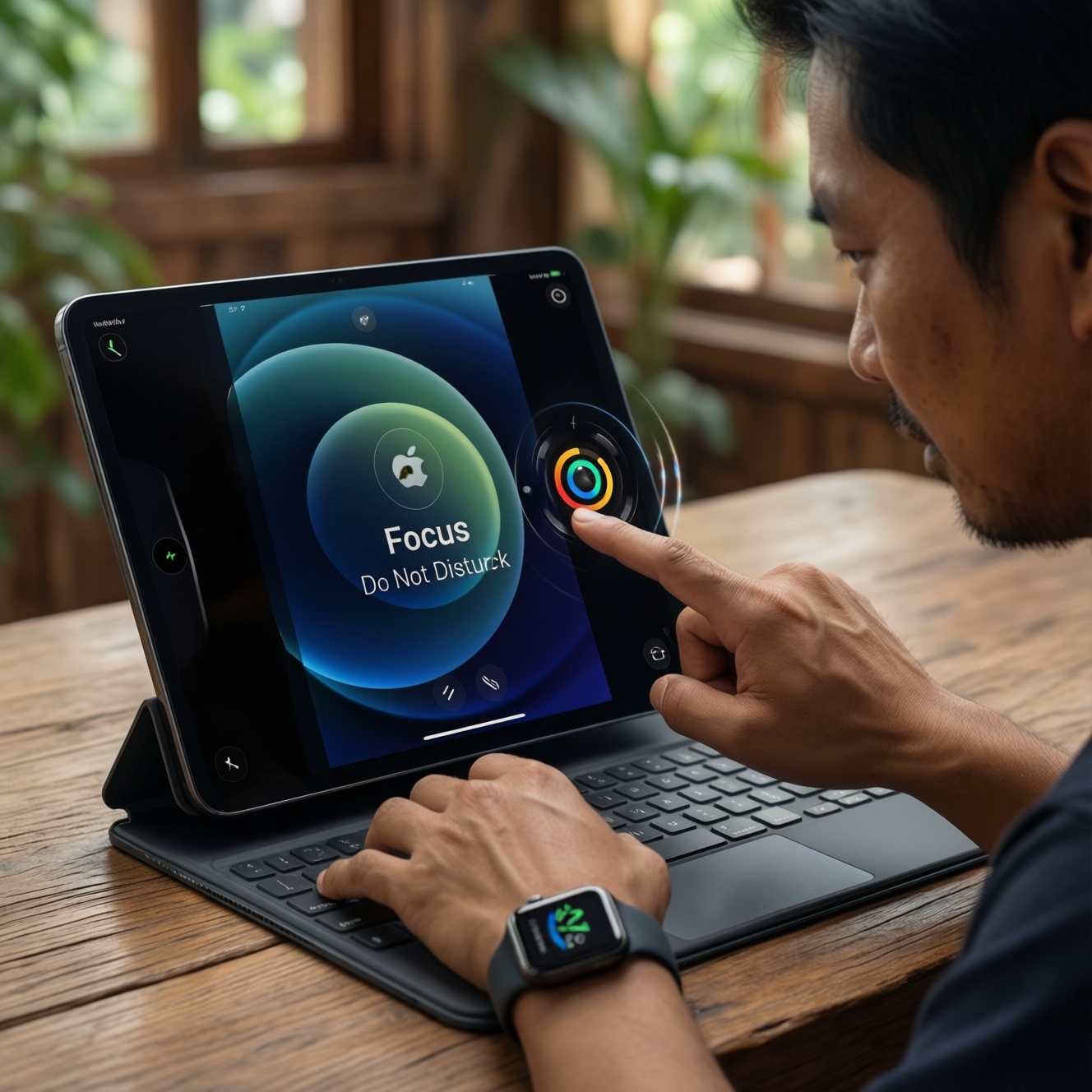
If you want Focus/Do Not Disturb that stays consistent across devices in Thailand, iOS Focus is usually the most seamless because it can sync modes across iPhone, iPad, and Apple Watch under one Apple ID. Android Digital Wellbeing and Samsung One UI can be excellent too, but cross-device behavior depends more on OEM features, account sync, and paired-device integrations.
Quick comparison snapshot: what differs across platforms
- Sync model: iOS Focus can mirror states across Apple devices; Android and One UI are typically device-centric unless you add routines/PC pairing.
- Granularity: iOS Focus offers strong per-app and per-contact rules; Android emphasizes app timers and distraction reduction; One UI combines DND + modes/routines.
- Automation: iOS triggers by time, location, app, and Smart Activation; Android relies on schedules and usage-based controls; One UI leans on Modes & Routines.
- Exceptions: iOS has contact-based allowlists and "Time Sensitive" concepts; Android focuses on priority categories; One UI provides detailed DND exception sets.
- Cross-device gaps: "แอปโหมดโฟกัสและห้ามรบกวนข้ามอุปกรณ์" is easiest to achieve inside one ecosystem; mixed iOS/Android setups usually need separate rules per device.
How cross-device focus works: architecture and prerequisites
Use these criteria to pick the best approach for your devices and workflow:
- Account-based sync: whether the mode state (on/off) is synchronized via the same account (Apple ID / Google account / Samsung account).
- Device scope: phone-only vs phone + tablet + watch + laptop integration.
- Notification model: per-app, per-category, per-contact, and whether notifications are silenced or just hidden.
- Call/message routing: favorites-only, repeated calls, specific groups, and support for messaging apps you actually use in TH (LINE/WhatsApp/Teams).
- Automation triggers: time, location, calendar, app open, driving detection, and "smart" activation.
- Exception complexity: how fast you can add one temporary exception without breaking the whole mode.
- Work profile / managed device rules: whether corporate policies can override your personal settings.
- Paired-device behavior: what happens to notifications on a smartwatch, tablet, or PC when your phone enters a mode.
- Fallback and recovery: how easy it is to exit a mode, avoid getting "stuck," and troubleshoot sync.
iOS Focus: setup, sync, and granular controls
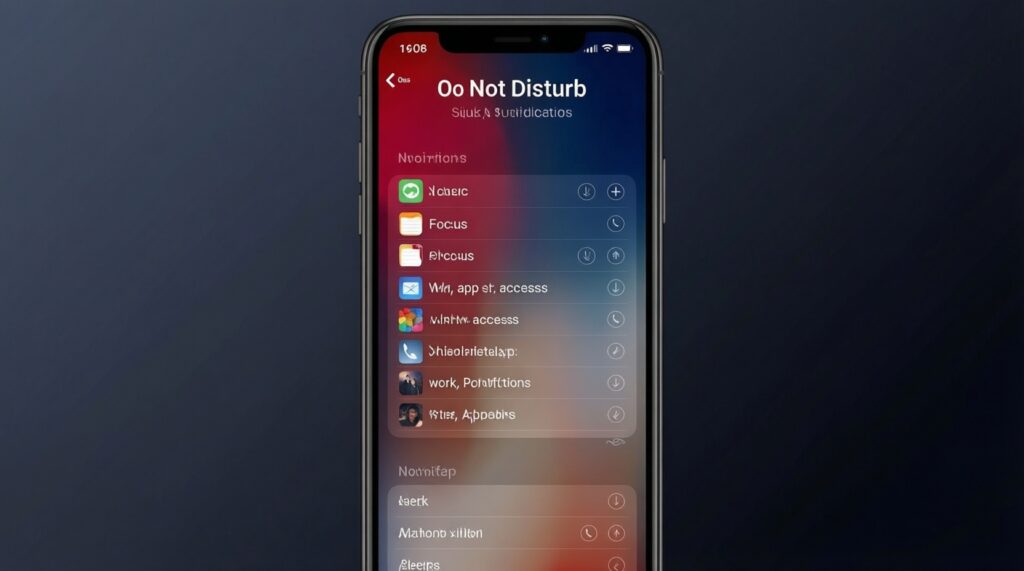
For Apple ecosystems, "ตั้งค่าโหมดโฟกัส iOS (Focus)" is the most direct way to apply consistent rules across iPhone/iPad, and "เปิดโหมดห้ามรบกวน iPhone และ iPad" can be treated as the simplest baseline when you don't need deep per-app/per-contact logic.
Fast setup (iPhone/iPad) with cross-device sync
- Go to Settings > Focus, pick a Focus (or create a custom one).
- Turn on Share Across Devices (same Apple ID on each device).
- Configure People (allowed/blocked) and Apps (allowed, including time-sensitive if you rely on it).
- Set Options (silence behavior, lock screen display) and add a Schedule/Automation.
- Check each device's Control Center to ensure the Focus status mirrors as expected.
Variants compared (what to choose inside iOS)
| Вариант | Кому подходит | Плюсы | Минусы | Когда выбирать |
|---|---|---|---|---|
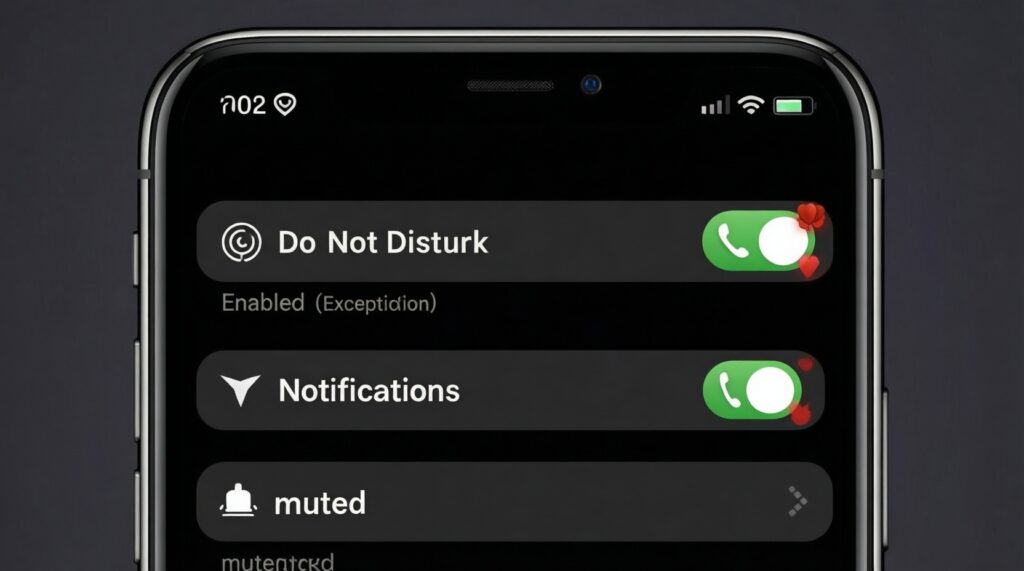
| Do Not Disturb (DND) | Anyone who needs a simple, predictable mute state | Quick to toggle; minimal setup; works well with urgent-call exceptions | Less context-aware; easy to over-silence important apps | When you want "silence everything unless allowed," without changing home screens or app filtering |
| Work Focus | Knowledge workers using Teams/Slack/email | Granular app allowlist; can tie to work hours; can reduce off-hours distractions | Needs careful app/contact tuning; can hide personal messages too aggressively | When you want strict boundaries during work blocks and consistent rules across iPhone/iPad |
| Personal Focus | Users who want selective availability for family/friends | Contact-centric rules; easy to allow close contacts; customizable schedules | Can be redundant if you only use DND; requires maintaining contact groups | When you need different rules than Work (e.g., allow family calls but mute work chat) |
| Sleep Focus | Light sleepers and people with consistent sleep windows | Pairs well with bedtime routines; keeps nighttime interruptions low | Over-silences late deliveries/ride updates unless explicitly allowed | When you want a nightly mode that's harder to forget and easy to automate |
| Driving Focus | Drivers and commuters | Reduces distraction while moving; can auto-enable; can support auto-reply behavior | Auto-detection can be imperfect; may block passenger usage scenarios | When you need safety-oriented defaults and fewer taps to activate |
| Custom Focus (e.g., Study/Deep Work) | Intermediate users who want highly specific rules | Maximum customization; can be built around one task; consistent across Apple devices | Setup time; risk of conflicting schedules with other Focus modes | When your routine needs unique allowlists, home screen pages, or triggers per context |
Limitations and troubleshooting (iOS)
- If Focus doesn't sync, confirm the same Apple ID, Share Across Devices, and that all devices are online.
- If you miss critical alerts, review both People and Apps allowlists; many users configure only one side.
- If a mode activates unexpectedly, audit automations (time/location/app) and disable "smart" activation where you need strict manual control.
Android Digital Wellbeing: routines, notifications, and limits
For Android, "Android Digital Wellbeing ตั้งค่าโหมดโฟกัส" typically means combining Focus mode (to pause distracting apps), notification settings, and schedules/routines. Cross-device consistency is usually achieved by replicating configurations on each device rather than expecting a single shared Focus state.
Scenario rules you can apply immediately
- If you mainly want to stop compulsive app-checking, then use Digital Wellbeing Focus mode to pause social/video apps and whitelist essentials (banking, maps, authenticator).
- If your pain is notification noise (not app access), then keep apps usable but restrict notifications per app/category and prioritize calls/messages.
- If you work in time blocks, then schedule Focus mode for recurring sessions and add a separate "break" window rather than toggling manually.
- If you alternate between phone and tablet, then mirror the same Focus-mode app list and schedules on both devices; don't assume Google account sync will replicate paused-app lists.
- If you need different behavior for work apps vs personal apps, then use Work Profile separation (where available) and tune notifications independently for each profile.
Limitations and troubleshooting (Android)
- OEM skins differ: Focus mode, DND, and "modes" may be separate features with overlapping effects.
- Some messaging apps may still surface high-priority notifications depending on app-side settings; check in-app notification channels.
- When Focus mode feels "too strong," reduce the paused list and move some apps to notification-only restrictions instead of full pausing.
Samsung One UI: Focus modes, Link to Windows and device pairing
On Samsung, "Samsung One UI โหมดห้ามรบกวน ตั้งค่า" is often best when you combine Do not disturb with Modes & Routines. For cross-device workflows, Link to Windows and paired devices can reduce duplicate alerts, but you still want the phone's mode rules to be correct first.
Selection algorithm (use this checklist)
- Define your goal: silence notifications, pause distracting apps, or control who can reach you.
- If you need strict silencing, configure Do not disturb first (exceptions for calls/messages/alarms).
- If you need context switching (work/commute/sleep), create a Mode per context and map what changes (sound, DND, app access, wallpaper/lockscreen where available).
- If you need automation, add Routines triggers (time, location, connected Wi‑Fi/Bluetooth, app open).
- If you use a PC, set up Link to Windows and decide whether you want notifications duplicated on PC or handled on phone only.
- Test with one "critical contact" and one "critical app" to confirm exceptions behave as expected.
- After validation, clone the mode/routine pattern for the next persona (work vs family vs travel) instead of building one mega-mode.
Limitations and troubleshooting (One UI)
- Overlapping features can conflict: if a Routine enables DND while another disables it, results may appear inconsistent-consolidate triggers.
- PC pairing can create perceived "extra notifications"; decide which device is authoritative for alerts during focus time.
Behavioral differences: notifications, app exceptions and automation
- Assuming "sync" means identical behavior: even when status syncs (iOS), notification delivery can differ by device (watch vs tablet vs phone).
- Only configuring app allowlists: missing the people/contact rules (or vice versa) commonly causes "why did this call/message still come through?" confusion.
- Mixing pause vs silence concepts: Android Focus mode may block app usage; iOS Focus often allows usage but filters notifications-choose based on your actual problem.
- Too many automations: multiple time/location/app triggers can cause mode thrashing; start with one trigger per mode.
- Not planning for OTPs and delivery updates: banking verification and courier/ride notifications need explicit allowance (app or category), especially during travel.
- Forgetting repeated-calls rules: enable/disable repeated calls intentionally; it can be a safety feature or an unwanted bypass.
- Relying on PC mirroring to manage focus: Link to Windows is not a focus system; it's a notification surface. Configure DND/Modes on the phone first.
- Expecting cross-platform parity: if you rotate between iPhone and Android, plan separate configurations; "แอปโหมดโฟกัสและห้ามรบกวนข้ามอุปกรณ์" won't behave identically across ecosystems.
Persona-driven recommendations: which mode fits which user
For a knowledge worker who lives in calendars and meetings, iOS Work Focus or a Samsung Mode with DND exceptions tends to be the cleanest; for a parent who needs family reachability but fewer group-chat pings, iOS Personal Focus or One UI DND with tight people exceptions fits well; for a traveler in Thailand who needs maps, ride-hailing, and banking OTPs reliably, keep a lightweight DND with explicit app exceptions; for a student trying to curb app usage, Android Digital Wellbeing Focus mode (paused apps) is often the most behavior-changing.
Common implementation questions and clarifications
Will iOS Focus really sync between iPhone and iPad?
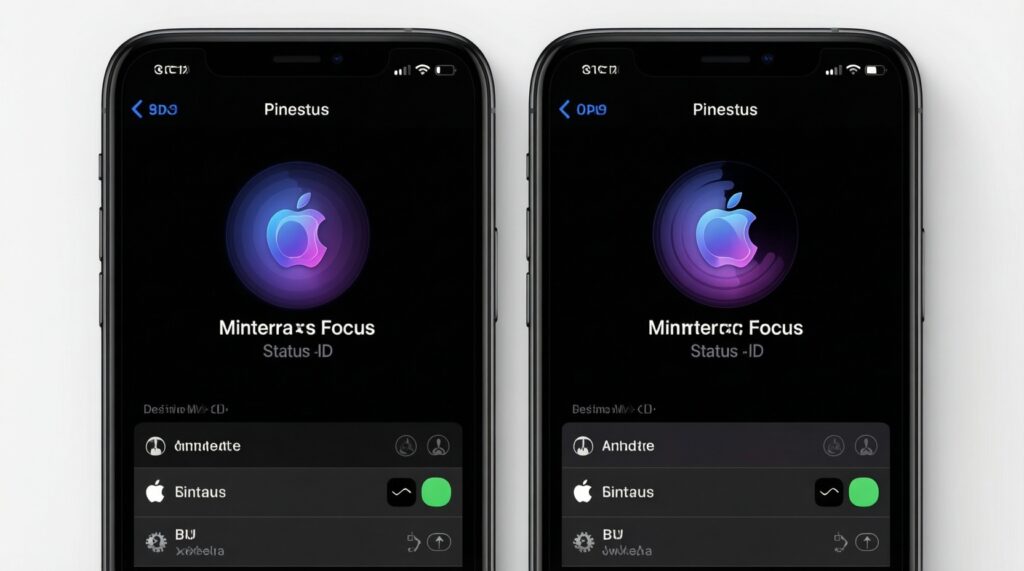
Yes, if both devices use the same Apple ID and "Share Across Devices" is enabled in Focus settings. The Focus status can mirror, but you should still verify app allowlists on each device.
Is "เปิดโหมดห้ามรบกวน iPhone และ iPad" the same as using a custom Focus?
Do Not Disturb is a basic silencing mode. A custom Focus adds targeted allow/deny rules and automations that are easier to maintain per context (work, sleep, study).
Can Android Focus mode sync across my Android phone and tablet?
Usually not as a single shared on/off state across devices. For consistent results, replicate "Android Digital Wellbeing ตั้งค่าโหมดโฟกัส" settings (paused apps and schedules) on each device.
On Samsung, should I use DND or Modes & Routines?
Use DND for predictable silencing with exceptions, and add Modes & Routines when you want context-based changes and automation. This is the typical path after "Samsung One UI โหมดห้ามรบกวน ตั้งค่า".
Why do I still see some notifications during Focus/DND?
Most platforms allow bypasses such as repeated calls, priority categories, alarms, or time-sensitive notifications. Review exceptions and any app-level notification settings.
What's the safest minimal setup for travel so I don't miss OTPs?
Use a simple DND/Focus with explicit allow for banking apps, authenticator apps, calls from key contacts, and ride/delivery apps. Avoid aggressive "pause app" lists unless you've tested them.
Do I need a third-party app for cross-device focus?
Often no within a single ecosystem; iOS Focus covers Apple devices well. In mixed-device setups, third-party solutions can help but rarely match native exception handling and may not be true "cross-device state sync".