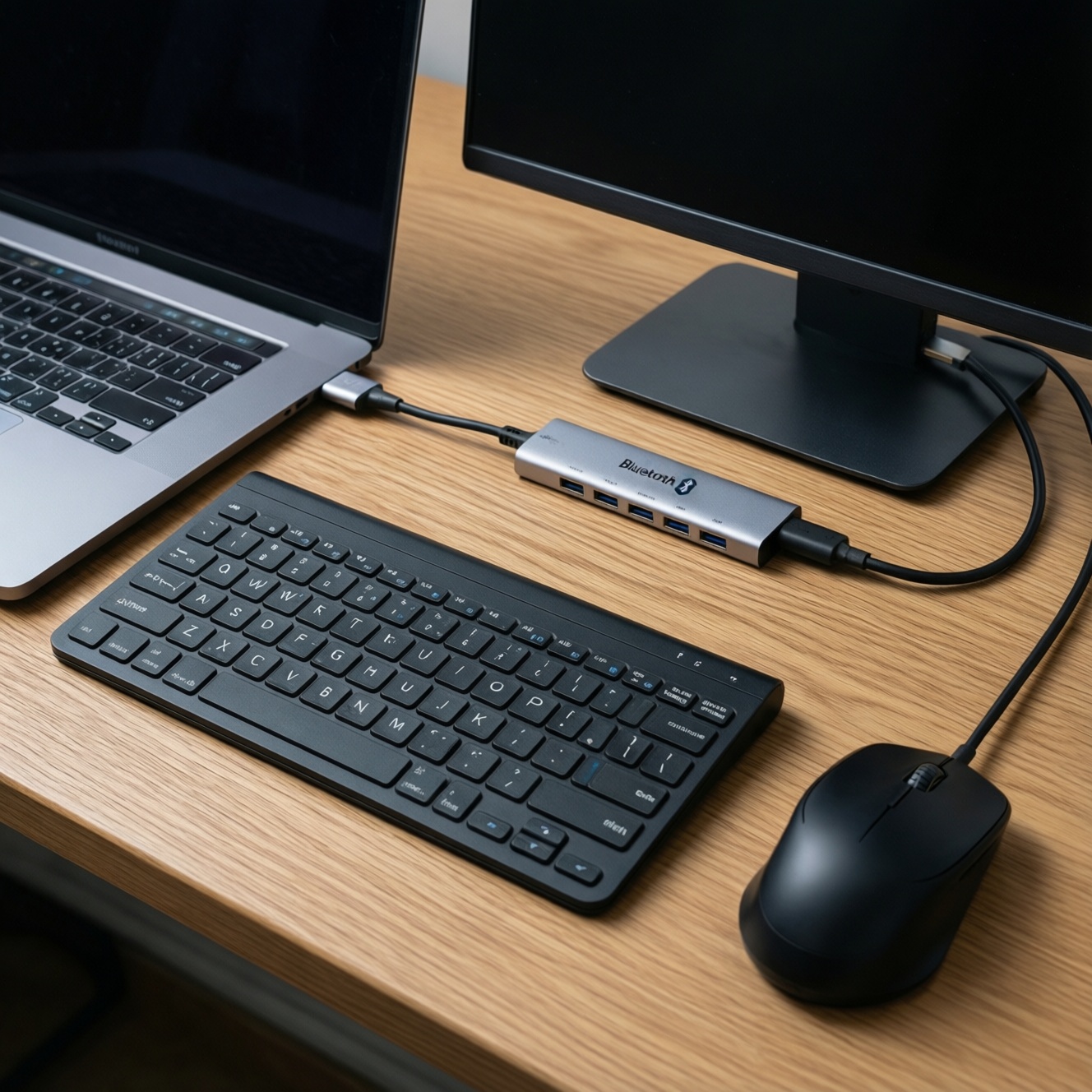
If you want the best อุปกรณ์ทำงานพกพา setup, pick peripherals by ecosystem first: Bluetooth multi-device คีย์บอร์ดไร้สาย + a stable เมาส์ไร้สาย, then a ฮับ USB-C that matches your laptop/tablet's video and power limits, and finally a จอพกพา that supports the exact signal your device can output.
Portable Peripherals at a Glance
- Prioritize compatibility: macOS/iPadOS behaves differently from Windows/Android for shortcuts, scrolling, and external displays.
- Budget-first rule: spend on the hub/monitor only if you truly need external display + charging; otherwise keep the hub simple and upgrade the mouse/keyboard feel.
- For travel: favor 2.4 GHz (dongle) mice for consistent latency; use Bluetooth keyboards for multi-device switching.
- USB-C hubs: confirm whether your device supports video over USB-C (DP Alt Mode) before buying HDMI.
- Portable monitors: choose connection type first (USB-C video vs HDMI), then size/brightness; cables matter more than specs on paper.
- Avoid driver dependence: pick class-compliant peripherals unless you are fine tuning via vendor software on one OS only.
Compact Keyboards: Switches, Layouts and Portability
Verdict: choose layout and connectivity before switches; most "portable keyboard regrets" come from missing keys, poor OS mapping, or flaky pairing rather than key feel.
- Layout size (60/65/75/TKL): 65/75 is the safest for travel work because you keep arrows and key clusters with minimal width.
- OS legends & modifier mapping: Mac/iPadOS users should prefer Mac legends or easy remapping for Command/Option; Windows users often need a proper Print Screen / Fn row workflow.
- Connection modes: Bluetooth for multi-device, 2.4 GHz dongle for lowest hassle/latency, USB-C wired for "always works" on locked-down corporate machines.
- Multi-device switching: verify dedicated keys (1/2/3) rather than long Fn combos if you swap between laptop + tablet + phone.
- Key switch type: scissor (quiet, thin, stable for travel) vs low-profile mechanical (better feedback, thicker) vs standard mechanical (best feel, worst portability).
- Keycap profile & noise: thin cases amplify sound; if you work in cafés, prioritize quieter switches, stabilizers, and dampening.
- Battery behavior: look for reliable sleep/wake and predictable charging; "big battery" is less useful than "no random disconnects."
- Angle/ergonomics: fixed flat boards can fatigue wrists; small feet or a slim stand can matter more than switch choice.
- Carry risk: exposed keycaps collect debris; consider a sleeve or a model with a rigid travel cover.
Budget-first picks: a slim Bluetooth คีย์บอร์ดไร้สาย for multi-device; mainstream: a 65/75% tri-mode (BT + 2.4 + wired); upgrade: a premium low-profile mechanical with per-key remap (best if you stay in one ecosystem).
Portable Mice: Sensors, Battery Life and Ergonomics
Verdict: for portable work, shape and connection stability beat "max DPI"; pick the mouse that keeps your hand relaxed and your cursor consistent on mixed surfaces.
| Option | Who it fits | Pros | Cons | When to choose |
|---|---|---|---|---|
| Budget: compact Bluetooth mouse | Light travel, tablet + laptop users, minimal setup | No dongle; easy pairing; works with most iPadOS/Android/Windows/macOS | More latency than 2.4 GHz; can stutter in crowded wireless environments | When you want the simplest เมาส์ไร้สาย for everyday tasks and don't need precision work |
| Budget: 2.4 GHz nano-dongle mouse | Windows laptops, office PCs, consistent performance seekers | Stable connection; low lag; usually "plug and go" without Bluetooth quirks | Dongle can be lost; USB-A may require an adapter/hub | When reliability matters more than multi-device switching |
| Mainstream: dual-mode (BT + 2.4) ergonomic compact | People switching between devices; long sessions on the go | Best flexibility; often better scroll wheel and side buttons; fewer pairing headaches | Usually pricier; some features need vendor software | When you alternate between laptop and tablet and want one mouse that behaves predictably |
| Mainstream: travel "mini" productivity mouse | Small hands, backpack-friendly setups | Very portable; decent battery; good on tight café tables | Can cause hand tension if too small for you | When portability is the top constraint and sessions are moderate length |
| Upgrade: premium productivity mouse | Heavy multitaskers, creators, spreadsheet power users | Excellent wheel; strong multi-device features; better surface tracking | Cost; some advanced customization is OS-dependent | When you value fast navigation, app shortcuts, and consistent scrolling across apps |
| Upgrade: lightweight performance mouse (2.4 focus) | Users sensitive to latency; hybrid work + gaming | Very responsive; great tracking; usually strong sensor implementation | Less "office" ergonomics; fewer productivity shortcuts | When pointer precision and speed matter more than side-button workflows |
- Quick fit test: your palm should rest without pinching your thumb and pinky; if you grip harder when scrolling, size/shape is wrong.
- Connection rule: prefer 2.4 GHz for Windows laptops and busy RF areas; prefer Bluetooth for tablets and minimal-port devices.
- macOS note: scroll direction and acceleration can feel different; avoid mice that require always-on vendor software if you use locked corporate Macs.
USB-C Hubs for On-the-Go Setups: Ports, Power Delivery and Compatibility
Verdict: buy the hub that matches your device's video-out and charging behavior; most returns happen because the laptop/tablet can't output video the way the hub expects.
- If you only need basic I/O, then choose a budget ฮับ USB-C with USB-A + SD/microSD + pass-through charging; skip HDMI unless you are sure you will use it.
- If you need an external monitor from USB-C, then confirm your device supports USB-C video (DP Alt Mode). If it does, pick a hub with HDMI that explicitly states compatibility with your target resolution/refresh (avoid vague "supports 4K" claims).
- If you work on iPadOS and want a cleaner desk, then prefer a hub with strong mechanical strain relief (short cable, solid plug) and power pass-through; iPads are sensitive to flaky hubs when charging + display are combined.
- If you use macOS with multiple displays, then check whether your Mac supports multiple external monitors natively; many hubs won't "add" monitors without display-link style solutions, which can require software and may be restricted.
- If you travel and present often, then pick a mainstream hub that includes HDMI plus at least one USB-A and USB-C data port; keep a short HDMI cable in the pouch to avoid venue cable failures.
- If you want a premium, desktop-like one-cable setup, then consider an upgrade hub/dock with stronger power delivery and more ports; it costs more but reduces adapter stacking and connection wiggle.
- Budget emphasis: the best-value hub is usually "few ports, solid build, reliable PD pass-through." Don't pay extra for ports you won't use.
- Premium emphasis: pay for durability, better heat handling, and stable video output under load (charging + HDMI + storage).
Portable Monitors: Size, Resolution and Connection Options
Verdict: choose by connection first (USB-C video vs HDMI), then by how you'll power it; portability is as much about cables and power behavior as panel specs.
- Identify your host device output: USB-C with video (DP Alt Mode/Thunderbolt/USB4) or HDMI only.
- Decide power strategy: single-cable (USB-C powers the monitor) vs separate power (monitor needs its own USB-C power adapter).
- Pick size by bag and posture: smaller screens travel easier; larger screens reduce neck/eye strain if you work long hours.
- Confirm orientation needs: if you will rotate to portrait, choose a monitor/stand that supports it without wobble.
- Check OSD usability: physical buttons are often easier than touch keys in bright cafés and meeting rooms.
- Validate cable plan: bring the correct USB-C cable rated for video, plus a backup HDMI cable if you present.
- Plan audio/camera expectations: many portable monitors have weak speakers and no webcam; don't assume they replace your laptop's AV.
Ecosystem Matchups: Best Picks for Windows, macOS, Android and iPadOS
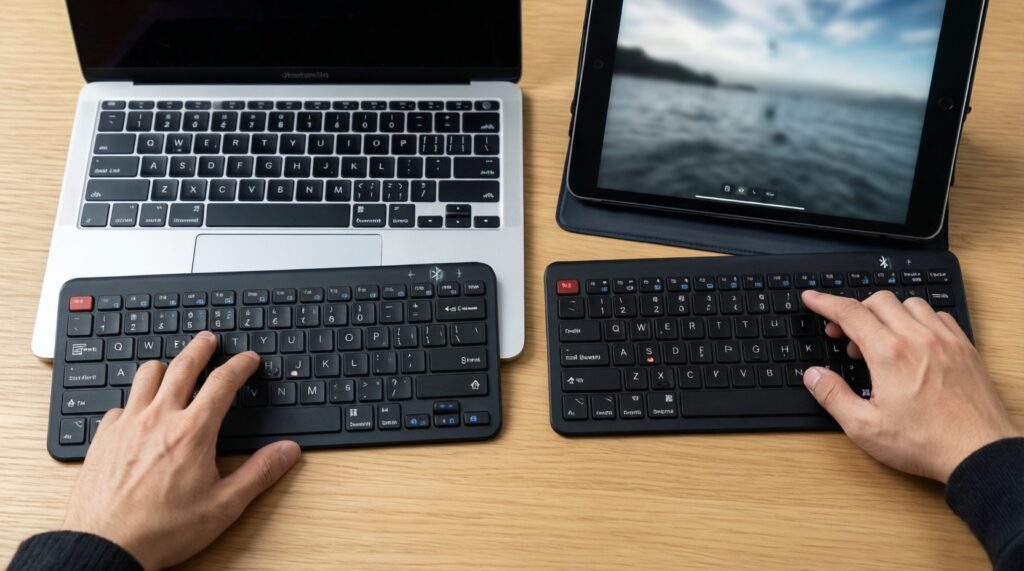
Verdict: match the peripheral feature set to what your OS actually exposes; avoid paying for customization you can't use across devices.
- Buying a keyboard without OS-aware legends: on macOS/iPadOS you'll constantly translate Ctrl/Alt to Command/Option unless you remap.
- Assuming all Bluetooth is equal: some คีย์บอร์ดไร้สาย and mice reconnect slowly after sleep, which is more noticeable on tablets.
- Relying on vendor software across OSes: advanced button mapping may work on Windows but not on iPadOS/Android, and may be blocked on managed Macs.
- Expecting "USB-C equals video": many phones/tablets and some laptops have USB-C without display output; this breaks HDMI hubs and USB-C monitors.
- Overbuying a hub for iPadOS: iPad workflows often need fewer ports; prioritize stable power pass-through and one reliable display output.
- Using a tiny mouse for long sessions: travel shapes can cause fatigue; if you work hours daily, choose a more supportive form even if it's slightly bigger.
- Expecting multiple external displays on all Macs: some models limit external display counts; a hub won't magically add native support.
- Choosing a portable monitor without a power plan: if your laptop can't power it reliably, you'll end up carrying extra adapters anyway.
- Ignoring USB-A reality: many dongle mice still need USB-A; if your laptop is USB-C only, you'll need a hub or adapter every time.
Budget-Focused Comparisons: Value Models vs. Worthwhile Upgrades
Best for tight budgets: a Bluetooth คีย์บอร์ดไร้สาย + a simple Bluetooth or 2.4 GHz เมาส์ไร้สาย, and only a small ฮับ USB-C if you truly need USB-A/SD. Best for frequent travel + meetings: a dual-mode mouse and a hub with dependable HDMI. Best for "mobile desk" comfort: upgrade the จอพกพา first, then refine keyboard feel and mouse ergonomics.
Compatibility and Practical Concerns Resolved
Will a USB-C hub always output HDMI video from my device?
No. HDMI on a hub typically needs your device to support USB-C video output (DP Alt Mode/Thunderbolt/USB4). If your USB-C port is data-only, the HDMI port on the hub won't work for displays.
Is Bluetooth good enough for a portable mouse and keyboard?
Yes for general work, especially on tablets and phones. If you notice lag, stutter, or slow wake, prefer 2.4 GHz for the mouse and keep the keyboard on Bluetooth for multi-device switching.
Can iPadOS use a mouse with side buttons and advanced shortcuts?
Basic buttons and scrolling generally work, but deep customization often depends on vendor software that iPadOS doesn't support. Treat extra buttons as "nice to have" rather than guaranteed.
Do I need a portable monitor with USB-C, or is HDMI enough?
USB-C is best when your device can send video and power over one cable. HDMI is fine if you're okay powering the monitor separately and you want broad compatibility with meeting room gear.
Why does my keyboard layout feel wrong when switching between Windows and macOS?
Modifier keys are placed and labeled differently (Ctrl/Alt vs Command/Option). Choose a keyboard that supports easy remapping or has OS-specific modes to avoid constant mental translation.
Should I buy a bigger hub "just in case"?
Not usually. Bigger hubs add cost, heat, and cable clutter; buy for the ports you use weekly. Upgrade later if your workflow proves you need more video outputs or faster storage access.