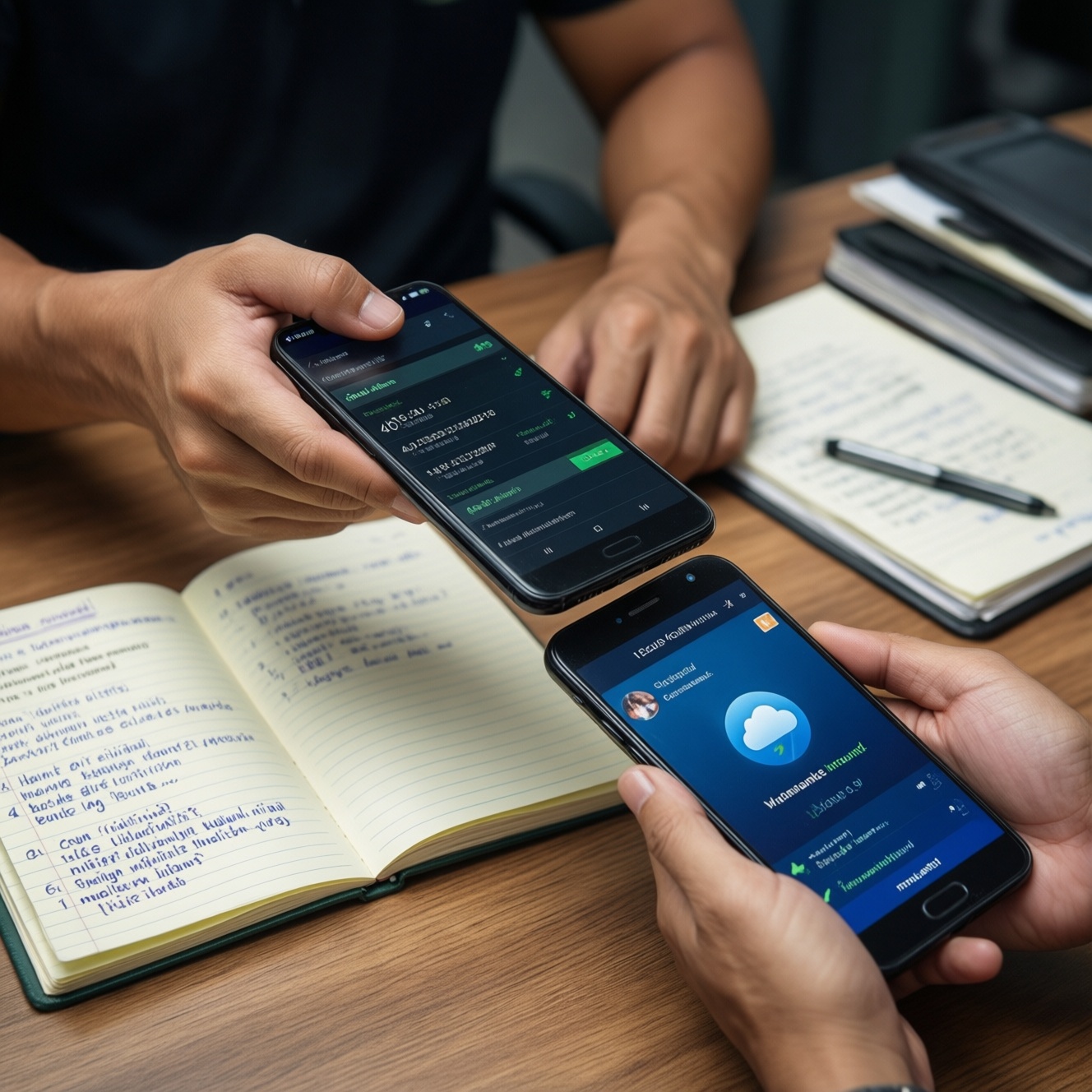
To safely switch ecosystems (iPhone→Android or Android→iPhone), you should first back up the source device, confirm account access (Apple ID/Google), choose a transfer method that matches your data (messages, photos, WhatsApp, apps), and verify results before wiping anything. This guide focuses on risk-aware steps for Thailand users and mixed-language content.
Essential Preparations at a Glance
- Back up first, then do a quick test restore/login check before any transfer.
- Update both phones and charge to at least half; use stable Wi‑Fi and keep devices plugged in during long copies.
- Confirm you can sign in to Apple ID and Google account (2FA, recovery phone/email, passwords).
- Decide how you'll move photos/videos: cloud sync vs direct cable copy vs PC/Mac intermediary.
- Plan messaging migrations separately (iMessage/SMS vs WhatsApp/LINE) because rules differ by app.
- Do not factory reset the old phone until you've verified counts, random spot-checks, and key app logins.
What to back up first: data types and priorities
This applies if you're doing ย้ายข้อมูลจาก iPhone ไป Android or ย้ายข้อมูลจาก Android ไป iPhone and you care about keeping photos, contacts, chats, and authenticator access. Avoid doing a same-day migration if you cannot receive SMS/OTP on your old number or if your Apple ID/Google account is locked or unknown.
- Accounts and access (highest priority). Ensure Apple ID/Google password, 2FA method, recovery email/phone, and any work accounts are accessible.
- Messaging and chat history. Treat as a separate project: iMessage/SMS and WhatsApp have different migration paths; LINE varies by region/app policy.
- Photos and videos. Prefer a method that preserves full resolution and originals (not "optimized" placeholders).
- Contacts, calendars, notes. Best moved via cloud accounts (Google/Apple/Exchange) to reduce duplication.
- Files and downloads. Identify "local-only" folders (Downloads, offline maps, app-specific folders) that won't reappear automatically.
- Security items. Password manager vault, authenticator codes, eSIM/Carrier profiles, and banking app re-registration.
Practical rule: If you can't re-authenticate an account on the new phone, don't proceed-fix access first.
Preparing source and target devices: settings and accounts
- OS updates: Install the latest stable iOS/Android version available for each device.
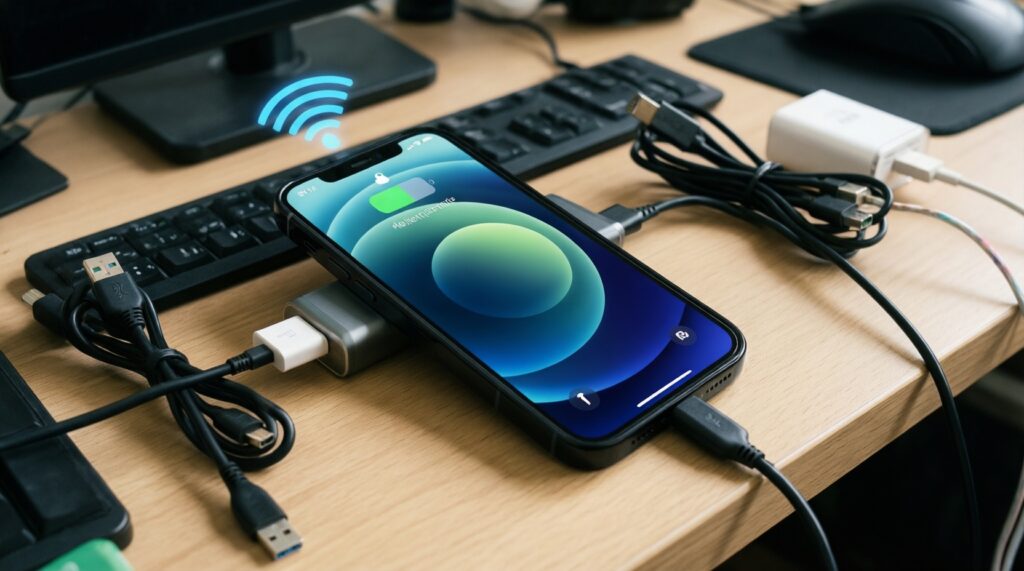
- Power and connectivity: Chargers, reliable Wi‑Fi, and enough storage on the target phone for media.
- Cables/adapters (optional but helpful): USB‑C↔Lightning, USB‑C↔USB‑C, and (if needed) OTG adapter. Cable transfers are often more reliable than Wi‑Fi for large photo libraries.
- Account readiness:
- Apple ID: verify password, 2FA device/number, and iCloud storage status.
- Google account: verify password, 2-step verification, and Google Drive availability.
- Disable risky toggles temporarily: Battery savers, VPNs, aggressive "app sleeping," and private DNS can break migrations.
- Messaging prerequisites:
- Before leaving iPhone: plan to disable iMessage and FaceTime for your phone number after verification (do it too early and you may miss OTPs during setup).
- For WhatsApp: ensure your phone number can receive SMS/voice during the move.
- Backups you should complete:
- สำรองข้อมูล iPhone ก่อนย้ายเครื่อง: iCloud backup or encrypted computer backup (preferred if you need more complete local data).
- สำรองข้อมูล Android ก่อนเปลี่ยนเครื่อง: Google backup (Settings → System → Backup) plus a manual photo/files copy for safety.
Tools and transfer methods: official apps, cables, cloud, and third-party options
Pick the method by the data you care about most. For many users, the safest approach is "official setup migration + separate media and chat migration." If you're searching for an แอปย้ายข้อมูล iPhone Android, prioritize the official tools first, then only add third-party apps for specific file types.
| Method | Best for | Speed (typical) | Completeness | Risk / gotchas |
|---|---|---|---|---|
| Official setup transfer (phone-to-phone) | Contacts, some media, basic device data during initial setup | Medium | Medium | May skip app-specific data; interruptions can require restart |
| Cloud sync (iCloud/Google Photos/Drive) | Photos, contacts, calendars, notes (account-based) | Slow for large libraries | High for synced categories | Needs enough cloud space; "optimized storage" can cause missing originals until fully downloaded |
| Cable/PC-Mac file copy | Full-resolution photos/videos, folders, archives | Fast | High for files | Requires correct folder mapping; metadata/HEIC compatibility may need conversion |
| Third-party migration apps | Niche transfers (some file types, sometimes call logs) | Varies | Low-medium | Privacy and account-token risk; can create duplicates; avoid for password/authenticator data |
Risks and limitations to account for (risk-aware)
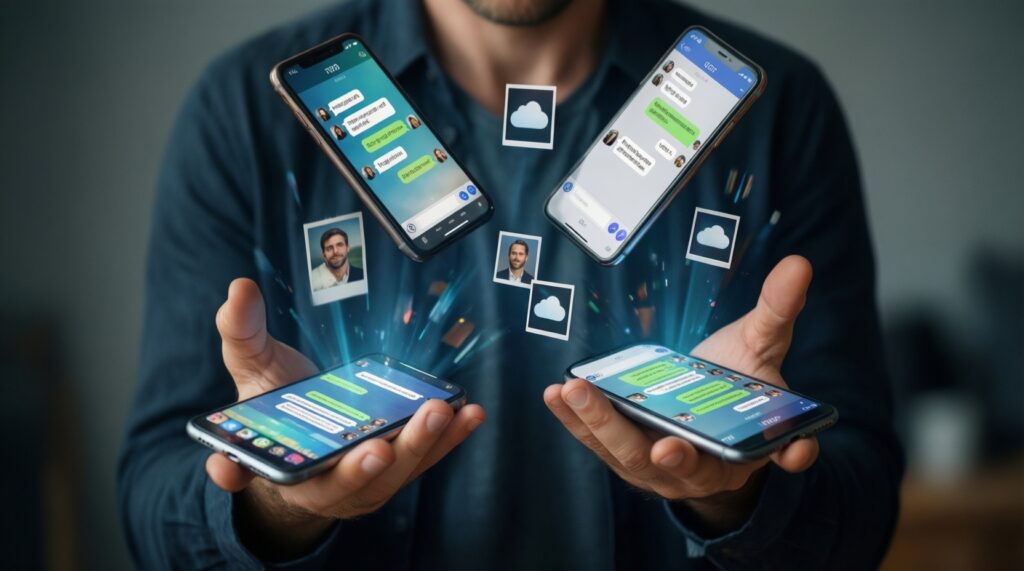
- Partial transfers are common: apps rarely move their internal data across ecosystems unless they provide a built-in migration.
- Messaging is fragmented: iMessage, SMS, WhatsApp, and LINE each have separate rules and may require separate steps.
- Cloud "placeholders": photos may appear on-screen but not be fully downloaded; verify originals exist before wiping the old phone.
- 2FA lockouts: migrating without access to your old number/device can block logins to banking, email, and social accounts.
- Irreversible actions: factory reset, removing SIM/eSIM, or disabling iMessage too early can disrupt OTP flows.
-
Create and validate a backup (non-negotiable).
Make a full backup on the source phone, then confirm you can see the backup record (and ideally perform a small test restore/login check on a spare device or at least verify backup completion timestamp).- iPhone: prefer an encrypted computer backup if you need the most complete device state; otherwise ensure iCloud Backup finishes on Wi‑Fi.
- Android: confirm Google Backup is ON and last run is recent; export critical items (photos/files) separately.
-
Decide the primary transfer path before you start setup.
If the target phone is new/unset, use the official "during setup" migration first; it's designed to map contacts and some device data cleanly.- If the target phone is already in use, plan for account-based sync and manual file copy.
-
Move accounts first, then data.
Sign in to Google/Apple accounts on the new phone, enable sync categories (contacts, calendars, photos), and let them start syncing before you add manual files-this reduces duplicates. -
Transfer media with the most reliable method for your library size.
For small libraries, cloud sync is simplest; for large libraries, a cable or computer copy is more predictable.- If using iCloud Photos: ensure originals are available (not just optimized previews) before copying out.
- If using Google Photos: confirm backup quality setting and that the library has fully uploaded before switching devices.
-
Migrate chats using each app's official feature.
Do WhatsApp/LINE migrations after account sign-in but before you delete anything. Keep the old phone available until the new phone shows the full chat history you expect. -
Only then install and re-authenticate critical apps.
Banking, authenticator, and work apps should be re-activated while the old phone is still accessible (for OTP/approval prompts).
Step-by-step migration: iPhone→Android and Android→iPhone workflows
Workflow A: iPhone → Android (practical sequence)
- Finish iPhone backup and photo strategy. Complete สำรองข้อมูล iPhone ก่อนย้ายเครื่อง, then choose: iCloud Photos-to-download, Google Photos sync, or cable/computer copy.
- Start Android setup and use the official iOS-to-Android option if offered. On many Android phones, the setup wizard includes copying from iPhone via cable or Wi‑Fi.
- Sign into Google and enable sync. Contacts/calendar via Google reduce duplicates and make future restores easier.
- Migrate WhatsApp/LINE via in-app migration. Follow the app prompts; keep both phones unlocked and on power.
- After verification, disable iMessage for your number. Do this only once you confirm SMS/OTP are arriving on the new phone.
Workflow B: Android → iPhone (practical sequence)
- Complete Android backups and exports. Do สำรองข้อมูล Android ก่อนเปลี่ยนเครื่อง in Google settings, and separately safeguard photos/files if they're not fully cloud-synced.
- During iPhone setup, use the Android-to-iPhone migration option. This is the cleanest moment to copy supported categories from Android.
- Sign into Apple ID and enable iCloud sync categories. Let contacts/calendars/notes sync before you import additional copies.
- Set up Photos strategy. If you're staying with Google Photos, install it and let it sync; if moving to iCloud Photos, import via computer or supported paths.
- Re-authenticate critical apps last. Banking/authenticator/work apps often require device approval; keep the Android phone available for confirmation prompts.
Post-migration verification checklist (do this before wiping the old phone)
- Contacts count looks reasonable and duplicates are not exploding (spot-check by searching 3-5 names).
- Photo library: open 10 random old photos/videos and confirm they load at full resolution (not a blurred preview).
- Messages: confirm the apps you care about (WhatsApp/LINE/SMS) show expected recent history.
- Accounts: log into primary email(s) and confirm you can receive OTP on the new device/number.
- Banking/payment: confirm at least one login and a low-risk action (e.g., viewing balance) works.
- Authenticator/passkeys: confirm codes/passkeys are present and usable for at least one account.
- Files: verify key folders (Downloads, Documents) and open a couple of PDFs/office files.
- SIM/eSIM: calls, mobile data, and hotspot work as expected.
Handling app data, messages and media: compatibility and conversion tactics
- Assuming "apps will transfer." Most app data does not cross iOS↔Android; expect to re-login and re-download content.
- Starting chat migration too late. If you factory reset or lose access to the old phone/number, you may lose the ability to transfer WhatsApp/LINE history.
- HEIC/HEVC compatibility surprises. Some Android apps or Windows viewers struggle with iPhone formats; consider converting copies for sharing/archival if needed, but keep originals too.
- Cloud not fully synced. "Looks uploaded" is not the same as "fully uploaded." Wait for completion indicators and spot-check older items.
- Duplicate contacts after mixing imports. If you import vCards and also enable account sync, duplicates happen; prefer one system of record (Google or iCloud) and clean up once.
- Missing originals due to optimized storage. If iPhone uses optimized storage, download originals (or export via a method that pulls originals) before relying on a file copy.
- Password/authenticator mistakes. Don't use generic migration tools for secrets. Use your password manager's official sync and your authenticator's official transfer/export method (if supported).
- Permissions blocking transfers. On Android, ensure the migration app has Photos/Files permissions; on iOS, allow local network access if requested.
Validation, cleanup and fallbacks after migration
- Two-device overlap period. Keep the old phone active for a few days for OTP, account recovery, and missing-file discovery; ideal when banking/work apps are involved.
- PC/Mac as a neutral bridge. If phone-to-phone fails, copy photos/files to a computer first, then to the new phone; best for large libraries and preserving originals.
- Cloud-first rebuild. When you mainly use Google Workspace/Microsoft 365/iCloud, sign in and let services resync, then only manually import what's missing.
- Selective manual migration. If you only need critical items (contacts + photos + a few folders), skip full-device tools and export/import just those categories to reduce errors.
Typical Migration Concerns and Practical Answers
Can I do ย้ายข้อมูลจาก iPhone ไป Android without losing photos?
Yes, if you choose one reliable photo path (cloud sync or cable/computer copy) and verify originals by opening random older items at full resolution before wiping the iPhone.
What's the safest way for ย้ายข้อมูลจาก Android ไป iPhone if my Android is already messy?
Use account sync for contacts/calendars and do a clean media transfer (Google Photos or a computer). Avoid importing multiple contact sources to prevent duplicates.
Do I really need สำรองข้อมูล iPhone ก่อนย้ายเครื่อง if I use iCloud Photos?
Yes. iCloud Photos is not a full-device backup, and it won't cover all app data and settings. A backup gives you rollback if something goes missing.
Is สำรองข้อมูล Android ก่อนเปลี่ยนเครื่อง enough to restore everything on iPhone?
No. Google Backup helps preserve certain Android data within Android/Google services, but iOS restores differently. Use it as a safety net, not as a full cross-platform restore.
Which แอปย้ายข้อมูล iPhone Android should I trust?
Prefer the official migration option during device setup and the official features inside apps like WhatsApp. Use third-party migration apps only for specific file tasks and avoid them for passwords/authenticators.
When should I factory reset the old phone?
Only after you complete the verification checklist and you've successfully logged into critical accounts on the new phone. Keep the old phone available for OTP and recovery during the transition.