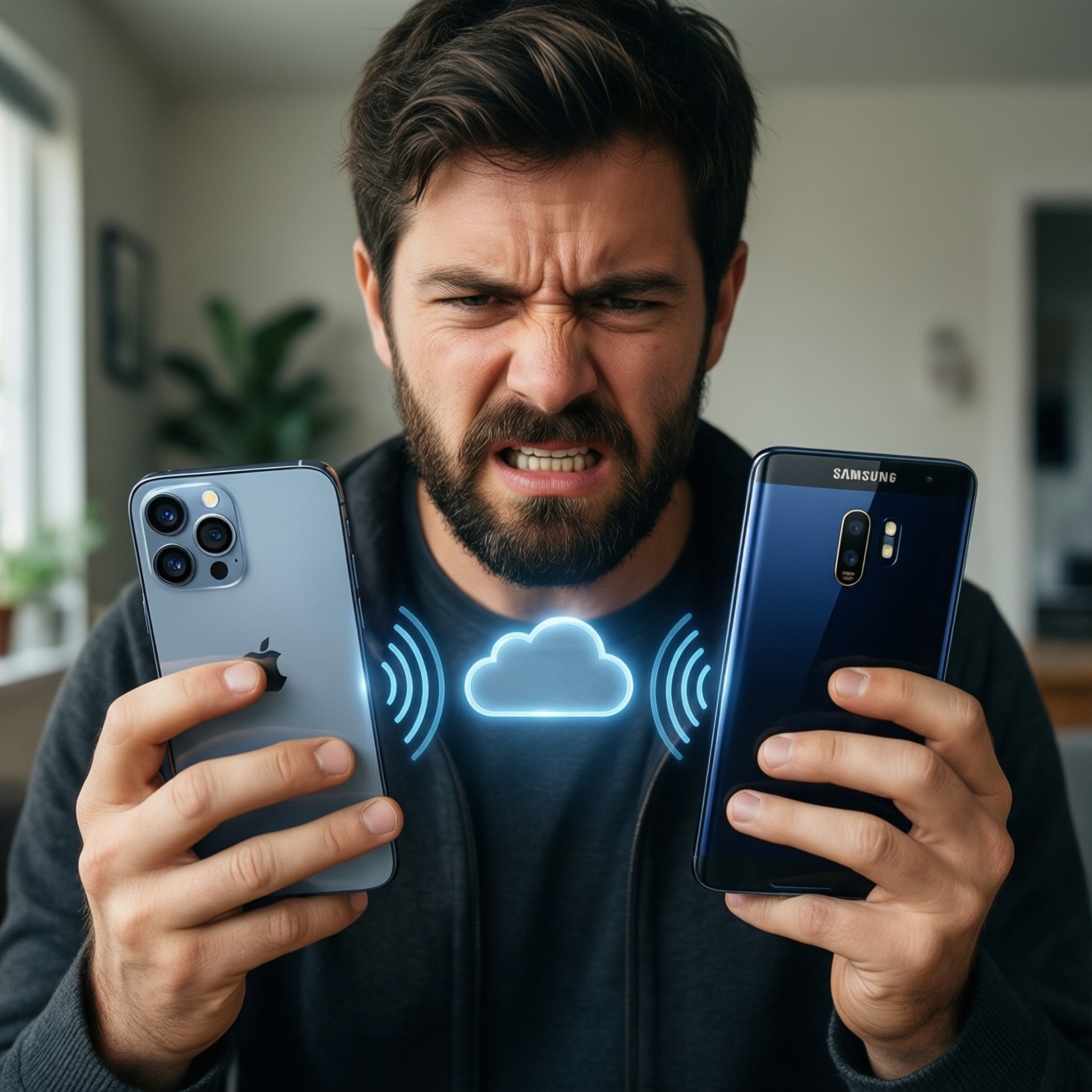
If you're choosing between Apple's AirDrop/Continuity and Android's Nearby Share/Quick Share, treat them as partially interchangeable. They overlap for local file sharing, but Continuity adds Apple-only workflows (handoff, clipboard, calls) that don't map cleanly to Android. For iPhone↔Samsung, you usually need a third path (cloud link, web transfer, or cable).
Interoperability at a glance
- AirDrop is best for Apple-to-Apple, zero-setup, local transfers; it does not natively target Android.
- Nearby Share/Quick Share are best for Android-to-Android; Windows support exists in some setups, but iPhone support is not native.
- Continuity is a broader ecosystem layer (not just file transfer) and is strongest when your Apple ID is signed in everywhere.
- For iPhone↔Android, the "best" solution is usually a fallback workflow (cloud share link, web-based transfer, or cable).
- Security depends more on recipient visibility, authentication, and what you accept than on raw transfer speed.
- Reliability improves when both devices are unlocked, close, on the same Wi‑Fi band, and have Bluetooth/Wi‑Fi enabled.
How each cross-device feature actually works
Use these criteria to decide how interchangeable two features are for your situation (this is the practical answer behind questions like "AirDrop กับ Nearby Share ต่างกันยังไง").
- Target OS pair: Apple↔Apple, Android↔Android, or iPhone↔Android (the hardest).
- Transport method: local peer-to-peer (Bluetooth/Wi‑Fi Direct) vs internet/cloud link.
- Discovery model: contacts-only vs everyone nearby vs manual QR/link.
- Authentication: Apple ID / Google account / Samsung account vs no account.
- What you're sending: big files, many small files, folders, or just photos/links.
- App support: system-level share sheet vs limited to one vendor app.
- Network constraints: captive portals, enterprise Wi‑Fi restrictions, VPN profiles, hotspot usage.
- Cross-device extras: clipboard sync, handoff between apps, call/SMS relay, camera continuity.
- Fallback readiness: can you instantly switch to a link, cable, or messaging without reformatting?
Device and OS compatibility matrix
This table compares realistic options you can actually use in Thailand for cross-device sharing and continuity-style workflows, including the common question "ส่งไฟล์ข้ามอุปกรณ์ iPhone กับ Samsung ใช้อะไรดีที่สุด".
| Option | Who it fits | Pros | Cons | When to choose |
|---|---|---|---|---|
| AirDrop (Apple) | iPhone/iPad/Mac users sharing locally within Apple devices | Very fast local sharing; tight Share menu integration; no extra app | Not for Android; discovery settings can block transfers | iPhone → MacBook, iPad → iPhone, friend-to-friend Apple sharing |
| Continuity (Apple family features) | People living inside Apple ecosystem across iPhone/iPad/Mac | Handoff, clipboard, calls/SMS relay, hotspot convenience (varies by feature) | Apple-only; depends on Apple ID, Bluetooth, Wi‑Fi, device settings | If you ask "Continuity คืออะไร ใช้ทำอะไรได้บ้าง" and want those handoff-style flows, not just file transfers |
| Nearby Share (Android / Google) | Android users sharing to other Android devices nearby | System-level sharing; good for mixed Android brands | Not native on iPhone; can be inconsistent across OEM implementations | Android phone → Android tablet, Android → Android in meetings or classrooms |
| Quick Share (Samsung, now broadly on Android in many cases) | Samsung-heavy households and nearby Android sharing | Often smoother within Samsung devices; convenient UI | Answer to "Quick Share คืออะไร ใช้กับ iPhone ได้ไหม": not natively; iPhone usually needs a different method | Galaxy phone → Galaxy Tab / Galaxy phone → another Samsung phone |
| Cloud link sharing (iCloud Drive / Google Drive / OneDrive) | Cross-platform sharing: iPhone ↔ Android ↔ Windows ↔ Mac | Works over distance; easiest for iPhone↔Android; good for folders | Needs internet; permission mistakes are common; slower for huge files on mobile data | iPhone → Samsung when you're not co-located, or when local sharing keeps failing |
| Web-based local transfer (browser "send page" / temporary hotspot + web upload) | Cross-platform, same-room transfers without accounts (or minimal) | Works between iPhone and Android; no vendor lock-in; good fallback | Extra steps; depends on both devices' browser and network setup | When you specifically need "วิธีส่งไฟล์ระหว่าง iPhone กับ Android Nearby Share" but must accept that Nearby Share itself won't run on iPhone-use a web transfer instead |
Which functions are interchangeable and which are unique
Use these scenario rules to see what can substitute for what.
- If you only need "send a file to a nearby device," then AirDrop (Apple↔Apple) and Nearby Share/Quick Share (Android↔Android) are functionally interchangeable within their own OS families.
- If you need "copy on phone, paste on laptop," then Continuity clipboard (Apple) has no direct, universal replacement on Android; you'll likely use a messaging app to yourself or a notes app sync as a workaround.
- If your scenario is iPhone ↔ Android in the same room, then don't force AirDrop/Nearby Share; use cloud link sharing or a web-based local transfer. This is the practical resolution behind "AirDrop กับ Nearby Share ต่างกันยังไง" for mixed-device households.
- If you need "continue the same app/page from phone to laptop," then Apple Handoff/Continuity is unique; Android substitutes vary by app (Chrome sync, app-specific history) rather than a single OS-wide feature.
- If you need "send many photos to a mixed group fast," then a shared album/link (cloud) is often more reliable than repeated peer-to-peer sends, especially with iPhone + Samsung together.
Real-world performance: speed, range, and reliability
- Confirm the OS pair. If it's Apple↔Apple, start with AirDrop; if Android↔Android, start with Nearby Share/Quick Share.
- Check discovery visibility. Set recipient to Contacts/Everyone as needed, then revert after the transfer.
- Bring devices close and unlocked. Many "stuck at waiting" problems are simply screen-locked or too far apart.
- Stabilize radios. Enable Wi‑Fi + Bluetooth; avoid aggressive battery saver modes during the transfer.
- Prefer one big transfer over many tiny ones. Zip folders when practical for consistency across apps.
- For iPhone↔Android, switch early. If the goal matches "วิธีส่งไฟล์ระหว่าง iPhone กับ Android Nearby Share," choose a link/web/cable path immediately to avoid repeated failed attempts.
- Have a fallback ready. If peer-to-peer fails twice, move to cloud link sharing or a cable to save time.
Security, authentication, and privacy differences
- Leaving "Everyone" discoverable. This increases accidental receipt prompts; enable it only while sending, then turn it off.
- Trusting the device name. Verify the recipient device (and sometimes the on-screen code/prompt) before accepting-names can be spoofed or confusing in crowded places.
- Mixing personal and work accounts. Continuity and cloud links behave differently if you're signed into multiple Apple IDs/Google accounts; wrong account means wrong permissions.
- Sharing a cloud link with broad access. "Anyone with the link can view/edit" is convenient but risky; prefer limited access when sending sensitive files.
- Forgetting link expiry. If your service supports expiration, use it for one-time transfers; otherwise manually revoke access after.
- Assuming end-to-end encryption everywhere. Local transfer tools and cloud tools have different security models; treat unknown recipients and public Wi‑Fi as higher risk.
- Using third-party transfer apps without checking permissions. Many request broad media/library access; restrict access to selected items when possible.
- Not accounting for backups and sync. Some "quick" shares create copies that sync to cloud automatically, which may violate your intent for temporary sharing.
Choosing the right workflow: decision tree for common scenarios
- If both devices are Apple (iPhone/iPad/Mac): use AirDrop for files; use Continuity features for handoff/clipboard/calls.
- If both devices are Android: use Nearby Share; if both are Samsung, try Quick Share first for convenience.
- If it's iPhone ↔ Samsung: use cloud link sharing for simplicity; if offline/large file in the same room, use a web-based local transfer or a cable.
- If phone → laptop and the laptop is Windows: prefer a cloud link; if you must be local, use a web-based transfer over the same Wi‑Fi/hotspot.
- If you need continuity-style switching between tasks: prefer Apple Continuity across Apple devices; otherwise replicate via app sync (browser history, notes) rather than expecting an OS-wide equivalent.
Best fit for Apple-only households is AirDrop plus Continuity because it covers both file moves and cross-device task flow. Best fit for Android-only groups is Nearby Share (or Quick Share in Samsung-heavy setups). For mixed iPhone + Android-especially the common iPhone + Samsung pairing-cloud link sharing or a web-based local transfer tends to be the most consistently usable substitute.
Practical queries and edge cases
AirDrop กับ Nearby Share ต่างกันยังไง in day-to-day use?
AirDrop is Apple-only and deeply integrated across iOS/iPadOS/macOS. Nearby Share targets Android devices; both solve "nearby file transfer," but they don't directly replace each other across iPhone↔Android.
Quick Share คืออะไร ใช้กับ iPhone ได้ไหม?
Quick Share is a sharing feature primarily associated with Samsung (and broader Android support in some contexts). It does not natively run on iPhone, so iPhone users typically use links, web transfer, or messaging for cross-platform sharing.
วิธีส่งไฟล์ระหว่าง iPhone กับ Android Nearby Share ทำได้ไหม?
Not directly via Nearby Share because iPhone doesn't support it natively. Use a cloud share link (Drive/iCloud/OneDrive) or a local web-based transfer when you're in the same room.
Continuity คืออะไร ใช้ทำอะไรได้บ้าง?
Continuity is Apple's set of cross-device features like Handoff, clipboard sharing, and call/message relay between iPhone, iPad, and Mac. It's more than file transfer and is strongest when all devices share the same Apple ID.
ส่งไฟล์ข้ามอุปกรณ์ iPhone กับ Samsung ใช้อะไรดีที่สุด for large videos?
Start with a cloud link if you have stable internet and want fewer failures. If you're offline or need same-room speed, use a web-based local transfer or a cable/USB method.
Why does nearby sharing fail even when both devices are close?
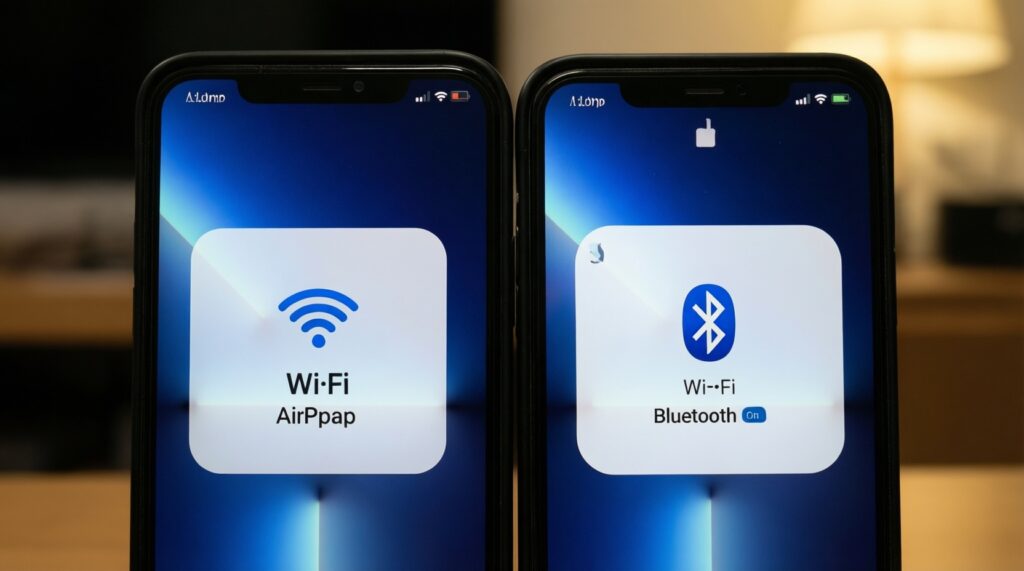
Common causes are discoverability set to Contacts-only, battery saver limiting radios, or one device being locked. Temporarily enable Wi‑Fi and Bluetooth, unlock both devices, and retry once before switching to a link.