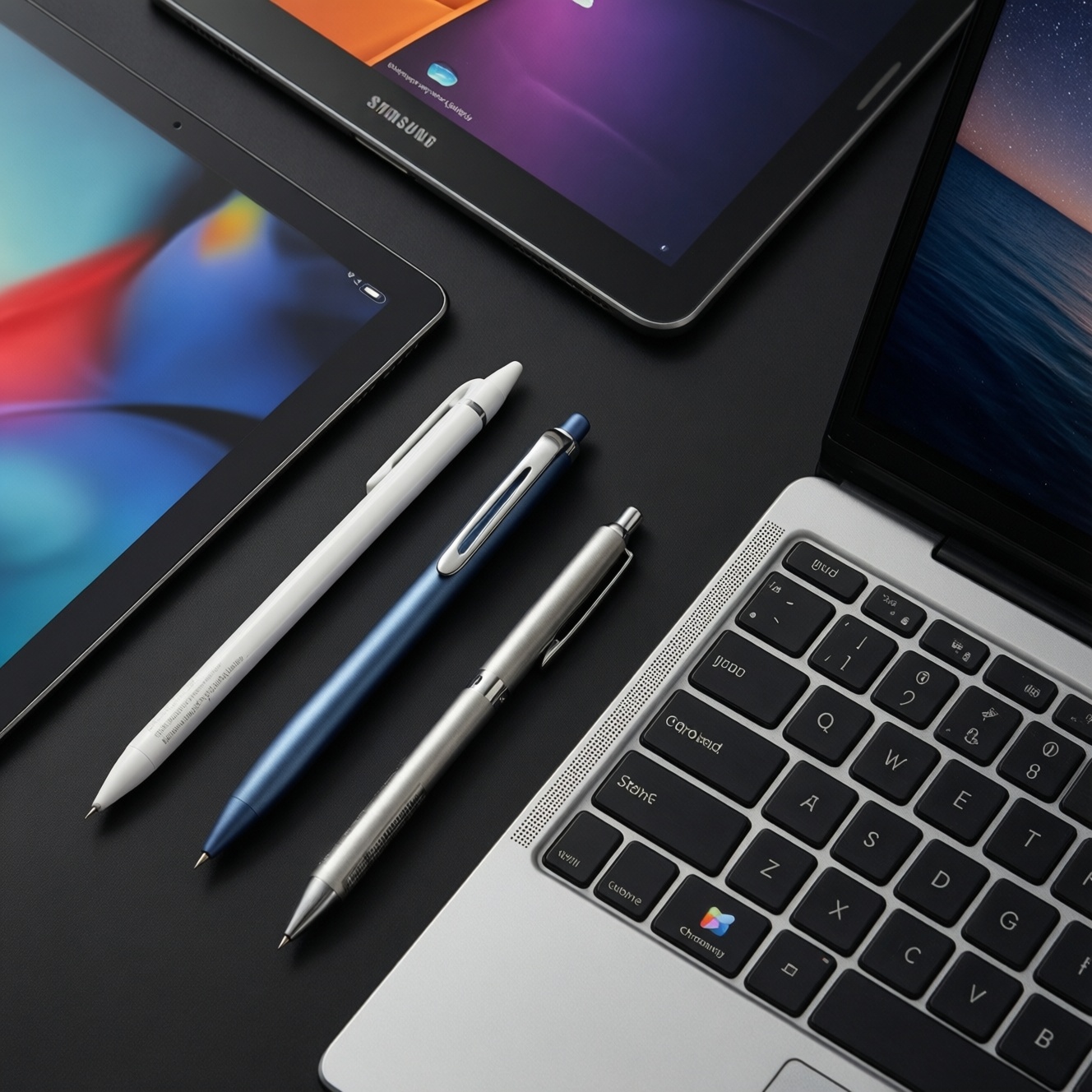
Apple Pencil is usually the best pick if you use an iPad and want the tightest system integration for handwriting and drawing; S Pen is the most convenient if you use a Samsung Galaxy Tab and value built-in storage plus quick notes; USI is the most flexible on compatible Chromebooks/tablets when you want a standard-based, replaceable pen across brands.
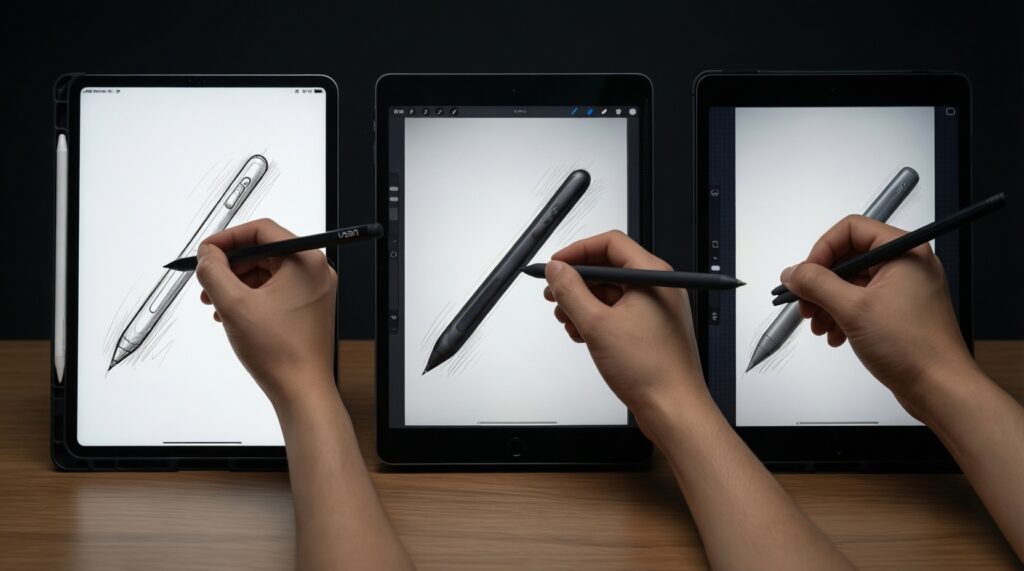
Snapshot: how latency, tilt and pressure shape the writing experience
- Compatibility comes first: Apple Pencil only works with specific iPad models; S Pen targets Samsung devices; USI depends on USI-certified hardware.
- Perceived latency is a "system" outcome (display refresh + digitizer + OS + app), not just the pen; compare on the exact device you'll use.
- Tilt and pressure matter most for art and shading; for plain note-taking, tip feel, palm rejection, and app shortcuts usually matter more.
- Ergonomics is not trivial: thickness, weight balance, and nib friction decide whether you can write for hours.
- Charging and storage determine real-world reliability: a pen you can't keep charged or attached becomes a desk accessory.
- In Thailand, price shopping is often the tie-breaker: many people start with queries like "ซื้อ Apple Pencil ราคา" or "ซื้อ S Pen ราคา" to decide the platform.
Technical differences: sensors, latency, tilt recognition and pressure levels
Use these criteria to compare Apple Pencil vs S Pen vs USI in a way that maps to your actual writing and drawing needs:
- Device compatibility scope: model-specific (Apple Pencil), brand-centric (S Pen), or standard-based (USI).
- Digitizer technology pairing: active pen protocols differ; the same pen cannot be "made compatible" by an app.
- Tilt recognition: important for shading and brush angle control; confirm support in both hardware and your preferred app.
- Pressure response: matters for line variation; check whether your apps support pressure on your device (some note apps ignore it).
- Palm rejection quality: influenced by OS and app; test common hand positions and fast scribbles.
- Hover/preview features: useful for precise placement and UI interaction; availability varies by device generation.
- Button/gesture mapping: single/double tap, side button, or air actions can speed up editing and tool switching.
- Tip ecosystem: availability of replacement nibs, hard/soft options, and third-party tips affects long-term feel and cost.
- Latency perception under load: screen protectors, heavy canvases, and multitasking can change how "instant" the ink feels.
Writing feel and ergonomics: nibs, weight, grip and palm rejection
"Writes better" usually means the best match of tip friction, balance, and reliable palm rejection on your particular tablet. The table below focuses on practical feel and when to choose each option.
| Variant | Who it fits | Pros | Cons | When to choose |
|---|---|---|---|---|
| Apple Pencil (iPad-compatible models) | iPad note-takers and creatives | Deep iPadOS integration; strong app support for handwriting and drawing; consistent palm rejection on iPad | Compatibility is iPad-model specific; charging/storage depends on Pencil generation and iPad design | If you're committed to iPad and want the most predictable handwriting-to-app workflow |
| Samsung S Pen (Galaxy Tab line) | Samsung users who want a pen always with them | Often stores/attaches to the tablet; convenient shortcut features; good note-first ergonomics for many users | Best experience is tied to Samsung ecosystem; replacement tips availability varies by region | If you use a Galaxy Tab and value quick notes, annotation, and always-available pen access |
| USI stylus (USI-certified pens) | Chromebook/tablet users who want a cross-brand standard | Standard-based compatibility (on USI devices); multiple pen brands and shapes; often good value shopping in TH via "ปากกา USI สำหรับแท็บเล็ต ราคา" | Experience varies more by device panel and pen brand; app support for advanced art features can be less uniform | If you have (or plan to buy) a USI-compatible device and want flexibility without brand lock-in |
| OEM active pen for Windows tablets (protocol-specific) | Office-focused users on Windows 2‑in‑1 devices | Good for PDF markup, OneNote workflows, and Windows pen shortcuts; often integrates with the device's magnet/garage | Not cross-compatible across brands; tip feel varies a lot between models | If your primary job is document review, meetings, and Windows-based note systems |
| Third-party "capacitive" stylus (no active digitizer) | Casual taps and simple doodles | Works on almost any touchscreen; cheapest entry point | No true palm rejection, tilt, or pressure; handwriting precision is limited | If you only need occasional tapping and don't care about real pen behavior |
Software integration: note apps, handwriting recognition and creative tools
Match the pen to your app workflow. Use these scenario rules:
- If you rely on iPadOS handwriting features and premium iPad note apps, then choose Apple Pencil and an iPad model that officially supports it; you'll get the most consistent tool switching and palm rejection.
- If your workflow is Samsung Notes, quick screen-off notes, and fast annotation, then choose S Pen with a Galaxy Tab; the OS-level shortcuts reduce friction in meetings and commuting.
- If you're in a Chromebook environment (school/work) and want a pen that can be replaced easily, then choose a USI stylus and confirm your exact laptop/tablet is USI-compatible.
- If you do art and need brush nuance, then prioritize tilt/pressure support in your specific art app first, and only then pick the pen-device combo that the app fully supports.
- If you mostly mark up PDFs, then pick the platform where your PDF app has the best pen toolset (highlighter behavior, shape snapping, easy export), because the "best pen" can feel slow if the app is clumsy.
People often search "Apple Pencil vs S Pen อันไหนดี" expecting a universal winner, but the decisive factor is the app + device pairing you'll actually use every day.
Power, pairing and durability: battery life, charging and hinge points
- Confirm attachment method (magnet/garage/clip) and decide where the pen will live when you travel.
- Check charging style (magnetic, USB-C, internal/none). If it needs a cable, verify you already carry the right one.
- Decide pairing expectations: do you need instant pickup-and-write, or is manual reconnect acceptable?
- Plan for nib wear: buy spare tips early if you use matte screen protectors or write heavily.
- Inspect the weak points: tip retention, button feel, and charging connector/magnetic dock alignment tend to fail before the electronics do.
- Set a "lost pen" strategy: choose a model that's easy to replace locally if you commute or share devices.
Persona-driven recommendations: students, creatives, professionals and commuters
Recommendations are easiest when tied to how you study/work and where you write.
- Student: Pick the pen that matches your school device fleet (often iPad or Chromebook). You'll benefit more from reliable palm rejection and fast page navigation than from advanced brush nuance.
- Creative pro: Pick the platform where your primary art app performs best and supports the pen's tilt/pressure. Your productivity is shaped by brush engines, layer performance, and shortcut ergonomics as much as the stylus itself.
- Business user: Pick the device-pen combo that makes PDF markup and meeting notes frictionless, including easy export to your team's format. Shortcuts and consistent pairing matter more than peak drawing features.
- Commuter/casual note-taker: Pick what you can store and charge without thinking. A slightly "less capable" pen that's always attached beats a "best" pen left at home.
Common buying mistakes that lead to a disappointing writing experience
- Buying the pen first and discovering your tablet doesn't support that exact model/protocol.
- Overvaluing pressure/tilt for plain note-taking, then ignoring tip friction and grip comfort.
- Assuming any pen will have the same palm rejection across all apps.
- Choosing a thin, slippery barrel and getting hand fatigue during long lectures.
- Not budgeting for replacement nibs, especially with matte screen protectors.
- Ignoring storage/attachment and losing the stylus within the first month.
- Comparing "pen latency" claims without testing on the same device model and the same app settings.
- Picking based only on "ปากกาเขียนบนแท็บเล็ต ยี่ห้อไหนดี" lists without checking your own must-have apps and file export needs.
Price, compatibility and buying checklist with quick spec table
Best fit tends to be: Apple Pencil for iPad-centric study and creative workflows, S Pen for Samsung Galaxy Tab users who want always-ready notes and convenient storage, and USI for USI-compatible Chromebooks/tablets when you want a replaceable standard-based pen. For Thailand buyers comparing "ซื้อ Apple Pencil ราคา" vs "ซื้อ S Pen ราคา", decide your platform first, then shop the pen generation that matches your exact model.
Quick spec and buying reality check
| Family | Works with | Typical strengths | Typical trade-offs | Price positioning in TH (range) |
|---|---|---|---|---|
| Apple Pencil | Specific iPad models only | Strong note + creative app ecosystem; consistent system integration | Model compatibility constraints; charging/storage differs by generation | Usually premium; varies by generation and retailer |
| S Pen | Samsung Galaxy Tab (and some Samsung devices) | Convenient attachment/storage; fast note features | Ecosystem-tied; best features on Samsung software | Often competitive, especially when bundled; varies by model |
| USI stylus | USI-certified Chromebooks/tablets | Standard-based choice across brands; easy replacement | Experience varies by device and pen brand; advanced creative features depend on apps | Often value-oriented; compare "ปากกา USI สำหรับแท็บเล็ต ราคา" across brands |
Buying checklist (fast)
- Verify your exact tablet model supports the pen family/generation you're considering.
- List your top 2 note apps and 1 export format (PDF, images, text) and confirm the workflow feels fast.
- Decide on tip feel: smooth glass vs paper-like friction (and whether you'll use a matte protector).
- Confirm how you will charge and store the pen daily (desk + bag + commute).
- Check local availability of spare nibs and warranty support in Thailand.
Answers to the most common buying and usage concerns
Which is better for writing: Apple Pencil, S Pen, or USI?
For pure writing, the best is the one that's fully compatible with your tablet and provides stable palm rejection in your preferred note app. Apple Pencil and S Pen are typically most consistent within their own ecosystems; USI can be excellent on the right USI device.
Do I need pressure and tilt for note-taking?
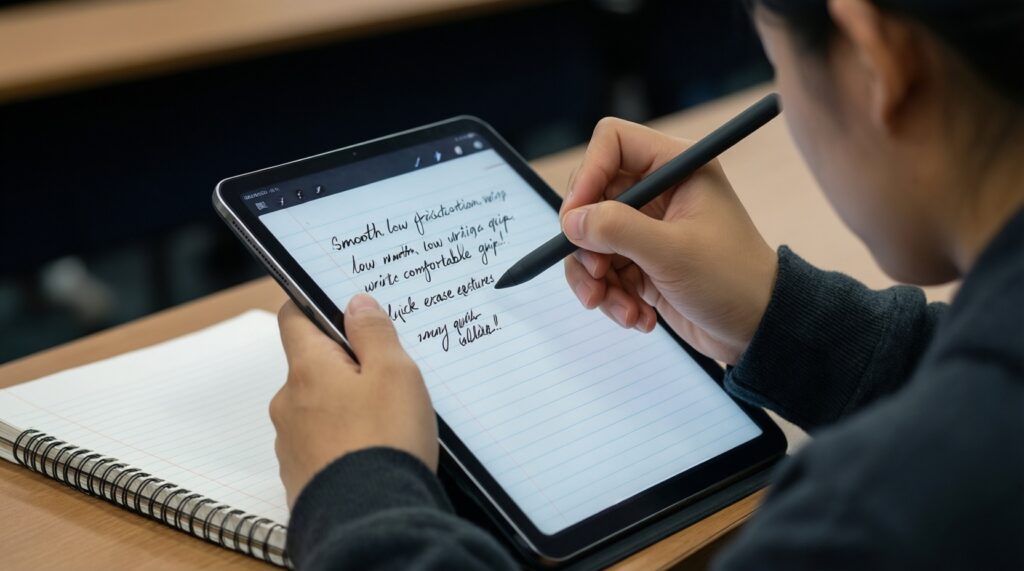
Not usually. For lecture notes and meetings, tip friction, comfortable grip, and fast erase/undo are more important than pressure/tilt features.
Why does my handwriting look jittery in some apps?
Jitter often comes from the app's smoothing settings, zoom level, or how it samples input, not only the pen. Try a different brush/pen tool, adjust smoothing, and test another note app before replacing hardware.
Will a USI pen work on any Android tablet?
No. USI requires a USI-compatible digitizer in the device, most commonly found in certain Chromebooks and a subset of tablets.
How should I compare ซื้อ Apple Pencil ราคา listings safely?
Match the exact Pencil generation to your iPad model first, then check if the listing is new/used and includes original tips and charging accessories. If compatibility isn't clearly stated, treat it as a risk.
Is S Pen always included with Galaxy Tabs?
It depends on the specific model and region bundle. Confirm in the box contents for your exact model rather than assuming it's included.
What is the quickest way to decide if I am stuck between platforms?
Choose the tablet first based on your must-have apps and file export needs, then buy the matching pen. Switching platforms later is usually costlier than switching pen models.