If your day is mostly handwriting, PDF markup, and fast switching between lectures and documents, choose the tablet by input style and workflow, not brand. iPad leads for consistent app polish and long-term ecosystem flow; Galaxy Tab (and Pixel Android tablets) lead for bundled pen value and flexible file handling. This guide answers "iPad vs Android Tablet เรียน ทำงาน อันไหนดีกว่า" with a decision-tree approach.
At-a-glance decision checklist
- Pick iPad if you rely on iCloud/AirDrop, use other Apple devices, or want the most consistent note/PDF app experience.
- Pick Galaxy Tab if you want an excellent pen included, strong split-screen habits, and simpler drag-and-drop file workflows.
- Pick Pixel/stock Android if you prefer Google-first setup, minimal vendor extras, and tighter Google Workspace defaults.
- If you annotate PDFs all day, prioritize palm rejection, pen latency feel, and a matte screen option/film.
- If you type more than you write, prioritize keyboard trackpad quality, windowing/multi-tasking, and external display support.
- If you collaborate in Microsoft 365, test your exact Excel/Word needs and formatting tolerance before committing.
Handwriting & stylus experience: Apple Pencil vs S Pen vs Pixel Pen
Use these criteria to choose your "writing system" first; hardware brand comes second.
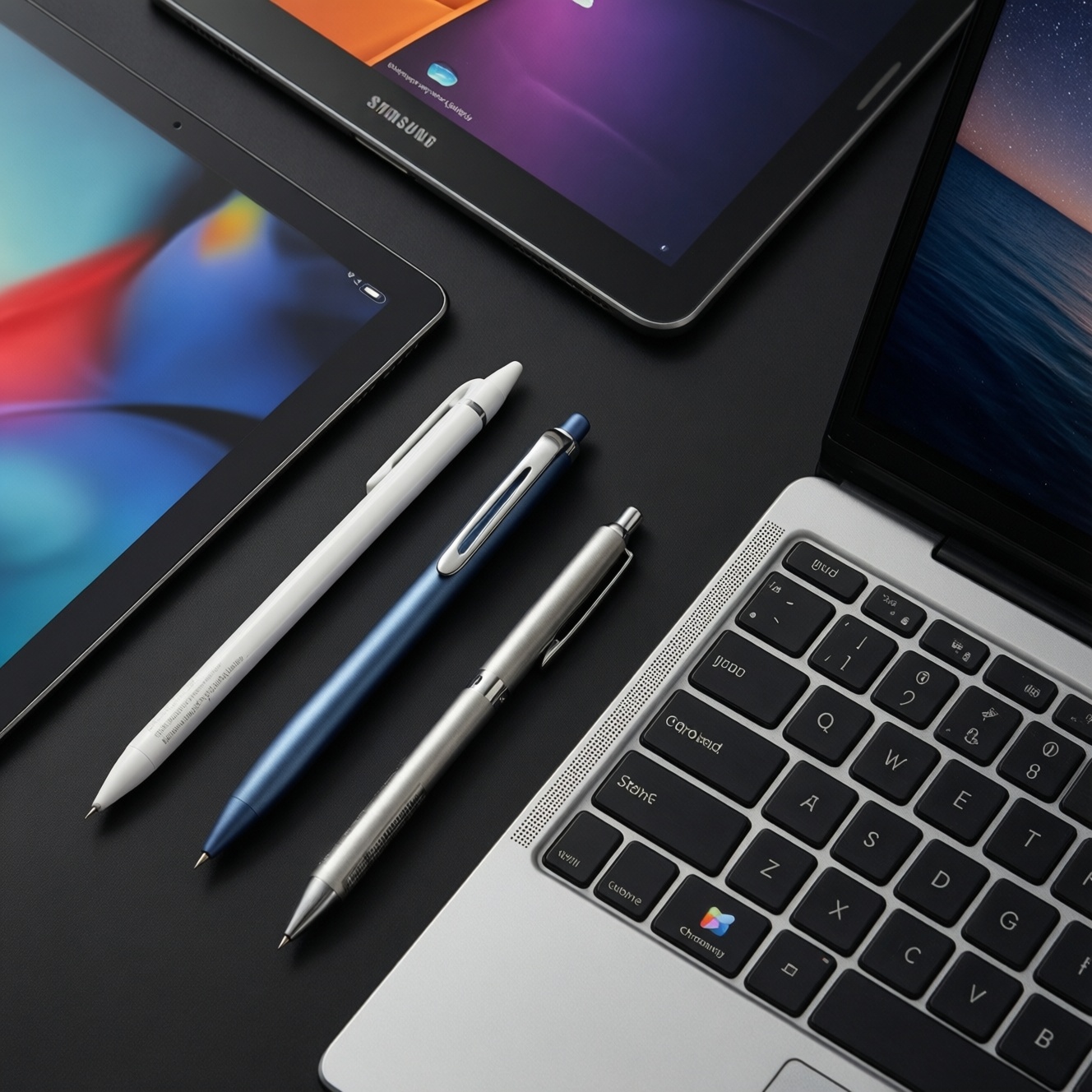
- Pen-included vs pen-sold-separately: Galaxy Tab commonly offers stronger value because S Pen is typically in the box; iPad often requires buying Apple Pencil separately.
- Tip feel and control: Apple Pencil tends to feel precise and consistent; S Pen often feels softer on glass; both can be tuned with different tips and paper-like screen films.
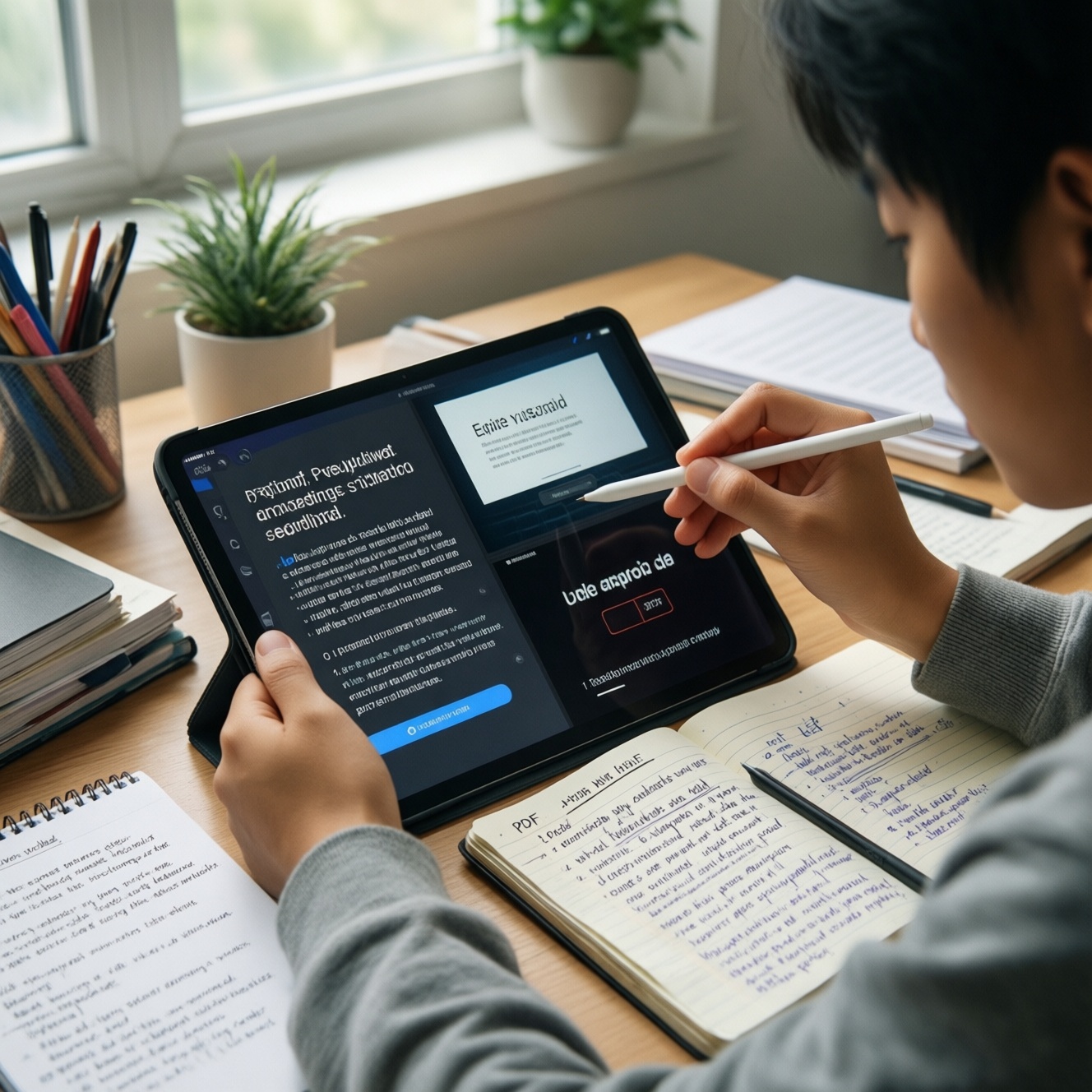
- Palm rejection stability: Test long sessions (30-60 minutes). Inconsistent palm rejection ruins note-taking more than raw performance.
- Hover/preview & shortcuts: Some ecosystems provide better hover previews and pen button actions; check whether your favorite note app uses them.
- Charging and attachment: Magnetic attach + charging is convenient; pen silo is safer for commuters. Choose the one you will not lose.
- Writing posture and grip: If you write with the tablet flat, prioritize screen coating/film; if you write at an angle, prioritize a stable case stand.
- Handwriting-to-text: If you need reliable conversion, test your language mix (English + Thai notes) in your target apps.
- Audio + handwriting sync: If you record lectures, ensure the app supports time-linked playback and your pen workflow feels frictionless.
Apps for note-taking, annotation, and PDF workflows
For "แท็บเล็ตจดโน้ตที่ดีที่สุด 2026 iPad Galaxy Tab", the winning device is the one that matches your preferred workflow: notebook-first, PDF-first, or folder-first. Below is a practical comparison of common setups across iPadOS and Android.
| Option | Who it fits | Pros | Cons | When to choose |
|---|---|---|---|---|
| Apple Notes + Files (iPad) | Students who want simple capture and tight Apple ecosystem flow | Fast, integrated, good basic scanning/organization; easy iCloud sync | Power annotation/export workflows can feel limited versus specialist apps | If you want low-friction notes and you already live in iCloud |
| GoodNotes / Notability-style notebook apps (iPad) | Heavy handwritten note-takers and lecture note organizers | Strong notebook structure, pen tools, templates; good PDF import/markup | Workflow can become app-centric; exporting/sharing needs planning | If your priority is "write first, organize later" with polished pen tools |
| Samsung Notes (Galaxy Tab) | Galaxy Tab users who want pen-to-note speed and easy split-screen | Very fast handwriting capture; good S Pen integration; solid PDF annotation | Cross-platform sharing varies by device ecosystem; portability depends on your setup | If you want the most seamless S Pen notebook experience out of the box |
| OneNote (iPad / Android) | Mixed-device users and people collaborating in Microsoft ecosystems | Cross-platform structure; notebooks for projects; decent typing + ink mix | Ink feel and PDF handling differ by platform; can become heavy to organize | If you need the same notebooks on iPad, Android, Windows, and web |
| Google Keep + Google Drive (Android, incl. Pixel) | Quick capture + Google-first users | Lightweight, fast search, easy sharing; Drive ties into classes/teams | Not a full handwriting notebook system; PDF workflows can require extra apps | If you prioritize "capture and retrieve" more than long handwritten notebooks |
| Dedicated PDF editor/annotator app (iPad / Android) | PDF-first learners: slides, textbooks, research papers | Better highlighting, stamps, bookmarks, outlines; strong export options | Another app to manage; subscription models are common | If 70%+ of your study is annotating PDFs rather than freehand notebooks |
Quick mapping to popular buyer intents: If you're searching "เปรียบเทียบ iPad กับ Galaxy Tab จดโน้ต ทำงานเอกสาร", decide whether your center of gravity is (1) handwriting notebooks, (2) PDF markup, or (3) folder/file management. The best app stack is the one you can export, back up, and share without thinking.
Document creation, office suites and collaboration
Use these scenario rules to avoid buying the wrong tablet for "work documents":
- If you mostly edit Word docs, comment, and track changes, then choose the platform where your team already shares files (Microsoft 365 or Google Workspace) and test formatting on your real templates.
- If you build complex spreadsheets, then plan to use a laptop/desktop for final Excel work and use the tablet for review, comments, and light edits; choose the tablet that connects best to your external display/keyboard workflow.
- If you collaborate live in Google Docs/Slides, then Android (including Pixel) is naturally Google-first, while iPad is equally workable if you're comfortable living inside Drive and Chrome-like workflows.
- If you do a lot of PDF-to-report work (read, highlight, extract, summarize), then prioritize a strong PDF annotator + file naming system; pick the device where split-screen feels effortless for your eyes and hands.
- If you sign forms and submit official-looking PDFs, then focus on export quality (flatten annotations, embed signatures) and predictable file sharing (email, Drive link, Teams) rather than raw CPU power.
Hardware trade-offs: display, battery, keyboard and portability
- Start with size: if you write full-page notes, go larger; if you commute daily and hold it one-handed, go smaller.
- Choose screen behavior: if glare annoys you in classrooms/cafes, plan for a matte film or prioritize better reflections handling.
- Decide your primary input: if typing is > handwriting, prioritize a keyboard with a rigid hinge and reliable trackpad; if handwriting is primary, prioritize a stable folio angle.
- Validate multitasking style: if you constantly split note app + slides + browser, pick the OS that feels fastest for your brain (gestures, app switching, windowing).
- Check accessories availability in Thailand: cases, tips, keyboard replacements, and service convenience matter more than small spec differences.
- Test speakers and mic quality: for online classes and calls, you want clear voice pickup and enough speaker volume without distortion.
File management, cross-platform syncing and integrations

Most purchase regret comes from file flow. Avoid these common mistakes:
- Choosing a note app that locks you in, then realizing you need clean PDF exports or editable text for submissions.
- Mixing three clouds (Drive + OneDrive + iCloud) without a single "source of truth" folder structure.
- Ignoring naming conventions (course-week-topic) until search becomes unreliable.
- Assuming AirDrop-like sharing exists everywhere; decide how you will move files between phone, tablet, and PC.
- Relying on screenshots for handouts instead of keeping annotated PDFs in a folder system.
- Not testing offline mode (commute, campus Wi‑Fi drops) for your note/PDF apps.
- Forgetting backup: notes should exist in at least one exportable format (PDF/HTML/text) on a cloud you control.
- Overestimating cross-platform handwriting sync; verify how ink renders on the devices you actually use.
Price tiers, accessories and software support longevity
For "iPad รุ่นไหนดี สำหรับจดโน้ต เรียนออนไลน์ ทำงานเอกสาร", the best fit is typically an iPad that supports the current Apple Pencil generation and a solid keyboard/case you'll actually carry. For "Samsung Galaxy Tab รุ่นไหนดี สำหรับเรียน จดโน้ต ทำงานเอกสาร", the best fit is usually a Tab model where the included S Pen, official keyboard option, and display size match your split-screen habits. Pixel/stock Android makes sense when your workflow is Google-first and you want minimal vendor layers.
Decision tree you can apply in 60 seconds
- Do you already own a Mac/iPhone and use iCloud daily? Yes → iPad path. No → go to step 2.
- Do you want a pen included and you plan to split-screen constantly? Yes → Galaxy Tab path. No → go to step 3.
- Is Google Drive/Docs your main classroom/work stack? Yes → Pixel/Android path. No → go to step 4.
- Are your PDFs and exports mission-critical (submissions, marked-up readings)? Yes → pick the device where your preferred PDF annotator feels best. No → pick by keyboard/portability.
Example workflows + one-line recommendations
- Lecture-heavy student (handwriting + audio + slides): Import slides as PDF → annotate during class → review with search and tags. Recommendation: iPad if you want the most polished notebook ecosystem; Galaxy Tab if you want excellent pen value and fast split-screen.
- Research/reading focus (PDF-first): Organize papers by folder → annotate → export flattened PDFs to Drive/OneDrive. Recommendation: choose the platform where your favorite PDF annotator and file flow feel simplest; many PDF-first users prefer Android-style file handling, while many prefer iPad app polish.
- Office documents focus (Word/PowerPoint + meetings): Open shared docs → comment → quick edits → present slides → sign PDFs. Recommendation: pick the ecosystem closest to your team's storage (Teams/OneDrive or Google Workspace) and prioritize keyboard + external display habits.
Answers to common purchase dilemmas
Which is better for university notes: iPad or Galaxy Tab?
Choose iPad if you want the most consistent note app experience and you're in Apple's ecosystem. Choose Galaxy Tab if you want great handwriting with an included S Pen and you use split-screen heavily.
Do I need the most powerful model for note-taking and PDFs?
No. For handwriting, PDF annotation, and online learning, app comfort, screen size, and accessories matter more than peak performance.
Is typing long reports realistic on a tablet?
Yes, if you invest in a stable keyboard case and your workflow is cloud-based. If your work needs heavy formatting or complex spreadsheets, plan a laptop/desktop step for final polish.
What should I test in-store to avoid regret?
Write for at least a few minutes (palm rejection), open a PDF and annotate, and try split-screen with your typical apps. Also test the keyboard trackpad feel if you'll type a lot.
How do I pick the right screen size?
Pick larger if you write full-page notes or annotate textbooks. Pick smaller if you commute daily and want one-handed reading and lighter carry.
Will my notes sync well between tablet and Windows PC?
They can, but only if you choose cross-platform apps and a clear storage plan (OneNote/Drive/OneDrive + exportable formats). Don't assume a brand's default notes app will be equally accessible everywhere.
What's the safest "no surprises" choice?
Pick the device that matches your existing ecosystem and the app you'll use daily for notes and PDFs. Most users are happiest when their sharing and backup steps are effortless.