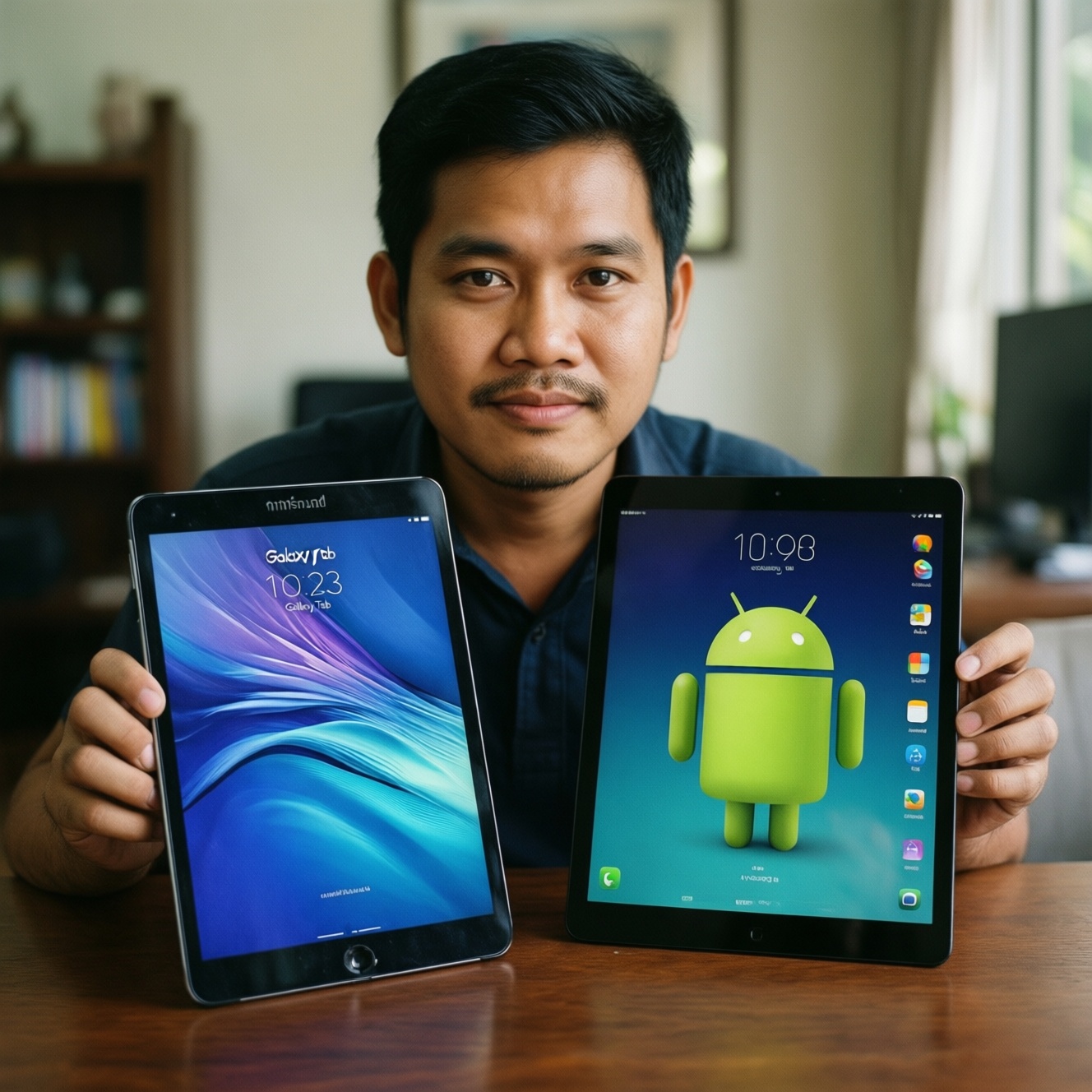
If you want the lowest-risk "work + study" tablet in Thailand, decide first by your core apps and ecosystem: iPad (iPadOS) wins for creative/pro-grade tablet apps and long support; Galaxy Tab (One UI) wins for laptop-like multitasking and bundled stylus value; Google-first Android tablets fit Gmail/Drive/Docs users who prioritize Google services and flexibility over premium tablet-only apps.
Essential criteria for choosing a work-study tablet
- Primary app stack: Office/Google Workspace, note-taking, video calls, design, coding/remote desktop.
- Multitasking style: split-screen, floating windows, external monitor, file handling.
- Input priority: typing vs handwriting, stylus latency/feel, palm rejection, keyboard/trackpad quality.
- Cloud ecosystem: iCloud vs Google Drive vs Microsoft 365, cross-device sync.
- Accessory reality: availability and Thai keyboard layout options, official vs third-party cases, pen tips, hubs.
- Longevity and update comfort: how long you expect to keep the device and your tolerance for OS changes.
- Total cost: tablet + keyboard + stylus + storage tier + warranty, not just the base device.
Performance and operating system: iPadOS vs One UI vs Stock Android
- App-level performance consistency: iPadOS often delivers more predictable performance for tablet-optimized apps; One UI performs well but varies by app optimization; stock-ish Android can vary the most by brand.
- Windowing and "laptop-like" workflow: Galaxy Tab with One UI typically offers the most flexible desktop-style multitasking (e.g., DeX-like workflows); iPadOS is strong but more opinionated; stock Android is improving but can feel inconsistent across vendors.
- File management expectations: if you frequently manage folders, downloads, and external drives, Android/One UI tends to feel closer to a laptop; iPadOS is capable but takes adjustment.
- External display handling: consider whether you need a true extended desktop vs simple mirroring; behavior differs by OS and apps.
- Thermals under long sessions: sustained video calls + note-taking + split-screen can reveal throttling; prioritize mid-to-high tier chips if you multitask heavily.
- Account management: Apple ID-centric vs Google account-centric; pick what matches your phone and laptop.
- Hardware choice clarity: iPad lineup is simpler; Android tablet lineup is broader but needs more spec checking (RAM/storage/display).
Decision outcome for this section (pick the OS first)
- Choose iPadOS if you want the safest path for tablet-optimized apps and you're asking "ซื้อ iPad รุ่นไหนดี สำหรับเรียน" with a focus on notes + PDF + stable conferencing.
- Choose Galaxy Tab / One UI if you want the closest tablet-to-laptop workflow for documents, email, and multi-window work and your question sounds like "Galaxy Tab รุ่นไหนดี สำหรับทำงาน".
- Choose Google-first Android if you live in Gmail/Drive/Docs, need broad hardware choices, and your intent matches "แท็บเล็ต Android รุ่นไหนดี 2026".
Concrete model examples (to anchor the OS choice)
- iPad: iPad (10th gen) for baseline study tasks; iPad Air for heavier multitasking; iPad Pro if you rely on demanding creative apps and external display workflows.
- Samsung: Galaxy Tab S9 series for higher-end work + pen use; Galaxy Tab S9 FE for value-focused handwriting and classes.
- Google-first Android options: Pixel Tablet for Google services at home + casual work; Lenovo Tab P-series / Xiaomi Pad series as alternatives when specs and pricing in Thailand line up with your needs.
App availability and productivity software compatibility
If your decision is mainly "เปรียบเทียบ iPad กับ Galaxy Tab", anchor it on the exact apps you must use (not just categories). The differences show up in pro creative apps, advanced note-taking features, and how well the tablet apps match desktop workflows.
| Option | Who it fits | Pros | Cons | When to choose |
|---|---|---|---|---|
| iPad (iPadOS) + Apple Pencil + keyboard | Students and professionals needing strong tablet-optimized apps | Excellent note-taking and creative tablet apps; consistent app performance; strong accessory ecosystem | Cost rises fast with storage and accessories; file workflows may feel different from a laptop | When handwriting + PDF markup + polished tablet apps are central to your day |
| Galaxy Tab (One UI) + S Pen + keyboard cover | People who want multi-window productivity and a laptop-like feel | Flexible multitasking; good file handling; stylus is often a strong value proposition | Some apps are less tablet-optimized than on iPad; keyboard/trackpad quality varies by model and accessory | When your work is documents, email, web tools, and you frequently run 2-3 apps at once |
| Google-first Android tablet (Pixel Tablet / "stock-ish" Android) | Google Workspace-first users and mixed-device households | Natural Google account integration; flexible hardware choices; good for Drive/Docs/Meet | Tablet app optimization varies; accessory options can be uneven in Thailand | When your entire workflow is Gmail/Calendar/Drive and you don't need iPad-exclusive creative apps |
| Value Android tablet (Lenovo/Xiaomi class) + third-party keyboard | Budget-focused learners and light office work | Great value when specs are right; big screens can be affordable | Accessory fit/quality can be inconsistent; software update experience varies by brand | When you prioritize price-to-spec and accept more research and setup effort |
| iPad + Google Workspace (Docs/Sheets/Drive) workflow | Users who want iPad hardware/app benefits but are Google-first | Strong tablet experience with Google apps; smooth pairing with iPhone/Mac if you have them | Some Google workflows can feel more "web-first"; storage management needs planning | When you want iPad as the device, but Google as the system of record |
Decision outcome for this section (match the apps, not the brand)
- Pick iPad if your must-have apps are known to be best on iPad (advanced note apps, certain creative tools) or you need the widest selection of tablet-first software.
- Pick Galaxy Tab if your app list is mostly web, Office files, messaging, and conferencing-and you benefit from multi-window behavior daily.
- Pick Google-first Android if Google apps are your core and you can live with "good enough" tablet optimization outside that stack.
Input methods and accessories: keyboards, styluses, and multi-tasking
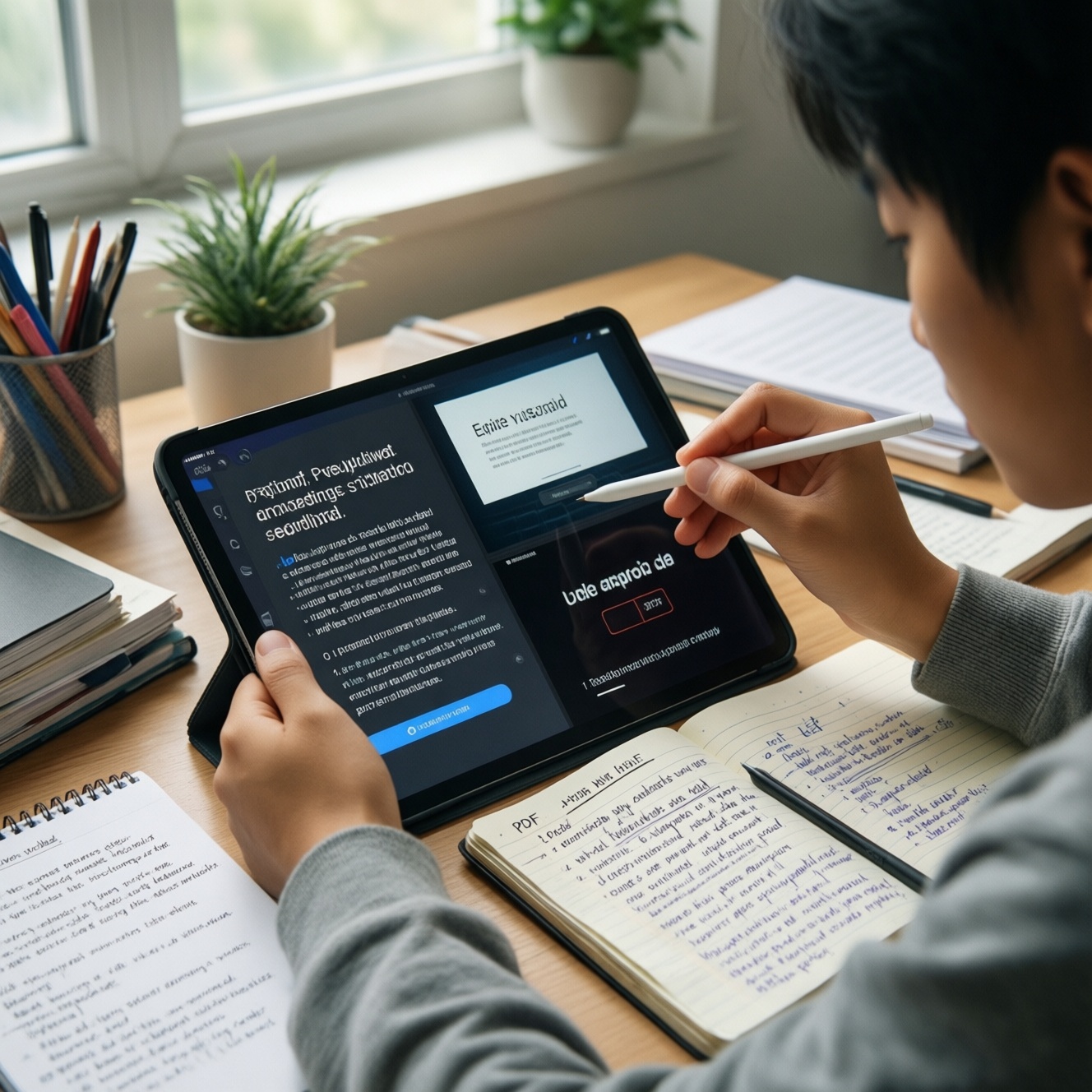
- If you handwrite more than you type, then prioritize the pen experience and palm rejection first: iPad + Apple Pencil (iPad Air/Pro) or Galaxy Tab S-series with S Pen are the safer picks; value Android can be fine but varies.
- If you type long reports or code-like text, then choose the platform with the best keyboard/trackpad availability for your model in Thailand; don't assume third-party cases will feel stable on your lap.
- If you live in split-screen, then Galaxy Tab/One UI is usually the most forgiving for resizing windows and juggling apps; iPadOS is strong but you'll work within its multitasking rules.
- If you present in class or meetings, then validate your adapter/hub plan (USB-C hubs, HDMI) and test the exact conferencing app behavior with external displays before committing.
- If you need a "one device only" setup, then prioritize: keyboard quality, trackpad shortcuts, file handling, and external monitor behavior-this often pushes the decision toward Galaxy Tab S-series or an iPad with a high-quality keyboard.
Decision outcome for this section (pen-first vs keyboard-first)
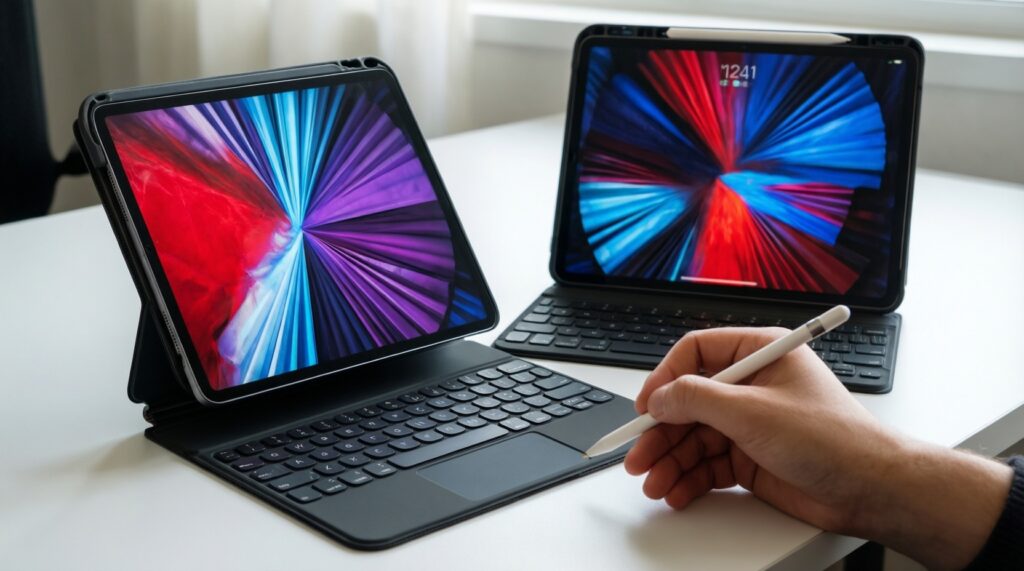
- Pen-first: iPad Air/Pro or Galaxy Tab S-series.
- Keyboard-first: Galaxy Tab with a proven keyboard accessory, or iPad with a premium keyboard-budget Android only if you can test the keyboard case in person.
- Mixed input: choose the ecosystem where accessories are easiest to buy/replace locally (including Thai keycaps/labels if needed).
Display, battery life, and ergonomics for long sessions
- Pick your screen size by posture: handheld reading favors smaller/lighter; desk-first work favors larger screens.
- Prioritize brightness and reflections if you study near windows or under strong indoor lighting.
- Choose refresh/pen feel for handwriting if note-taking is central; smoother touch/pen response reduces fatigue over long lectures.
- Plan your charging pattern: if you do back-to-back classes, prioritize consistent all-day behavior over peak specs.
- Check speakers and mic behavior for online classes and meetings; weak mics force headset dependence.
- Confirm port needs (USB-C, headphone dongles, hubs) for your peripherals.
- Validate weight with your case: the "tablet + keyboard case" weight is what you actually carry.
Decision outcome for this section (comfort beats specs)
- Choose a lighter setup if you commute and read a lot; it improves real study hours more than marginal performance.
- Choose a larger screen if you frequently split-screen Docs + PDF + calls.
- Choose the platform with accessories you can try locally if ergonomics is a concern (typing angle, trackpad, lap stability).
Cloud services, synchronization, and Google-first workflows
- Mistake: buying an iPad expecting it to behave like a laptop file system. Do instead: commit to a cloud-first structure (Drive/iCloud/OneDrive) and consistent folder naming.
- Mistake: assuming "Google-first" means any Android tablet will feel identical. Do instead: check vendor UI choices (One UI vs others) and how they handle split-screen, notifications, and background tasks.
- Mistake: mixing multiple clouds without rules. Do instead: pick one "source of truth" (e.g., Google Drive) and sync others only when required.
- Mistake: underestimating account friction in shared devices. Do instead: plan profiles/users (where supported) and separate school/work accounts cleanly.
- Mistake: relying on one app for everything (notes, PDFs, tasks) without export options. Do instead: ensure your notes/PDF annotations can export in common formats.
- Mistake: forgetting cross-device continuity needs. Do instead: if your phone is Android and your laptop is Windows, Galaxy Tab or Google-first Android may reduce friction; if you're in Apple devices, iPad simplifies sync.
- Mistake: buying minimal storage while storing videos offline. Do instead: plan which content is offline vs cloud and keep a cleanup routine.
Decision outcome for this section (choose the "home cloud")
- Google Drive as home: Galaxy Tab or Google-first Android is the most natural; iPad still works well if you're disciplined with Drive.
- Apple ecosystem as home: iPad is the simplest end-to-end.
- Microsoft 365 as home: both platforms work; let your multitasking preference decide.
Budget, total cost of ownership, and upgrade path
- If your top priority is tablet-optimized apps and long-term confidence: choose iPad (often iPad Air as a balanced point; iPad Pro only if you truly need the headroom).
- If your top priority is "tablet as a small laptop" for work: choose Galaxy Tab S-series; it aligns well with the "Galaxy Tab รุ่นไหนดี สำหรับทำงาน" intent.
- If your top priority is Google-first study/work and flexibility: choose a Google-first Android tablet, but verify accessory availability and update expectations for your brand.
- If your constraint is "แท็บเล็ตสำหรับเรียนออนไลน์ ราคาไม่เกิน 20000": focus on a mid-range iPad (base model) or a value-focused Galaxy Tab/Android model, and keep accessory spend minimal (good case + reliable charger first; keyboard second).
Mini decision tree (fast path to the right category)
- Do you need iPad-exclusive or best-in-class tablet creative/note apps? If yes → iPad. If no → go to step 2.
- Do you want the most flexible multi-window + desktop-like mode? If yes → Galaxy Tab (One UI). If no → go to step 3.
- Is your workflow almost entirely Gmail/Drive/Docs/Meet? If yes → Google-first Android (or Galaxy Tab). If no → go to step 4.
- Is typing (reports) more important than handwriting? If yes → prioritize the best keyboard ecosystem you can actually buy/try in Thailand (often Galaxy Tab S-series or iPad + premium keyboard). If no → prioritize pen experience (iPad Air/Pro or Galaxy Tab S-series).
In practice: best for pen-based study and tablet-first apps is usually an iPad setup; best for document-heavy multitasking and a laptop-like feel is typically a Galaxy Tab S-series; best for a Google-first routine is a Google-first Android tablet (or a Galaxy Tab if you also want stronger multitasking), chosen with accessories and updates in mind.
Quick scenarios to finalize your tablet choice
I'm deciding "ซื้อ iPad รุ่นไหนดี สำหรับเรียน" and I mainly annotate PDFs-what should I prioritize?
Prioritize a comfortable screen size, reliable stylus support, and enough storage for your PDF workflow. iPad Air is often the balanced choice; the base iPad can work if you keep multitasking and accessories modest.
I'm asking "Galaxy Tab รุ่นไหนดี สำหรับทำงาน" because I want it to replace light laptop tasks-what matters most?
Prioritize keyboard quality, multi-window behavior, and file handling. In practice, Galaxy Tab S-series tends to be the safer route if you plan to type daily and connect to an external display.
I want "แท็บเล็ต Android รุ่นไหนดี 2026" but I'm worried about app quality-how do I reduce risk?
List your must-use apps and verify they support tablets well, especially note-taking, PDF tools, and conferencing. If you need strong multitasking and better tablet tuning, consider Galaxy Tab over more generic Android options.
Can you "เปรียบเทียบ iPad กับ Galaxy Tab" in one sentence for productivity?
iPad usually wins on tablet-optimized app quality, while Galaxy Tab often wins on flexible multitasking and a more laptop-like workflow.
I need "แท็บเล็ตสำหรับเรียนออนไลน์ ราคาไม่เกิน 20000"-what trade-offs should I accept?
Expect compromises in screen/pen/keyboard quality and sometimes in long-term update comfort. Spend first on a stable case and good audio for calls; add a keyboard only if you truly type a lot.
I use Google Drive on every device-does an iPad still make sense?
Yes, if you want iPad's tablet app ecosystem and you're disciplined about a Drive-first folder structure. If you also want maximum multi-window flexibility, a Galaxy Tab may feel more natural.
Should I buy more storage or rely on cloud?

If you keep media offline or record long lectures, local storage matters. If your campus/work internet is reliable and you're cloud-first, prioritize RAM/performance and accessories over excessive storage.