If you want a tablet/phone to behave most like a laptop desktop, Samsung DeX is usually the smoother pick for keyboard-and-mouse, multi-window work, while iPad Stage Manager is strongest when your workflow depends on iPad-first creative apps and Apple ecosystem continuity. The better choice depends on your apps, external display needs, and input habits.
At-a-glance comparison for quick decisions
- Choose DeX when you want a more PC-like desktop feel, quicker window management, and fewer "iPad-style" constraints for office-style multitasking.
- Choose Stage Manager when your must-have apps are iPad-specific (creative, handwriting, Apple-first tools) and you value Apple device handoff/continuity.
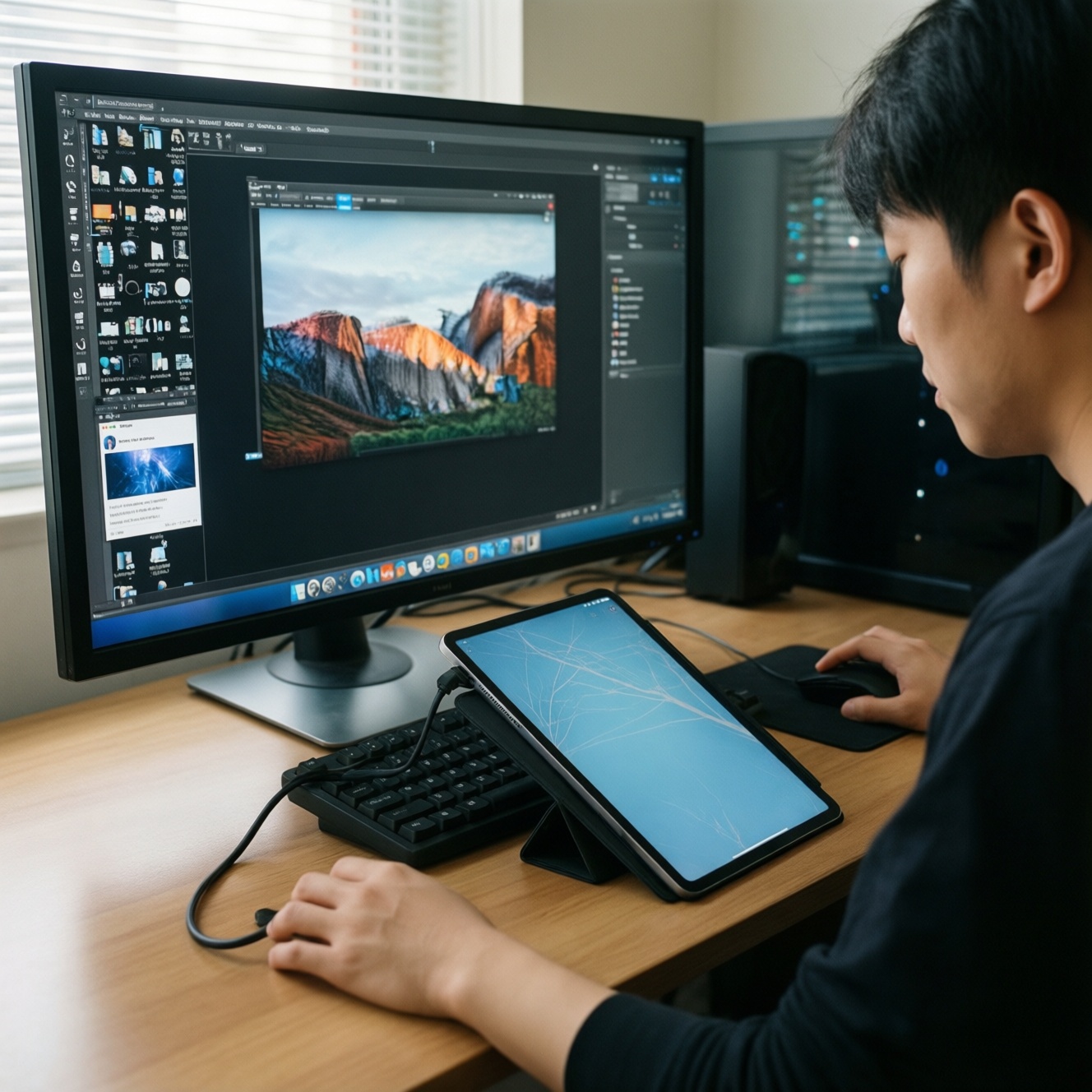
- External monitor as a daily habit: DeX typically feels more "desktop-first"; Stage Manager works well but can feel more mode-driven.
- Keyboard/mouse-centric setup: DeX tends to be less fussy; Stage Manager is excellent with the right iPad + accessories.
- Buying question in Thailand: if you're comparing "แท็บเล็ตทำงานแทนโน้ตบุ๊ก รุ่นไหนดี", shortlist by apps first, then pick the mode that matches your workflow.
Interaction models: windowing, gestures and keyboard shortcuts
- Window behavior: Do you need freeform overlapping windows (desktop-like), or are "managed" window sets acceptable?
- Precision input: Is your day mostly keyboard shortcuts + mouse, or touch + Pencil/stylus?
- Drag-and-drop expectations: Do you regularly drag files, images, and text between apps like on a laptop?
- App menu patterns: Are you comfortable with mobile-style app UIs, or do you need desktop-style toolbars and dense controls?
- Task switching speed: Do you rely on fast alt-tab-like switching, or do you prefer grouped "workspaces" per project?
- Shortcut depth: Will you actually use keyboard shortcuts (copy/paste across apps, switching windows, browser tab management) daily?
- Pointer ergonomics: Trackpad gestures and cursor behavior can make or break the experience; test your most-used apps with the pointer.
- External display mindset: Are you expecting a "monitor-first" setup (tablet as CPU) or "tablet-first" with occasional mirroring/extension?
Multitasking workflows: app grouping, resizable windows and spaces
| Variant | Who it fits | Pros | Cons | When to pick |
|---|---|---|---|---|
| DeX on a Galaxy tablet + keyboard cover | People replacing a lightweight laptop for docs, mail, web, meetings | Desktop-like workflow; quick windowing; strong keyboard/mouse feel | Some apps still behave like phone/tablet apps; accessory choice matters | When "office multitasking + browser + files" is your main day |
| DeX on a Galaxy phone to external monitor (dock/cable) | Minimalists who want "one device" for work on a desk | Carry one device; easy to plug into a monitor; good for remote work sessions | Phone thermals/notifications can distract; not all workflows are comfortable on a phone as the main device | When you mostly work at a fixed desk and want maximum portability |
| Stage Manager on iPad with Magic Keyboard / trackpad | iPad power users who multitask but also need iPad creative apps | Great with trackpad; project-like app grouping; excellent iPad app quality in many categories | More "mode" to think about; some apps feel better full-screen than windowed | When your workflow is iPad-first and you still want desktop-ish multitasking |
| Stage Manager + external display | Users who present, write, and manage multiple windows on a monitor | Cleaner separation of workspaces; good for desk setups; strong pairing with Apple peripherals | Feels less like a traditional desktop to some users; setup depends on supported iPad models | When you need a stable "work set" for meetings, writing, and referencing |
| Tablet without desktop mode (standard tablet multitasking) | Touch-first users who mainly run one or two apps at a time | Simple; fewer layout quirks; often best battery experience | Less efficient for spreadsheet + email + browser triage | When you don't truly need multi-window, just split view and quick switching |
Concrete workflow examples:
- Spreadsheet + email + browser research: DeX tends to feel more "laptop-like" for constant window reshuffling; Stage Manager is good if you keep stable app groups per project.
- Video edit + notes + file picking: Stage Manager shines when your editor is iPad-optimized; DeX can be strong if your workflow is more file-manager-driven and you prefer desktop-style navigation.
- Remote dev (SSH/RDP) + docs: DeX often feels natural with multiple terminal/remote windows; Stage Manager is viable when your iPad apps cover your toolchain and you prefer Apple peripherals.
Ecosystem fit: apps, continuity and cross-device integration
- If your daily tools are deeply tied to Apple workflows (AirDrop-style sharing, iMessage/FaceTime, handoff between Mac/iPhone/iPad), then Stage Manager is usually the frictionless choice.
- If you rely on Android-first utilities, flexible file handling, or you want a phone-to-monitor "desktop" you can use anywhere, then DeX is typically the more natural fit.
- If your priority is choosing the right hardware (questions like "แท็บเล็ต Samsung สำหรับทำงาน รุ่นไหนดี ราคา"), then start by listing your required apps and accessories, then pick DeX-capable models that match your display and port needs.
- If you're specifically checking "iPad Stage Manager รุ่นที่รองรับ", confirm your exact iPad model supports Stage Manager before buying accessories, because the mode is only available on certain iPad generations.
- If you want the most predictable app behavior across devices in the same family, Apple tends to be more consistent; if you want broader device form factors and price points, Android/Samsung often gives more options.
Hardware realities: docks, external displays and input devices
- Decide your main setup: (A) tablet-only on a couch, (B) desk with monitor, or (C) both.
- Pick your primary input: if you type a lot, budget for a solid keyboard/trackpad; if you draw/annotate, prioritize stylus feel and app support.
- Validate external display needs: resolution, refresh, and how you want windows to behave on the monitor (extended workspace vs mirrored).
- Choose the right connectivity: USB-C hub/dock for monitor + power + USB devices, or a simple USB-C to HDMI if you only need display.
- Plan pointing devices: for iPad, research "คีย์บอร์ดเมาส์สำหรับ iPad รุ่นไหนดี ราคา" based on your preferred layout (Thai/EN), trackpad quality, and palm rejection.
- Check ports and charging behavior: can you charge while connected to an external display and storage? This determines how "laptop-like" your desk setup feels.
- Don't ignore budget reality: include accessories in your "Samsung DeX ราคา" or iPad setup cost comparison; the keyboard/trackpad can change the value equation more than the tablet itself.
Workload suitability: office, creative, coding and media tasks
- Mistake: Choosing by "desktop mode" hype, not by your must-have apps. If the app you need is weaker on one platform, no window manager fixes it.
- Mistake: Assuming "tablet = laptop replacement" automatically. The real question behind "แท็บเล็ตทำงานแทนโน้ตบุ๊ก รุ่นไหนดี" is whether your workflow depends on desktop-class browser extensions, file workflows, or niche tools.
- Mistake: Underestimating spreadsheets. If you live in complex sheets, test your exact use cases (filters, pivots, multi-tab workbooks) with keyboard and mouse.
- Mistake: Buying the tablet first and discovering later your preferred keyboard layout/trackpad feel is poor or overpriced.
- Mistake: Expecting perfect "multi-monitor PC" behavior. Both modes can be excellent, but they still differ from Windows/macOS in edge cases.
- Mistake: Ignoring conferencing friction (camera placement, mic quality, quick screen sharing). Test your meeting app with your planned monitor + dock.
- Mistake: For coding: assuming local dev will be the same as a laptop. Many tablet setups work best via remote dev (SSH/RDP/cloud), so validate your remote workflow first.
- Mistake: For creative: choosing DeX just to get desktop-like windows if your best creative tools are iPad-first.
Decision flowchart: pick DeX or Stage Manager by task profile
- If you want one device to plug into a monitor and work like a lightweight desktop most days → lean DeX.
- If you need iPad-exclusive creative and handwriting workflows with strong accessory integration → lean Stage Manager.
- If your day is browser + documents + email + file juggling and you resize/rearrange windows constantly → lean DeX.
- If your day is project-based app sets (write + reference + chat) and you value Apple continuity → lean Stage Manager.
- If you're still unsure → choose based on the top 3 apps you use for work; the platform that runs them best will be the best long-term pick.
Best for PC-style multitasking and a monitor-first desk setup: Samsung DeX. Best for iPad-first productivity plus creative apps and Apple ecosystem flow: iPad Stage Manager. Neither is universally "better"; the winning option is the one that matches your core apps, accessory comfort, and how often you work on an external display.
Practical clarifications and common edge cases
Can DeX fully replace a Windows laptop for office work?

It can for many doc/email/web-heavy roles, especially with a good keyboard and external monitor. If you depend on specialized desktop software or heavy spreadsheet macros, test before committing.
Is Stage Manager usable without a keyboard and trackpad?
Yes, but it's significantly more efficient with a trackpad/keyboard. Touch-only use is fine for short sessions, not ideal for all-day window management.
Which is better for external monitor productivity?
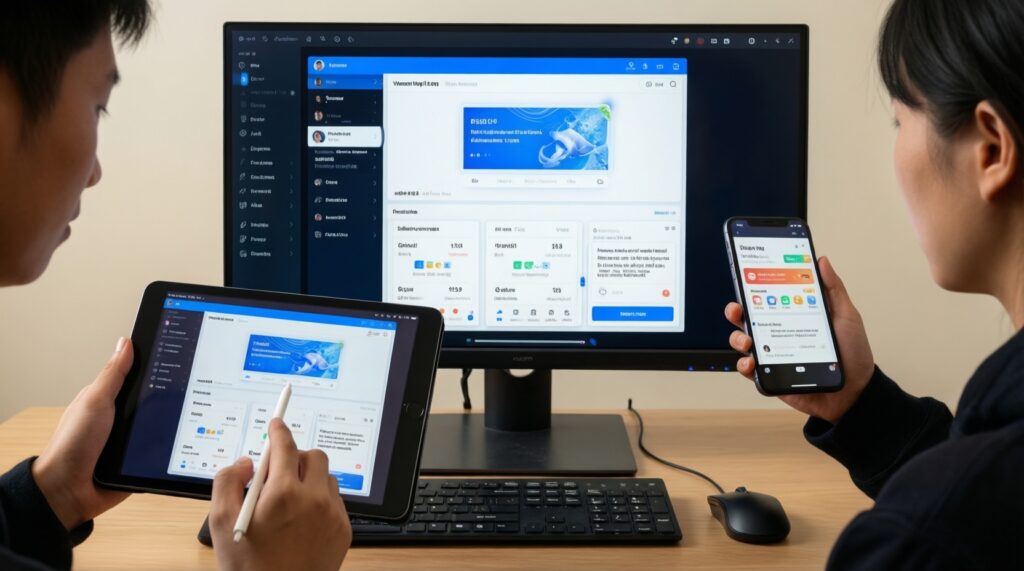
DeX usually feels more desktop-native when driving a monitor with keyboard and mouse. Stage Manager can be excellent too, but verify your iPad model supports it and confirm your preferred monitor workflow.
How do I confirm iPad Stage Manager รุ่นที่รองรับ before buying?
Check the exact iPad model name and generation in Apple's official specifications and confirm Stage Manager is listed. Do this before investing in higher-end accessories.
What should I prioritize when searching คีย์บอร์ดเมาส์สำหรับ iPad รุ่นไหนดี ราคา?
Prioritize layout/typing feel, trackpad accuracy, and stability on your desk. Price matters, but poor ergonomics will cost more in productivity.
Is DeX worth it if I already have a Samsung phone?
It can be, especially if you want a "phone becomes desktop" desk workflow. Confirm your phone supports DeX and plan for a reliable USB-C hub/cable and input devices.
What Samsung tablet should I shortlist for work if I want DeX (แท็บเล็ต Samsung สำหรับทำงาน รุ่นไหนดี ราคา)?
Shortlist DeX-capable models that match your display size preference, port needs (USB-C), and accessory ecosystem (keyboard cover options). Then decide based on your must-have apps and whether you'll use an external monitor daily.