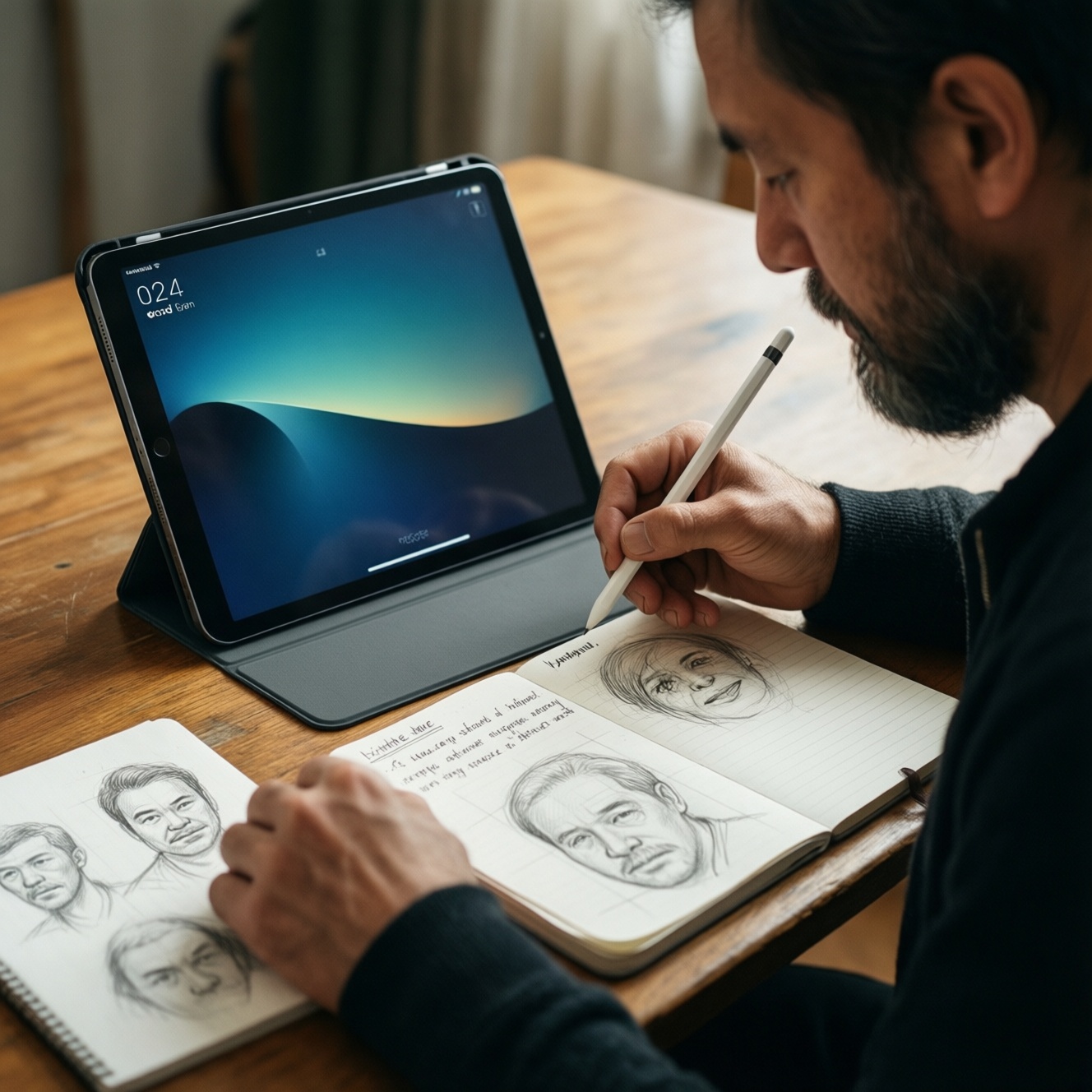
If your priority is the best note-taking and drawing app ecosystem, Apple Pencil on iPad usually wins for consistency, creative software depth, and long-term app support. If you want built-in handwriting tools and solid productivity on many price points, S Pen devices and other Android stylus tablets can be the smarter buy-especially in Thailand's budget-first market.
Snapshot: Apple Pencil vs S Pen - what to judge first
- Device-first, not pen-first: Pencil and S Pen quality is tied to the tablet's screen tech, palm rejection tuning, and OS optimizations.
- App needs decide the winner: illustration-first users benefit more from iPad apps; handwriting-first users often prefer S Pen's built-in features.
- Budget reality: "แท็บเล็ตพร้อมปากกา S Pen ราคา" is often easier to justify than iPad + Apple Pencil for students.
- Workflow fit: PDFs, lecture notes, and quick screenshots feel different on iPadOS vs Android-test your daily loop.
- Accessories and resale: cases, nibs, and resale tend to be simpler on iPad; Android varies by brand.
Hardware Reality Check: latency, nibs, and compatibility across price bands
- Pen-to-device compatibility: Apple Pencil models are iPad-specific; S Pen is typically limited to certain Samsung tablets/phones; many third-party Android styli use different protocols (or only "capacitive" touch).
- Display refresh and digitizer tuning: Lower-end panels can feel less "ink-like" even with a good pen. Smoothness depends on both the screen and the OS pipeline.
- Palm rejection reliability: Critical for long notes and sketching. iPadOS is usually consistent; Android quality varies by manufacturer and app.
- Nib feel and availability: Check local availability of replacement nibs and whether the nib is hard plastic (slick) or has more friction (paper-like feel).
- Charging and pairing: Magnetic attach/charge (common on newer iPads) is convenient; some S Pen models charge only for Bluetooth features; others don't need charging for writing.
- Button/gesture support: S Pen often offers an accessible side button and system shortcuts; Apple Pencil gesture support depends on model and app.
- Hover and pointer precision: Useful for UI work and precise placement. Availability depends on the specific tablet generation.
- Ergonomics for long sessions: Pen diameter, balance, and tip friction affect fatigue more than most specs.
Apps and Ecosystems: iPadOS note/sketch apps versus Android alternatives (budget lens)
Choose the ecosystem based on your primary app category: handwriting notebooks, PDF annotation, or illustration. For Thailand shoppers comparing "แท็บเล็ต Android รองรับปากกาสไตลัส ราคา", Android can be excellent for study and PDFs, while iPad often remains the safest bet for pro-grade drawing pipelines and broader creative app support.
| Option | Who it fits | Pros | Cons | When to choose |
|---|---|---|---|---|
| iPad + Apple Pencil + GoodNotes/Notability-style note apps (แอปจดโน้ต Apple Pencil) | Heavy handwritten notes, mixed media, structured study archives | Polished writing feel, stable sync workflows, strong PDF handling | Higher entry cost; Apple Pencil model matching can be confusing | When you want a reliable "one notebook for everything" setup |
| iPad + Apple Pencil + Procreate-class drawing apps (แอปวาดภาพ iPad Apple Pencil) | Illustration, concept art, brush-heavy workflows | Deep brush engines, strong layer performance, accessory ecosystem | More spend if drawing is only occasional | When drawing quality is the top priority |
| Samsung Galaxy Tab + S Pen + Samsung Notes (แอปจดโน้ต S Pen) | Students and office users who write a lot and need quick capture | Great "instant note" behavior, solid handwriting features, good device integration | Best experience is Samsung-specific; cross-device sync depends on your setup | When you want strong handwriting tools without building an app stack |
| Android tablet + stylus + OneNote/Evernote-style cross-platform notes | Users who switch between Windows/Android and need consistent access | Cross-platform libraries, easy sharing, works with typed + ink notes | Ink feel and palm rejection can vary; feature parity differs by platform | When your notes must live across devices and teams |
| Android tablet + stylus + Clip Studio Paint / ibisPaint-style drawing | Budget-conscious artists who still need layers/brushes | Strong value, lots of tools, broad Android availability | Performance depends heavily on tablet specs; shortcut workflows vary | When you want capable art apps without iPad pricing |
| Android tablet + stylus + PDF-first tools (Xodo-style workflow) | Exam prep, paper replacement, reading/marking PDFs daily | Fast annotation loop, file management flexibility, good with cloud drives | Handwriting notebook experience may feel less "native" than iPad/Samsung Notes | When your main job is highlighting, commenting, and submitting PDFs |
Feature-by-Feature: pressure sensitivity, tilt, palm rejection, and handwriting OCR
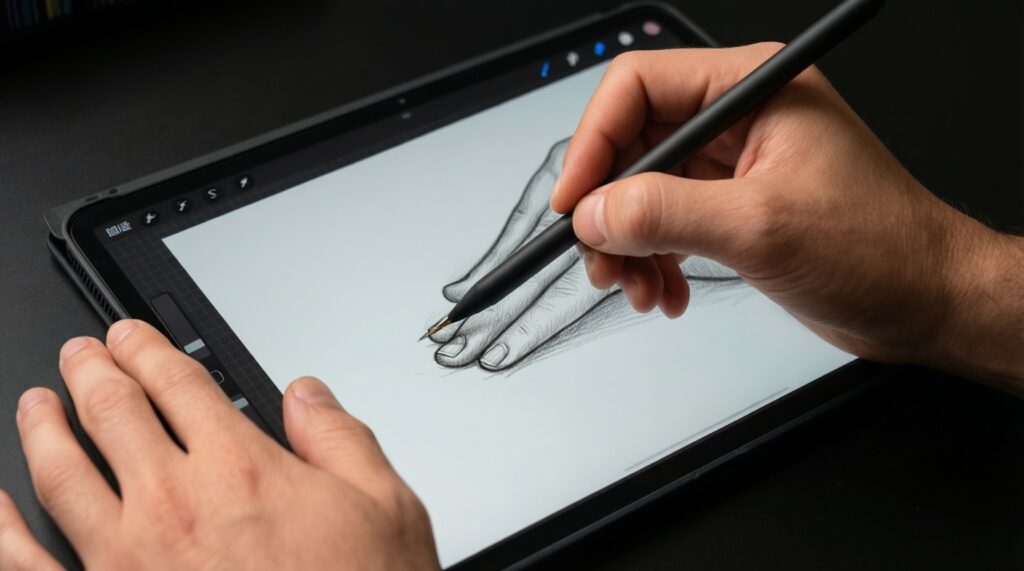
- If you draw with shading and brush angle, choose a setup where tilt support is reliable in your main app: iPad + Apple Pencil is a safe premium pick; on Android, aim for S Pen tablets or artist-oriented apps that clearly support tilt.
- If you mainly take long lecture notes, prioritize palm rejection and low-latency ink over max pressure levels: an S Pen tablet can be a strong budget-to-mid option; iPad remains the premium "consistent feel" choice.
- If you annotate PDFs and sign documents, focus on straight-line stabilization, highlighter behavior, and fast export; many Android PDF tools are excellent value, while iPad apps often feel more polished for markup + filing.
- If you need handwriting search (OCR) for study recall, test your language mix (Thai/English) and your note app's OCR pipeline; premium iPad note apps are often smoother, while Samsung Notes can be very convenient for handwriting-to-text and organization.
- If you want the cheapest workable setup, spend on a tablet known to properly support an active stylus (not a generic capacitive pen): compare "แท็บเล็ต Android รองรับปากกาสไตลัส ราคา" models that explicitly list stylus features; avoid unknown bundles that don't specify the digitizer tech.
- If you want the most future-proof premium experience, prioritize long OS support, accessory availability, and top-tier creative apps-typically iPad + Apple Pencil-then add paper-like screen protection only if you truly need more friction.
Real-World Workflows: note-taking, diagramming, annotation and study routines
- Pick your primary output: (A) searchable notebooks, (B) art files, (C) annotated PDFs, or (D) a mix. Your "best" pen is the one that matches the output.
- List the 3 must-have features: e.g., palm rejection, OCR, layers/brushes, audio sync, multi-window, or fast export to PDF.
- Choose a tier, then lock the workflow:
- Entry (budget-first): Android tablet that genuinely supports an active stylus + PDF tool + one cross-platform notes app. Sample workflow: import lecture PDF → highlight → write margins → export/share.
- Mid: Samsung Tab with S Pen + Samsung Notes + one backup/sync destination. Sample workflow: quick lock-screen note → convert/organize by subject → attach screenshots → review with handwriting search.
- Premium: iPad + Apple Pencil + dedicated note app + dedicated drawing app. Sample workflow: handwritten lecture notes → link to diagrams → export to PDF → finish figures in a drawing app.
- Test 10 minutes in-store: write small Thai characters, draw long diagonals, rest your palm, switch tools, and undo/redo repeatedly. Any jitter or accidental touches will show up quickly.
- Validate file flow: confirm your cloud drive, PDF export, and device-to-device viewing works without friction.
- Decide accessory baseline: case/stand for writing angle, spare nibs, and (optional) matte protector for feel.
Low-Cost Paths: best-value styluses and budget Android tablet pairings
- Buying a "stylus" that is only capacitive: it will not give real palm rejection or pressure; it's a finger substitute, not an Apple Pencil/S Pen alternative.
- Assuming all Android pens behave the same: Android quality is brand- and model-specific; verify the tablet is designed for an active stylus.
- Choosing by pressure levels marketing: in real note-taking, stability, latency, and palm rejection matter more than big numbers.
- Ignoring nib supply: if replacement tips aren't easy to find locally, your "cheap" setup becomes inconvenient fast.
- Overpaying for bundled apps you won't use: decide whether you need premium note features or you're mostly doing PDFs.
- Not checking split-screen and file management: study workflows often need PDF + notes side-by-side; some tablets handle this better.
- Chasing the lowest "แท็บเล็ตพร้อมปากกา S Pen ราคา" deal without checking model year: older devices can be fine, but confirm the OS/app support you need and battery health expectations.
- Skipping a writing angle solution: a stable stand/case affects handwriting comfort more than many spec upgrades.
Future-Proofing Your Setup: software updates, accessory support and resale considerations
For premium creative drawing and the widest range of refined note/drawing apps, iPad + Apple Pencil is typically the safest long-term platform choice. For value-focused handwriting and study routines with strong built-in pen features, an S Pen tablet is often the better fit-especially when you want predictable pen support without assembling a third-party stylus setup.
Practical answers to common purchase and usage doubts
Can I use Apple Pencil on an Android tablet?
No. Apple Pencil is designed to work only with supported iPad models, so plan for an iPad if Apple Pencil is non-negotiable.
Is S Pen usable on non-Samsung Android tablets?
Usually no, or it will be limited. Active stylus support depends on the tablet's digitizer system, so treat S Pen as Samsung-ecosystem hardware unless the device explicitly supports it.
Which matters more for note-taking: pressure sensitivity or palm rejection?
Palm rejection and low-latency ink matter more for long handwritten sessions. Pressure sensitivity becomes important mainly for expressive drawing and brush control.
What's the safest budget approach if I mainly annotate PDFs?
Buy an Android tablet that clearly supports an active stylus and pair it with a strong PDF annotation app. Avoid generic capacitive pens if you need stable writing and palm rejection.
Do I need a matte screen protector for writing?
Only if you dislike a slippery glass feel. Matte protectors add friction but can reduce clarity and may increase nib wear.
How do I decide between iPad note apps and Samsung Notes?
If you want a polished third-party app ecosystem and tight creative workflows, go iPad. If you want fast, built-in handwriting features with minimal setup, Samsung Notes with S Pen is often more straightforward.