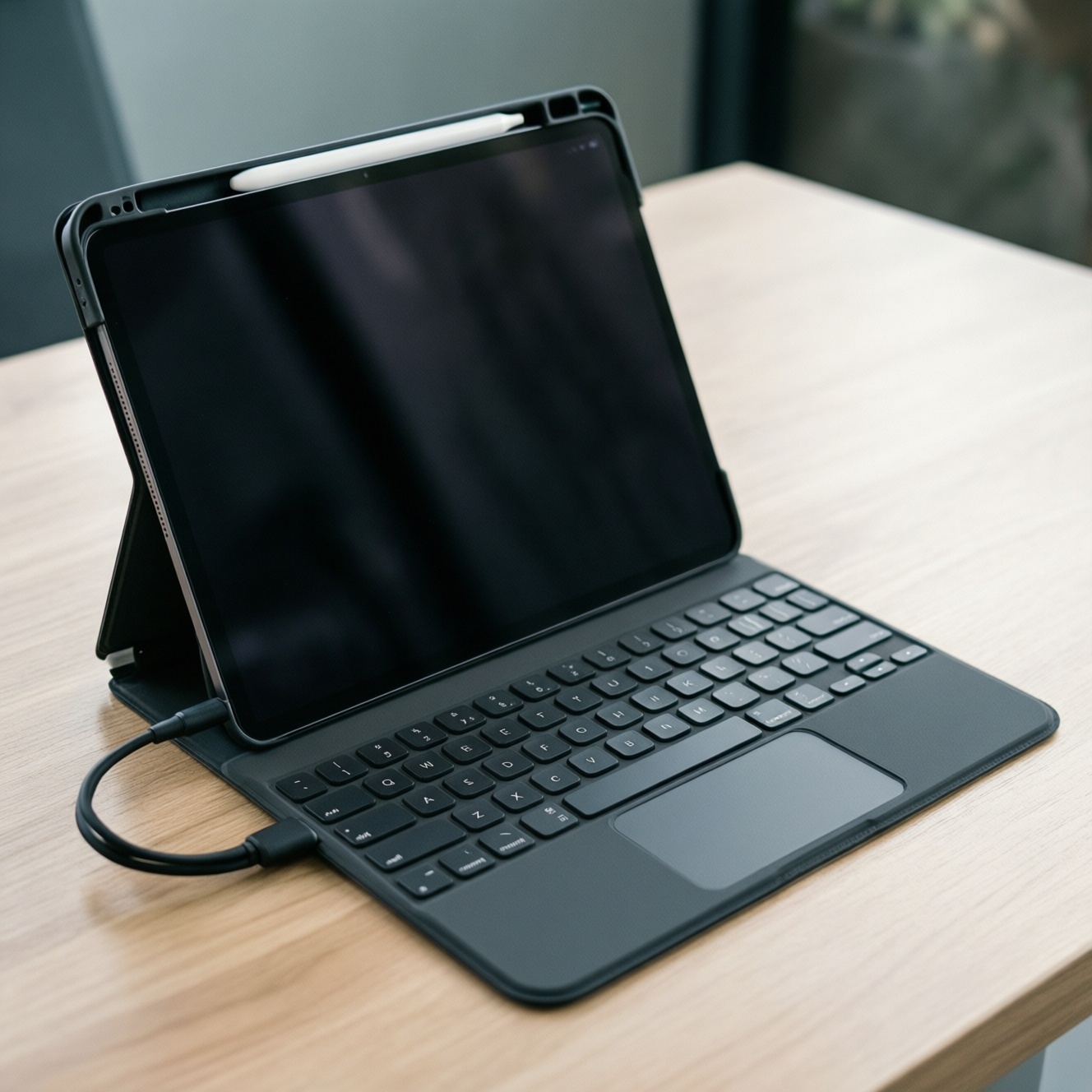
To turn a tablet into a laptop, pick a keyboard by your main work style: Magic Keyboard for iPad is the closest "mini‑laptop" feel with a rigid hinge and trackpad; Samsung Book Cover Keyboard is the tightest integration for Galaxy Tab; a generic Bluetooth keyboard is the best value and flexibility. "Worth it" depends on stability, shortcuts, and how often you type.
Quick Purchase Verdicts
- Choose Magic Keyboard if you need a rigid, laptop-like setup for long typing sessions and frequent cursor work (trackpad).
- Choose Samsung Book Cover Keyboard if you use a Galaxy Tab daily and want the most seamless Samsung ecosystem shortcuts.
- Choose a generic Bluetooth keyboard if you prioritize price, multi-device use, or switching between iPad/Android/PC.
- If you type mostly on a desk, prioritize key feel and stability; if you type on the go, prioritize hinge strength and balance.
- If you present, edit, or manage files often, prioritize trackpad/shortcut keys over thinness.
Form Factor and Attachment: Magnetic Folio vs Hinged Keyboard vs Bluetooth/USB
Start with these testable criteria-each one changes which accessory feels "laptop-like" in real use:
- Attachment method: magnetic pogo-pin vs case contacts vs external Bluetooth (affects setup speed and lap stability).
- Lap usability: rigid hinge and balanced center of gravity vs kickstand/folio that needs a flat surface.
- Angles and viewing: limited fixed angles vs wide continuous hinge vs independent tablet stand choice.
- Port access and charging: pass-through charging or blocked ports vs fully independent charging.
- Pointer input: built-in trackpad vs relying on touch/pen vs carrying a mouse.
- Protection vs modularity: full case coverage vs partial coverage vs no protection.
- Weight and bag volume: "one thick piece" vs "two-piece kickstand+keyboard" vs "keyboard only."
- Language/layout needs: Thai/English legends availability and shortcut key mapping.
Typing Experience: Key Travel, Layout, and Stability Compared
Use the table to match the typing feel you want. If you're searching locally for คีย์บอร์ด iPad แนะนำ, treat "stability on lap" and "trackpad quality" as your first filters, then check compatibility.
| Option | Best for | Pros | Cons | Choose it when |
|---|---|---|---|---|
| Apple Magic Keyboard (iPad) | Heavy typing, email/docs, cursor-heavy multitasking | Rigid hinge; strong lap stability; integrated trackpad; fast attach/detach | Premium cost (many compare Magic Keyboard ราคา first); added weight; model-specific fit | You want the closest laptop feel and will use it often enough to justify the spend |
| Samsung Book Cover Keyboard (Galaxy Tab) | Galaxy Tab users who want DeX-friendly keyboard behavior | Designed around Samsung software; shortcut row; often two-piece flexibility (kickstand + keyboard) | Lap use varies by model; case contact alignment is model-specific; pricing varies (check Samsung Book Cover Keyboard ราคา) | You live in the Samsung ecosystem and use DeX or keyboard shortcuts daily |
| Magnetic folio keyboard (third-party, pogo-pin) | Desk typing with quick cover-on convenience | Simple setup; slim; often cheaper than first-party | Key feel and trackpad quality vary widely; sometimes flexy on lap | You want a light "always attached" keyboard mainly for short bursts |
| Bluetooth keyboard (compact) | Budget buyers; travel; switching between phone/tablet | Works across iPad/Android/Windows/Mac; easy to replace; wide choice across คีย์บอร์ดแท็บเล็ต Bluetooth ราคา | Needs separate stand/case; pairing management; no "single rigid unit" | You don't need a case + keyboard combo and can carry a stand |
| Bluetooth keyboard (full-size) + mouse | Near-desktop productivity, spreadsheets, long writing sessions | Better spacing; more stable on desk; mouse improves precision | Least portable; more items to pack; not ideal on lap | You mostly work at a table and want maximum typing comfort per baht |
| USB keyboard via adapter/hub (where supported) | Fixed-location setups, docking at home/office | No pairing; reliable connection; often lowest cost if you already own a keyboard | Needs hub/adapter; cable clutter; mobility suffers | Your tablet often sits at a desk as a "semi-desktop" workstation |
Connectivity, Power and Smart Features: Pass-through Charging, Shortcuts, and Trackpad
- If you edit documents and switch apps constantly, then prioritize a keyboard with a trackpad and a usable shortcut row (or consistent OS shortcuts).
- If you travel and charge while using the keyboard, then prioritize pass-through charging (or a setup that doesn't block ports).
- If you move between devices (tablet + phone + laptop), then prioritize multi-device Bluetooth switching over an ecosystem-specific connector.
- If you use a stylus for notes/design, then prioritize a setup that allows fast tablet detachment and doesn't make "tablet mode" annoying.
- If your work relies on hotkeys (search, brightness, media, language switching), then prioritize a layout with a function/shortcut row that matches your OS behavior.
Compatibility Matrix: Which Tablets Each Accessory Actually Fits
- Identify your exact tablet model name and size (including generation/year), not just "iPad Pro" or "Galaxy Tab."
- Confirm connector type: pogo-pin/contact points vs purely Bluetooth. If there are no contact pins, you're effectively in Bluetooth/USB territory.
- Check case cutouts and camera bump clearance; "almost fits" typically means unstable magnet alignment or pressure points.
- Decide whether you need a trackpad. If yes, filter options aggressively before comparing price.
- Validate language and layout needs (Thai/English legends, or your preferred key mapping).
- Plan your charging path (can you charge while typing without awkward cables?).
- Confirm return/warranty support in Thailand before buying high-cost accessories; it matters more than small spec differences.
Real-world Productivity Scenarios: Composing, Editing, and Mobility
- Buying for "laptop replacement" without testing lap use: many folio/kickstand designs feel fine on a desk but collapse into awkward angles on a sofa or train.
- Underestimating trackpad value: if you frequently select text, move cells, or manage files, a good trackpad can matter more than slightly better key feel.
- Ignoring the "tablet mode tax": some keyboard cases make it annoying to quickly read, sketch, or hold the tablet-leading you to stop using the accessory.
- Assuming all Bluetooth keyboards behave the same: latency, auto-sleep behavior, and reconnection reliability vary; it's not just about คีย์บอร์ดแท็บเล็ต Bluetooth ราคา.
- Missing the stand factor: a generic keyboard often needs a stand/case; without one, your posture and viewing angle degrade fast.
- Not thinking about language switching: if you type Thai/English often, confirm you can switch input smoothly with your chosen OS/keyboard mapping.
- Overpaying for model-specific accessories when you plan to upgrade tablets soon: ecosystem keyboards can be hard to reuse across generations.
- Buying solely by "best deal" without checking where to purchase: for iPad accessories, people often ask Magic Keyboard iPad ซื้อที่ไหน-availability and after-sales support can outweigh a small discount.
Cost, Longevity and Resale: Repairability, Firmware Support and Total Cost of Ownership
- If you want the closest laptop feel for sustained typing: lean toward Magic Keyboard (iPad) or the closest rigid-hinge equivalent for your model.
- If you want the best OS-level integration on Samsung tablets: lean toward Book Cover Keyboard, especially if DeX is part of your workflow.
- If you want the lowest-risk spend and easiest reuse across devices: lean toward a quality Bluetooth keyboard plus a stand/case you already like.
- If you upgrade tablets frequently: favor Bluetooth/USB options to reduce "model-locked" accessories that can't move with you.
Overall, the "best" choice is the one you will actually keep attached and use: Magic Keyboard tends to win for iPad-centric heavy typing; Book Cover Keyboard tends to win for Galaxy Tab users who rely on Samsung's desktop-like modes; a generic Bluetooth keyboard usually wins on flexibility and cost, especially when you treat the stand/case as a separate decision.
Buyer Doubts Resolved
Will a keyboard case really replace a laptop for work?
It can for email, docs, and light admin work, especially with a good trackpad. If you need specialized desktop apps or heavy multitasking, it becomes a "portable typing station" rather than a full laptop replacement.
Is Magic Keyboard only worth it for iPad Pro?
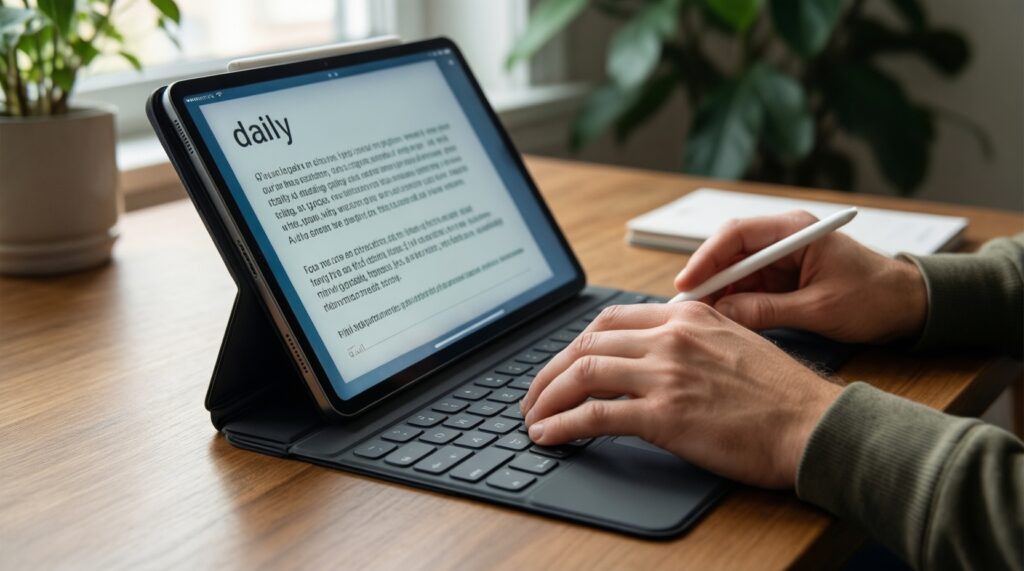
No-value depends on how often you type and how much you benefit from rigid lap stability and trackpad use. If you type daily, the experience upgrade can matter more than the tablet tier.
Is Samsung Book Cover Keyboard a must for DeX?
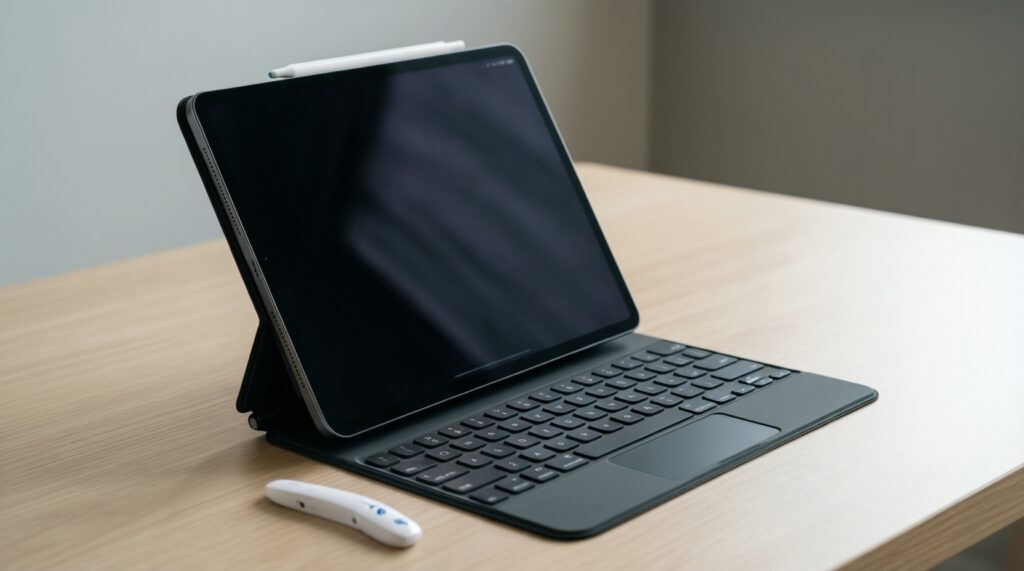
Not a must, but it's usually the most seamless option for shortcuts and the "laptop-ish" flow. A Bluetooth keyboard can still work well if you already have a stand and don't need a tight case integration.
What's the safest budget path to try the "tablet as laptop" idea?
Start with a Bluetooth keyboard you can reuse and a simple stand/case. If you end up typing a lot, then consider upgrading to a model-specific keyboard case.
Do I need a trackpad if I already use touch and a stylus?
Not always. Trackpads help most with text selection, spreadsheets, and file management; if your workflow is mostly handwriting, drawing, or reading, prioritize quick detachment and comfort.
How do I avoid buying the wrong model fit?
Match the exact tablet model and generation, then confirm connector type and camera cutouts. Avoid listings that only mention a broad family name without the specific generation.