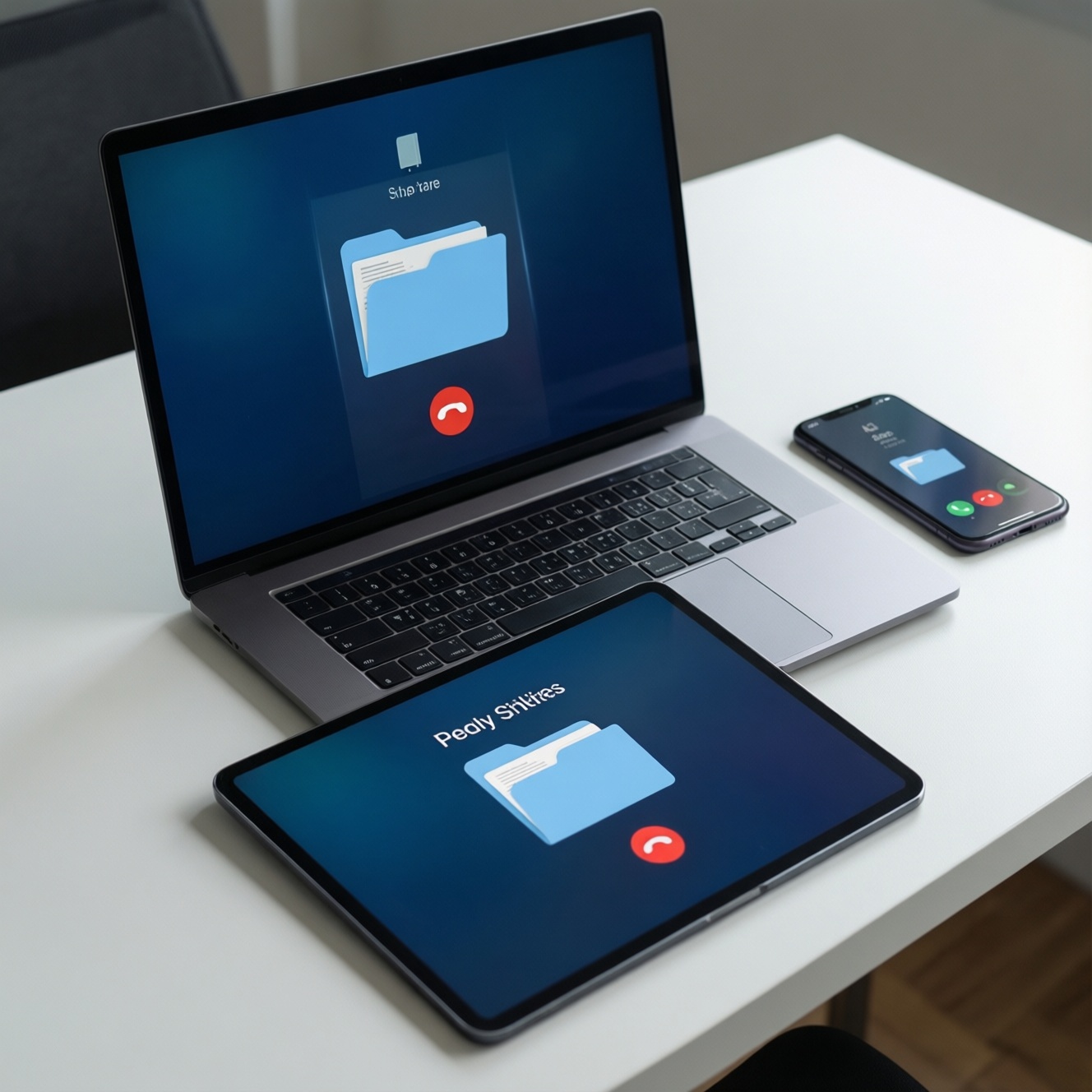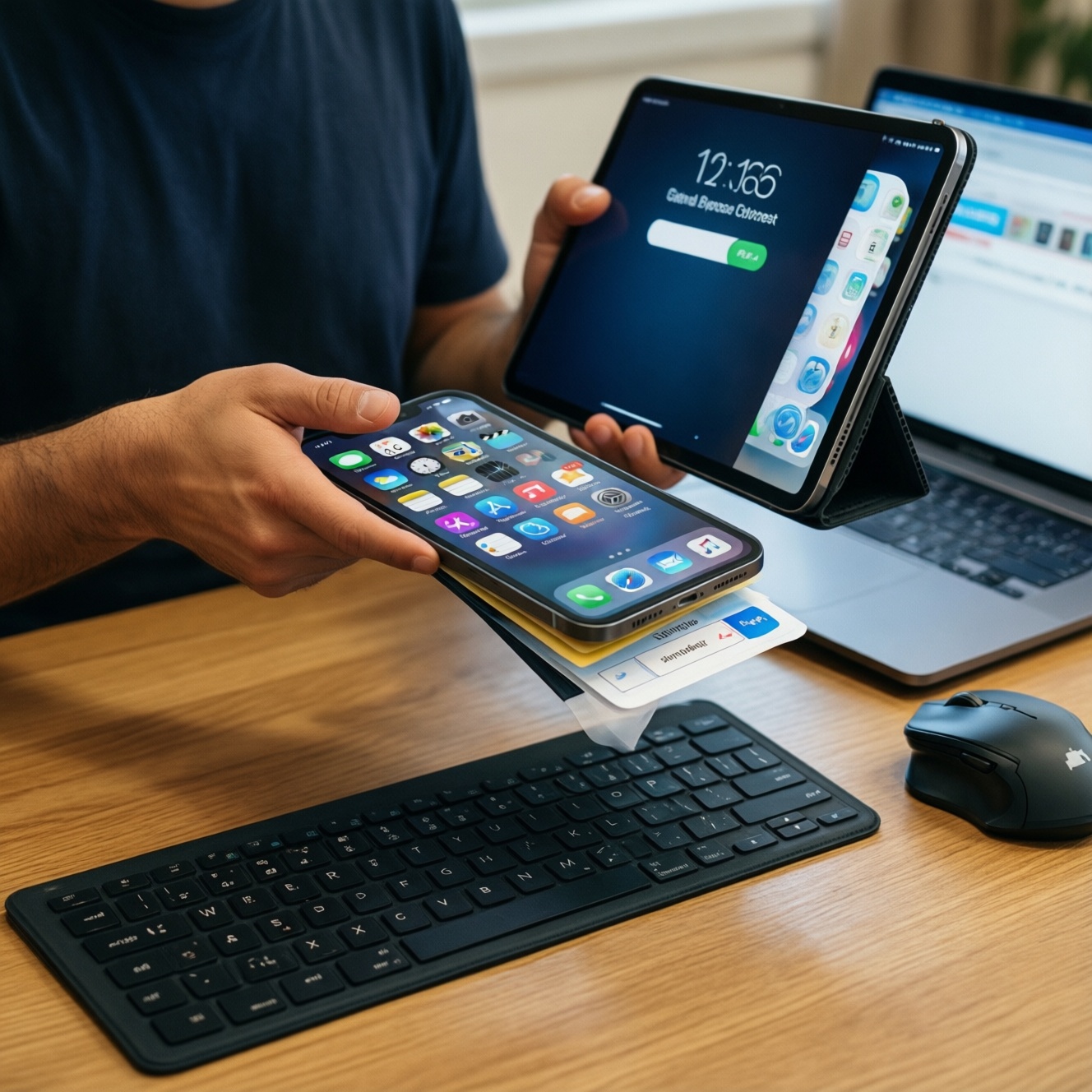
Multi-device work modes help you move tasks (apps, files, clipboard, calls, input devices) across phone/tablet/laptop with less friction. Apple Handoff/Continuity is usually the most seamless for app handoff and "it just continues" flows, Google's ecosystem is modular and flexible but less uniform, and Samsung Multi Control is excellent for shared keyboard/mouse inside Samsung's Android+PC/tablet stack.
Quick operational summary for multi-device modes
- If you need true app handoff (start on phone, continue in the same app on laptop/tablet), Apple Handoff/Continuity is the most consistent end-to-end.
- If your priority is file/URL sharing across mixed brands, Google-centric workflows (Drive, Chrome sync, Nearby Share/Quick Share alternatives) are practical but require choosing the right combination.
- If you work with a Galaxy phone + Galaxy Tab + (supported) Galaxy Book, Samsung Multi Control gives fast input sharing with minimal setup once paired.
- Expect reliability to depend on Bluetooth/Wi‑Fi state, same-account sign-in, and background permission settings more than raw device specs.
- Choose based on your "dominant device" (laptop-first vs phone-first) and whether you can standardize on one ecosystem or must stay cross-platform.
How Apple's Handoff and Continuity streamline cross-device tasks
Real-world example: You draft an email on iPhone, open your Mac, and continue the same message instantly without emailing yourself a draft. Limitation: the best Continuity features assume Apple hardware and the same Apple Account; mixing brands reduces the "handoff" magic.
Use these criteria to decide if Apple's approach fits your work style (this also answers "Handoff Continuity คืออะไร" in practical terms: it's Apple's system for continuing tasks and sharing context across Apple devices):
- App continuity depth: do you need the same app/session to resume, or is "share link/file" enough?
- Device coverage: check "Handoff Continuity ใช้กับอุปกรณ์อะไรได้บ้าง" for your lineup-typically iPhone/iPad/Mac (and some features with Apple Watch/Apple TV), all on the same account.
- Input sharing needs: do you want one keyboard/mouse across devices, or just cross-device copy/paste?
- Call & message bridging: how important is taking calls/SMS from a laptop/tablet without touching the phone?
- Offline tolerance: can your workflow survive intermittent Wi‑Fi/Bluetooth, or must it work on unstable networks (common on the move in TH)?
- Setup complexity: are you willing to tune permissions (Bluetooth, Wi‑Fi, background refresh) on every device?
- Team constraints: do you collaborate with Windows/Android users and need neutral formats and shared drives?
- Security posture: do you require strict account separation (personal vs work) and predictable device trust rules?
What Google's ecosystem offers: integration, limits, and workarounds
Real-world example: You open a Chrome tab on Android, and it's already waiting in Chrome on a Windows laptop via sync, while files land in Drive for quick access. Limitation: Google's "ecosystem" is often a set of components rather than one unified Continuity layer, so feature parity varies by device maker and OS.
This section supports "เปรียบเทียบ Apple Continuity กับ Google ecosystem" by treating Google as a toolbox you assemble based on your devices and tolerance for workarounds.
| Variant | Who it fits | Pros | Cons | When to pick |
|---|---|---|---|---|
| Android + Chromebook (Phone Hub & Chrome sync) | Mobile-first workers who want laptop convenience without Windows complexity | Tight browser/session sync; notifications/tethering-style flows; simple account-based setup | App-to-app "handoff" is limited; depends heavily on Google apps and Chrome-centric work | If your work is web-first (Docs/Sheets, web tools) and you can live inside Chrome |
| Android + Windows (Phone Link / OEM integrations) | Managers and office users on Windows who need messages, photos, and light continuity | Good for notifications, recent photos, basic messaging; reduces phone pickups | Feature set varies by phone brand/model; deeper continuity can be inconsistent after updates | If your laptop is Windows and you want "good enough" bridging without changing hardware |
| Google Drive + Docs/Sheets/Slides (cross-device "single source of truth") | Teams and creators collaborating across brands (Android/iOS/Windows/macOS) | Consistent access anywhere; versioning; share links instead of files | Not true session handoff for non-Google apps; offline editing requires planning | If collaboration and device neutrality matter more than app-resume magic |
| Nearby Share / Quick Share-style file transfer (Android-to-Android, some Windows support) | Field teams moving photos/videos/attachments fast | Fast local transfer without cables; avoids cloud upload for ad-hoc shares | Discovery/permissions can be finicky; cross-platform coverage is not universal | If you frequently move media between phones/tablets and sometimes to PCs nearby |
| Third-party cross-device clipboard/password tools (platform-agnostic) | Power users on mixed ecosystems who need predictable behavior | Works across brands; often more configurable than OS features | Extra account/subscription risk; needs careful policy if used for sensitive data | If you can't standardize hardware but want consistent clipboard and sign-in workflows |
Samsung Multi Control: overlap with DeX and device pairing quirks
Real-world example: You drag a photo from a Galaxy Tab into a chat on your Galaxy Book using one keyboard/mouse, then reply on the phone without switching peripherals. Limitation: Multi Control is strongest inside Samsung's supported device list and can be sensitive to pairing state and network/Bluetooth changes.
"Samsung Multi Control คืออะไร ใช้ยังไง" in one line: it's Samsung's cross-device input sharing that lets one keyboard/mouse control multiple Galaxy devices (typically phone/tablet/PC), often alongside Samsung's broader continuity features.
- If you already use a Galaxy phone and a Galaxy Tab for notes/meetings, then Multi Control is a high-impact upgrade because input sharing removes constant device switching.
- If you present and demo apps often, then pair Multi Control with DeX workflows so the phone can act like a "PC mode" while your laptop remains the management console.
- If you travel and networks change frequently (hotels, coworking, tethering), then prioritize simple fallback paths (cloud sync + cable) because Multi Control may need re-discovery when connectivity flips.
- If your job depends on non-Samsung Windows laptops, then treat Multi Control as a bonus (tablet+phone), not the core plan-your core should be Drive/OneDrive + a dependable sharing method.
- If you use multiple accounts (work/personal), then decide early which account owns device pairing and sync to avoid cross-account permission conflicts.
Direct feature-by-feature comparison: connectivity, file transfer, input sharing, and app continuity
Real-world example: You need to copy a one-time code from your phone to your laptop, attach a PDF to a chat, and keep the same browsing session across devices. Limitation: no ecosystem is perfect when devices are on different accounts, restricted by MDM, or aggressively killing background services.
- Decide your non-negotiable: app/session continuation (choose Apple first) vs modular sharing (Google toolbox) vs shared input across devices (Samsung strength).
- Map your actual device mix: phone + tablet + laptop brands/OS versions, and whether you can standardize (this directly affects "ซื้อแท็บเล็ตหรือโน้ตบุ๊กแบบไหนให้ทำงานข้ามอุปกรณ์ได้ดีที่สุด").
- Pick one primary transport: cloud-first (Drive/iCloud), local-first (Nearby/Quick Share/AirDrop-like), or hybrid; avoid relying on three partial methods.
- Validate input sharing: if you want one keyboard/mouse, shortlist Samsung Multi Control (Samsung stack) or Apple's built-in cross-device input features (Apple stack); otherwise skip this requirement.
- Test continuity under stress: toggle Wi‑Fi, switch hotspots, and lock/unlock devices; keep the option that recovers fastest without re-pairing.
- Confirm account and policy fit: work MDM profiles, separate Apple/Google accounts, and password manager rules can silently break cross-device features.
Security, privacy and reliability: real-world failure modes and mitigations

Real-world example: Your laptop stops seeing your phone for sharing right before a client call. Limitation: many "ecosystem" features fail quietly, so you need simple mitigation habits.
- Mistake: assuming features work across different accounts. Mitigation: keep all continuity features on one primary account per device set (or explicitly separate work/personal device groups).
- Mistake: ignoring Bluetooth/Wi‑Fi prerequisites. Mitigation: treat Bluetooth + same network (or reliable discovery) as mandatory for low-friction cross-device use.
- Mistake: letting battery savers kill background services. Mitigation: whitelist core apps/services (sharing, sync, companion apps) from aggressive power management.
- Mistake: depending on a single "magic" feature for critical work. Mitigation: keep a fallback path: cloud folder + cable transfer + link sharing.
- Mistake: mixing too many vendor layers (OEM sharing + third-party clipboard + OS bridging). Mitigation: standardize on one method per job: one for files, one for clipboard, one for messaging.
- Mistake: underestimating update churn. Mitigation: after major OS updates, re-check permissions (local network, Bluetooth, notifications) and re-authorize companion apps.
- Mistake: using cross-device clipboard for secrets. Mitigation: prefer password managers and avoid copying OTPs/passwords unless you trust the device set and lock-screen policies.
- Mistake: buying hardware without validating the exact feature you need. Mitigation: before purchase, confirm your must-have scenario (handoff, input share, local transfer) on the exact models/OS family.
Workflow recommendations by role: creator, manager, mobile-first worker, and hybrid commuter
For creators who need deep app continuity and polished handoff between phone/tablet/laptop, Apple Handoff/Continuity is typically the smoothest when you can commit to Apple hardware. For managers on Windows who mainly need messaging/notifications and easy link/file access, a Google-based mix (Chrome sync + Drive + phone-to-PC integration) is often the lowest-friction path. For mobile-first workers inside Samsung devices, Samsung Multi Control can be the biggest productivity jump due to shared input. For hybrid commuters juggling mixed brands, prioritize a cloud "source of truth" plus one dependable local sharing method rather than chasing full continuity everywhere.
Practical concerns, quick fixes and configuration tips
Why does cross-device handoff not appear even when both devices are nearby?
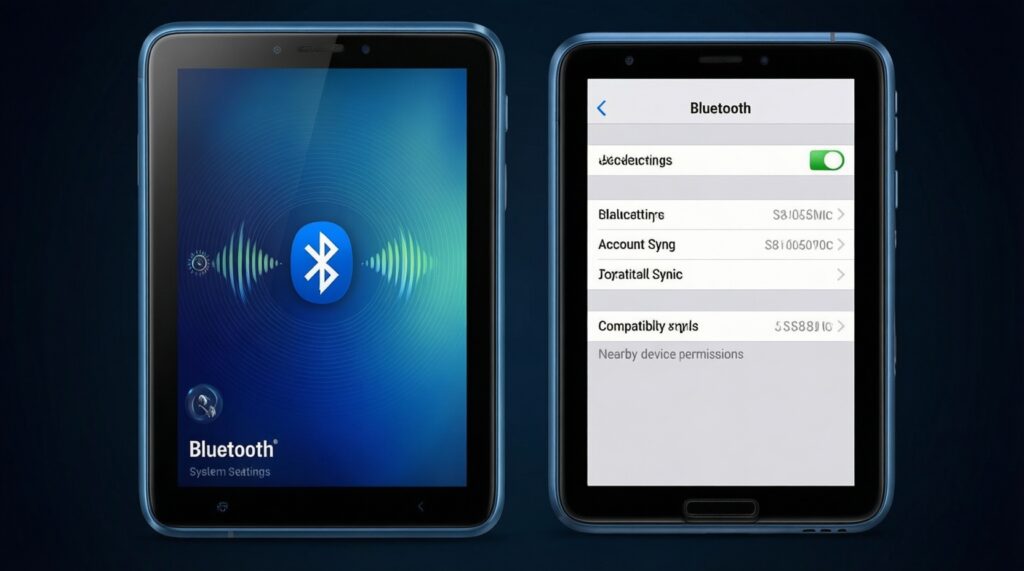
Most stacks require the same account, Bluetooth on, and a permitted background/nearby devices setting. Also check that both devices are on compatible OS versions and that the relevant feature is enabled in system settings, not only inside the app.
What devices does Apple continuity realistically cover?
In day-to-day use, the strongest flows are within iPhone, iPad, and Mac under one Apple Account. That's the practical answer to "Handoff Continuity ใช้กับอุปกรณ์อะไรได้บ้าง": it's best when you stay inside Apple hardware families.
Is Google's ecosystem a direct alternative to Apple-style app handoff?
Not usually as a single feature; it's closer to combining sync (Chrome/Drive) and sharing tools. This is why "เปรียบเทียบ Apple Continuity กับ Google ecosystem" often comes down to "unified continuity" vs "best-fit components."
Samsung Multi Control pairs, but the cursor won't move between devices-what's the first check?
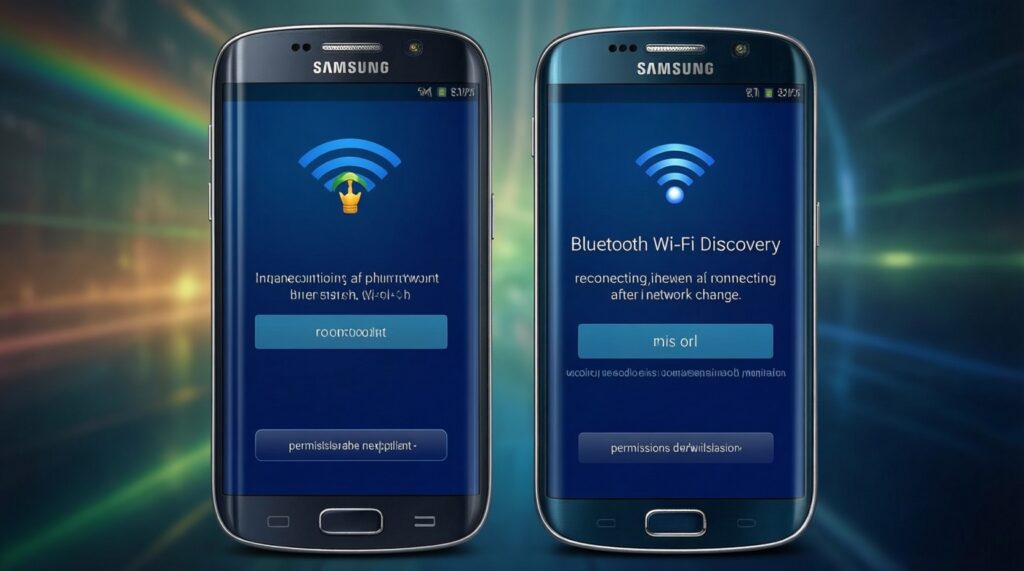
Verify both devices are signed into the intended Samsung account and that Bluetooth/Wi‑Fi discovery is stable. If you recently changed networks or enabled power saving, re-check permissions and reconnect devices.
Which matters more for reliable multi-device work: Wi‑Fi speed or consistency?
Consistency wins. Continuity features fail more from discovery/session drops than from raw bandwidth, so stable Wi‑Fi/Bluetooth behavior and correct permissions matter more than peak speed.
How should I choose a tablet or laptop for cross-device work?
Start from your phone ecosystem, then buy the companion device that supports your must-have feature (handoff, input sharing, or local transfer). This aligns with "ซื้อแท็บเล็ตหรือโน้ตบุ๊กแบบไหนให้ทำงานข้ามอุปกรณ์ได้ดีที่สุด": buy for the workflow, not for specs alone.
Can I safely use cross-device clipboard for passwords and OTP codes?
Avoid it for secrets unless you fully control the device set and lock policies. Prefer a password manager and keep OTP handling within trusted apps.