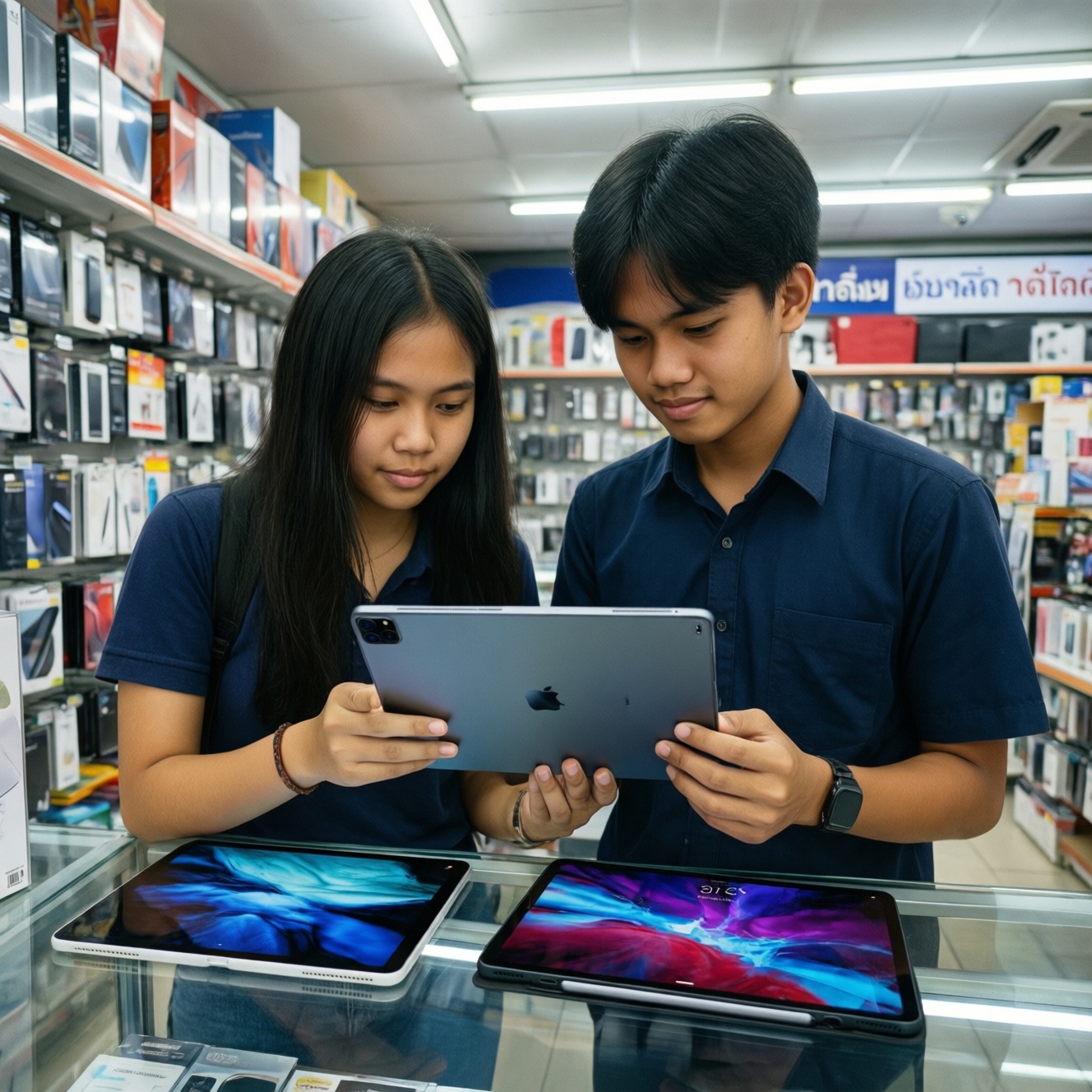
If you're choosing a tablet in Thailand for both study and work, start by picking the ecosystem and screen size that match your workflow: iPad for the broadest note-taking and creative app support, Galaxy Tab for value with multitasking and included stylus on many models, and Pixel Tablet for Google-first home/office use. Then decide 11-13" vs 8-10" based on typing and split-screen needs.
Compact summary for budget-conscious buyers
- Prioritize typing + split-screen: for most students and office work, 11-12" is the practical minimum; go smaller only if portability is the main goal.
- Budget sweet spot often means: iPad (10th gen) or Galaxy Tab S FE-series-strong enough for lectures, PDFs, and remote meetings without paying flagship premiums.
- Choose iPad if you rely on iPadOS apps (handwriting, creative suites) and want long-term accessory options for "ซื้อ iPad รุ่นไหนดี สำหรับเรียนและทำงาน".
- Choose Galaxy Tab if you want value multitasking, easy file handling, and frequent stylus bundles for "Galaxy Tab รุ่นไหนดี สำหรับเรียนออนไลน์และทำงาน".
- Pixel Tablet is best when you live in Google services and want a simple docked/undocked setup-check "Pixel Tablet ราคา และสเปก ล่าสุด" only after confirming keyboard/stylus availability where you buy.
- Spend money on RAM/storage tier and a reliable keyboard before chasing the thinnest body or the highest refresh rate.
How each ecosystem affects study and work workflows
Use these criteria to decide between iPadOS, Android (Galaxy Tab), and Google's Pixel approach before you compare models:
- Note-taking depth: handwriting latency, palm rejection, audio recording integration, and how well notes search across devices.
- Document workflow: PDF annotation, highlighting, exporting to Word/Google Docs, and how painless file transfers feel.
- Multitasking: split-screen stability, floating windows, drag-and-drop, and whether you can keep a meeting, notes, and a browser open comfortably.
- Keyboard and trackpad experience: shortcut support, language switching (Thai/English), and whether the case stays stable on small desks in lecture halls.
- App requirements for your faculty/job: LMS, exam proctoring, Office/Google Workspace, design tools, and any niche apps.
- Cross-device continuity: Airdrop-like sharing vs Nearby Share, phone notifications sync, and hotspot handoff (important if you tether often).
- Accessory ecosystem and resale: availability of third-party pens/keyboards and typical second-hand demand in TH.
- Updates and longevity: how long you expect to keep the tablet and whether you need guaranteed OS/security support.
When people ask "เปรียบเทียบ iPad กับ Galaxy Tab อันไหนคุ้มกว่า", the practical answer is usually: iPad wins on specialized tablet apps and accessory depth; Galaxy Tab often wins on bundle value and flexible multitasking; Pixel Tablet wins on Google-first simplicity but can be limited by accessory choices in some shops.
Performance vs price: CPU, RAM, storage and real-world tasks

For intermediate workloads (PDF + browser + Zoom/Meet + note-taking, light photo edits, occasional Canva/CapCut), the biggest "feel" differences come from RAM tier, storage, and thermal limits under multitasking-not peak benchmark scores. Choose the cheapest model that stays smooth in your heaviest real scenario.
| Option | Who it fits | Pros | Cons | Choose it when |
|---|---|---|---|---|
| iPad (base model, latest non-Air generation) | Students who need reliable apps for notes, PDFs, and video calls | Strong app support; stable performance; wide accessory market | Keyboard/pen can add cost; file handling can feel less "PC-like" | You're deciding "ซื้อ iPad รุ่นไหนดี สำหรับเรียนและทำงาน" and want the safest entry point without paying Air/Pro prices |
| iPad Air (11") | Study + part-time work + creative tasks (slides, light design, editing) | More headroom for multitasking; better long-term comfort for heavier apps | Jumps into a higher budget once you add keyboard/pen | You frequently split-screen with heavy tabs, or you edit photos/videos beyond basic trimming |
| iPad mini (8") | Commuters and readers who annotate a lot, but type less | Ultra-portable; great for reading and quick handwritten notes | Not ideal for long typing; split-screen is tight | Your "study" is mostly PDFs/books and you already have a laptop for long writing |
| Galaxy Tab S FE-series (10.9-12.4") | Budget-focused learners who want stylus note-taking + multitasking | Great value; flexible multitasking; often strong stylus availability | Lower performance ceiling for heavy creative work; accessory quality varies | You're researching "Galaxy Tab รุ่นไหนดี สำหรับเรียนออนไลน์และทำงาน" and want the best balance of price and "feels like a laptop" features |
| Galaxy Tab S flagship series (11") | Power users who want Android flexibility for work and media | Top-tier multitasking; strong display options; great for desktop-like modes | Higher price; easy to overspend if you only need basics | You regularly run multiple apps, external display workflows, and want fewer slowdowns over time |
| Google Pixel Tablet (11") | Google Workspace users who want a simple, shared-family device | Smooth Google services; good for Meet, Docs, Classroom, and home/desk docking | Keyboard/stylus availability can be uneven; fewer "pro tablet" niche apps vs iPad | You like the Google ecosystem, and "Pixel Tablet ราคา และสเปก ล่าสุด" makes sense only after confirming accessories where you buy in TH |
Display size and productivity: reading, note-taking and split-screen

Size is a productivity decision more than a comfort decision. Use these scenario rules (with a budget-first lens and a clear premium upgrade path):
- If you mostly read PDFs, highlight, and handwrite short notes during lectures, then 8-10" can work (budget: base iPad or an FE-class Tab; premium: mini-size iPad if you prioritize portability).
- If you attend online classes while taking notes side-by-side, then target 11" minimum (budget: Galaxy Tab S FE 11" or base iPad + simple keyboard; premium: iPad Air 11" or a Galaxy Tab S flagship 11").
- If you write long essays, do spreadsheet work, or manage email + docs all day, then 11-13" with a good keyboard becomes the baseline (budget: larger FE model if affordable; premium: higher-tier iPad/Galaxy Tab with better keyboard options).
- If your workflow is "meeting + slides + chat" and you hate switching apps, then pick the larger screen you can carry daily; your neck and focus will thank you more than a thinner chassis.
- If you do light photo editing for clubs/side gigs, then prioritize color consistency and performance headroom over size alone; 11" is fine, but avoid the lowest RAM/storage tiers.
Accessories and software that matter on a tight budget
- Decide your primary input: pen-first (handwriting), keyboard-first (typing), or mixed. Don't buy both on day one if your budget is tight.
- Set a storage floor for your use: if you keep offline videos/PDF libraries or record lectures, choose the next storage tier; cloud-only sounds nice until campus Wi‑Fi is weak.
- Confirm keyboard language and shortcuts: Thai/English switching and key layout matter for essays and office work.
- Check pen compatibility and replacement tips: confirm the exact stylus model supported by your tablet generation before buying a "universal" pen.
- Validate your must-have apps: test your LMS, Office/Google Workspace, and any exam/proctoring tools on that OS before committing.
- Plan ports and adapters: if you present in class, budget for a reliable USB‑C hub or HDMI adapter that matches your tablet's output behavior.
- Buy the case first: a stable stand angle is what makes online learning and remote meetings actually usable.
If you're searching "แท็บเล็ตสำหรับเรียนและทำงาน แนะนำ รุ่นไหนดี", treat accessories as part of the device cost; the "cheap" tablet can become expensive if it forces you into premium keyboards or multiple adapters.
Battery life, portability and daily endurance comparisons
- Overvaluing published battery claims instead of your real pattern (screen brightness, video calls, hotspot use, and Bluetooth pen/keyboard all change results).
- Choosing a large tablet for productivity, then leaving it at home because the bag weight and awkward size make it impractical.
- Ignoring charging convenience: if you can't reliably top up between classes, prioritize faster/consistent charging behavior and carry a compact charger.
- Assuming any USB‑C cable works well; poor cables cause slow charging and random disconnects with hubs.
- Buying the thinnest device and using a bulky case anyway; you effectively pay for thinness you won't keep.
- Not testing video-call endurance: long Meet/Zoom sessions heat devices and expose weak multitasking sooner than reading does.
- Forgetting audio needs: if you attend lectures without headphones, speaker clarity can matter more than one extra app feature.
- Skipping storage planning: low storage leads to constant cleanup, which feels like "bad battery/performance" in daily life.
Model recommendations by budget bracket and use case
For a budget-focused pick that still feels "complete," a base iPad (latest non-Air generation) suits lecture notes, PDFs, and reliable app needs, while a Galaxy Tab S FE-series often suits value multitasking and online learning with stylus-friendly workflows. A Pixel Tablet fits Google-first users who want a simple shared device at desk and home. If you can spend more, iPad Air 11" or a Galaxy Tab S flagship is typically the smoother choice for heavy split-screen, frequent remote meetings, and light creative editing.
Quick technical clarifications and buying pitfalls
Do I really need 11" for studying and office work?
If you type often or rely on split-screen for lectures, 11" is usually the comfortable floor. Smaller screens work best for reading-first and pen-first workflows.
Which is more cost-effective: iPad or Galaxy Tab?
When people ask "เปรียบเทียบ iPad กับ Galaxy Tab อันไหนคุ้มกว่า", compare the full setup cost: tablet + keyboard + pen + adapters. iPad often wins on app depth and accessory variety; Galaxy Tab often wins on bundle value and multitasking flexibility.
Is Pixel Tablet a good laptop replacement for students?
It can cover Google Docs, Meet, PDFs, and classroom tasks well, but it depends heavily on the keyboard and stylus options you can actually buy locally. Confirm accessories before deciding based on "Pixel Tablet ราคา และสเปก ล่าสุด".
How much storage should I choose for lectures and assignments?
If you download lots of PDFs, keep offline video, or record sessions, move up a storage tier. If you're cloud-first with stable internet, the base tier can be enough.
Will any stylus work for note-taking?
No-compatibility is model- and generation-specific, and cheap "universal" pens often lack palm rejection and good pressure behavior. Verify the exact supported stylus list before buying.
Should I buy the keyboard case immediately?
Buy it early if you write essays, do spreadsheets, or join remote meetings weekly. If you mostly handwrite notes, start with a solid stand case and add a keyboard later.
Is a small tablet + laptop better than one large tablet?
If you already own a laptop, a smaller tablet can be a great reader/notebook companion. If the tablet must be your main device for writing and multitasking, prioritize the 11-13" class.