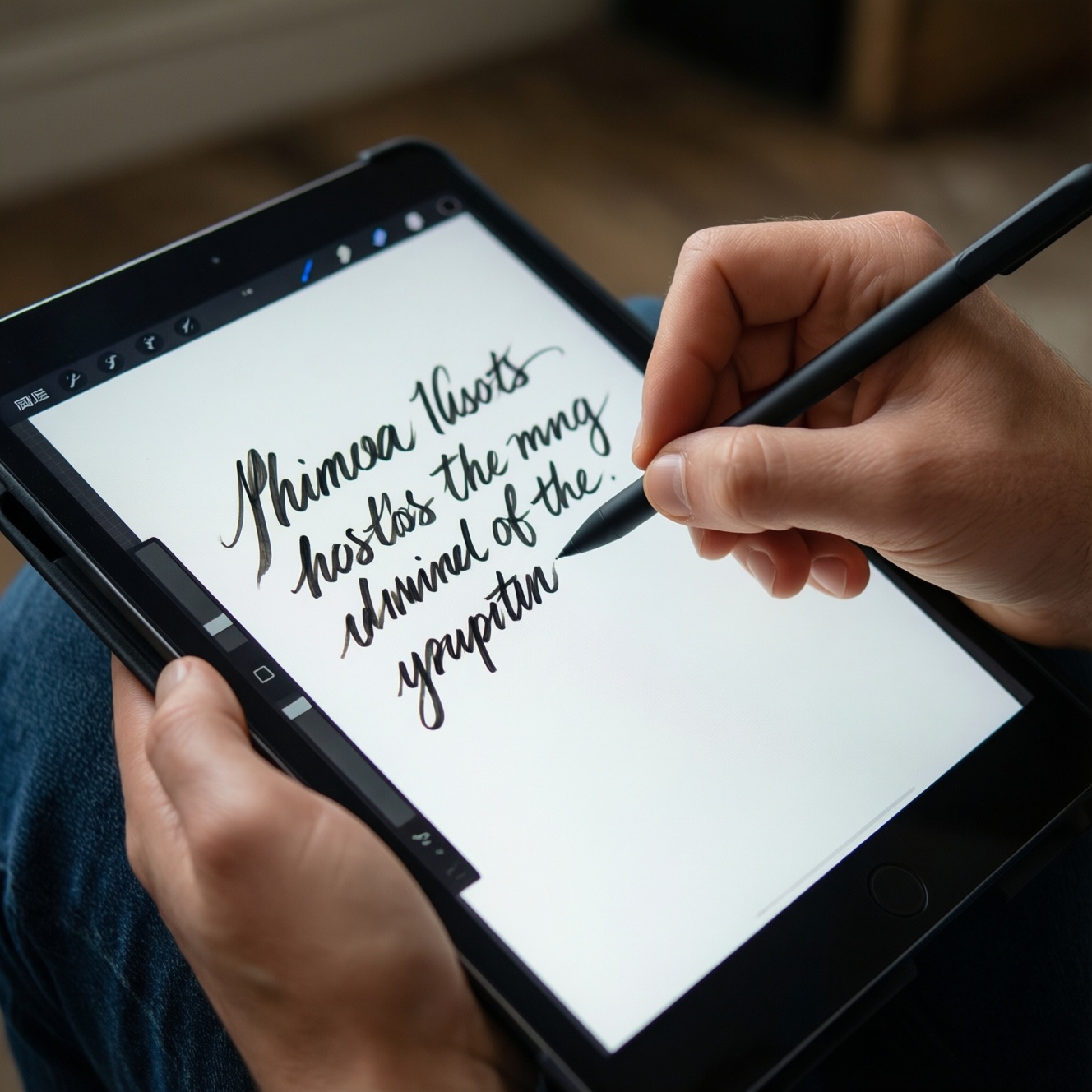
If your priority is the best "pen-on-screen" experience for digital note-taking, Apple Pencil (on a compatible iPad) usually delivers the most consistent low-lag feel and app depth, S Pen is the most convenient for Samsung tablet owners, and USI is the flexible choice for certain Chromebooks/Windows devices. The best option depends on your device, apps, and writing style.
Practical conclusions on latency, feel and app fit
- Choose the pen ecosystem that matches your device first (iPad → Apple Pencil; Galaxy Tab → S Pen; USI-compatible Chromebook/2-in-1 → USI), then optimize nibs and apps.
- Perceived latency is mostly shaped by display refresh, OS handwriting pipeline, and app rendering-not just the pen itself.
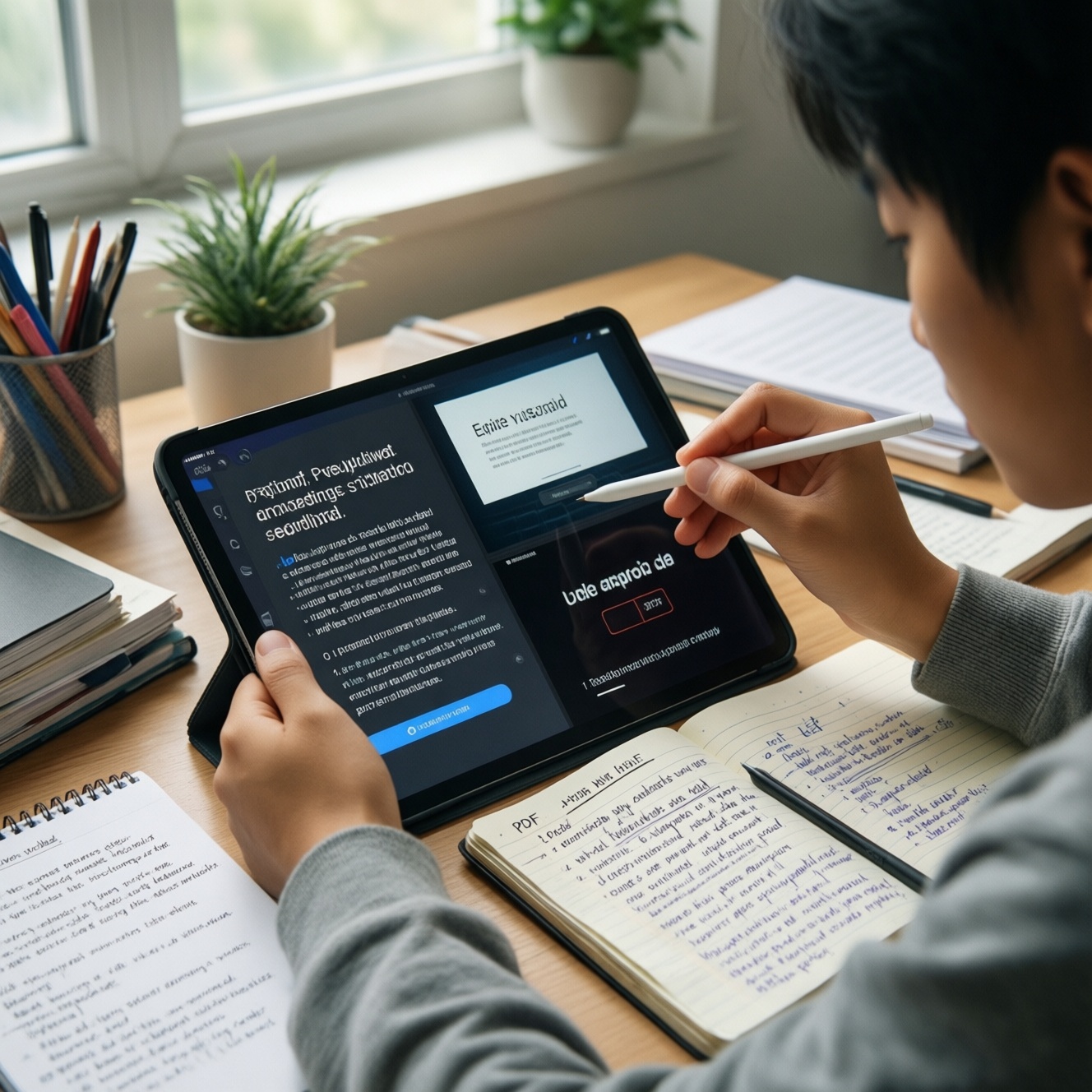
- If you annotate PDFs all day, prioritize palm rejection consistency and fast tool switching over theoretical pressure specs.
- For sketching, tilt behavior and stroke stabilization options in the app matter as much as hardware.
- USI can be excellent for writing when tuned, but cross-device variability is higher than iPad/Samsung.
- Budget planning often starts with local queries like "ซื้อ Apple Pencil ราคา" or "ซื้อ S Pen ราคา", but long-term satisfaction usually comes from the right app + nib + workflow bundle.
Latency compared: measurable lag, input sampling and perceptible delay
Use these criteria to judge latency and "ink follows pen" feel in a way that is actionable (and testable in-store):
- Display refresh rate and pen pipeline: higher refresh and optimized pen rendering reduce perceived lag during fast strokes.
- Stroke rendering under load: open a heavy PDF or multi-layer note; check if ink stays smooth when the device is warm or multitasking.
- Initial stroke latency: watch the very first millimeters of ink when you touch down after a pause (common weakness in some apps/devices).
- Diagonal line wobble: draw slow diagonals; wobble often signals digitizer filtering or app smoothing trade-offs.
- Fast cursor catch-up: scribble quickly; look for "rubber-banding" where the line catches up after you stop.
- Palm rejection stability: rest your hand naturally; latency can feel worse if accidental touches interrupt strokes.
- Hover/preview behavior (if supported): hover reduces aiming time for UI tools and small annotations.
- App engine consistency: test at least two apps (one note app, one drawing/markup app) because app rendering can dominate perceived latency.
Pen feel and control: nib types, tilt support, pressure curves and palm rejection
Below are practical "feel" bundles (hardware + typical tuning) you can map to how you write or draw. The same person can prefer different bundles for class notes vs. sketching.
| Option | Who it fits | Pros | Cons | When to choose |
|---|---|---|---|---|
| Apple Pencil + iPad note apps (default nib) | Students, researchers, heavy PDF annotators | Very consistent palm rejection; strong app ecosystem; predictable stroke behavior across apps | Locked to Apple hardware; tip feel can be "hard" on glass without a texture solution | When you want the least friction from device to apps and you rely on "แอปจดโน้ต iPad ที่ดีที่สุด" type workflows |
| Apple Pencil + textured screen protector (paper-like feel) | Writers who want more control; light sketchers | More friction for handwriting; better micro-control on small text | Can wear tips faster; may reduce screen crispness; may add noise to fast strokes depending on protector | When your priority is handwriting comfort over the slick glass feel |
| S Pen + Samsung Notes (or equivalent) tuned for writing | Galaxy Tab users; executives who mark up docs in meetings | Convenient ecosystem integration; solid palm rejection; quick shortcuts and pen tools often feel "built-in" | Experience varies by Galaxy Tab model; app choice matters more than on iPad | When you want a reliable, integrated note workflow and you search "แอปจดโน้ต Samsung ที่ดีที่สุด" to lock in a daily driver |
| S Pen + art-oriented apps (tilt/brush focus) | Creatives who sketch on Samsung | Good control for shading if the app handles tilt/brush engines well; quick tool switching | Some apps smooth aggressively, changing the feel; brush engines vary widely | When your work is more sketch/ideation than dense handwriting |
| USI stylus + Chromebook/2-in-1 (writing-first setup) | Students on Chromebooks; field workers filling forms | Hardware choice flexibility; can be cost-effective; good for straightforward writing and form markup | Higher variability across devices; palm rejection and latency can depend heavily on model and app | When you already own a USI-compatible device and your main need is notes/forms (often preceded by "ปากกา USI ซื้อที่ไหน") |
| USI stylus + Windows inking/OneNote-like workflow | Professionals who need cross-platform files; mixed typing + pen | Great for hybrid laptop workflows; easy file movement and collaboration | Feel depends on digitizer + app; hover/tilt support is not uniform | When you need pen input on a productivity machine more than a pure tablet experience |
Platform differences: Apple Pencil, S Pen and USI hardware traits
- If you already use an iPad for study or creative work and want the broadest selection of polished pen-first apps, then Apple Pencil is usually the safest "no-surprises" choice.
- If you own a Samsung Galaxy Tab and you value integrated features (instant notes, quick actions, tight system shortcuts), then S Pen is the most straightforward path-compare your local "ซื้อ S Pen ราคา" options mainly for replacement/extra pens.
- If you need a pen for a Chromebook or a USI-capable 2-in-1 and your priority is compatibility and replaceability, then USI is the logical standard-start from device compatibility before asking "ปากกา USI ซื้อที่ไหน".
- If your core workflow is marking up PDFs and exporting them cleanly, then prioritize app export quality and page navigation gestures over pressure/tilt marketing specs.
- If you sketch with shading and brush angles, then choose the platform where your preferred art app has the best brush engine and tilt behavior (hardware alone won't guarantee it).
Apps that matter: best choices for note-taking, markup, and sketching
Use this quick selection algorithm to avoid buying a great pen and then living in the wrong app.
- Define the dominant task: lecture notes, meeting notes, PDF markup, or sketching. Mixed use is fine-pick the "80% case."
- Pick one primary note app and one PDF/markup tool: many people force one app to do everything and blame the pen for the friction.
- Test handwriting tools you'll use daily: pen types, highlighter, lasso selection, shape tool, and search (including handwriting search if available).
- Check export and sync: ensure your notes/PDFs export the way your team/school needs (flattened PDF, editable, page size preserved).
- Validate palm rejection in your posture: desk writing vs. couch writing can change accidental touches and perceived lag.
- Assess latency in a worst-case file: a big PDF or a long notebook. Smoothness here matters more than quick demos.
- Only then decide accessory spend: tip style, grip, and texture layer based on what you learned-this is where "ซื้อ Apple Pencil ราคา" comparisons can mislead if you skip workflow testing.
Operational realities: pairing, battery life, firmware updates and accessories
- Buying the wrong compatibility generation: Apple Pencil generations and iPad models must match; USI versions can differ by device class.
- Assuming "any stylus works" on a touchscreen: capacitive tips are not the same as active pens for handwriting accuracy and palm rejection.
- Ignoring charging ergonomics: if charging is annoying, you will stop using the pen; check where/how it charges and how easy it is to top up.
- Not planning for tip wear: textured protectors and heavy pressure can accelerate wear; keep spare tips if your workflow is pen-heavy.
- Over-smoothing in apps: stabilization can improve lines for drawing but can make handwriting feel delayed; tune per app.
- Skipping firmware/OS updates: pen performance and palm rejection improvements often arrive via OS updates; stay current when stability permits.
- Using the wrong nib feel for your handwriting size: small handwriting often benefits from higher friction; large handwriting may feel better on smoother surfaces.
- Neglecting ergonomics: grip diameter, weight balance, and button placement matter in long lectures and long meetings more than spec sheets.
Persona-driven recommendations: students, creatives, executives and researchers
For students who want dependable lecture notes and easy study workflows, Apple Pencil on iPad often pairs best with "แอปจดโน้ต iPad ที่ดีที่สุด" style ecosystems; for creatives on Samsung hardware, S Pen can be the most convenient daily tool when your preferred art app behaves well; for executives prioritizing quick meeting markup on a Galaxy Tab, S Pen is typically the lowest-friction choice; for researchers living in PDFs across platforms, USI or Apple Pencil can both work-choose based on your primary device and export needs, then tune the app stack.
Common user dilemmas resolved with concise guidance
Should I choose the pen first or the app first?
Choose the device ecosystem first (iPad/Samsung/USI device), then select apps. The app determines most of your daily friction and perceived responsiveness.
Is Apple Pencil always lower-latency than S Pen?
Not always in every situation, because the app and device display pipeline can dominate. In practice, Apple's consistency across apps is often the bigger advantage than a single latency number.
What does "USI" mean for note-taking buyers?
USI is a compatibility standard for certain Chromebooks and some 2-in-1 devices. Confirm your device supports USI (and which version) before buying a pen.
I'm searching "ซื้อ Apple Pencil ราคา" or "ซื้อ S Pen ราคา"-what should I compare besides price?
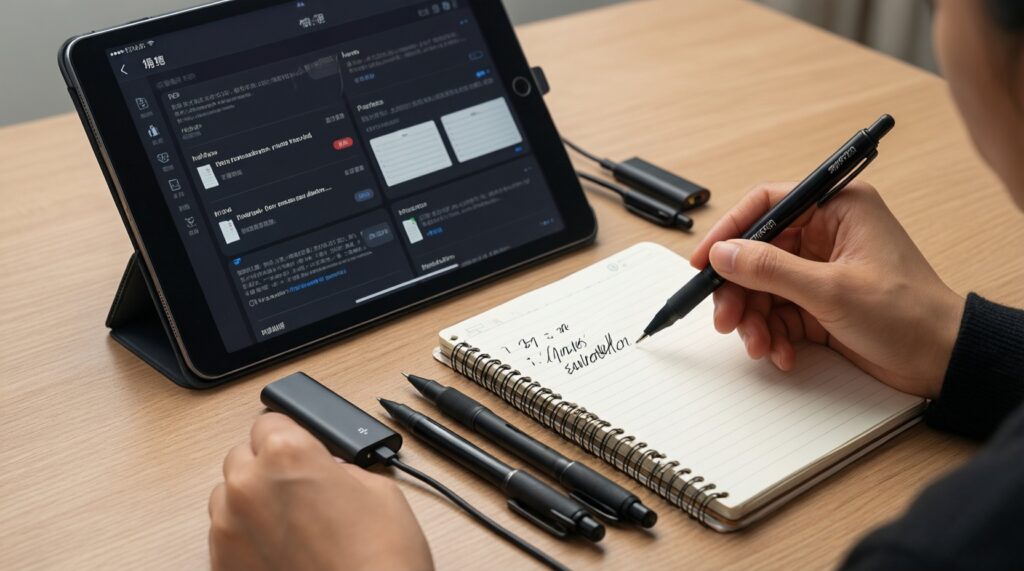
Compare compatibility, charging method, tip availability, and whether your top note/PDF apps feel smooth on your specific device. A cheaper pen that annoys you daily is a bad deal.
Which matters more for handwriting: pressure levels or palm rejection?
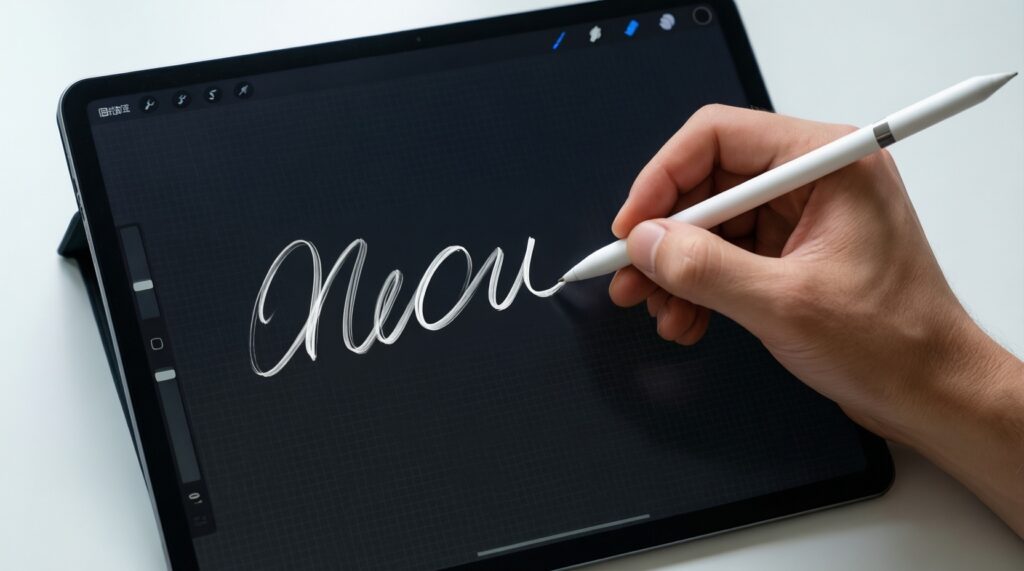
Palm rejection and stroke stability usually matter more for handwriting. Pressure nuance becomes important mainly for drawing and brush work.
What's the simplest way to test "feel" in-store?
Draw slow diagonals, fast scribbles, and small letters; then annotate a PDF page while resting your palm normally. If selection (lasso) and erase are frustrating, the workflow will not scale.
What are safe app picks to start with on iPad and Samsung?
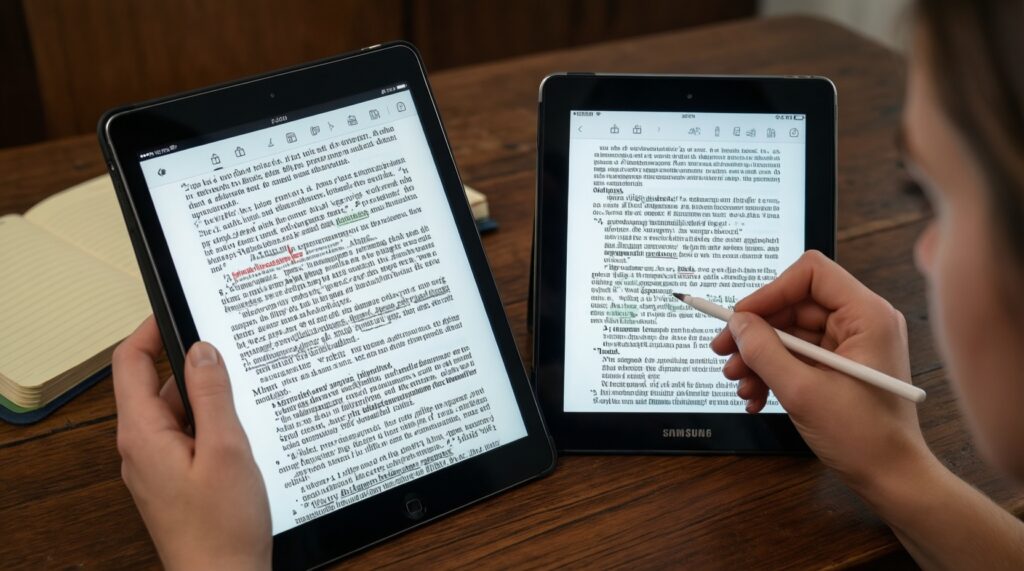
Start with the platform's first-party note app for reliability, then add a dedicated PDF annotator if you read papers or textbooks. Use your short list from "แอปจดโน้ต iPad ที่ดีที่สุด" and "แอปจดโน้ต Samsung ที่ดีที่สุด" searches to trial two candidates each.