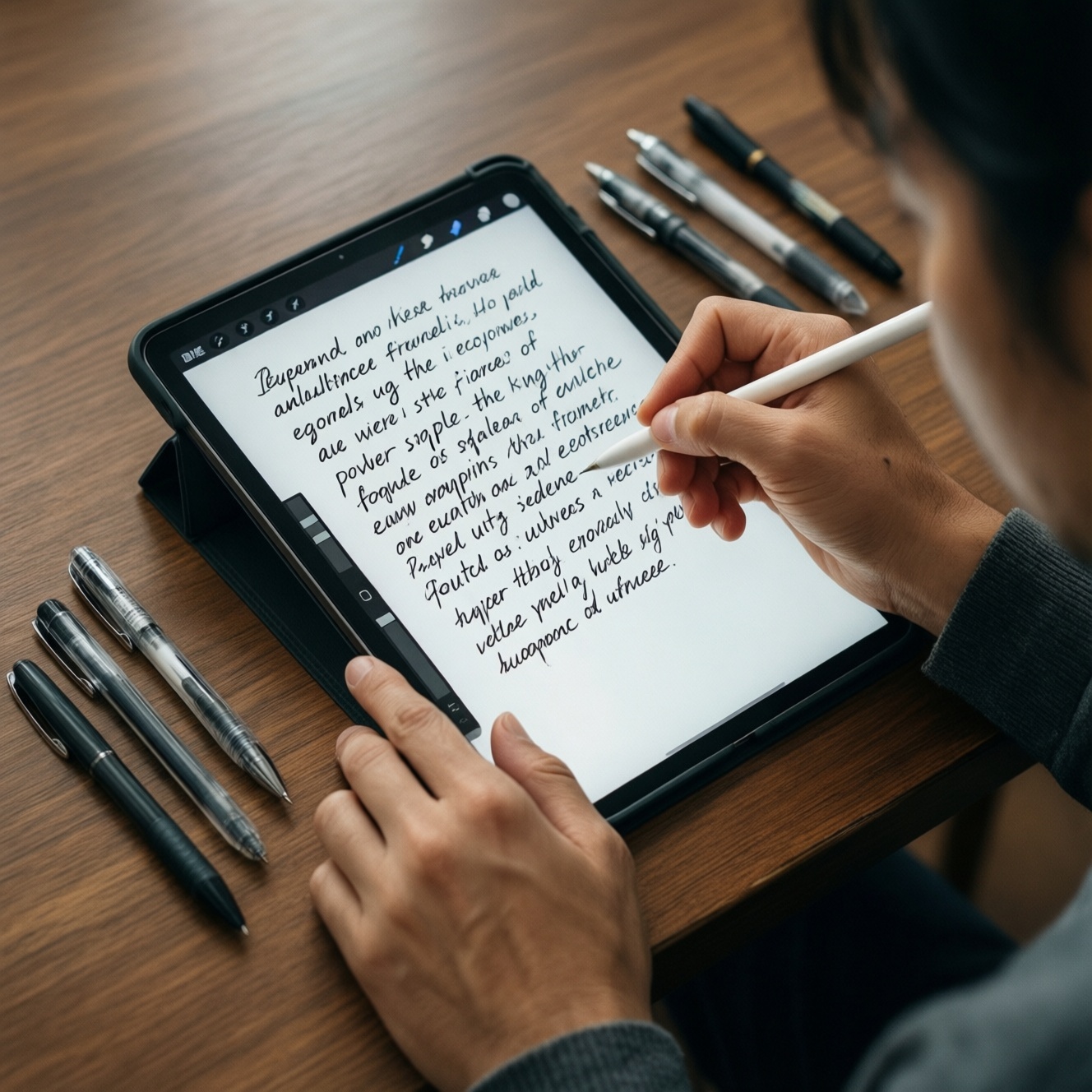
For note-taking, the best stylus choice is determined by your device ecosystem: Apple Pencil for iPad, S Pen for Samsung Galaxy devices, USI pens for compatible Chromebooks/Windows tablets, and generic capacitive pens only for occasional taps. Start by confirming protocol compatibility, then prioritize palm rejection, low latency, and a note app that matches your workflow.
At-a-glance buying guidance
- Match the stylus protocol to your device first (Apple Pencil, S Pen, USI, or passive capacitive); accessories cannot "convert" protocols.
- For heavy handwriting, prioritize palm rejection + stable pen input over extra pressure levels.
- Choose a charging method you will actually maintain (magnetic, USB-C, or replaceable battery).
- Tip availability matters: easy-to-find replacements reduce long-term friction and screen wear.
- Pick your app workflow early (typed search, PDF markup, cross-platform sync), then choose the platform that supports it best.
- If you switch devices often, favor USI or a platform-agnostic workflow rather than a locked ecosystem.
How stylus protocols affect writing feel (Apple Pencil, S Pen, USI, passive)
Protocols define how the pen talks to the screen and OS. That drives writing feel more than marketing specs. Use these criteria to compare:
- Palm rejection integration: OS-level handling (usually best on Apple Pencil and S Pen) reduces stray touches when you rest your hand.
- Input stability (line wobble): important for small handwriting; depends on digitizer quality and app smoothing.
- Latency perception: the "ink follows the tip" feel; also influenced by display refresh and app rendering.
- Pressure support: useful for sketching; for note-taking it's optional unless you vary stroke thickness intentionally.
- Tilt behavior: mostly a drawing/shading benefit; less critical for writing.
- Hover / pointer features: can help precision (e.g., selecting text, placing annotation); not universal.
- Button + shortcuts: one button for eraser/selection can speed up notes significantly.
- Charging + pairing model: affects daily reliability (magnetic attach, Bluetooth pairing, or none).
- Replacement ecosystem: tips, nibs, service, and availability in Thailand retailers.
Compatibility checklist: device models, OS versions, and screen types
Before comparing brands, confirm three things: (1) your device explicitly supports the stylus protocol, (2) the OS version supports pen features (palm rejection, shortcuts), and (3) your screen is compatible with active pens (capacitive-only screens limit you to passive stylus behavior).
| Option | Who it fits | Pros | Cons | When to choose |
|---|---|---|---|---|
| Apple Pencil (for iPad) | iPad users who write daily and want the most consistent pen experience | Strong palm rejection, reliable note apps, smooth handwriting feel | Works only on supported iPad models; model-to-iPad compatibility is strict | When your main device is iPad and you want "pen-first" note-taking |
| S Pen (for Samsung Galaxy) | Galaxy Tab / Galaxy phone users who want integrated pen features | Often excellent palm rejection, shortcuts, and tight OS integration | Best experience is Samsung ecosystem; compatibility varies by model | When you already live in Samsung and want quick note capture anywhere |
| USI stylus (for USI devices) | Chromebook/Windows tablet users with USI-supported screens | Cross-vendor option; practical for education and mixed fleets | Experience varies by device panel and pen; features may differ by USI version | When you need a standards-based pen for compatible Chromebook/2-in-1 |
| Microsoft Pen Protocol / Surface Pen (where supported) | Windows users focused on OneNote, PDF markup, and desktop workflows | Good for Windows ink workflows; mature desktop app ecosystem | Compatibility is device-specific; some PCs only support basic pen functions | When your primary workflow is Windows note + PDF review with keyboard/mouse |
| Generic active stylus (device-specific, non-USI) | Budget buyers with a tablet that supports a specific third-party active pen | Can offer palm rejection and pressure if truly compatible | Confusing compatibility; may lose features after OS/app updates | When the manufacturer lists it as compatible with your exact model |
| Passive capacitive stylus (universal rubber tip) | Occasional tapping, simple diagrams, signing on any touchscreen | No pairing, cheapest, works everywhere | No real palm rejection, no pressure/tilt; handwriting feels less controlled | When you only need basic input and can tolerate finger-like behavior |
- iPad: check iPad model generation and Apple Pencil generation compatibility before purchasing; many shoppers searching "ปากกาสไตลัสสำหรับ iPad จดโน้ต แนะนำ" get stuck here.
- Samsung Galaxy: confirm whether your device includes S Pen support (built-in silo or external) and whether the specific S Pen model is compatible; this is the first step behind "ซื้อ S Pen สำหรับ Samsung ราคา".
- Chromebook/Windows with USI: verify "USI support" in the device specs; if you're wondering "ปากกาสไตลัส USI ซื้อที่ไหน ราคา", start by confirming USI first, store second.
- Screen type reality check: if the device does not advertise active pen support, you will only get passive capacitive behavior regardless of pen price.
Performance trade-offs: latency, tilt, pressure levels, and palm rejection
For note-taking, "better" usually means fewer mistakes and less friction, not maximum specs.
- If you write long lectures/meetings, choose a platform/protocol with strong palm rejection and stable ink (Apple Pencil or S Pen on supported devices), then optimize the app's pen smoothing and page template.
- If you annotate PDFs heavily, prioritize precise selection/highlighting and a good PDF engine (iPadOS apps are strong; Windows can be excellent with desktop tools).
- If you sketch diagrams alongside notes, tilt and pressure become more useful; pick an active stylus that your device fully supports and use an app with predictable brushes.
- If you need cross-device continuity, prioritize sync and export (PDF, image, text search) over pen features; USI/Windows/Android can work well if the app is the anchor.
- If your handwriting is small or you write in mixed languages, focus on line stability and zoom-window writing features (some apps handle this better than hardware changes).
Ergonomics and hardware: weight, tip options, charging and battery life
- Hold the pen as you would for 30-60 seconds: if your grip tightens, choose a thicker barrel or a textured grip.
- Pick a tip style you can replace locally (or order reliably): hard tips feel precise; softer tips can feel quieter but wear faster.
- Decide your charging tolerance: magnetic attach-and-charge is convenient; USB-C is universal; replaceable batteries reduce downtime but add recurring hassle.
- Check button placement and shortcut customization (eraser/selection/undo). Avoid pens where you accidentally press the button while writing.
- Confirm magnetic attachment/pen storage: losing the pen is the most common "failure mode" for daily note-takers.
- Test screen friction if possible: a matte screen protector can improve control but may reduce clarity and increase tip wear.
- For travel, prefer a setup that still works when the pen is low battery (some platforms degrade more gracefully than others).
Best apps by workflow: note-taking, sketching, annotation and PDF review
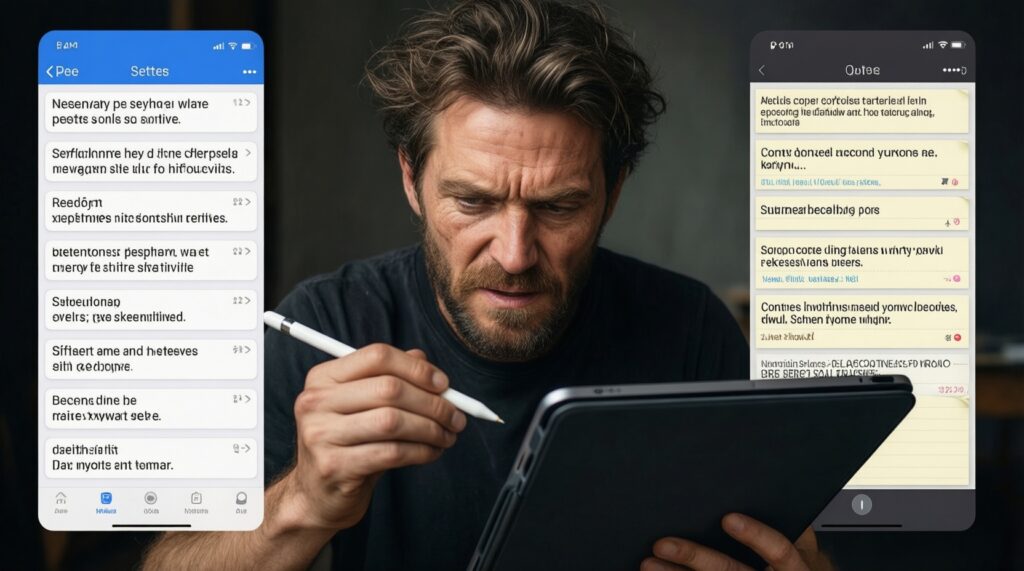
Most "bad stylus" experiences come from mismatched apps and settings. Avoid these common selection mistakes:
- Buying hardware first, then discovering your preferred workflow requires a specific app ecosystem (e.g., handwritten search, collaboration, or PDF hyperlink handling).
- Assuming every app supports palm rejection equally; some rely more on OS features than others.
- Choosing an app with weak export: if you can't reliably export to PDF with embedded pages, you'll get locked in.
- Ignoring page templates and spacing: the right ruling/grid can improve legibility more than a pen upgrade.
- Not tuning pen settings: smoothing, pressure curve, and "pen vs pencil" tools change feel dramatically.
- Overvaluing pressure levels for pure note-taking; consistent strokes usually matter more.
- Not testing your core use case: fast bullet notes, math symbols, Thai/English mix, or diagram + text on one page.
- Picking a "drawing-first" app for lecture notes and then struggling with organization, tags, and search.
Practical app picks by platform (shortlist)
- iPad: GoodNotes / Notability for structured handwritten notes; Apple Notes for quick capture and device integration; a dedicated PDF app if you review many documents. If you're comparing "แอปจดโน้ต iPad Android ที่ดีที่สุด ราคา", anchor the decision on sync and export rather than price alone.
- Android (Galaxy): Samsung Notes for tight S Pen integration and quick capture; OneNote if you need cross-platform notebooks.
- Windows/Chromebook: OneNote for handwriting + organization; a strong PDF annotation tool for review-heavy workflows; confirm pen support and palm rejection behavior on your specific hardware.
Price vs ecosystem: accessories, repairs, and long-term support
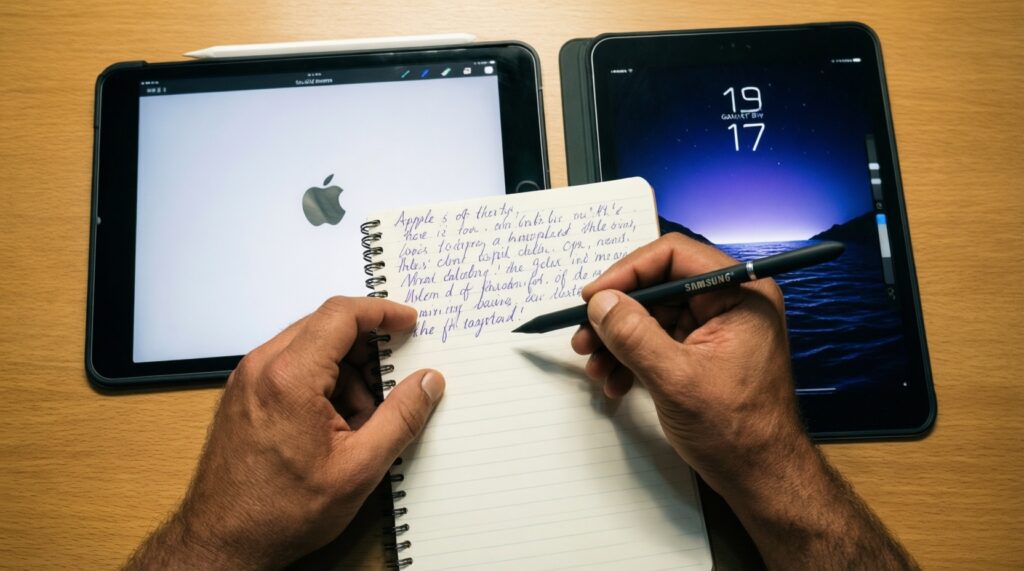
- Do you already own an iPad? Choose Apple Pencil that matches your iPad model; this resolves the real question behind "ซื้อ Apple Pencil รุ่นไหนดี สำหรับจดโน้ต".
- Do you already own a Samsung Galaxy with S Pen support? Buy the compatible S Pen model and start with Samsung Notes; upgrade apps only if your workflow outgrows it.
- Are you on a USI-compatible Chromebook/2-in-1? Get a USI stylus from a reputable brand, then standardize your notes around an app with reliable export and sync.
- Are you device-agnostic and budget-constrained? Avoid "mystery active pens"; either commit to a supported ecosystem or accept a passive capacitive stylus for light use.
Best fit tends to be: Apple Pencil for iPad-first note-takers, S Pen for Samsung users who want integrated shortcuts, USI for standards-based Chromebook/Windows setups, and passive styluses for occasional input. Long-term satisfaction usually comes from buying the right compatible pen and an app with export/search that matches your study or work routine.
Common decision points and quick answers
Can I use Apple Pencil on Android or Windows tablets?
No. Apple Pencil is designed for supported iPad models and won't function as an active pen on Android/Windows devices.
Is S Pen compatible with any Android tablet?
Not universally. S Pen works best on Samsung devices that explicitly support it; other Android tablets may require their own active-pen protocol or only support passive styluses.
What does USI mean, and why should I care?
USI is a stylus standard used on some Chromebooks and tablets. If your device lists USI support, a USI pen is a safer compatibility bet than random third-party "active" pens.
For pure note-taking, do I need pressure and tilt?
Usually not. Palm rejection, low perceived latency, and stable lines improve handwriting more than extra pressure/tilt features.
Why does my handwriting look wobbly even with an active stylus?
It can come from the digitizer quality, app smoothing settings, or screen protector friction. Try another app and adjust smoothing before replacing the pen.
Which matters more: the stylus or the app?
For organizing and retrieving notes, the app matters more. For writing comfort and reliability, stylus + device compatibility matters more.
Should I buy a cheap generic stylus first?
Only if you accept finger-like behavior. For serious handwriting, jump directly to the active stylus protocol your device supports.