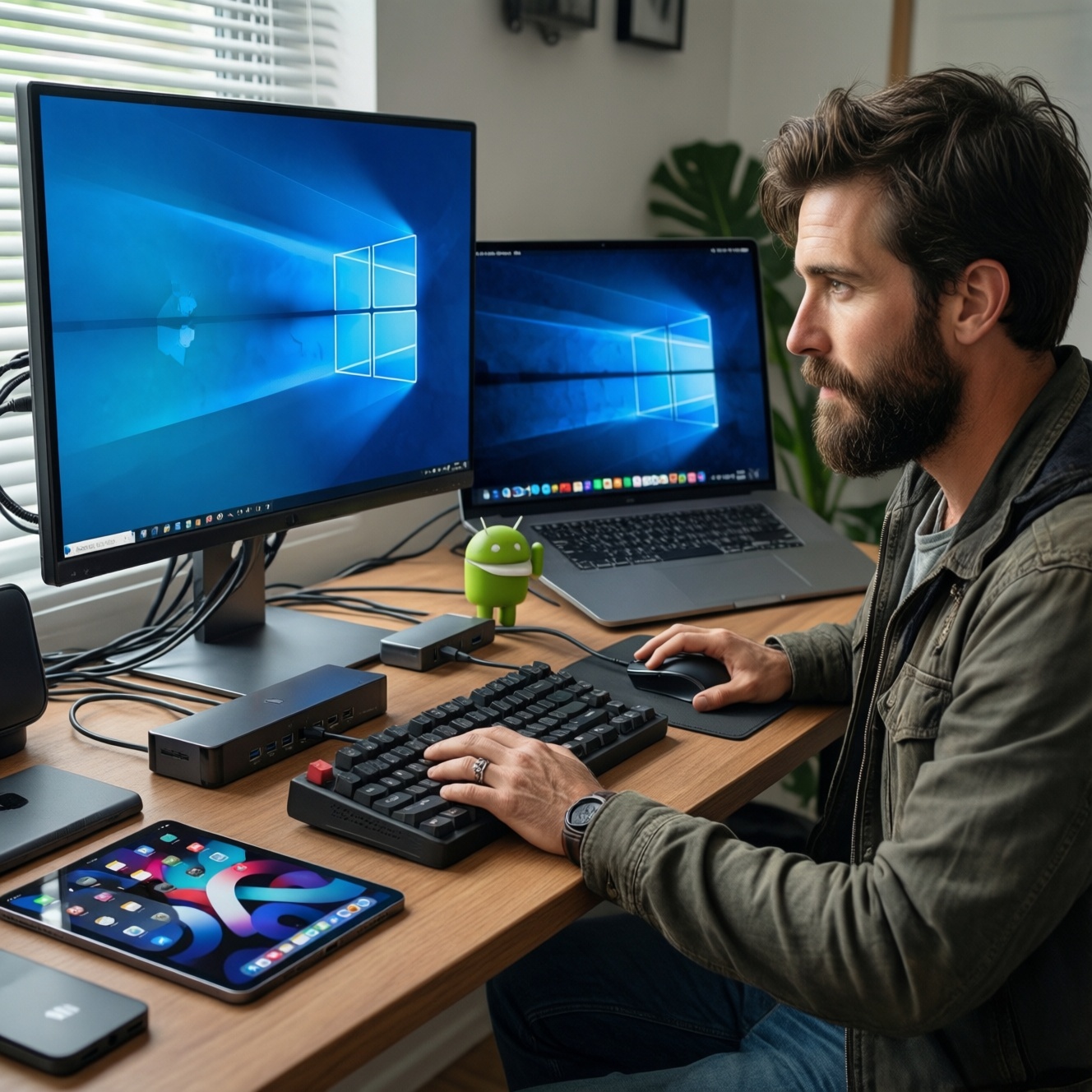
To pick the best work peripherals per ecosystem, match four things: connection stack (Bluetooth vs dongle), OS-level shortcuts and gestures, USB-C video and pass-through requirements, and your power budget. Start from your primary device (Windows, macOS, iPadOS, Android), then choose a keyboard, mouse, hub, and portable monitor that keep one workflow consistent across desks and travel.
Executive summary: optimal peripheral matches for each ecosystem
- Windows: prioritize 2.4 GHz dongle stability for keyboard/mouse, and a USB-C hub that explicitly supports the video mode your laptop outputs.
- macOS: choose a Mac-layout keyboard and a gesture-capable mouse; pick a hub that avoids sleep/wake glitches and supports the monitor mode you need.
- iPadOS: favor compact Bluetooth peripherals, a hub with reliable power pass-through, and a portable monitor that can be powered from one side without drain surprises.
- Android: confirm OTG/USB-C Display output before buying a hub/monitor; aim for lightweight Bluetooth input gear for consistent pairing.
- For travel: minimize adapters by standardizing on USB-C PD plus a single cable path from device → hub → monitor.
Compatibility criteria: what determines the best keyboard, mouse, hub and portable monitor
- Connection method: Bluetooth for multi-device convenience; 2.4 GHz dongle for lower latency and fewer dropouts in crowded RF environments.
- OS layout and shortcuts: macOS needs Command/Option placement; Windows benefits from Win/Fn layers; iPadOS/Android rely on mobile shortcut mappings.
- Multi-device switching: hardware device toggle (keyboard/mouse) beats re-pairing when you alternate between laptop/tablet/phone.
- Pointer features: driver-less precision vs OS-native gestures; some advanced buttons/gestures require vendor software (often not available on iPadOS/Android).
- USB-C video capability: ensure your device outputs video over USB-C (Alt Mode or equivalent) before choosing a hub or จอพกพา.
- Power Delivery pass-through: your ฮับ USB-C must support charging while driving display and peripherals, without throttling.
- Port mix: USB-A for legacy devices, USB-C for modern accessories, HDMI for conference displays, and card readers for creators.
- Physical ergonomics: key travel, split/tilt options, mouse shape, and monitor stand stability matter more than small spec differences.
Persona setup patterns that reduce friction
- Executive: one อุปกรณ์เสริมทำงาน set that pairs instantly (keyboard + mouse) and a hub that connects monitor + charger with one cable.
- Creative pro: hub with reliable external storage + display, plus a consistent mouse for timeline work and a color-stable portable monitor.
- Developer: low-latency keyboard, multi-device mouse, and a hub that stays stable during sleep/wake and frequent dock/undock cycles.
- Frequent traveler: compact Bluetooth gear and a single-cable portable monitor that can be powered from the laptop/tablet without extra bricks.
Top keyboards by ecosystem: Windows, macOS, iPadOS and Android - pros, connectivity and layout notes
| Option | Who it suits | Pros | Cons | When to choose |
|---|---|---|---|---|
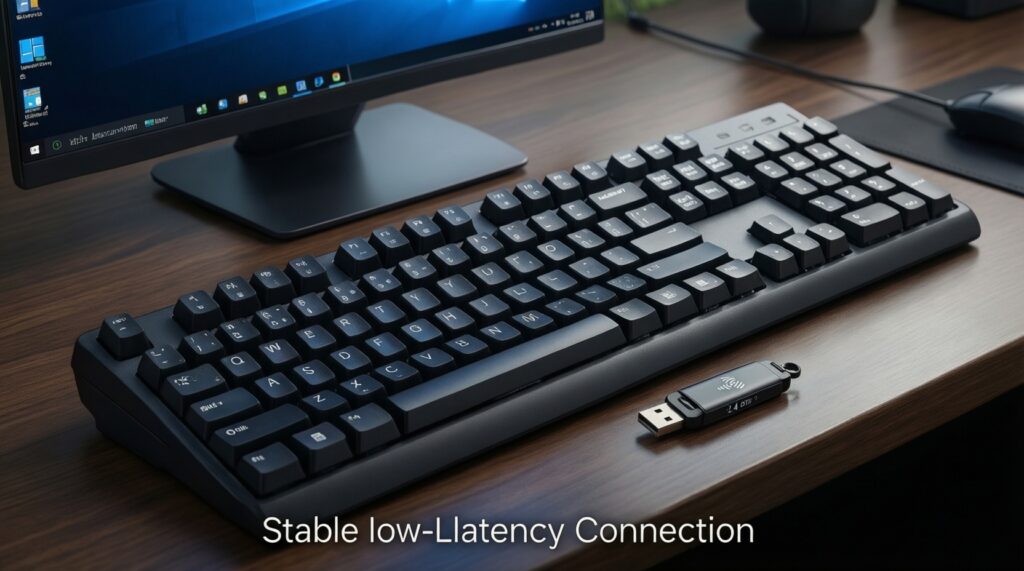
| Full-size 2.4 GHz dongle keyboard (Windows-focused) | Developer, office power user | Very stable connection; low input latency; great for BIOS/login screens | Uses a USB port; not ideal for tablets/phones | If your priority is reliability on Windows desktops/laptops and you frequently work in busy Wi‑Fi/RF spaces |
| Multi-device Bluetooth keyboard with hardware switching | Executive, traveler | Pairs with laptop + tablet + phone; clean desk; easy to move between rooms | Bluetooth wake/latency can vary; pairing behavior differs by OS | If you regularly switch between Windows/macOS/iPadOS and want one คีย์บอร์ดไร้สาย for all |
| Mac-layout Bluetooth keyboard (Command/Option-centric) | Mac-first executive, creative pro | Native shortcut muscle memory; consistent symbols and modifiers in macOS | Less convenient on Windows unless it supports layout remapping | If macOS is your main environment and you use productivity shortcuts all day |
| Compact travel keyboard (folding/low-profile Bluetooth) | Frequent traveler | Ultra portable; quick pairing with iPadOS/Android; easy to pack | Compromised key spacing; fewer dedicated keys; can feel cramped for long coding sessions | If you work from cafés, airports, and client sites and your bag space matters most |
| Ergonomic split keyboard (wired or wireless) | Developer, heavy typist | Better wrist/shoulder posture potential; strong long-session comfort | Learning curve; may require software for full customization (not always available on iPadOS/Android) | If you type for hours daily and are optimizing comfort over portability |
| Tablet keyboard case (iPadOS-focused) | Executive on iPad, traveler | Best lap usability; no separate charging for keyboard; instant attach/detach | Locked to one tablet model; less flexible at a desk | If iPadOS is your primary computer and you want the most seamless on-the-go typing |
Keyboard decision shortcuts by persona
- Executive: a multi-device Bluetooth keyboard with a dedicated switch reduces friction when moving between laptop and tablet during meetings.
- Creative pro: pick a layout that matches your OS shortcuts to avoid slowing down editing and app navigation.
- Developer: prefer dongle-based stability if you live in terminals/IDEs and cannot tolerate intermittent Bluetooth wake delays.
- Traveler: compact keyboards win when you also carry a hub, cables, and a portable screen.
Top mice by ecosystem: precision, gestures and multi-device switching explained
- If you use macOS Spaces/Mission Control all day, choose a gesture-capable mouse or trackpad-style surface that works with macOS without requiring deep driver tweaks.
- If you do precise work (design retouching, CAD, timeline editing), pick a mouse with consistent sensor tracking and an adjustable DPI button you can change on-device (so it still behaves on iPadOS/Android).
- If you jump between laptop and tablet/phone, choose a เมาส์ไร้สาย with hardware multi-device switching; software-only switching is often unavailable on mobile OSes.
- If you present often, prioritize a silent-click model with a stable connection (dongle or strong Bluetooth) to avoid cursor stutter on conference room setups.
- If your laptop has limited ports, consider Bluetooth to keep the USB-C hub free for storage/display; use a dongle mouse only when you need maximum stability.
Mouse pairing examples for mixed-device days
- Executive: multi-device Bluetooth mouse (laptop + iPad) to keep meeting-to-desk transitions smooth.
- Creative pro: precision mouse + keyboard shortcuts; map side buttons to undo/redo or timeline actions where supported.
- Developer: stable mouse plus keyboard-driven workflow; multi-device switching helps when monitoring logs on a tablet.
- Frequent traveler: compact mouse that fits next to a portable monitor and does not require a large dongle sticking out.
USB-C hubs and docks: power, video and data priorities for laptops, tablets and phones
- Confirm your device USB-C supports video output (not all USB-C ports on phones/tablets do). If it does not, no hub will enable an external monitor.
- Decide your display path: USB-C to USB-C monitor, HDMI monitor, or both. Then buy a hub that matches that exact path.
- Check Power Delivery pass-through behavior: you want one cable to charge the host while powering peripherals; avoid hubs that become unstable under load.
- Pick the port mix you actually use: USB-A for legacy flash drives, SD/microSD for creators, Ethernet for hotel/office stability, audio only if needed.
- Plan for heat and placement: small hubs can run warm; prefer short-cable hubs for laptops and desk docks for fixed setups.
- Minimize dongles: if your keyboard/mouse are Bluetooth, your hub can stay focused on storage + display.
- Validate sleep/wake behavior on your OS (especially macOS) before committing as your daily dock.
Docking chains that stay predictable
- Executive: one-cable dock: laptop ↔ hub ↔ HDMI meeting display + charger pass-through.
- Creative pro: hub with card reader + external SSD support + reliable display output for previews.
- Developer: hub with Ethernet for stable downloads/containers plus external monitor support.
- Frequent traveler: compact hub with USB-C PD + one video output; fewer ports, fewer failures.
Portable monitors: resolution, input latency and power delivery compatibility per brand
- Assuming every USB-C port outputs video: many Android phones/tablets need explicit video-capable USB-C; confirm before buying a portable display.
- Power loop surprises: some monitors draw power from the host while also needing brightness; plan a PD path (charger → hub/monitor → device) that does not drain the battery.
- One-cable expectations: USB-C single-cable works only when both video and enough power are available; otherwise you will need a second power input.
- HDMI often requires extra power: if you use HDMI from a hub, the monitor may still need USB power separately.
- Touch support is OS-dependent: even if the monitor is touch-capable, touch may not work consistently across Windows/macOS/iPadOS/Android without the right drivers/profiles.
- Stand/cover quality matters: a shaky stand is the fastest way to hate a travel screen, regardless of panel specs.
- Color expectations: creators should treat most portable panels as convenience displays unless they can validate consistency in their own workflow.
- Audio and OSD controls: tiny speakers and awkward buttons can slow down day-to-day use; check control accessibility if you present often.
Portable display setups that travel well
- Executive: portable monitor for slide review in hotels; keep a simple USB-C cable set to avoid setup friction.
- Creative pro: use the portable monitor for tool palettes and reference; keep main color-critical work on your primary display when possible.
- Developer: second screen for logs/docs; prioritize stable connection and comfortable viewing angle over ultra-thin designs.
- Frequent traveler: lightweight monitor that can run from the laptop on short sessions, with optional PD power for longer work blocks.
Selecting for use case and persona: remote worker, creative pro, developer, and frequent traveler
For a remote worker, the best fit is usually a multi-device wireless keyboard and mouse plus a ฮับ USB-C that makes your desk a one-cable plug-in. For a creative pro, prioritize hub behavior with external storage and a จอพกพา that matches your review flow. For a developer, prioritize stability (dongle keyboard, reliable sleep/wake). For a frequent traveler, compact peripherals and a predictable monitor power path tend to win.
Cross-ecosystem best-fit matrix (ecosystem × persona)
| Device ecosystem | Keyboard | Mouse | Hub | Portable monitor | Why it fits |
|---|---|---|---|---|---|
| Windows (developer/office) | Full-size 2.4 GHz dongle keyboard | Precision mouse (dongle or strong Bluetooth) | USB-C hub with the exact video output you need (HDMI/USB-C) | USB-C monitor that supports your laptop video mode | Max stability for long sessions; fewer wake/lag surprises; predictable docking |
| macOS (executive/creative) | Mac-layout Bluetooth keyboard | Gesture-capable mouse | Hub/dock that behaves well with macOS sleep/wake and your display path | USB-C monitor with simple OSD and reliable single-cable when feasible | Native shortcuts and gestures reduce friction; fewer macOS-specific quirks |
| iPadOS (traveler/executive) | Tablet keyboard case or compact multi-device Bluetooth | Compact Bluetooth mouse | Small hub with PD pass-through for charging while connected | Portable monitor that can be powered reliably (one- or two-cable as needed) | Fast attach/detach; fewer accessories to charge; works well on the move |
| Android (mobile-first/traveler) | Compact multi-device Bluetooth keyboard | Multi-device Bluetooth mouse | Hub only if your device supports USB-C video/OTG and you need ports | Portable monitor only if USB-C video output is confirmed | Avoids buying display gear that cannot be driven; keeps pairing simple across devices |
Common interoperability concerns and quick fixes
My Bluetooth keyboard lags or misses keystrokes. What should I do first?
Re-pair to refresh the Bluetooth link, then reduce nearby RF congestion (move away from USB 3.0 drives and hubs). If you need guaranteed stability, use a dongle-based keyboard on laptops/desktops.
Why does my mouse feel different between Windows and macOS?
Pointer acceleration and scrolling behavior differ by OS. Use OS settings first; rely on vendor utilities only if you stay primarily on one OS and can install the software.
My USB-C hub charges but does not output to an external display. Why?
Charging over USB-C does not imply video output. Confirm your device supports USB-C video and that the hub supports the specific output you are using (USB-C display or HDMI).
Can an iPad connect to any portable monitor with one cable?
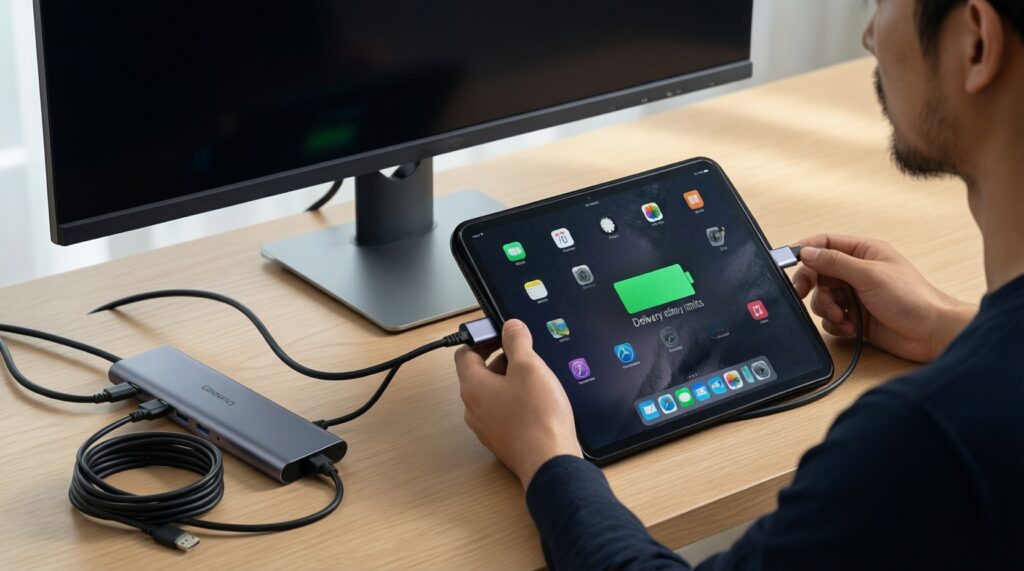
Only if the iPad outputs video over USB-C and the monitor can run within the available power budget. Otherwise you will need a second cable for power or a PD-capable hub.
Why does my setup break after sleep/wake on a dock?
Some hubs renegotiate video and USB devices poorly during sleep transitions. Update OS and firmware where possible and simplify the chain (fewer adapters, direct cable types) to improve wake reliability.
Will special function keys work the same on every device?
No. Media keys, brightness keys, and OS shortcuts are mapped differently across Windows/macOS/iPadOS/Android. Choose a keyboard with flexible Fn layers or a layout that matches your primary OS.