If you're choosing a cross-device sharing feature in Thailand, treat AirDrop/Continuity as an Apple-only "ecosystem layer," while Nearby Share/Quick Share are Android-first and vary by brand. They overlap for fast local file sharing, but they are not interchangeable for deeper continuity (clipboard, calls, app handoff). Use the method that matches both OS and vendor.
Quick compatibility snapshot
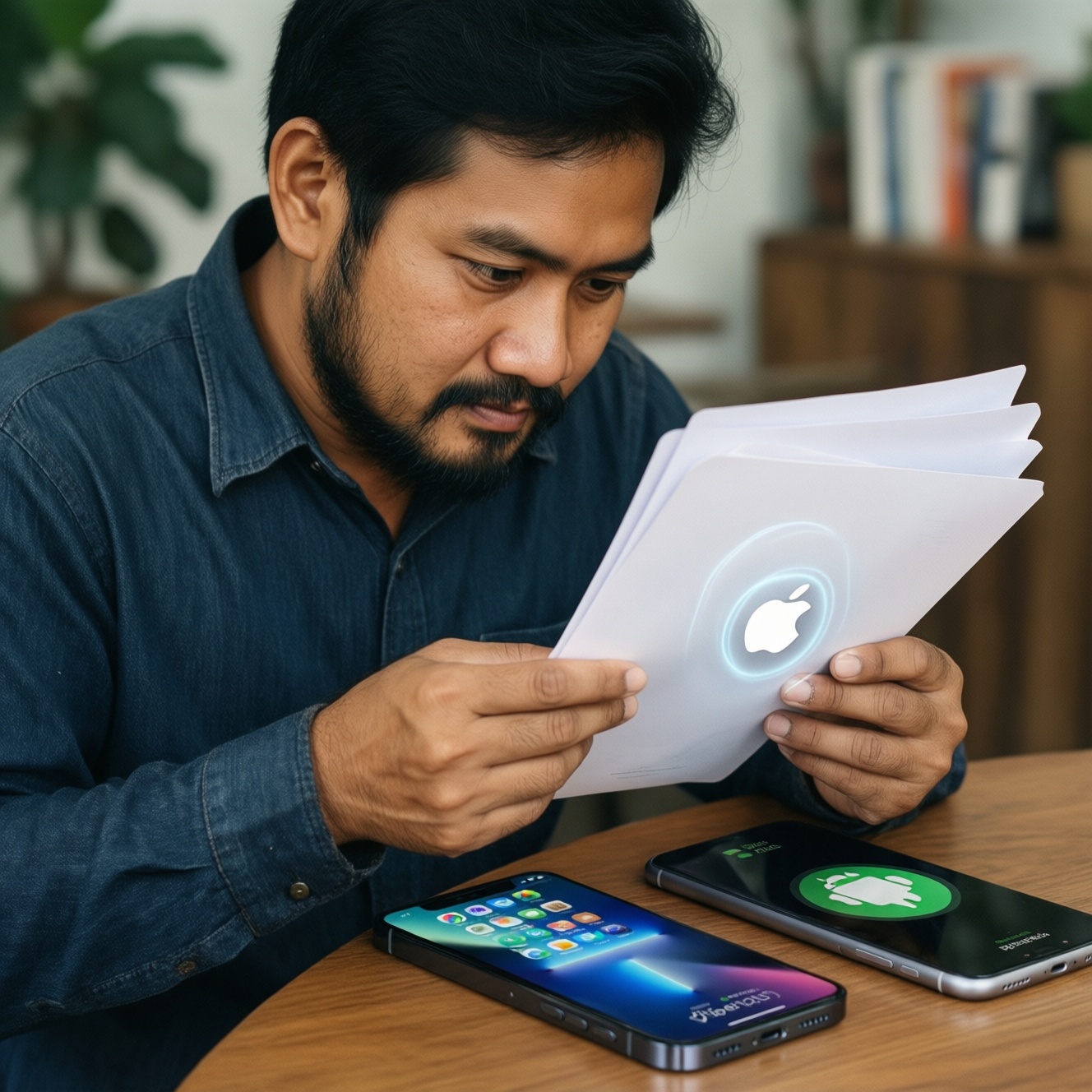
- AirDrop is for Apple-to-Apple only; it does not directly send to Android (AirDrop ใช้กับ Android ได้ไหม: not natively).
- Continuity features (Handoff, Universal Clipboard, etc.) have no 1:1 replacement on Android; expect partial substitutes.
- Nearby Share and Quick Share cover most Android-to-Android local file transfers; feature names and UI differ.
- For iPhone ↔ Android, you'll usually switch to links, cloud, or "send via app" workflows (วิธีส่งไฟล์ระหว่าง iPhone กับ Android).
- Best outcome comes from aligning: same OS + same vendor tools for speed; cross-OS for reliability.
How AirDrop and Continuity work: protocols, ranges and limits
Use these criteria to decide whether AirDrop/Continuity is the right "default" for your devices:
- OS compatibility: AirDrop works between Apple devices only; Continuity is Apple-only by design.
- Discovery model: device discovery plus direct transfer; best when both devices are nearby and awake/unlocked as needed.
- Network path: primarily local, direct peer-to-peer; not dependent on your mobile data plan for the transfer itself.
- Account model: many Continuity features expect the same Apple ID; AirDrop can be configured for broader discovery but is typically smoother within contacts.
- UX integration: sharing is integrated into iOS/macOS share sheets; Continuity integrates into apps (handoff) and system features (clipboard, calls).
- Best-case speed: excellent for large files nearby; performance depends on radios, interference, and device generation.
- Hard limit: no native AirDrop target on Android, so you need a different method for cross-platform exchange.
Practical takeaway for people searching เปรียบเทียบ AirDrop กับ Nearby Share: AirDrop is usually the fastest and simplest when all devices are Apple; it stops being an option the moment Android enters the workflow.
How Nearby Share and Quick Share work: protocols, ranges and limits
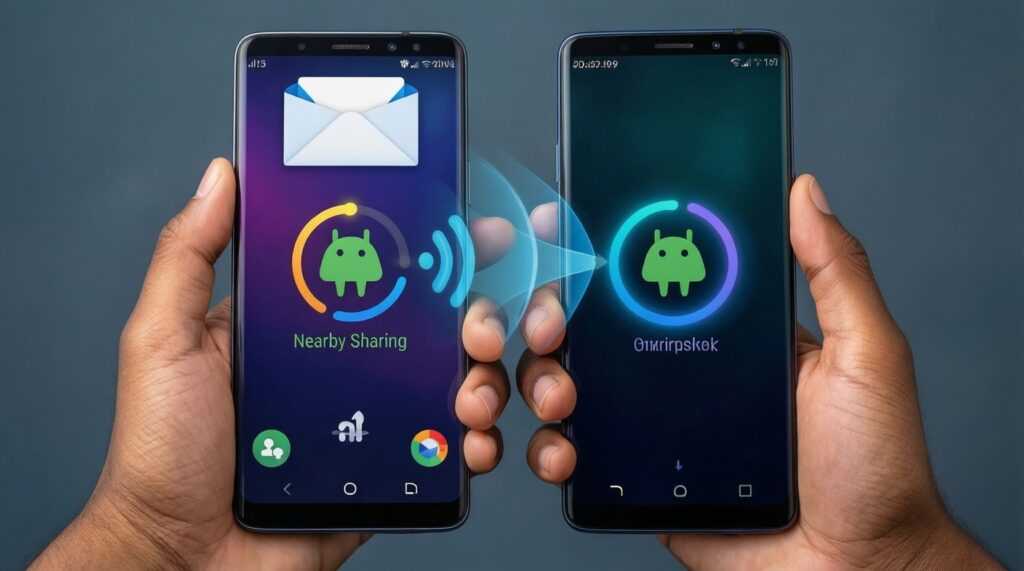
On Android, "nearby" sharing is fragmented into implementations and UI labels. The fastest experience usually happens when both phones support the same sharing stack and both have Bluetooth/Wi‑Fi enabled.
| Variant | Who it fits | Pros | Cons | When to choose |
|---|---|---|---|---|
| Nearby Share (Google) | Most Android users with Google Play services | Broad Android coverage; simple "tap to share" flow; works well phone-to-phone | Experience varies by OEM skin; some devices hide options behind settings | Default pick for Android-to-Android when you want the widest compatibility |
| Quick Share (Samsung) | Samsung Galaxy users | Deep system integration on Samsung; often very fast; good device discovery within Samsung ecosystem | Best features are strongest within Samsung-to-Samsung; cross-brand behavior depends on the receiving device | Choose when both devices are Samsung, or when your Samsung device exposes Quick Share as the most reliable nearby option |
| Quick Share (Android "rebrand/merge" UI) | Android users seeing "Quick Share" even on non-Samsung devices | One label for "nearby" sharing in newer Android builds; reduces confusion vs two names | Not every phone shows the same UI or capabilities at the same time; updates are staged | Choose when your phone's share sheet presents Quick Share as the primary nearby method |
| App-based direct transfer (e.g., chat app "Send file") | Mixed Android brands; users behind restrictive Wi‑Fi networks | Works across brands; less dependent on nearby discovery quirks | May upload to server first; can compress media; depends on internet | Choose when nearby discovery fails or you need predictable delivery history |
| Link-based sharing (cloud link) | iPhone ↔ Android; remote sharing | Cross-platform; recipient can download later; good for large folders or many recipients | Requires account/login sometimes; relies on internet; sharing permissions can be misconfigured | Choose for วิธีส่งไฟล์ระหว่าง iPhone กับ Android or when devices are not physically close |
If your question is Quick Share คืออะไร ใช้ยังไง: it's Android's "nearby sharing" entry point on many devices (especially Samsung), usually found in the Share menu or Quick Settings. Turn on Bluetooth and Wi‑Fi, pick the recipient device, then accept on the receiving device.
For มือถือ Samsung รองรับ Quick Share รุ่นไหนบ้าง: most recent Galaxy phones and tablets include it by default; very old models may not, and carrier/region firmware can affect availability. The quickest check is whether "Quick Share" exists in Quick Settings or the system Share sheet.
Cross-platform interoperability and hardware/software requirements
Use these scenario rules to choose quickly:
- If both devices are Apple (iPhone/iPad/Mac), then use AirDrop for files and Continuity for "continue on another device" workflows.
- If both devices are Android, then use Nearby Share or Quick Share-pick whichever is natively exposed on both devices and actually finds the other device consistently.
- If it's iPhone ↔ Android, then skip AirDrop (AirDrop ใช้กับ Android ได้ไหม: no) and use a link-based method, an app-based transfer, or a USB/PC bridge for large batches.
- If one device is a Samsung and the other is also Samsung, then start with Quick Share first; if discovery or permissions block it, fall back to Nearby Share or a chat app.
- If you're on a managed/corporate phone, then assume "nearby" sharing may be restricted by policy; use approved apps or cloud links.
Security, privacy and performance trade-offs
- Start with recipient scope: set visibility to "Contacts" or "Only your devices" when possible; use "Everyone" only for short windows.
- Confirm the target identity: match device name/avatar and proximity; don't accept unexpected requests in crowded places (cafes, BTS/MRT).
- Prefer local transfer for big files: when both devices are near, local is usually faster and avoids cloud permission mistakes.
- Prefer link-based sharing for mixed OS: iPhone ↔ Android becomes simpler with a share link plus explicit access controls.
- Watch for auto-compression: some apps compress photos/videos; use file-attach modes or cloud drive originals when quality matters.
- Use "temporary links" or expiration: when sharing sensitive documents, avoid permanent public links.
- After transfer, clean up: revoke link access, delete temporary shared folders, and reset visibility modes.
Practical substitution matrix: what each feature can replace
- Mistake: assuming AirDrop equals "any nearby phone". AirDrop stops at Apple devices; for Android you need Nearby Share/Quick Share or a different workflow.
- Mistake: expecting Continuity on Android. You can approximate with third-party tools, but there's no guaranteed system-level equivalent across all Android brands.
- Mistake: choosing Quick Share because it sounds universal. On non-Samsung devices, the label and behavior may differ; test once before relying on it.
- Mistake: ignoring visibility settings. "Everyone" mode can create accidental shares in public; set tighter discovery by default.
- Mistake: using chat apps for originals. Many apps compress by default; use document/file mode or cloud originals for photos/videos.
- Mistake: blaming "slow transfer" without checking radios. Bluetooth/Wi‑Fi toggles, battery saver, hotspot mode, and VPNs can break discovery or throughput.
- Mistake: mixing up backup vs transfer. Nearby/AirDrop are for transfer; long-term access is better via cloud drives with structured folders.
- Mistake: forgetting that file managers differ. On Android, the received location varies by OEM; on iOS, files may land in Files app or the target app.
Decision flowchart - choose the best transfer method by scenario
- Step 1: Are both devices Apple?
- Yes → Use AirDrop for files; use Continuity for clipboard/handoff/calls.
- No → Go to Step 2.
- Step 2: Are both devices Android?
- Yes → Go to Step 3.
- No (iPhone ↔ Android) → Use a cloud link or app-based transfer (วิธีส่งไฟล์ระหว่าง iPhone กับ Android).
- Step 3: Are both devices Samsung Galaxy?
- Yes → Start with Quick Share; if it fails, try Nearby Share or a chat app file-send.
- No → Start with Nearby Share; if the UI says Quick Share, use that label instead.
- Step 4: Is this a large batch (many GB) or you need folder structure?
- Yes → Prefer PC/Mac as a bridge (USB) or a cloud drive with folders.
- No → Nearby/AirDrop-style transfer is fine.
Best for Apple-only households: AirDrop plus Continuity. Best for Android-to-Android reliability across brands: Nearby Share (or the "Quick Share" label if your Android build presents it that way). Best for Samsung-to-Samsung speed: Quick Share. Best for mixed iPhone/Android or remote sharing: link-based cloud sharing or an app-based transfer-especially when you need predictable access control and history.
Common practical concerns and concise answers
Can I use AirDrop with Android?
No. AirDrop is not natively available on Android, so you'll need a different transfer method such as a cloud link, chat app file sharing, or a computer bridge.
What is Quick Share and how do I use it?
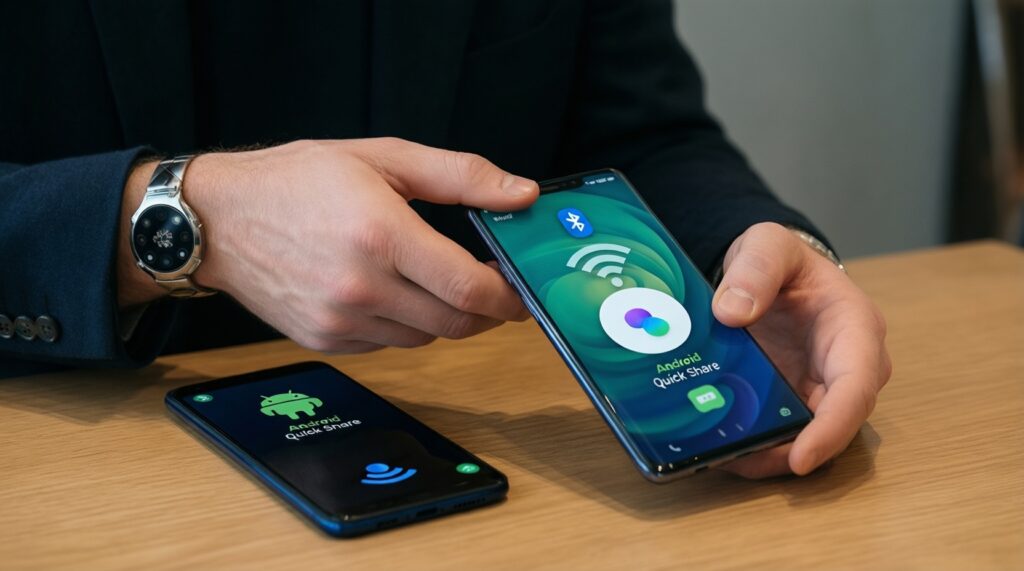
Quick Share is an Android nearby-sharing feature (especially common on Samsung). Enable Bluetooth and Wi‑Fi, open the Share menu, choose Quick Share, select the nearby device, and approve on the receiver.
Nearby Share vs Quick Share: which is better?
Use the one that both devices expose clearly and that discovers the other device reliably in your environment. Samsung-to-Samsung often feels best with Quick Share; cross-brand Android usually favors Nearby Share.
How do I send files between iPhone and Android quickly?
Use a cloud drive link or an app-based file transfer, since AirDrop won't work across OSes. For many large files, consider using a PC/Mac as a bridge via USB.
Which Samsung phones support Quick Share?
Most recent Galaxy devices include Quick Share, but availability can vary by model age and firmware. Check Quick Settings or the Share sheet for "Quick Share"; if it's missing, update the system and Samsung apps.
Why can't my phones find each other with Nearby/Quick Share?
Common causes are visibility settings, Bluetooth/Wi‑Fi toggles, battery saver restrictions, VPNs, or being on networks that interfere with discovery. Try switching visibility to contacts/temporary everyone, then retry with both screens awake.