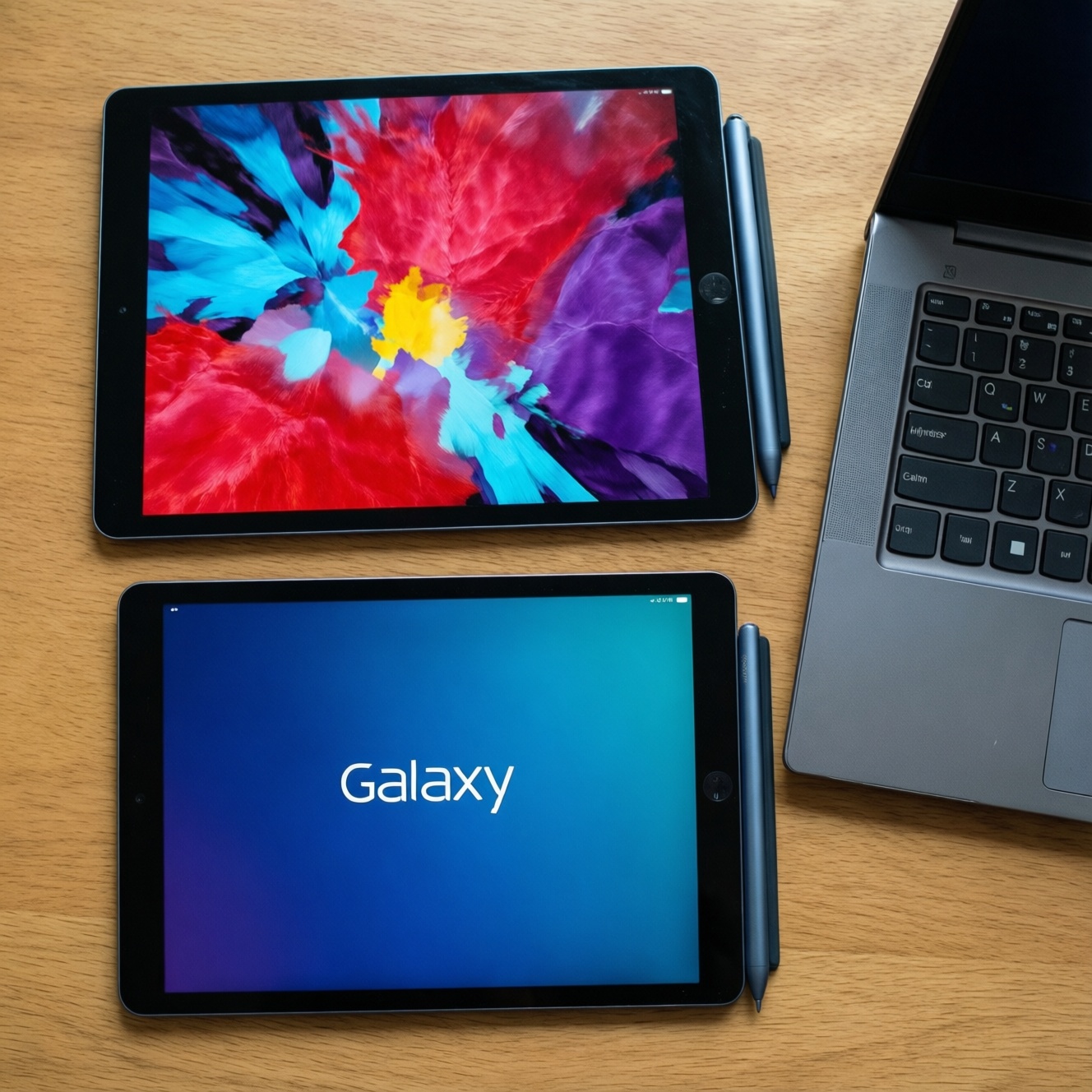
For note-taking and handwriting, the "best" stylus is the one that matches your device ecosystem and your nib feel: Apple Pencil is the most seamless choice for iPad users, Samsung S Pen is the most integrated on Galaxy tablets/phones, and USI styluses are the practical pick for Chromebook/compatible tablets where cross-brand compatibility matters.
Quick verdict: which stylus fits your workflow
- Choose Apple Pencil if you live in iPadOS and want the most predictable app support for handwriting and drawing.
- Choose S Pen if you use Galaxy Tab/Note-style devices and want tight OS features (notes, shortcuts, system-level pen UX).
- Choose USI if you need a stylus that can work across supported Chromebooks/tablets without locking into one brand.
- Prioritize nib feel (slick vs paper-like) for long lectures and meeting notes; it matters more than headline features.
- Buy based on device model first, stylus second-active pens are not universally interchangeable.
How Apple Pencil, S Pen and USI pens work: latency, pressure and tilt explained
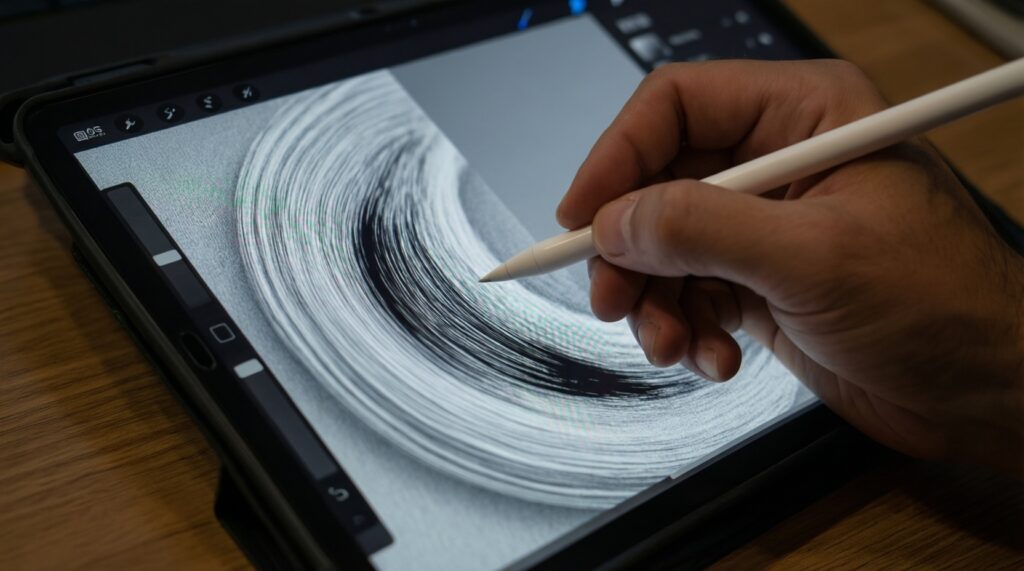
All three are active styluses that rely on the screen digitizer and software stack. What you "feel" is a system: pen hardware + display sampling + OS prediction + app brush engine. That's why the same pen can feel different across apps and devices.
Core buying criteria (pick 5-9 that matter to you)
- Device compatibility: exact tablet/phone model support and whether features (hover, buttons, eraser gestures) are enabled.
- Latency perception: depends on device refresh rate, OS prediction, and the app; "low latency" is a device-and-app outcome.
- Pressure response: how smoothly strokes ramp from light to heavy-more important than advertised "levels."
- Tilt support: essential for shading and brush angle behavior; less critical for pure note-taking.
- Palm rejection quality: varies by OS/app; strong palm rejection reduces accidental marks during fast writing.
- Nib friction & sound: glassy glide vs paper-like drag changes speed, neatness, and fatigue.
- Buttons/gestures: quick tool switching and shortcuts can matter more than raw pen specs for productivity.
- Charging & storage: where the pen lives (magnetic attach, silo, USB-C) determines day-to-day reliability.
- Replacement nib availability: predictable supply and cost of nibs is key for heavy writers.
| Stylus family | Typical latency feel | Pressure | Tilt | Compatibility | Battery & charging | Price expectation |
|---|---|---|---|---|---|---|
| Apple Pencil (iPad models) | Usually very low on supported iPads/apps | Strong (model/app dependent) | Common on Pencil-compatible setups | iPad-specific; model-specific Pencil generation | Rechargeable; charging method varies by model | Generally premium |
| Samsung S Pen (Galaxy devices) | Usually very low on supported Galaxy devices/apps | Strong (device/app dependent) | Often supported on Galaxy Tab lines | Galaxy-specific; best on devices designed for S Pen | Often no charging needed for basic writing; some features may require power depending on model | Often bundled or mid-to-premium depending on device |
| USI stylus (USI-capable devices) | Varies by device, panel, and firmware | Varies by implementation | Varies by device/stylus support | Across USI-supported Chromebooks/tablets | Typically battery-powered; replacement/charging depends on model | Often midrange |
Persona takeaway: Students should optimize for palm rejection + friction; artists should optimize for tilt + consistent pressure curves; professionals should optimize for shortcuts + reliable charging/storage.
Writing and drawing feel: tip materials, nib friction and real-world latency
"Which writes better" is mostly nib friction and stability: how much the tip skates on glass, how steady the line is at slow speed, and how reliably the device rejects your palm. Real-world latency is the combined effect of hardware and the specific note app you use.
| Variant | Who it suits | Pros | Cons | When to choose |
|---|---|---|---|---|
| Apple Pencil on iPad (native Notes + popular note apps) | iPad-first students, meeting-heavy pros, mixed note + sketch users | Predictable app support; stable palm rejection on iPadOS; strong tool ecosystem (cases, grips, paper-like films) | Locked to compatible iPads; nib feel can be "slippery" on bare glass without a textured protector | If you're asking "ซื้อ Apple Pencil รุ่นไหนดี" and you already own an iPad, pick the Pencil generation explicitly supported by your iPad model |
| S Pen on Galaxy Tab (Samsung Notes + Android note apps) | Android users who want system-level pen features and fast note capture | Deep OS integration; excellent quick notes workflows; often convenient storage/attach on many Galaxy tablets | Best experience is Galaxy-specific; replacement tips availability can vary by market | If you're comparing "เปรียบเทียบ Apple Pencil กับ S Pen อันไหนดีกว่า", choose S Pen when your daily device is Galaxy and you want Samsung Notes features |
| USI stylus on Chromebook tablet/2-in-1 (USI-supported) | Students with Chromebooks, schools, budget-focused buyers | Cross-brand compatibility (within USI support); easy to replace without changing the whole device brand | Feel and responsiveness vary widely by device; some apps on ChromeOS/Android feel less "pen-first" than iPadOS | If you search "ปากกา USI stylus ยี่ห้อไหนดี", start by confirming your exact Chromebook supports USI and then pick a reputable USI 2.0 pen with available replacement tips |
| Third-party iPad stylus (Apple Pencil alternative, iPad-compatible) | Note-takers who don't need advanced art features | Often cheaper; can be "good enough" for highlighting and handwriting | May lack pressure/tilt behaviors in many apps; integration and charging/storage can be less seamless | Choose this if your priority is basic note-taking and cost, and you're fine trading off pro drawing controls |
| EMR-style pen feel (where applicable) vs hard-tip feel | Long-session writers who care about fatigue and control | Often feels more pen-like with steadier control at slow strokes | Not a universal "feature"; depends on device family and specific digitizer | Choose based on how your hand feels after 30-60 minutes of writing, not on spec sheets |
Persona takeaway: Students: prioritize controlled friction (tip + screen protector) to reduce messy handwriting. Artists: prioritize consistent pressure and tilt behavior in your main art app. Professionals: prioritize fast tool switching and reliable palm rejection in your meeting-note app.
Ecosystem compatibility: iPadOS, Galaxy devices and ChromeOS/Android support
- If you use an iPad as your primary device, then choose Apple Pencil first and select the generation your iPad officially supports (avoid "close enough" compatibility assumptions).
- If your workflow is Samsung Notes + Galaxy Tab features (quick note, lock screen notes, system shortcuts), then S Pen is the most frictionless choice.
- If your device is a Chromebook/2-in-1 used for school, then confirm USI support before buying; if the device is not USI-capable, a USI pen will not behave like an active stylus.
- If you switch between multiple devices (home/work/school), then prefer a standard your devices share; USI can be a practical compromise when iPadOS is not involved.
- If you want "แท็บเล็ตพร้อมปากกาเขียนดี ราคาถูก", then start from tablet bundles that include a pen (often better value and fewer compatibility surprises) and only then compare writing feel.
Persona takeaway: Students should avoid ecosystem mismatch (the most common cause of "pen lag"). Artists should validate tilt/pressure in the exact app they use. Professionals should choose the ecosystem that minimizes pairing/charging interruptions during meetings.
Everyday reliability: battery life, pairing, charging and maintenance
- Confirm device support first: check your exact model and OS version, not just the brand name (iPad/Galaxy/Chromebook).
- Decide your charging tolerance: if you hate charging, favor setups that store the pen securely and keep it topped up automatically, or pens that don't require power for basic writing (model-dependent).
- Test your "worst case" app: open your heaviest note app, enable palm rejection settings, and write fast + slow; keep the one that stays consistent.
- Plan nib replacements: buy at least one spare set of tips and confirm local availability in Thailand before you commit.
- Check storage and travel safety: magnetic attach, pen silo, or a case loop-pick one that matches your commute and bag habits.
- Validate shortcuts you'll actually use: tool switch, eraser, highlight-if it takes extra taps, you won't use it.
- Set a maintenance routine: clean the screen, inspect the nib for flattening, and replace the tip when lines start to wobble or scratch.
Persona takeaway: Students: pen storage beats raw features. Artists: nib wear and screen texture are your "hidden costs." Professionals: pick the setup that never needs troubleshooting five minutes before a meeting.
Persona matchups: which stylus suits students, illustrators, corporate note-takers and power users
- Buying the pen before the tablet: Apple Pencil, S Pen, and USI are ecosystem-driven; pick the tablet first unless you're already committed.
- Assuming "pressure levels" guarantees better handwriting: handwriting quality is mostly friction, palm rejection, and stroke stabilization in your app.
- Ignoring the screen surface: bare glass can feel too slick; a textured screen protector can improve control but may increase nib wear.
- Not checking local authenticity channels: when you search "ซื้อ S Pen ของแท้ ราคา", prioritize reputable retailers and clear model compatibility over the lowest listing.
- Over-optimizing for drawing when you only take notes: if you mainly write, shortcuts, comfort, and reliability matter more than tilt behavior.
- Underestimating app differences: the same stylus can feel "laggy" in one app and great in another due to brush engines and smoothing.
- Skipping a 10-minute grip test: slim pens can fatigue your hand during long sessions; a grip sleeve can be a bigger upgrade than a new pen.
- Forgetting replacement tips: if tips are hard to find locally, your "cheap" choice can become inconvenient long-term.
Cost, accessories and long-term value: tips for buying and upgrading
Best for iPad-centric users: Apple Pencil matched to your exact iPad model, plus a case that stores the pen and (optionally) a textured protector for better handwriting control. Best for Galaxy workflows: S Pen with a Galaxy Tab setup that supports your preferred shortcuts and storage. Best for mixed or school Chromebook setups: a proven USI stylus with accessible replacement tips, chosen only after confirming your device's USI support.
Common buyer concerns answered
Is Apple Pencil always better for handwriting than S Pen?
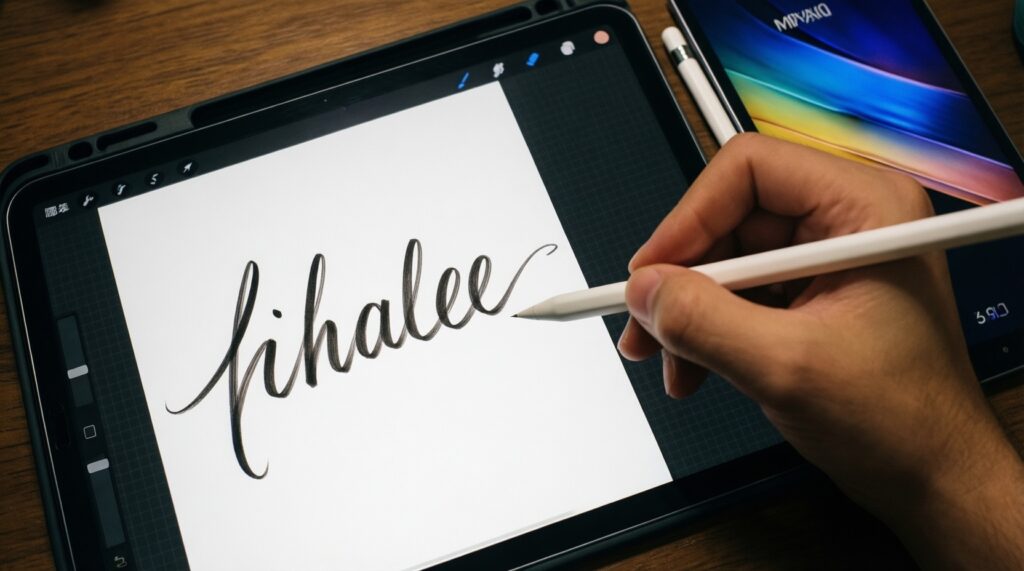
No-handwriting "better" depends on device + app + screen feel. Apple Pencil is usually the smoothest choice on iPadOS, while S Pen can feel more integrated on Galaxy devices with Samsung Notes.
Can I use an S Pen on an iPad (or Apple Pencil on Android)?
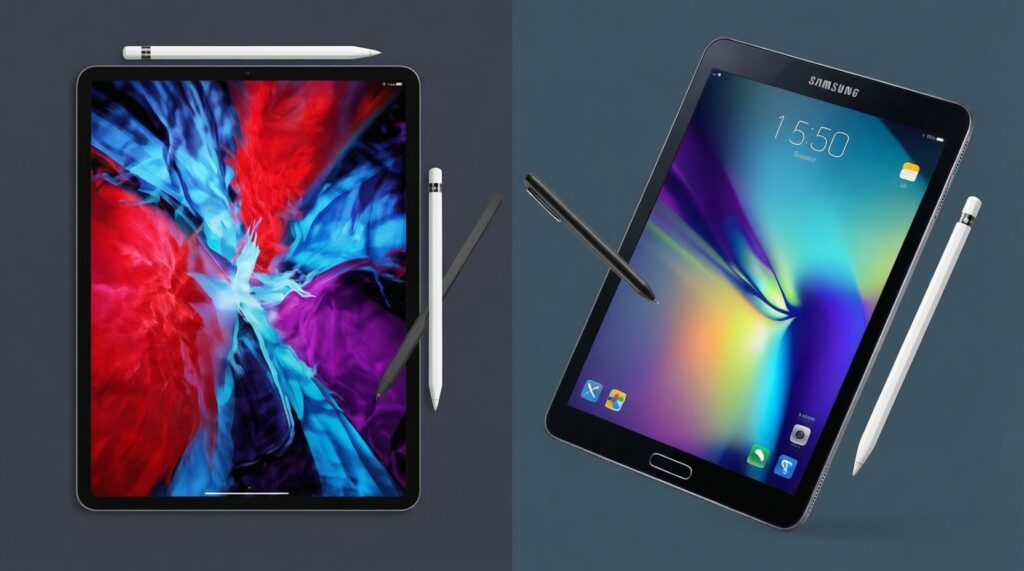
In practice, they are not interchangeable ecosystems. Treat Apple Pencil as iPad-specific and S Pen as Galaxy-optimized unless your exact device explicitly supports an alternative active-pen standard.
What should I check first when choosing a USI stylus?
Confirm your exact Chromebook/tablet supports USI (and which version, if stated). Then choose a USI pen with reliable local tip availability and a charging/battery style you can live with.
How do I decide between a premium stylus and a cheaper alternative?
If you need consistent pressure/tilt for art or you write for hours weekly, buy the official ecosystem pen. If you only annotate PDFs and take occasional notes, a compatible third-party pen may be sufficient.
Do I need a paper-like screen protector for note-taking?
Not required, but it can improve control and neatness by adding friction. Trade-offs are faster nib wear and slightly reduced screen clarity.
Why does my stylus feel laggy in some apps?
Apps differ in stroke smoothing, brush engines, and palm rejection tuning. Test your main note app and one alternative before blaming the pen hardware.