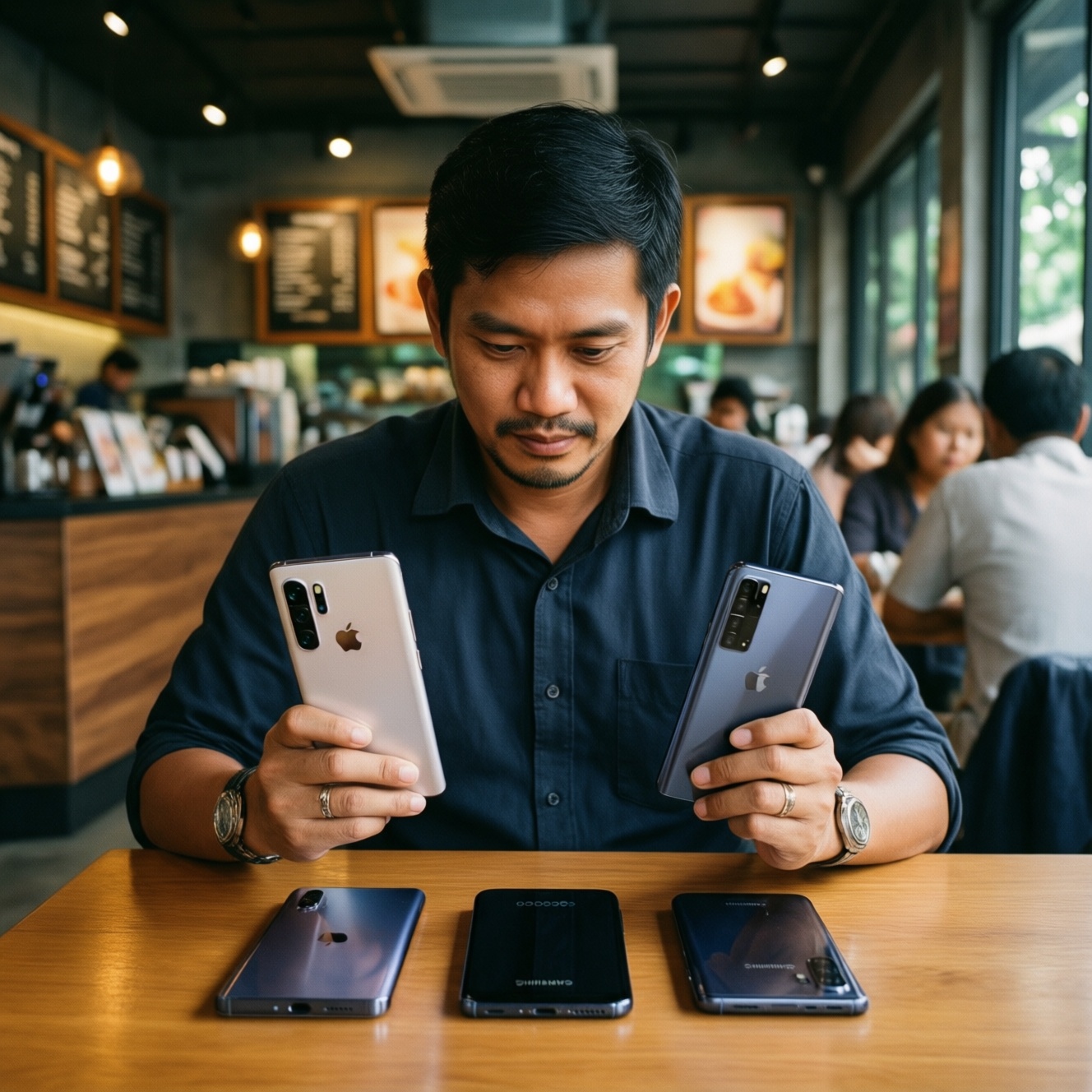
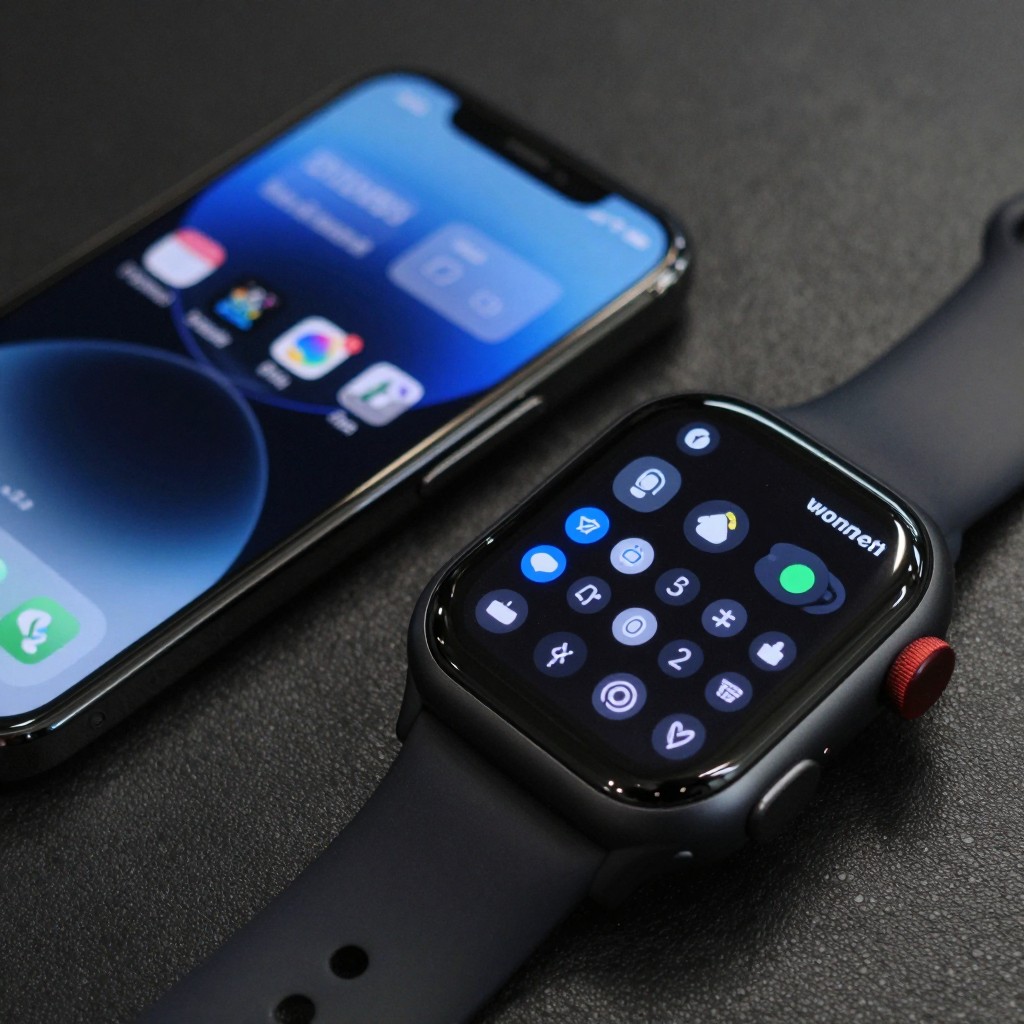
Cross-brand smartwatches can work with phones from another manufacturer, but compatibility depends on the watch model, phone operating system, companion app, and supported features. Before buying, check the maker's compatibility list: notifications may work while calls, health syncing, payments, or setup do not. In short, สมาร์ทวอทช์ใช้กับมือถือคนละยี่ห้อได้ไหม? Often-but not always.
Cross-Brand Pairing: What to Check First
- Confirm that the exact watch model supports your phone's operating system and version.
- Check which features work across brands, especially setup, calls, health data, payments, and app installation.
- Install the official companion app from your phone's app store before pairing.
- Keep the phone and watch charged, updated, and nearby during setup.
- Do not reset either device until you have checked how its data is backed up or synced.
Map Watch and Phone Compatibility Before You Buy
Cross-brand pairing is suitable when the watch maker supports your phone's operating system and the features you rely on are available through its app. It is a poor choice when setup requires a phone you do not own or when a must-have feature is limited to the maker's own phone ecosystem.
Searches such as สมาร์ทวอทช์ Android ใช้กับ iPhone ได้ไหม and Apple Watch ใช้กับ Android ได้ไหม need a model-specific answer: compatibility varies, and some combinations cannot be set up at all. Check the manufacturer's current support page for the exact model rather than relying on a brand-wide claim.
| Watch and phone combination | What to verify | Practical expectation |
|---|---|---|
| Watch and phone from the same brand | Supported operating-system versions and required apps | Usually the most straightforward route, though features can still depend on model and software. |
| Android-compatible watch with an iPhone | Whether the exact watch model supports iOS and which features the iPhone app exposes | Basic features may be available; some functions may be restricted or unavailable. |
| iPhone-focused watch with an Android phone | Whether the maker officially permits initial setup and ongoing use with Android | Do not assume it will pair; some watches require a supported iPhone. |
| Watch and phone from different Android brands | Companion-app availability, Android version, and permissions | Often workable when the watch maker supports the phone's Android version. |
For anyone asking สมาร์ทวอทช์ใช้ได้กับมือถือทุกรุ่น, the safe answer is no: operating-system support, app availability, and feature limits differ by model. If you are deciding ซื้อสมาร์ทวอทช์รุ่นไหนดี ใช้ได้ทั้ง Android และ iPhone, shortlist models whose manufacturers explicitly document support for both systems, then compare the features you actually use.
Compare Core Features Across Brand Combinations
Before pairing, gather the basics and compare feature support. A phone's ability to connect over Bluetooth does not guarantee that every watch function will work.
- The exact watch model and its supported phone operating systems.
- A compatible phone with an up-to-date operating system.
- The official companion app, installed from the phone's app store.
- Access to Bluetooth, notifications, and any permissions the app needs for your chosen features.
- Account credentials for the watch maker and, where needed, the phone platform.
- A stable internet connection for app installation, account sign-in, and updates.
Check calls, message replies, health-data syncing, contact access, payment services, voice assistants, and third-party apps separately. Support for one does not imply support for the others; availability can also change with software updates or region.
Pair the Devices and Set Up Essential Permissions
-
Verify support and prepare both devices.
Check the maker's compatibility page for the exact watch and phone. Charge both devices, update their software when practical, and keep them close together. -
Install the official companion app.
Download it from the phone's official app store and open it. Sign in or create an account only through the app or the manufacturer's official service. -
Start pairing from the app.
Follow its on-screen instructions and confirm that the pairing code shown on the watch matches the phone, if a code is presented. Avoid pairing through a different app unless the manufacturer instructs you to. -
Allow only the permissions you need.
Enable Bluetooth and notification access for features you want. Grant contact, location, health, or background permissions only when the app explains why the relevant feature needs them. -
Choose notification and data settings.
Select which apps may send alerts to the watch. Review health-data, call, and message options in the companion app; these controls may differ between phone systems. -
Test a small set of essential functions.
Check a notification, a call feature if supported, and the data sync you care about. Consult the maker's instructions if a feature is absent rather than repeating setup blindly.
Fast-track setup
- Check exact-model compatibility.
- Install the official companion app and sign in.
- Pair from inside the app and confirm any code.
- Allow required permissions, then test your essential alerts and sync.
Recover Alerts, Calls, and Health Data That Go Missing
Use this checklist before unpairing or resetting. Menu names vary by phone and app, so follow the manufacturer's instructions for your model.
- Confirm the watch still appears as connected in the companion app and in the phone's Bluetooth settings.
- Check that notifications are enabled for both the companion app and the specific phone apps you want to mirror.
- Review notification access, background activity, and battery restrictions for the companion app.
- Check whether the watch is in a focus, sleep, theatre, or do-not-disturb mode that suppresses alerts.
- For calls, verify that the watch model supports the feature and that call-related permissions or Bluetooth settings are enabled.
- Open the health app and companion app to check which account receives the data and whether syncing is enabled.
- Confirm that the phone has internet access if the feature depends on account or cloud syncing.
- Restart both devices if the connection remains stuck, then test again before changing more settings.
If data still does not appear, check whether the feature is unsupported on this phone combination. Avoid deleting accounts or resetting the watch until you have confirmed that important data is backed up.
Work Around App Store and Ecosystem Restrictions
- Installing an unofficial app: Use the official companion app and the phone's official app store; avoid unknown downloads that request broad access.
- Assuming Bluetooth means full support: Verify individual features in the maker's documentation and app settings.
- Expecting every phone app to send alerts: Enable notifications app by app and check both phone and watch settings.
- Granting every permission automatically: Allow only permissions needed for the features you choose, and review them later in phone settings.
- Changing regions or accounts to bypass a restriction: Check official regional availability first; changing account details may affect other services.
- Resetting before checking backups: Confirm what is synced and how to restore it before removing a pairing or account.
- Expecting payments, health features, or replies to behave identically: These may depend on the watch model, phone platform, app, and region.
Keep Cross-Brand Setups Reliable with a Short Maintenance Routine
Choose the least disruptive option that addresses the problem:
- Refresh the connection: Toggle Bluetooth off and on, reopen the companion app, and reconnect if the app offers that option.
- Review permissions after updates: Check notification and background settings if alerts stop after a phone or app update.
- Use the manufacturer's supported apps: Prefer official apps for syncing, device management, and software updates.
- Replace the pairing only as a last resort: Unpair and set up again only after checking backup status and following the maker's reset instructions.
Practical Answers to Cross-Brand Watch Problems
Can a smartwatch pair with a phone from another brand?
Often, if the watch maker supports the phone's operating system and the required companion app is available. Feature support can still be limited, so check the exact model.
Can an Android smartwatch work with an iPhone?
Some models support iPhone pairing, while others do not or provide fewer features. Confirm the model's current iOS support and app requirements before buying.
Can an Apple Watch be paired with an Android phone?
Do not assume it can: Apple Watch setup requires a supported iPhone. Check Apple's current requirements before purchasing if your main phone is Android.
Why do watch notifications arrive but calls do not work?
Notifications and calls can use different permissions and connection features. Check whether the watch model supports calls with that phone, then review the companion app and Bluetooth settings.
Why is health data missing from the phone?
Confirm that health syncing is enabled, the correct account is active, and the relevant app has the required permissions. Some health features may not be supported across that brand combination.
Should I reset the watch if pairing fails?
Try the official app's connection checks and restart both devices first. Reset only after confirming backup and following the manufacturer's instructions, because a reset may remove local data.