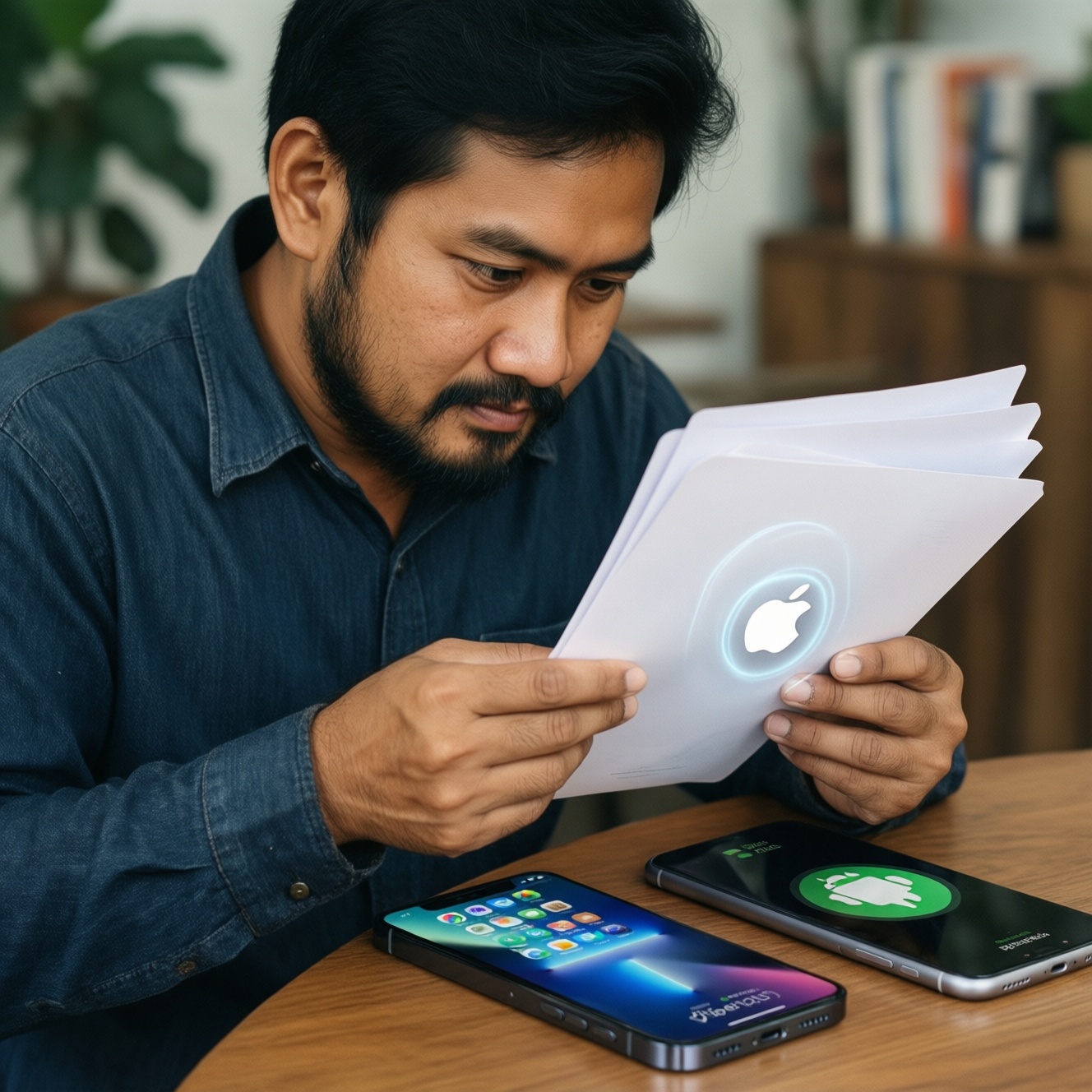
If you want one tablet for both study and work in Thailand, choose based on your workflow: iPad (best app quality and long-term ecosystem), Galaxy Tab (best Android productivity with DeX and strong stylus value), or a general Android tablet (best price flexibility). The "best" is the one that matches your keyboard, stylus, files, and services.
Executive summary: verdicts by workflow
- University note-taking + polished apps: iPad is usually the safest pick, especially if you ask ซื้อ iPad สำหรับเรียน รุ่นไหนดี and want predictable app behavior.
- Android user who wants laptop-like multitasking: Galaxy Tab is often the sweet spot; many asking Galaxy Tab รุ่นไหนดี สำหรับเรียน end up happier with DeX + S Pen workflows.
- Budget-first, basic docs + classes: a mid-range Android tablet can win if you already rely on Google services and don't need pro creative apps.
- Drawing + handwritten notes every day: pick a platform based on pen feel + your preferred apps; this is the real answer to แท็บเล็ตพร้อมปากกา รุ่นไหนดี.
- Mixed ecosystem (Windows laptop + Android phone): Galaxy Tab integrates well; iPad is still excellent but you'll work more inside Apple-style flows.
- Still deciding "iPad หรือ Android Tablet ดี": choose iPad for app consistency; choose Android/Galaxy for flexibility, file access, and device variety.
Hardware and performance: chips, screens, and battery life
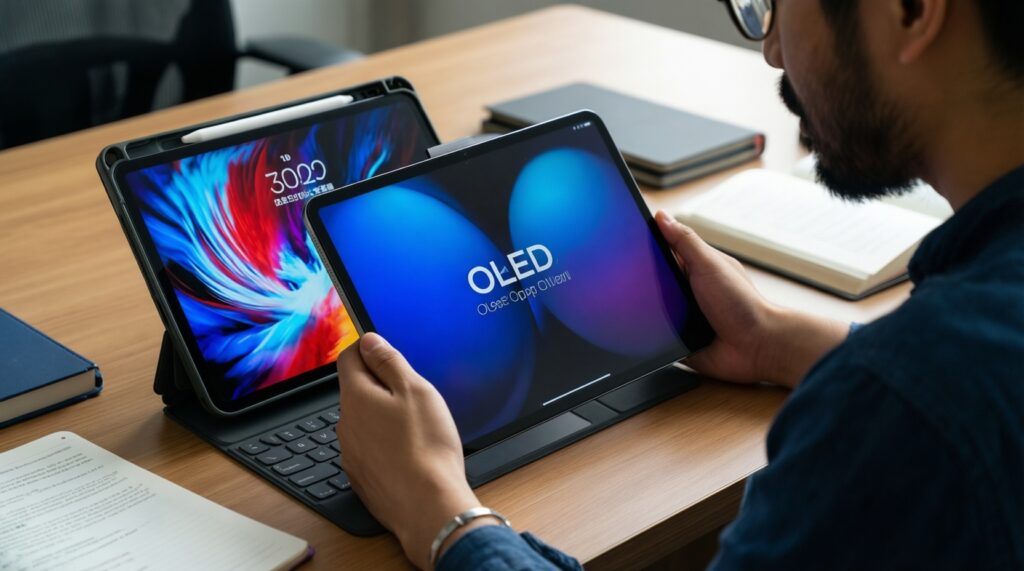
Before brand debates, lock your spec requirements to your tasks. Use these criteria to decide แท็บเล็ตทำงานเรียน รุ่นไหนดี for your own workload.
- Display size & aspect ratio: 10-11" for portability; 12-13" if you split-screen often or type a lot.
- Panel type: OLED for contrast and pen clarity; LCD can still be fine for reading and documents.
- Refresh rate: higher refresh helps pen latency feel and scrolling comfort, but isn't mandatory for office tasks.
- RAM/storage strategy: prioritize more RAM for multitasking; prioritize more storage if you keep offline lectures, PDFs, and raw media.
- Chip performance profile: sustained performance matters for long meetings, exporting files, or heavy multitasking; "burst speed" matters less for students.
- Thermals under load: thin tablets may throttle during long video calls + multitasking; check this if remote work is your main use.
- Speaker and mic quality: important for online classes, Zoom/Teams, and content consumption.
- Front camera position: a landscape-positioned webcam is better for video calls with a keyboard case.
- Battery consistency: focus on real-life "screen-on + Wi‑Fi + apps you use" rather than headline numbers.
OS experience compared: iPadOS vs Android vs One UI
OS differences decide your daily friction: windowing, file handling, shortcuts, and how well apps behave with keyboard + trackpad. Below is a compact comparison of common choices in Thailand.
| Option | Who it fits | Pros | Cons | When to pick |
|---|---|---|---|---|
| iPad (base/standard) | Students, general study + light work |
|
|
If you want the simplest "works every day" tablet for lectures, docs, and decent multitasking. |
| iPad Air | Power students, hybrid study/work |
|
|
If you keep asking ซื้อ iPad สำหรับเรียน รุ่นไหนดี but also do part-time work, presentations, and media edits. |
| iPad Pro | Creators, heavy multitaskers, "tablet-first" professionals |
|
|
If your income or portfolio depends on creative work and you're deep in Apple apps/services. |
| Galaxy Tab (Samsung One UI + DeX) | Android users, multitasking, office/remote work |
|
|
If "work mode" matters and you want a flexible answer to Galaxy Tab รุ่นไหนดี สำหรับเรียน plus real productivity. |
| Android tablet (non-Samsung) | Budget buyers, Google-first users, media + light productivity |
|
|
If your needs are straightforward and you want maximum hardware-per-baht flexibility. |
Productivity ecosystem: apps, keyboards, and cloud integration
Pick the platform that matches your "home base": files, communication tools, and the keyboard you'll actually carry.
- If your school/work lives in Google Workspace (Docs/Drive/Meet), then Android or Galaxy Tab tends to feel more natural for accounts, file sharing, and cross-device continuity.
- If you rely on tablet-optimized creative/education apps, then iPad usually wins on app consistency and fewer UI compromises.
- If you type long reports and do lots of email, then Galaxy Tab with DeX or an iPad with a good trackpad keyboard case becomes the "real" device-plan your budget around that accessory.
- If you collaborate with Windows-heavy teams, then Galaxy Tab/Android often reduces friction for file transfers and common formats, while iPad is best when you can keep everything inside well-supported apps.
- If you frequently move between phone and tablet, then staying within your phone's ecosystem (iPhone→iPad, Samsung→Galaxy Tab) reduces small annoyances that add up during term time.
Persona picks (practical examples)
- Student (lectures, PDFs, group work): iPad (standard) or iPad Air if you multitask heavily; this aligns with most "แท็บเล็ตทำงานเรียน รุ่นไหนดี" needs.
- Remote professional (calls, docs, multitasking): Galaxy Tab with DeX + keyboard case if you want a laptop-like workspace on a tablet.
- Artist/creator (drawing, markup, content): iPad Air/Pro if your app stack is iPad-centric; Galaxy Tab if you want a great pen experience with Android flexibility.
- Budget buyer (classes + streaming + light docs): a reputable mid-range Android tablet, but only if the keyboard/stylus plan is clear.
Creativity and note-taking: stylus fidelity and workflows
Use this quick selection algorithm to choose แท็บเล็ตพร้อมปากกา รุ่นไหนดี for your actual note/drawing routine.
- List your top 3 pen tasks: lecture notes, PDF annotation, math/diagrams, drawing, or document signing.
- Decide whether you need hover/preview, quick erase gestures, or easy screenshot-to-note workflows; these features vary by ecosystem.
- Check if your preferred apps exist and feel "native" on that OS (especially handwriting search, PDF handling, and export options).
- Choose screen size by workflow: 10-11" for carry-everywhere; 12-13" if you annotate PDFs while referencing slides side-by-side.
- Plan your accessory stack: pen + keyboard case + matte protector (if you like paper-like feel) and confirm compatibility for your exact model.
- Define your export format: if you must submit PDFs with embedded handwriting, test the full loop (write → export → open on a laptop).
- Buy for endurance: pick a setup you can use for long sessions without hand fatigue, glare issues, or awkward palm rejection.
Connectivity, security and device management for work
These are the mistakes that cause real pain during semesters and remote work-especially in shared Wi‑Fi environments and multi-device setups.
- Assuming every model supports your preferred stylus: many Android tablets have "pen support" that is not the same as a high-quality active pen ecosystem.
- Buying Wi‑Fi only when you actually need mobile data: if you commute, attend off-campus classes, or do field work, consider cellular models.
- Ignoring keyboard language/layout realities: make sure you can comfortably type Thai/English and have the shortcuts you use daily.
- Not checking external display behavior: some workflows need proper external monitor support for presentations or desk setups; test or confirm before committing.
- Overlooking webcam ergonomics: a "good camera" is less useful if its placement is awkward for video calls.
- Mixing cloud services without a plan: decide your "source of truth" (Drive/iCloud/OneDrive) to prevent duplicate files and version chaos.
- Skipping security basics: enable device passcode/biometrics, OS updates, and app permissions review-especially if you store school IDs, work docs, or client files.
- Underestimating repair and service convenience: your nearest service options matter more than small spec differences when you depend on the device daily.
Price, warranty and software support: value over time
For a student who wants the most predictable experience and keeps asking ซื้อ iPad สำหรับเรียน รุ่นไหนดี, an iPad (standard) or iPad Air is often the cleanest long-term choice. For a remote pro or Android-first user who wants laptop-like multitasking, Galaxy Tab is frequently the most satisfying balance. For a budget buyer with simple needs, a mid-range Android tablet can be the best value if accessories and updates are acceptable.
Buyer concerns and concise answers
What's the fastest way to decide: iPad or Android?
If app polish and consistent tablet-first experiences matter most, pick iPad. If flexibility, file access, and device variety matter most, pick Android; if you want the best Android productivity layer, pick Galaxy Tab.
Which is better for class notes and PDFs?
Both can work well, but iPad tends to be more consistent across note/PDF apps. Galaxy Tab is excellent if you prefer Android and want DeX for "study + work" switching.
Galaxy Tab: which model should I look at for studying?
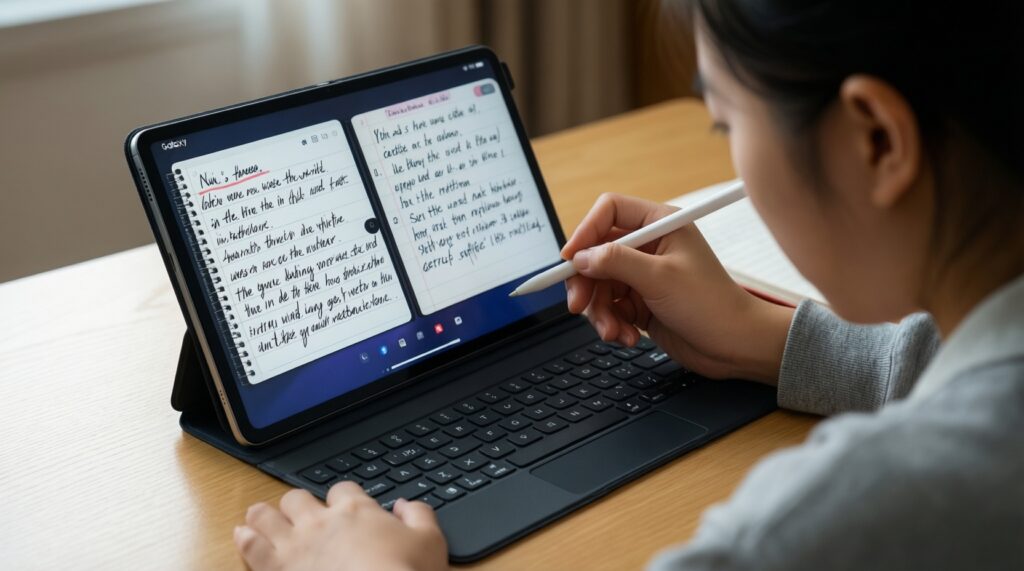
If you ask Galaxy Tab รุ่นไหนดี สำหรับเรียน, prioritize the tier that supports a smooth S Pen experience and enough RAM for split-screen. Also budget for a keyboard case if you type reports.
Do I really need a keyboard case?

If you write essays, emails, or reports weekly, yes-your productivity will depend more on the keyboard/trackpad than on small chip differences. If you mainly handwrite and read, you can skip it initially.
Is a stylus worth it for non-art students?
Yes if you annotate slides/PDFs, write math, or prefer handwritten memory. If your workflow is mostly typing and copying text, a stylus becomes optional.
Can a tablet replace my laptop for work?
For many office tasks it can, but edge cases (specialized software, complex spreadsheets, certain file workflows) still favor laptops. Galaxy Tab with DeX and iPad with a strong keyboard setup get closest, but test your critical apps first.
What should I check in-store before buying?
Test split-screen/windowing, your must-have apps, and the full pen-to-export workflow. Also check typing comfort on the keyboard case you plan to use.