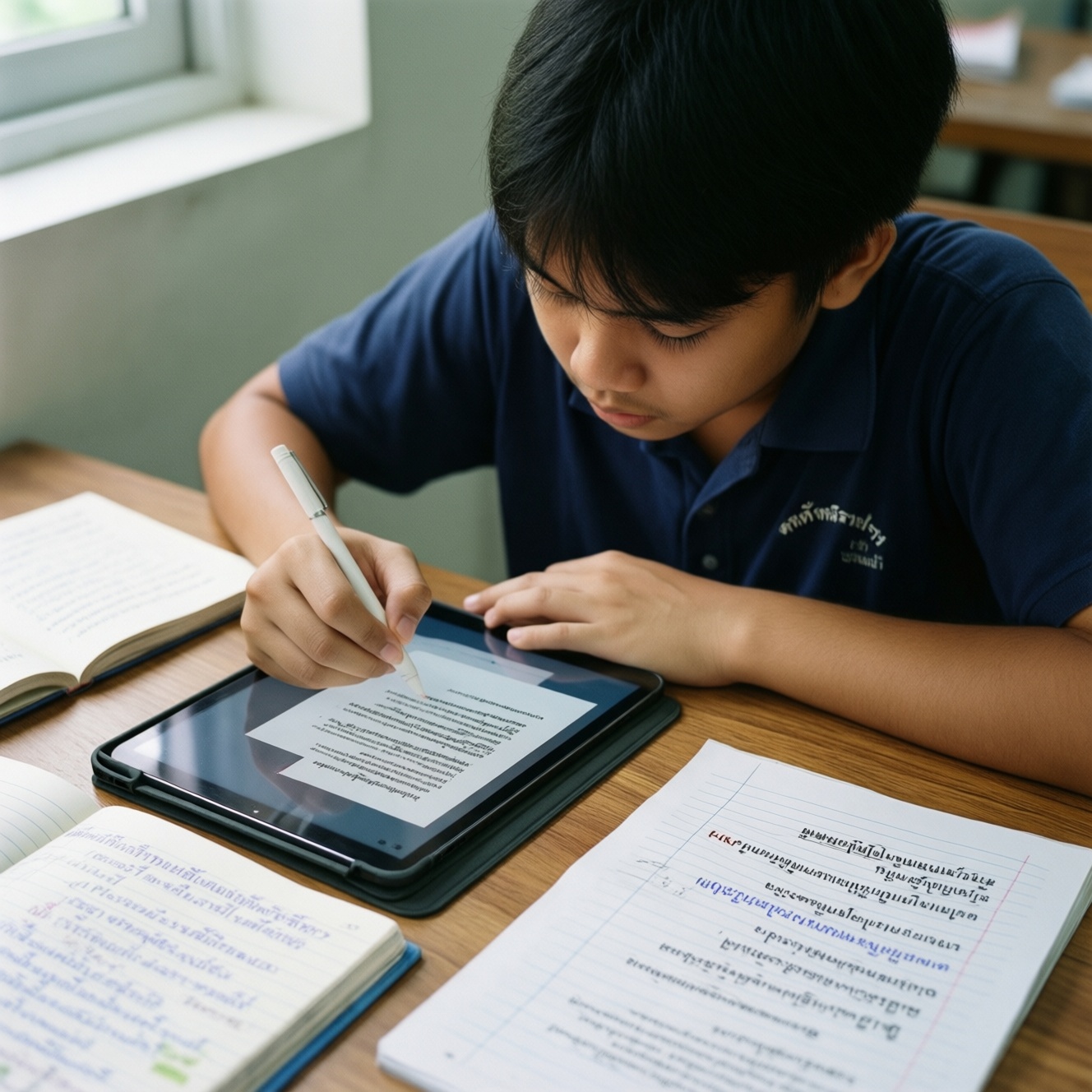
If you study on tablets, the most reliable setup is: a handwriting-first note app, a scanner with strong OCR and clean PDF export, and a task manager with fast capture plus reminders. For Thailand (Thai/English materials), pick tools that export standard PDFs/Markdown, sync predictably across iPadOS/Android, and don't lock your files into one ecosystem.
Quick verdicts for study workflows
- Handwriting-heavy students usually do best with an iPad + Apple Pencil and a dedicated handwriting app; keep Apple Notes as a quick inbox.
- If you switch devices often, prioritize cross-platform sync and open exports over the fanciest pen tools.
- For scanning, choose the app that reliably produces searchable PDFs (OCR) and supports batch export to your storage.
- Task managers beat chat apps for deadlines when they support recurring tasks, notifications, and focus-friendly views.
- Avoid all-in-one systems unless you've tested export/backup; lock-in hurts most at exam time.
Comparing note‑taking apps: handwriting, typing and search
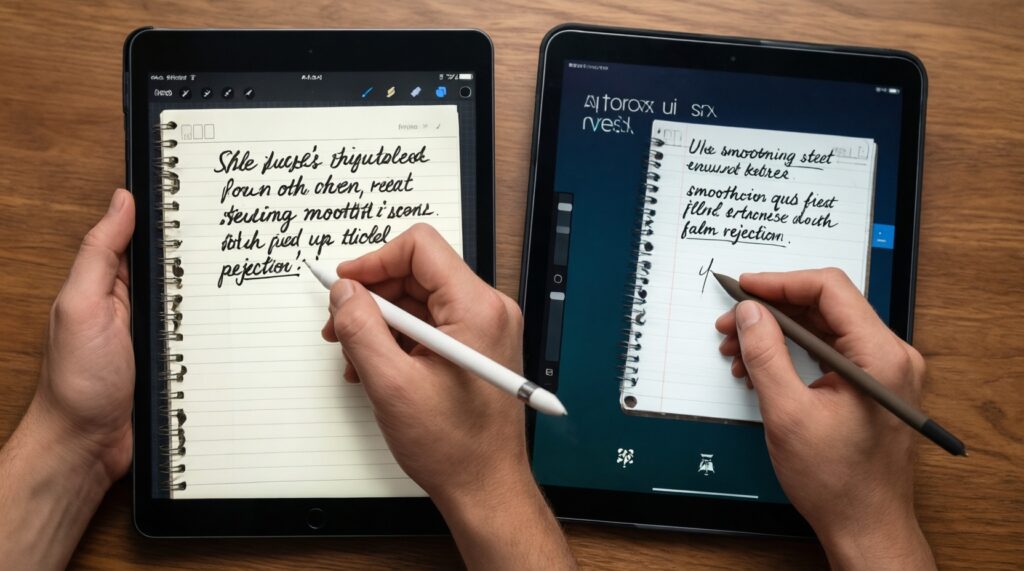
When people search for แอปจดโน้ต iPad or แอปจดโน้ต Android, the "best" choice depends on how you capture information (pen vs keyboard) and how you retrieve it later (search, tags, links). Use these criteria to decide:
- Handwriting feel: pen latency, stroke smoothing, highlighter behavior, palm rejection.
- Paper handling: templates, page thumbnails, fast duplication, multi-page PDFs.
- Search: typed text search, handwriting recognition, OCR inside imported PDFs.
- PDF workflow: import speed, margin notes, split view, export with/without annotations.
- Organization: folders/notebooks, tags, backlinks, global index.
- Cross-device sync: iPad↔iPhone↔Mac, or iPad↔Android↔Windows consistency.
- Export and portability: PDF, images, text/Markdown; predictable file names and structure.
- Offline reliability: editing without internet and conflict handling.
- Input flexibility: keyboard shortcuts, dictation support, external keyboard + stylus flow.
| Option | Best for | Pros | Cons | Realistic use case |
|---|---|---|---|---|
| Goodnotes | Annotator (handwriting + PDFs) | Fast notebook organization, strong PDF annotation, comfortable handwriting flow | Typed-note features and databases are limited vs workspace apps | Import lecture slides as PDF, write on top, export a clean study packet before exams |
| Notability | Annotator who records audio | Audio + notes pairing, smooth in-class capture | Less "binder-like" structure than some notebook apps; subscription expectations vary by region/store | Record a lecture, mark timestamps while writing formulas, review only the tricky parts later |
| Apple Notes | Planner who wants instant capture on iPad/iPhone | Always available, quick checklists, decent scan integration, simple sharing | Advanced PDF workflows and structured study systems are limited | Capture quick definitions and to-dos during class, then move important items into your main notebook app |
| Microsoft OneNote | Cross-platform student (iPad + Android/Windows) | Good typing + sections, solid sync across devices, integrates with Microsoft ecosystem | Handwriting/PDF markup can feel less "paper-native" depending on device | Maintain one course notebook you can open on Android phone, iPad, and a Windows laptop |
Verdict line: If your main goal is handwriting and PDF markup, choose a dedicated notebook app; if your main goal is cross-platform access, a workspace-style app with dependable sync is often the safer bet.
Scanner apps evaluated: OCR quality, edge detection, batch export
For แอปสแกนเอกสาร iPad and แอปสแกนเอกสาร Android, optimize for three things: (1) consistent edge detection and de-warping, (2) OCR that produces searchable PDFs for Thai/English handouts, and (3) batch export to your actual storage (Drive/iCloud/OneDrive) without friction.
| Option | Who it fits | Pros | Cons | When to choose |
|---|---|---|---|---|
| Apple Files (Scan Documents) | iPad-only minimalist | Built-in, quick, easy to save into folders/iCloud, good for occasional scans | Fewer workflow controls; OCR behavior depends on iPadOS capabilities and your downstream app | Scanning 1-5 pages quickly into a class folder without installing anything |
| Apple Notes (document scan) | iPad capture + light organization | Fast capture into a note, easy to tag/share, decent for receipts/handouts | Less "document-management" control; exporting batches can be clunky for heavy study use | You want scans attached to lecture notes and don't need complex batch export |
| Microsoft Lens | Cross-platform student | Strong integration with OneNote/OneDrive, good whiteboard/document modes, easy sharing | Best experience often assumes Microsoft storage; export choices can feel ecosystem-driven | You already live in OneNote and need clean handout scans that land there immediately |
| Adobe Scan | PDF-centric learner | Polished OCR-to-PDF workflow, strong cleanup, consistent results across devices | May push you toward Adobe account/cloud flows; watch your preferred export path | You need reliable searchable PDFs for long readings and want predictable PDF output |
| Google Drive (Scan) | Android-first + Google storage | No extra app if you already use Drive, straightforward save/share, good for quick batches | Fewer advanced document options; depends on Drive organization discipline | You scan on Android and want everything to appear in a shared Drive class folder |
| Vendor camera scan modes (Samsung/Xiaomi, etc.) | Android user who scans occasionally | Convenient in the camera app, fast edge detection for simple pages | Export and OCR options vary widely; file naming and batch handling can be inconsistent | You only need "good enough" scans and don't rely on searchable PDFs |
Verdict line: If searchable PDFs are non-negotiable, use a dedicated scanner app and test OCR on one Thai handout before committing your whole semester.
Task managers for students: planning, reminders and study sprints
If you're comparing แอปจัดการงาน iPad options, focus on capture speed (add in 3-5 seconds), reliable reminders, and views that support weekly planning plus short "study sprint" sessions.
- If you forget deadlines, then choose a task manager with time-based reminders and recurring schedules (not just a checklist in notes).
- If you study in bursts (Pomodoro-style), then pick an app with Today/Next views and easy rescheduling, so you can re-plan quickly after interruptions.
- If your work arrives from many places (LMS, email, group chat), then use an "inbox first" workflow: capture everything, triage once a day.
- If you collaborate on projects, then prioritize sharing, assignment, and comment trails; keep personal study tasks separate from group tasks.
- If you alternate iPad and Android, then prefer cross-platform apps so your reminders don't silently break on one device.
| Option | Best for | Pros | Cons | Realistic use case |
|---|---|---|---|---|
| Apple Reminders | iPad-centric planner | Fast capture, strong system-level notifications, simple shared lists | Cross-platform limitations if you also depend on Android | Weekly list per course + due-date reminders for quizzes and assignments |
| Todoist | Cross-platform planner | Clean natural-date input, reliable sync, good recurring tasks | Some advanced features depend on plan/app settings; minimal project documentation | "Assignments" project + labels like Reading/Problem Set, with a daily review habit |
| TickTick | Crammer who needs sprints | Task + habit + focus-friendly views, flexible planning | More features can mean more setup; keep it simple | Exam week: convert syllabus into small tasks and run focused sessions per chapter |
| Microsoft To Do | Microsoft ecosystem user | Simple, integrates well with Microsoft accounts, shared lists | Less powerful organization than dedicated task apps | Track weekly deliverables while your notes live in OneNote |
| Notion (tasks in a database) | Power user who wants one workspace | Flexible dashboards, notes + tasks in one place | More setup, offline behavior varies, easy to overbuild | Semester dashboard: courses, assignments, resources, linked to lecture notes |
Verdict line: If you want the lowest-friction studying, separate "notes" from "tasks" and keep the task tool intentionally lightweight.
iPadOS vs Android: hardware features and OS limitations that matter
- Pick iPadOS if you will handwrite daily and want the most consistent stylus experience plus mature PDF annotation across popular apps.
- Pick Android if you need wider hardware choices and you already rely on Google services and file sharing across devices.
- If you scan a lot, test your full path: scan → OCR → export → open in your note app. Choose the OS where that path is fewer taps.
- If you use external displays/keyboards, confirm windowing/split-screen behavior matches your study style (reading on one side, notes on the other).
- If you switch between phone + tablet, choose the ecosystem that keeps notifications/reminders consistent (missed reminders ruin task systems).
- If your uni uses Microsoft/Google heavily, prefer the platform where those apps feel fastest and most reliable for you.
- Before buying, try your top two apps for one week on the device you already own; export your notes and confirm you can leave anytime.
| Decision driver | Leans iPadOS | Leans Android | What to test |
|---|---|---|---|
| Handwriting + PDF markup | Very strong, consistent across top apps | Can be excellent on select hardware, varies by device/app | Latency, palm rejection, exporting annotated PDFs |
| Cross-device with Windows/Google | Works well via third-party apps | Often smoother with Google/Windows workflows | Sync speed, file naming, Drive/OneDrive integration |
| Scanning to searchable PDFs | Great built-ins plus strong third-party apps | Great with Drive-based workflows and dedicated scanner apps | OCR on Thai/English, batch export to your storage |
Sync, backups and privacy: cross‑device consistency and exportability
Most "bad app choices" show up as sync failures, broken exports, or messy storage. Avoid these common mistakes:
- Relying on one-way sync (scans land in one app, notes live elsewhere, and you never unify the storage).
- Not testing exports early: you should be able to export a whole course notebook as PDF (and, if relevant, text/Markdown) without losing structure.
- Mixing personal and school accounts across iCloud/Google/Microsoft, causing duplicates and missing permissions when sharing.
- Assuming OCR is universal: OCR quality varies by language, print quality, and lighting-test with your real Thai handouts.
- Depending on "attachments in tasks" for critical files; task apps are not file vaults-store documents in Drive/iCloud/OneDrive and link to them.
- Ignoring offline behavior: if you commute or have unstable Wi‑Fi, confirm your note and scan apps work offline and resolve conflicts safely.
- Letting the camera roll become storage: scanned PDFs should go into a clearly named folder structure from day one.
- No naming convention: inconsistent names make search useless; use Course-Code_Week_Topic style filenames for scans and exports.
- Over-automating too soon: build a simple baseline workflow first, then automate (shortcuts, templates) once it's stable.
| Risk | What it breaks | Safer default |
|---|---|---|
| Vendor lock-in | Leaving an app without losing a semester | Prefer tools with bulk export (PDF/text) and predictable folders |
| Account confusion | Sharing, permissions, missing files | One primary cloud per semester; document it |
| Weak backups | Device loss, app corruption | Cloud sync + periodic manual exports to a second location |
Persona‑based app stacks: routines for the annotator, planner and crammer
Best fit for the Annotator: iPadOS + Goodnotes/Notability + a dedicated scanner (Adobe Scan or Lens) to keep PDFs searchable and neatly exported. Best fit for the Planner: Apple Notes for capture + Apple Reminders (iPad-centric) or Todoist (cross-platform) to keep deadlines reliable. Best fit for the Crammer: a fast scanner + a notebook app with strong PDF markup, paired with TickTick/Todoist for short, reschedulable study sprints.
Practical concerns, trade‑offs and troubleshooting
How do I decide between a handwriting notebook app and a workspace app?
If most learning happens by writing and annotating PDFs, start with a handwriting notebook app. If most learning happens by typing, linking, and searching across many subjects, consider a workspace app-then verify exports and offline behavior.
My scanned PDFs aren't searchable-what should I check first?
Confirm the scanner is exporting a searchable PDF (OCR enabled) rather than only images. Then test OCR with one Thai page and one English page under good lighting; if results are poor, switch scanner app before scanning everything.
What's the simplest cross-platform setup if I use both iPad and Android?
Use OneNote for notes, Microsoft Lens or Adobe Scan for scanning, and Todoist for tasks. Keep your files in OneDrive or Google Drive and link to them instead of attaching originals inside tasks.
Why do reminders fire on one device but not the other?
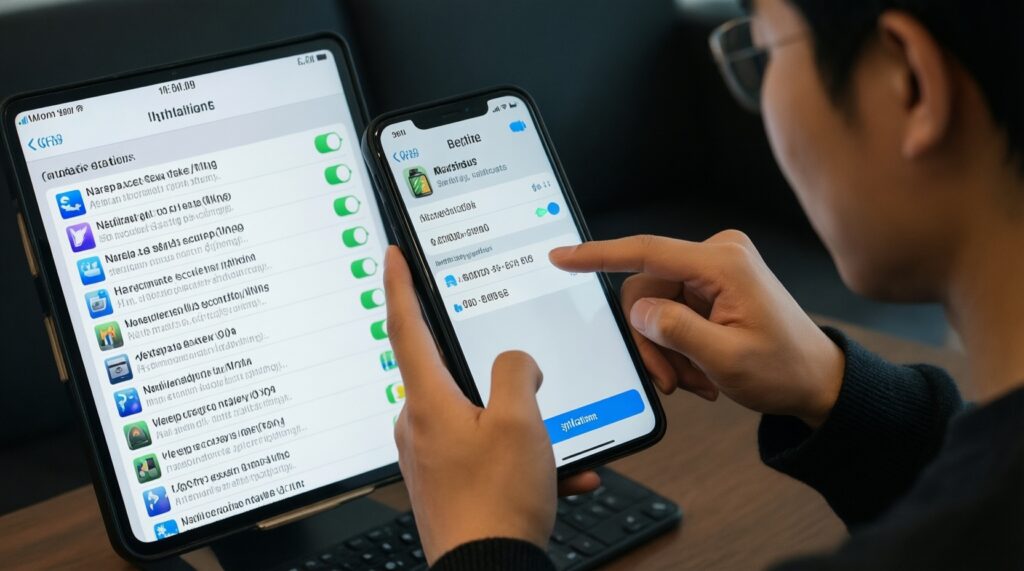
This is usually an account or notification-permission mismatch. Standardize on one task app across devices, log in with the same account everywhere, and verify system notification settings and battery optimization rules.
Should I keep scanned documents inside my note app or in cloud storage?
Store master PDFs in cloud storage with a consistent folder structure, then import/link them into your note app. This keeps exports clean and reduces lock-in if you change note apps later.
How do I prevent chaos when I have many classes and many PDFs?
Use a naming convention and one folder per course, plus weekly subfolders for scans. In your note app, mirror the same structure and keep an "Inbox" notebook for unfiled items you process daily.