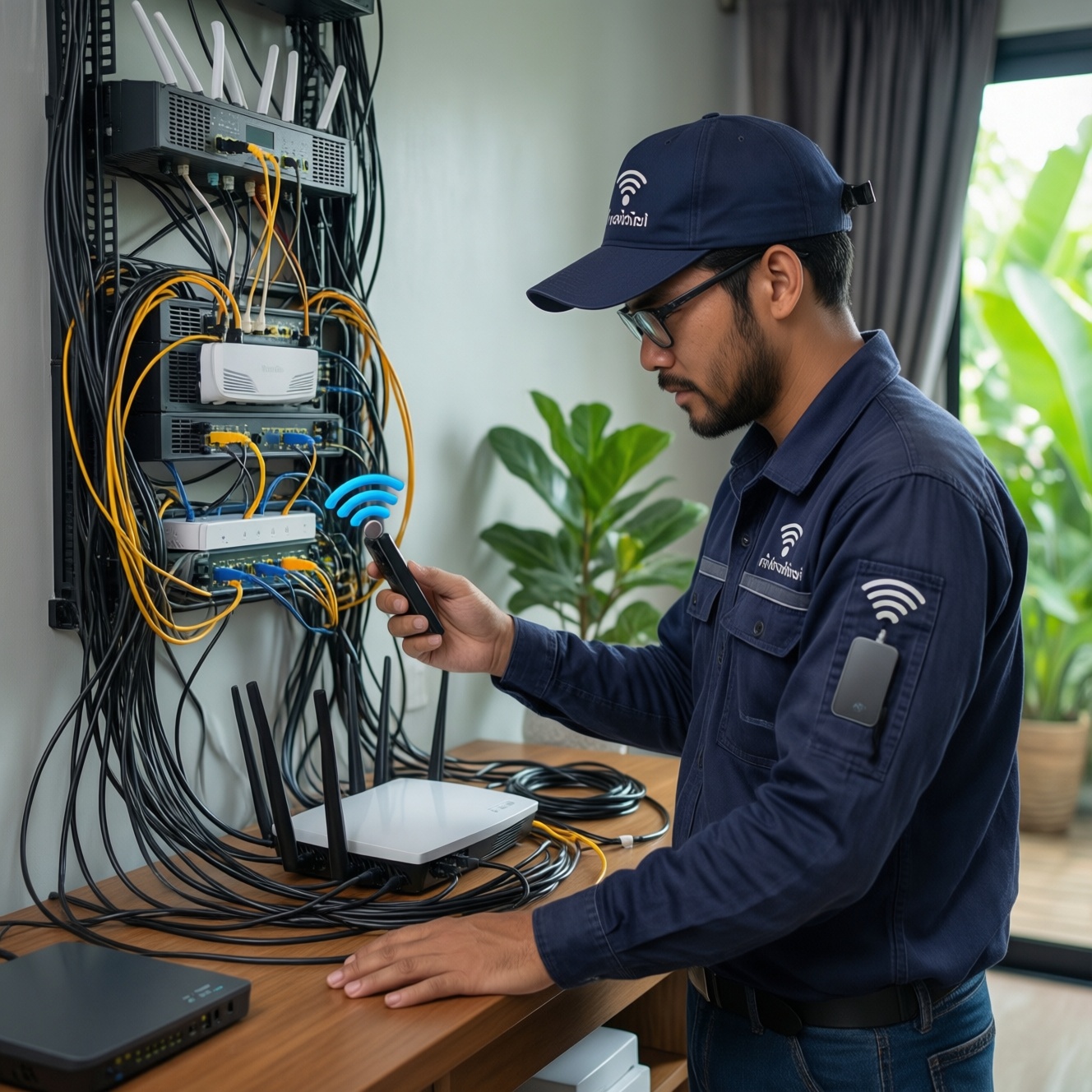
To make a smart-home network stable in a typical Thai house, map coverage and device count first, then choose the right architecture (single router, wired access points, or mesh). Next, apply predictable Wi‑Fi settings (split SSIDs, clean channels, sensible transmit power), place mesh nodes for strong backhaul, and enable basic traffic controls to reduce dropouts and reconnect storms.
Preflight Checklist for Home Network Setup
- Draw a quick floor plan (including concrete walls, stair cores, and metal cabinets) and mark where devices sit.
- List device types (phones/PCs, cameras, TVs, plugs, sensors) and note which are 2.4 GHz-only.
- Confirm your ISP handoff type: modem/router combo, ONT + router, or fiber gateway; identify where you can place the main router.
- Prepare access: admin login for router/mesh app, ISP PPPoE credentials (if used), and a laptop with Ethernet.
- Update firmware only after you can roll back or at least export settings (backup before changes).
- Decide your target: stable RSSI around -67 dBm or better for key smart devices; avoid barely connected zones.
Assessing Home Layout and Device Density
- Good fit if you have frequent Wi‑Fi drops on IoT, multiple rooms with reinforced concrete, or mixed devices (cameras + sensors + phones) competing for airtime.
- Especially relevant when you're planning ติดตั้ง Mesh WiFi บ้าน 2 ชั้น (two-floor mesh) where stairwells and dense walls can block signal between nodes.
- Not worth over-engineering if your home is small, open-plan, and a single centrally placed router already gives consistent signal to every room.
- Also reconsider if you cannot place nodes sensibly (no power outlets, nodes must be inside cabinets, or ISP gateway is locked down with no bridge/AP mode).
- Quick checks:
- Walk-test with your phone: if video calls cut out or devices roam poorly between rooms, you need architectural changes, not just stronger transmit power.
- If many smart devices are 2.4 GHz-only, prioritize clean 2.4 GHz design over chasing peak 5 GHz speed.
Choosing Between Router, Access Point, and Mesh Architectures
- What you need (minimum):
- Admin access to your gateway/router (web UI or app).
- At least one Ethernet cable for setup and testing.
- A way to test signal/latency: any Wi‑Fi analyzer app and a simple ping test from a laptop.
- Decision guide:
- Single router: choose this if one location can cover the entire home without weak zones. Often best value when you ซื้อเราเตอร์ WiFi 6 สำหรับบ้าน and place it correctly.
- Router + wired access points: most stable if you can run Ethernet (or have existing LAN ports). Use one SSID across APs when the system supports coordinated roaming.
- Mesh: choose this when running Ethernet is hard and you need multiple nodes for coverage. When comparing Mesh WiFi สำหรับบ้าน ราคา, prioritize reliability features (wired backhaul support, good roaming) over top speed claims.
- Smart-home specifics:
- If you're building a เราเตอร์ WiFi สำหรับสมาร์ตโฮม setup, pick gear that allows a separate 2.4 GHz SSID, stable DHCP, and basic QoS.
- Plan where your อุปกรณ์เครือข่ายสมาร์ตโฮม Zigbee hub will sit: Zigbee is separate from Wi‑Fi, but the hub still needs stable IP connectivity and should not be placed right next to the Wi‑Fi router to reduce RF interference.
- Credentials and topology:
- Know whether your ISP device must stay as router or can be bridged; double NAT can break some remote access features.
- Decide one main DHCP server (usually the primary router/mesh). Avoid two devices handing out IP addresses.
Configuring Wi‑Fi Bands, Channels, and Transmit Power
- Back up current settings (export configuration or at least screenshots of WAN/DHCP/Wi‑Fi pages).
- Have a rollback plan: if something fails, you should be able to reconnect via Ethernet and restore settings.
- Schedule changes when the home is quiet (few active video streams) so you can isolate issues.
- If you use mesh, update and configure from the primary node first; add satellites only after the main Wi‑Fi is stable.
-
Separate 2.4 GHz and 5 GHz SSIDs
Create distinct names (for example, Home-2G and Home-5G) so you can force smart devices onto 2.4 GHz when pairing and keep high-throughput clients on 5 GHz.
- Keep security consistent: WPA2-Personal (AES) is the safest compatibility baseline for many IoT devices; avoid mixed legacy modes unless required.
- Use a simple SSID name and password during onboarding; special characters can break some IoT setup apps.
-
Lock channel width to reduce interference
Set 2.4 GHz to 20 MHz for stability; wide 2.4 GHz channels often increase collisions and cause dropouts in dense neighborhoods.
- For 5 GHz, choose 40 MHz (or 80 MHz if the area is clean and you need speed). Stability matters more than peak throughput for smart homes.
-
Pick predictable channels (do not rely only on Auto)
Use a Wi‑Fi analyzer to see crowded channels, then choose the least congested options. In many Thai neighborhoods, Auto can hop channels and trigger reconnects.
- On 2.4 GHz, prefer channels 1, 6, or 11 (whichever is quietest locally).
- On 5 GHz, pick a stable non-DFS channel if DFS events cause sudden disconnects on your clients.
-
Set transmit power to avoid sticky clients
Max power is not always better. If a client clings to a far node, reduce power slightly so it roams sooner to the nearer node.
- Practical target: aim for consistent -67 dBm or better where smart devices sit; reduce barely connected edges rather than pushing louder signal.
-
Stabilize IP addressing and DNS
Keep one DHCP server, use a sane lease time, and reserve IPs for critical hubs (home controller, Zigbee hub, cameras NVR) to prevent silent changes.
- Router UI path is typically: LAN → DHCP Server → Address Reservation / Static Lease.
- If your router supports it, set local DNS names for key devices to simplify automations.
-
Verify with simple tests before adding complexity
From a laptop on Wi‑Fi, ping the router and a reliable public host for a few minutes; you are looking for stability (no bursts of timeouts), not just low average latency.
- If pings to the router drop, it is Wi‑Fi/roaming/interference, not the ISP.
- If router pings are stable but internet pings drop, investigate WAN/ISP or DNS.
Mesh Node Placement and Backhaul Optimization
- Place the primary node in an open, central spot (not inside a cabinet, not behind a TV, not on the floor).
- Keep nodes away from microwave ovens, cordless phone bases, and thick metal surfaces (fridges, steel shelves).
- For two floors, place one node near the stair opening (line of sight helps) rather than directly above/below through reinforced slab.
- Avoid daisy-chain unless necessary; prefer a star layout where satellites connect strongly to the main node.
- If possible, use Ethernet backhaul for satellites (most stable). If not, prioritize a strong wireless backhaul link over adding more nodes.
- Check that each node has a strong link to its parent before moving to the next node; weak backhaul causes the whole segment to flap.
- After placement, walk-test roaming with a video call; devices should switch nodes without long pauses.
- Keep at least modest spacing; nodes placed too close can increase co-channel contention.
Traffic Management: QoS, Band Steering and Client Roaming
- Enabling every optimization at once: turning on QoS, AI optimization, and aggressive roaming together can create instability. Change one setting at a time.
- Overly aggressive band steering: some IoT devices fail when forced between 2.4/5 GHz. Allow IoT to stay on 2.4 GHz consistently.
- Wrong expectations from roaming: many IoT clients are sticky by design; lowering transmit power slightly often helps more than tweaking roaming thresholds.
- QoS misclassification: marking everything high priority makes QoS meaningless. Prioritize real-time flows (calls, meetings) and critical control hubs only.
- Double NAT and multiple DHCP servers: common when adding a new router behind an ISP router. This can break device discovery and remote access; use bridge/AP mode where appropriate.
- Using guest network for smart-home: some guest networks block local device-to-device traffic, breaking hubs, casting, and discovery.
- Mixing WPA3-only with older IoT: some devices silently fail to reconnect. Use WPA2 (or WPA2/WPA3 transition) only if you have verified compatibility.
- DFS channel surprises: if radar detection triggers channel changes, clients may drop. Use a stable non-DFS channel if you observe periodic disconnect spikes.
Maintenance: Monitoring, Firmware, and Troubleshooting Routine
- Option A: Light-touch monthly check (most homes)
- Review connected clients, reboot only if required, and confirm no new weak zone has appeared after furniture changes.
- Apply firmware updates only after reading the changelog; avoid updating right before travel.
- Option B: Wired-backhaul upgrade (best stability step)
- If you can run one Ethernet line to a satellite, do it; backhaul stability typically improves more than any software tweak.
- Use existing conduits where possible; keep cable runs safe and away from power lines where practical.
- Option C: Add a dedicated AP for a problem area (targeted fix)
- When one room is problematic (office/cameras), a single wired AP can outperform adding another mesh node.
- Disable DHCP on the AP and keep one router doing routing.
- Option D: Separate IoT SSID/VLAN (advanced, when you outgrow basics)
- Use this when you need clearer isolation and troubleshooting. Ensure the hub/controller can still reach IoT devices as required.
- Only do this if you are comfortable diagnosing multicast/MDNS needs (casting, discovery) to avoid breaking smart-home features.
Common Connection Problems and Practical Remedies
My smart plugs disconnect every few hours. What should I change first?
Split SSIDs and keep the plugs on 2.4 GHz, set 2.4 GHz to 20 MHz, and avoid channel Auto hopping. Then check RSSI at the plug location and move the node/router slightly for a cleaner path.
After enabling mesh, roaming got worse and devices cling to the far node. What should I adjust?
Reduce transmit power a notch on the main and satellites, and avoid placing nodes too far apart with weak backhaul. If available, enable prefer-strong-connection behavior (non-aggressive) rather than forced roaming features.
My internet is fine on Ethernet, but Wi‑Fi is unstable. How do I narrow it down?
Focus on Wi‑Fi interference and channel selection: lock 2.4 GHz to 20 MHz and choose a clean channel. If pings to the router drop over Wi‑Fi, it is local RF or placement, not the ISP.
Some devices cannot join when WPA3 is enabled. What is the safest setting?
Switch the IoT SSID to WPA2-Personal (AES) or WPA2/WPA3 transition mode if supported. Re-onboard the device after changing security to ensure it stores the new parameters correctly.
Cameras stutter when someone starts a video call. How do I prioritize traffic without breaking things?

Enable QoS and prioritize real-time calls and the camera/NVR traffic, but do not mark everything as high priority. If cameras are on Wi‑Fi, consider wiring them or using wired backhaul for the nearest node.
I added a new router and now device discovery and automations break. What is the likely cause?

You likely created double NAT or multiple DHCP servers. Put the second router into AP mode (or bridge the ISP device where possible) so only one device routes and hands out IP addresses.