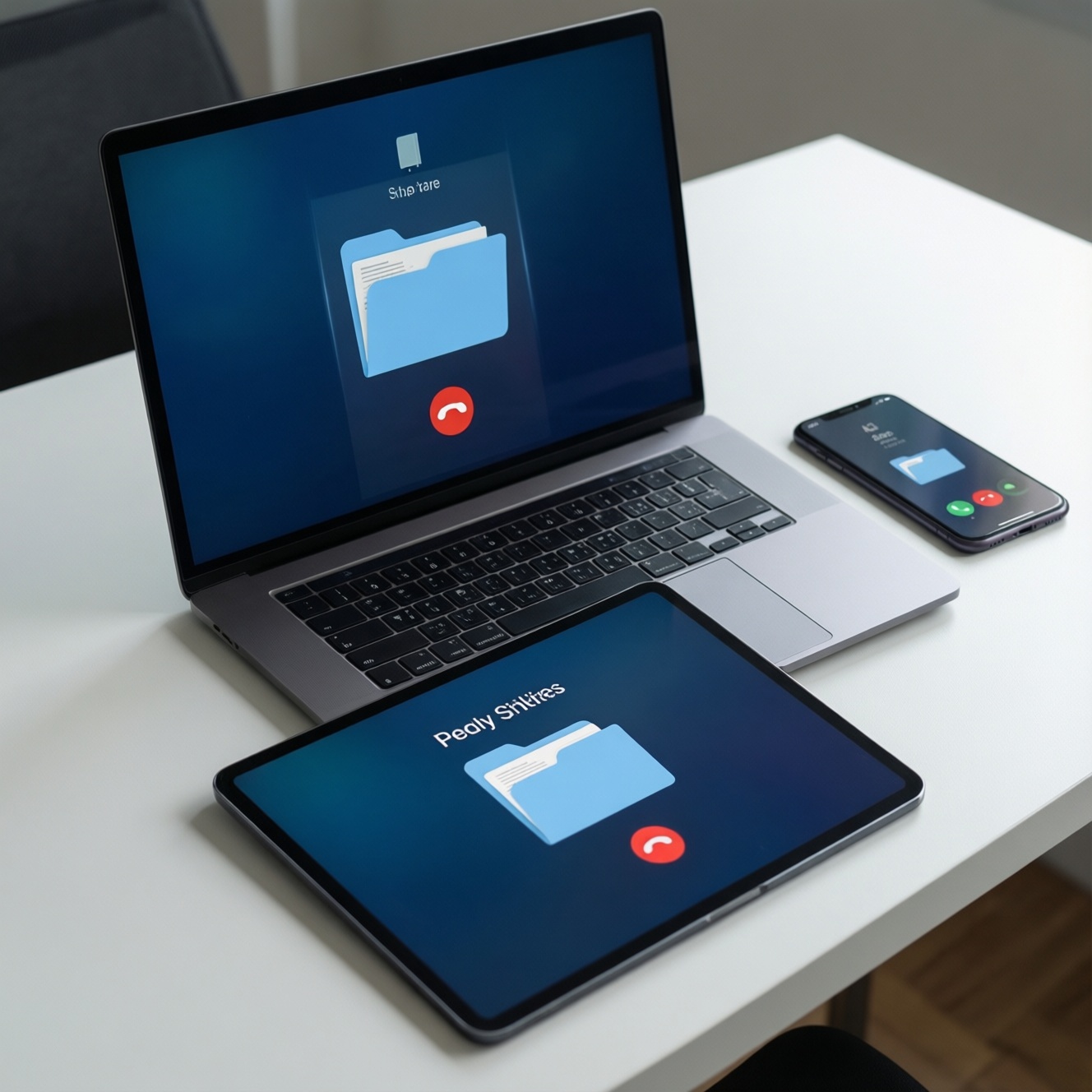
To safely back up and switch ecosystems (iPhone→Android or Android→iPhone) in Thailand, prepare access to your Apple ID/Google Account, a verified full-device backup, and a clear plan for messages, photos, 2FA, and payments. Prioritize security checks (encryption, 2FA, verification) and keep a rollback path until you confirm data integrity and carrier/SIM service works end-to-end.
Pre-migration essentials: backups, accounts and compatibility
- Confirm you can sign in to your Apple ID / Google Account and can complete 2FA without the old phone.
- Make one full backup and verify it completes; do not erase the old device yet.
- Update both phones to the latest stable OS version available for your model.
- Ensure you have enough storage (device + cloud) to finish backup and media sync without truncation.
- List critical apps and check whether their data is cloud-synced or device-only (banking, chat, work profiles).
- Plan messaging impact (iMessage/RCS/SMS) before moving your SIM/number.
Assessing app, service and file-format compatibility
This approach fits most users doing ย้ายข้อมูลจาก iPhone ไป Android or ย้ายข้อมูลจาก Android ไป iPhone who rely on mainstream cloud services (Google, Apple, Microsoft) and standard media formats. It is not ideal if you depend on device-only chat histories, a managed corporate device (MDM), region-locked banking apps, or a broken/unstable old phone that cannot complete backup and 2FA approvals.
- Do it now if: you can log in to accounts, have stable Wi‑Fi, and can keep both phones powered for several hours.
- Delay if: your old device has intermittent storage errors, you cannot receive OTP/2FA codes, or your number porting date is the same day as your migration (separate these to reduce risk).
Quick comparison: iPhone→Android vs Android→iPhone
| Phase | iPhone → Android | Android → iPhone |
|---|---|---|
| Primary transfer method | Move via cable or phone-to-phone transfer app; then verify Google sync | Move via Apple migration app; then verify iCloud sync |
| Messages risk | Disable iMessage/FaceTime before moving SIM; SMS can split if iMessage remains active | Confirm SMS/RCS behavior; iMessage will only activate after Apple ID + number verification |
| Photos strategy | Prefer cloud library (Google Photos) or export originals; verify counts | Prefer iCloud Photos or import to Photos app; verify albums vs items |
| 2FA handling | Move authenticator tokens before wiping; keep old phone as fallback | Move authenticator tokens before wiping; keep old phone as fallback |
| Payments | Remove cards from Apple Pay on old iPhone; add to Google Wallet on new phone | Remove cards from Google Wallet on old Android; add to Apple Pay on new iPhone |
| Rollback | Keep iPhone signed in, with recent backup, until Android is fully verified | Keep Android signed in, with recent backup, until iPhone is fully verified |
Creating a reliable full-device backup on iPhone and Android
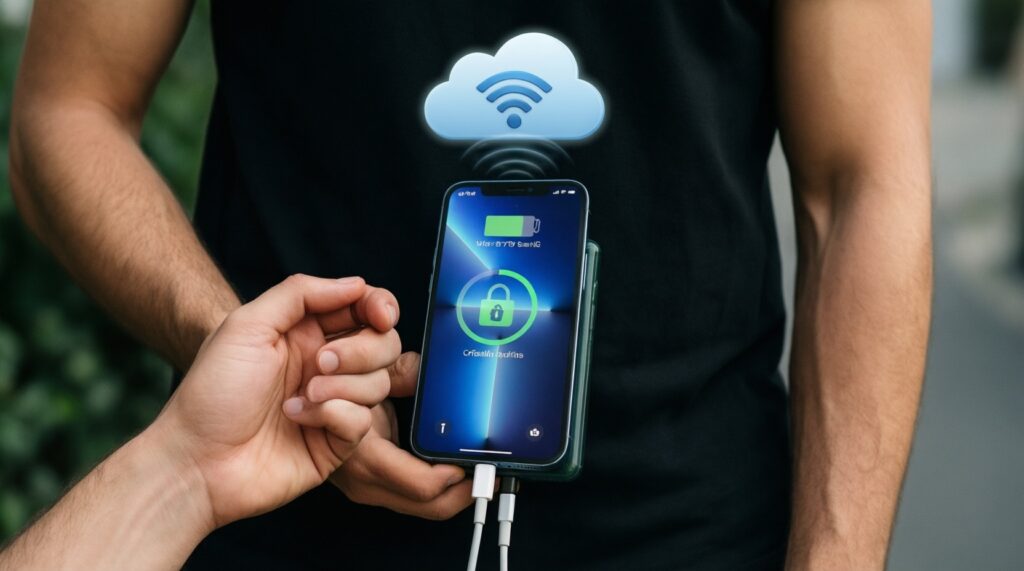
You need: stable Wi‑Fi, charging cable/power bank, your Apple ID/Google credentials, access to the phone number for OTP, and enough free storage (cloud or computer). For risk control, use encryption where available and verify the backup completion time and timestamp.
- iPhone: enable iCloud Backup (and iCloud Photos if you want cloud continuity) or make a computer backup with encryption enabled so passwords/health data are more likely to be included.
- Android: enable Google backup and ensure the Google account sync is healthy; for some manufacturers, also enable the vendor backup tool if you rely on their apps.
- Security checks:
- Confirm your account recovery options (secondary email, trusted phone number) are up to date.
- Ensure device screen lock is enabled (PIN/biometric) before handling sensitive exports (contacts, authenticator, wallet).
- Take screenshots/notes of subscription logins and critical app settings that do not sync.
- Cost context: if you're searching วิธีย้ายข้อมูล iPhone ไป Android ราคา, most DIY steps are free aside from cables/adapters and optional extra cloud storage; paid help can be useful when 2FA or messaging history is high-risk.
Securely transferring contacts, calendars and SMS/iMessage history
Risks and limitations (read before starting):
- SMS/iMessage history may not fully migrate across ecosystems; some threads can lose attachments or timestamps.
- Keeping iMessage active after moving a SIM can cause missed SMS delivery on the new phone.
- Contacts can duplicate if you sync the same address book to multiple accounts (iCloud + Google + Exchange).
- Calendar events can appear missing if you don't enable the correct calendar source on the new device.
- OTP codes can fail if your number ports mid-migration; avoid doing transfer and porting simultaneously.
-
Inventory where your data actually lives
On the old phone, open Contacts/Calendar settings and confirm the default account (iCloud, Google, Exchange). This prevents exporting from the wrong source and importing duplicates.
- Prefer cloud sources (iCloud/Google/Exchange) over "On My iPhone/Phone-only" entries.
-
Back up and lock down account access
Confirm you can sign in from a browser and pass 2FA. If your authenticator is on the old phone, plan its transfer before number porting.
- Record recovery codes for critical services and store them offline.
-
Transfer contacts and calendars via account sync first
Add the destination account to the old phone (if needed) and sync, rather than exporting files, because it preserves structure and reduces manual errors.
- iPhone→Android: ensure Google Contacts/Calendar is enabled and synced, then sign in to the same Google account on Android.
- Android→iPhone: ensure Google/Exchange calendars are enabled on iPhone, or migrate to iCloud if you prefer Apple-native services.
-
Handle SMS and iMessage deliberately before moving your SIM
If leaving iPhone, disable iMessage and FaceTime tied to your number to avoid SMS being routed incorrectly. If moving to iPhone, verify your number can receive SMS and that carrier settings are updated.
- After switching, send test messages both ways (your number ↔ a friend) and verify delivery type (SMS/RCS/iMessage) matches expectations.
-
Run the phone-to-phone transfer and then verify totals
Use the migration flow offered during the new phone setup, ideally over cable for stability. After it finishes, compare contact counts, calendar visibility, and a sample of recent message threads.
- If you need hands-on assistance, search บริการย้ายข้อมูลมือถือ iPhone Android ใกล้ฉัน and ask whether they handle 2FA/authenticator migration and post-transfer verification (not just copying photos).
-
Freeze the old device as a rollback anchor
Keep the old phone powered, logged in, and on Wi‑Fi for several days. Do not factory reset until you confirm that contacts, calendars, and messaging behave correctly across multiple networks.
Migrating photos, videos and cloud libraries without data loss
- Confirm the destination library is set up (Google Photos/iCloud Photos/OneDrive) and signed in on the new device.
- Verify the old device finished uploading (no "uploading" queue; leave on Wi‑Fi + power if needed).
- Compare item counts in the cloud library vs the old phone; spot-check oldest and newest media.
- Check that "original quality"/"full resolution" settings match your expectations before uploading.
- Validate Live Photos/Motion Photos behavior and whether they convert to video on the destination.
- Spot-check 10-20 random videos for playback, audio, and duration (videos fail more often than photos).
- Confirm albums: understand that some transfers move media but not album structure; decide if that's acceptable.
- Search for missing items by date/location and confirm permissions (Photos access, background refresh, battery optimization).
- Keep at least one offline copy of critical albums (export to computer/external drive) before wiping the old device.
Moving authentication, passwords and payment credentials safely
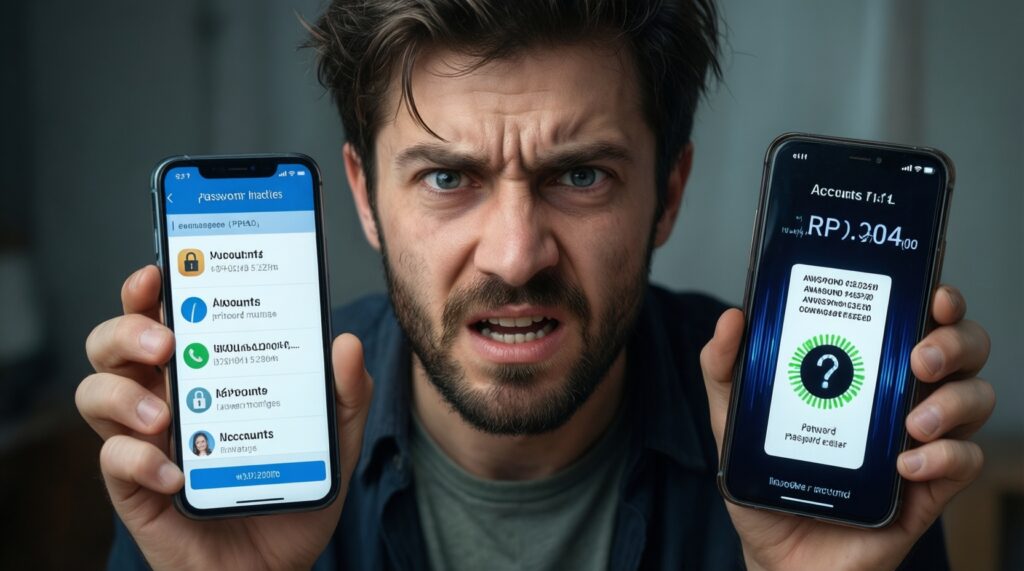
- Moving the SIM/number first and then getting locked out of accounts because 2FA prompts still go to the old device.
- Assuming passwords will migrate automatically; many password managers require a separate sign-in and vault unlock on the new phone.
- Forgetting app-specific passwords (email clients, legacy IMAP/SMTP) that won't work after security changes.
- Leaving authenticator tokens behind (TOTP) and then wiping the old phone; some services are painful to recover.
- Not exporting/storing recovery codes offline before starting account changes.
- Keeping Apple Pay/Google Wallet active on the old device after adding cards to the new one, triggering fraud controls or temporary holds.
- Skipping device security: no PIN/biometric on the new phone while you're logging into banking and email apps.
- Restoring from unknown cables/adapters or public PCs, increasing the risk of data interception.
- Not re-checking critical app sessions (banking, broker, work VPN) after migration; silent failures happen.
Rollback and verification checklist (keep until everything is stable)
- Old phone remains logged in to Apple ID/Google with a confirmed recent backup.
- New phone can receive calls, SMS, and data on Wi‑Fi and mobile network.
- You can sign in to email and reset passwords without the old device.
- Authenticator apps and passkeys are confirmed working on the new device.
- Banking and payment apps pass their device integrity checks and can transact (even a small top-up/test if applicable).
- Photos/videos are visible in the destination library and can be downloaded/opened.
- After 48-72 hours of normal use, no new missing-message patterns appear.
Completing carrier, SIM and number porting with risk controls
Choose the option that matches your risk tolerance and timeline. For most failures, the safest mitigation is keeping the old SIM/device usable until verification is complete.
- Port after data migration (recommended for risk control)
Do the data transfer first on Wi‑Fi, then port/activate your number after you've confirmed logins and 2FA on the new phone. - Dual-SIM / eSIM transition window
If your devices and carrier support it, keep the old SIM active while adding an eSIM on the new phone, then switch default lines once stable. - Temporary new number on the new phone
Use a temporary SIM for setup and app installs, then port your main number later. Useful when you cannot risk OTP disruption during business hours. - In-store assisted activation
Best when you expect SIM/eSIM complications, device lock issues, or you need immediate verification; combine this with your own pre-made backups.
Troubleshooting common migration issues and mitigations
I stopped receiving SMS after moving from iPhone to Android-what should I do?
Disable iMessage/FaceTime for your phone number on the old iPhone, then reboot both phones. Ask a friend to send a plain SMS and verify it arrives on Android.
My contacts duplicated after the transfer-how do I fix it safely?
Identify the primary source (iCloud vs Google vs Exchange) and turn off sync for the duplicates source before deleting anything. Remove duplicates from the server-side address book, then re-sync.
Photos are missing on the new phone even though the transfer finished-why?
Uploads may still be running in the background or the new device is signed into a different cloud account. Keep the old device on Wi‑Fi + power and confirm the correct account and backup/upload status.
Authenticator codes are on my old phone-can I still move them?
Yes, but do it before factory reset: transfer tokens using the authenticator's built-in migration, or re-enroll each service using recovery codes. Verify at least two critical logins on the new phone before wiping.
My banking app says the device is not trusted after migration-what's the mitigation?
Complete the bank's re-verification flow (OTP, selfie/ID, branch/ATM verification depending on the bank). Avoid repeated failed attempts; lockouts can extend recovery time.
Should I pay for a service, and what affects the cost?
If you're comparing วิธีย้ายข้อมูล iPhone ไป Android ราคา, cost mainly depends on message-history needs, 2FA complexity, and whether you want verification and rollback support. Choose a provider that explains exactly what they can and cannot migrate.
What is the minimum I must do for "สำรองข้อมูล iPhone ก่อนเปลี่ยนเครื่อง"?
Ensure you can log in to your Apple ID with 2FA, run a complete backup, and confirm the last successful backup timestamp. Keep the old iPhone intact until you've verified calls, messages, photos, and logins on the new device.